


Fling is a VMware vSphere HTML5 Web Client that can be used to administer the virtual environment although can’t be used as a full replacement of the current vSphere Web Client due to its limitations.
After the recent announcement by VMware to dismiss C# Client in next vSphere release, Fling is the only available Web Client HTML5-based that can be used to manage the virtual infrastructure supported by an higher number of devices and browsers.
Deploy Fling
Download Fling vSphere HTML5 Web Client and open vSphere Web Client to deploy the appliance. Right click the cluster name and select Deploy OVF Template option.

Click Browse and select the downloaded OVA file. Click Next to continue.

Click Next.

Accept the EULA then click Next.

Give the appliance a Name and click Next.

Specify the disk format and the storage then click Next.

Set IP allocation as Static - Manual and configure the network parameters. Click Next to continue.

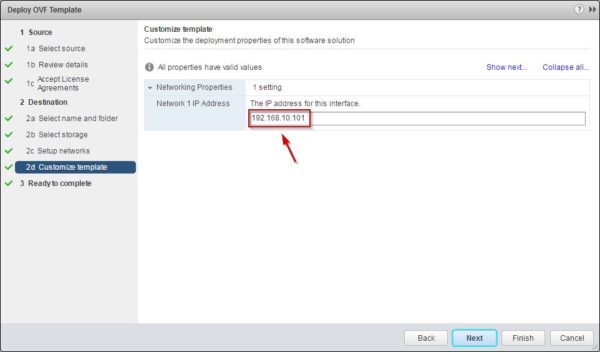
Enter the Network IP address of the appliance and click Next.
Optionally enable the Power on after deployment option then click Finish to begin the deployment.

Setup the instance of vSphere H5 client
If the VMware appliance is used as vCenter Server, to establish the communication between the Web Client and the VCSA ensure that Bash is the default shell.
Change the VCSA shell
To change the default shell, you need to enable SSH access in the VCSA.
Access the Home > Administration > System Configuration section and click Nodes > <Node_Name>. In the right pane select Manage > Settings, under Common item select Access then set SSH login as Enabled.

If you are using the vCenter Server appliance (VCSA), SSH the VCSA and login as root. Type the following command to enable the Bash shell:
Command> shell.set --enable True

Access the Bash shell.
Command> shell

Run the following command to change the default shell. Change the password if requested.
# /usr/bin/chsh -s "/bin/bash" root

Register Fling
SSH the Web Client appliance entering the following credentials:
username: root
password: demova

To register the appliance against your vCenter Server type the command:
/usr/lib/vmware-client-configui/scripts/configui.sh configure --start yes --user root --vc <IP_Address_vCenter>
# /usr/lib/vmware-client-configui/scripts/configui.sh configure --start yes --user root --vc 192.168.10.80

Type yes when requested and enter the password for the VCSA root.

When the configuration is complete, the vSphere Client Web Server is started.

To sync date and time, you can configure a separate NTP Server using the command:
/usr/lib/vmware-client-configui/scripts/configui.sh configure --start yes --user root --vc <IP_Address_vCenter> --ntp <NTP_server>
# /usr/lib/vmware-client-configui/scripts/configui.sh configure --start yes --user root --vc 192.168.10.80 --ntp 192.168.10.120
Return to the Appliance shell by running the following command in the VCSA:
# /usr/bin/chsh -s /bin/appliancesh root

Access Fling
To access Fling Web Client, open your favorite browser and type the address:
https://IP_Fling_Appliance:9443/ui.

Keep in mind that Fling is not a complete tool and due to limited capabilities should not be used in production.


