By deploying Omnissa App Packages via In-Guest VHD mode, you can stream virtualized apps via SMB shares directly to guest VMs.
This solution allows you to deliver virtualized software directly from secure network file shares straight to your end-user virtual machines bypassing vCenter API dependencies for faster, hypervisor-agnostic app delivery.
Blog series
How to install Omnissa App Volumes In-Guest VHD - pt.1
How to configure Omnissa App Volumes In-Guest VHD - pt.2
Configuring Omnissa Writable Volumes with In-Guest VHD - pt.3
Deploying Omnissa App Packages via In-Guest VHD - pt.4
Prerequisites
To create and deploy Omnissa App Packages via In-Guest VHD, ensure you have the following infrastructure components in place:
- App Volumes Manager - Fully up and running.
- A SMB share - An SMB share accessible by both the Omnissa App Volumes Manager and the target guest virtual machines. We already created this SMB share in Part 1.
- Correct permissions:
- The guest VMs (machine accounts) or user accounts must have Read permissions for the SMB share.
- The App Volumes Manager requires Read/Write permissions to upload the VHD packages.
- Applications to Virtualize - The software you intend to package. In this guide, the Notepad++ will be used as example application.
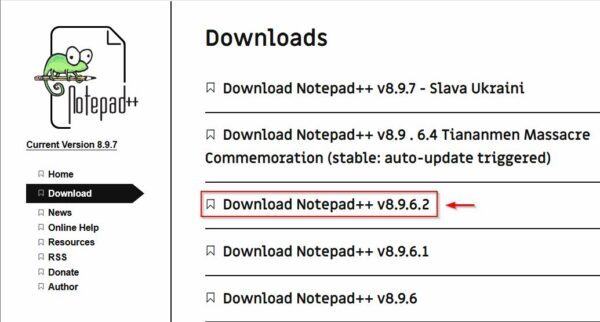
- Packaging VM - A dedicated VM with the App Volumes agent installed, which will be used to create the Omnissa App Packages via In-Guest VHD.
Creating Omnissa App Packages via In-Guest VHD
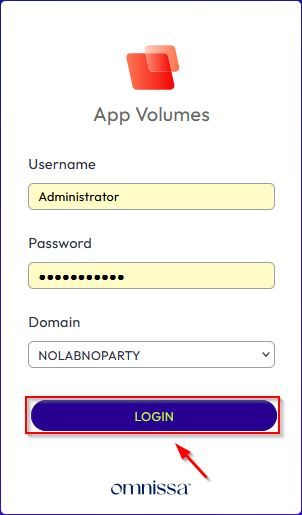
Login to App Volumes Manager, access the App Volumes Manager using your administrative credentials and click Login.
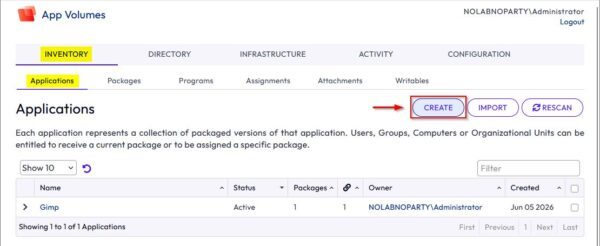
Once logged in, navigate to INVENTORY > Applications and click Create.
Enter a Name for the application and an optional Description for the application you want to virtualize. Click Create.
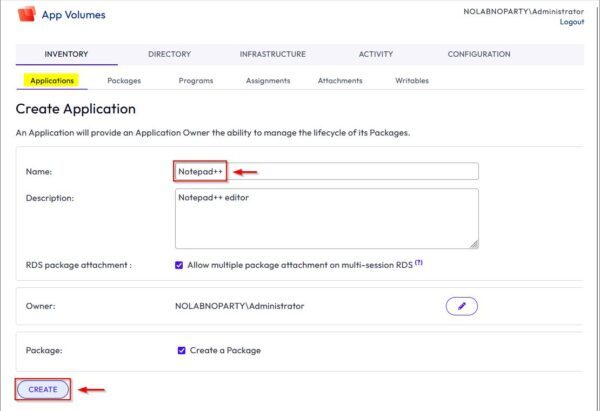
Click Create to confirm.
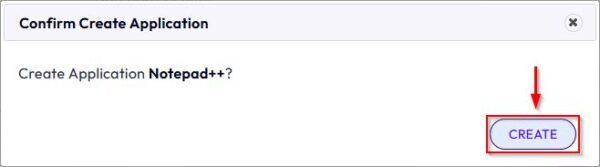
In the Packages tab, specify a Name for the package, select your network share as the Storage location, and provide an optional Description. Click Create.
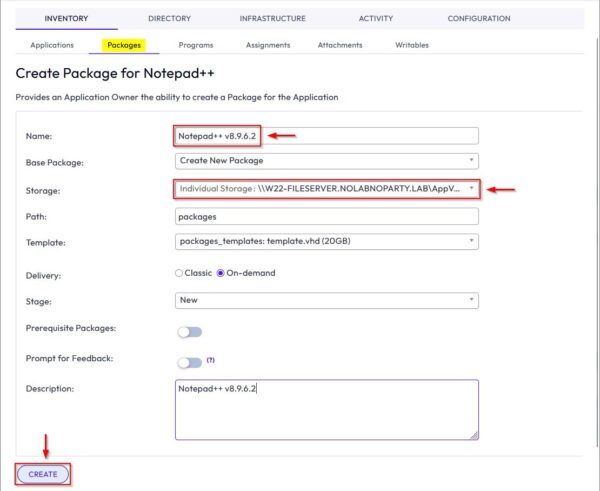
Leave the Perform in the background option checked (unless your specific requirements dictate otherwise) and click Create.
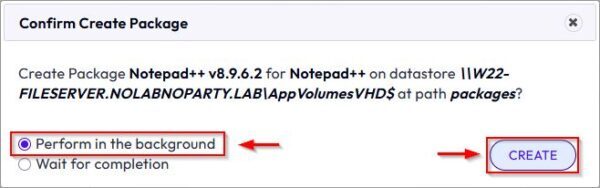
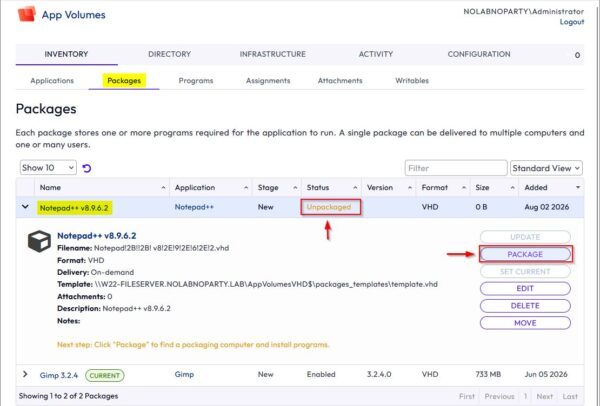
In the Packages tab, the newly created package will display a Status of Unpackaged. Expand this package entry and click Package to search for the provisioning computer.
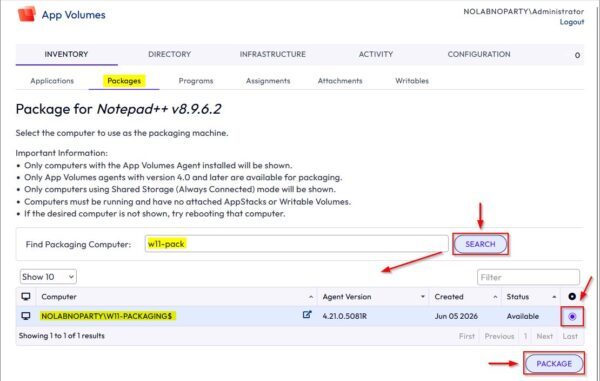
In the Find Packaging Computer field, enter the name of your dedicated packaging VM and click Search. The dedicated VM must be powered on, have the App Volumes Agent installed, feature a clean installation of the same OS version used by your production VDIs, and be joined to the Active Directory domain. Select the correct VM from the results and click Package.
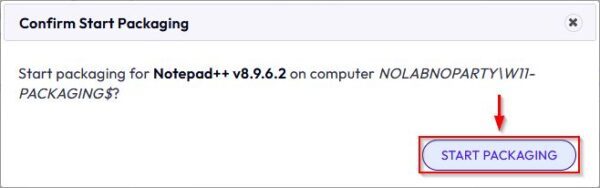
Click Start Packaging.
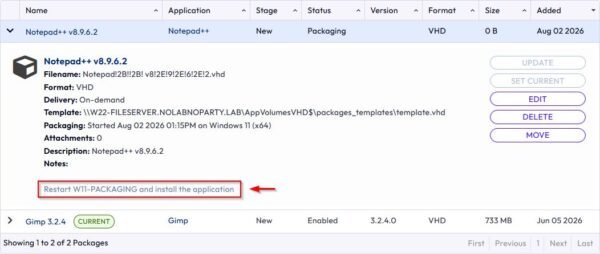
You will be prompted to reboot the target VM to initiate the packaging process.
This article has been written for StarWind blog and can be found in this page. It covers the complete procedure to deploy Omnissa App Packages via In-Guest VHD.
Testing the assigned package
To test that everything works as expected, verify that the application package is being delivered correctly to your end-users. Connect to your Omnissa Horizon infrastructure and login using the credentials of a user who is entitled to use the application. Click Login.
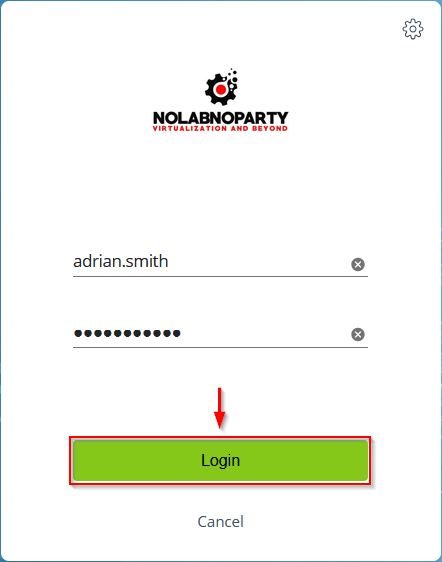
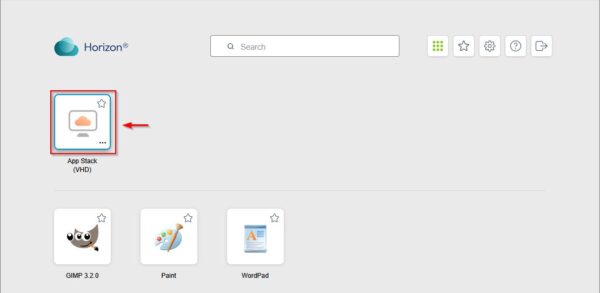
From the available Horizon resources, select and launch the assigned VDI desktop. Unlike standard published applications that appear as standalone icons in the user's Horizon portal, Omnissa App Packages delivered via In-Guest VHD attach invisibly and appear directly inside the virtual desktop environment itself.
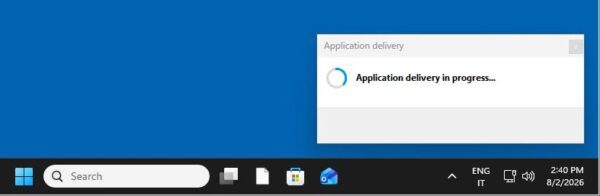
Once logged into the VDI, locate the application shortcut. The package is now available to the user and can be opened by double-clicking its icon. The system will seamlessly mount and run the application.
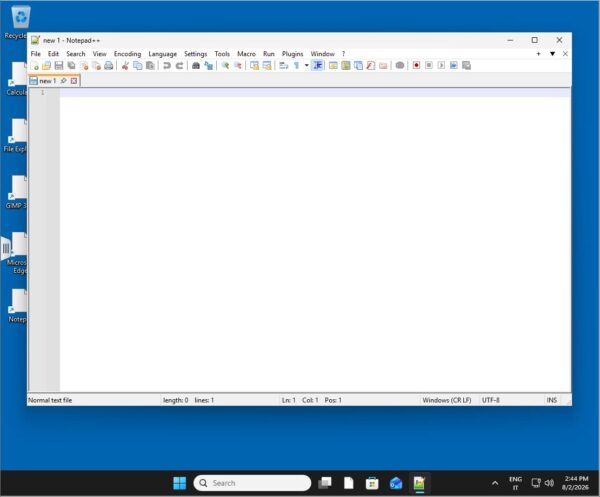
The application is now accessible directly within the VDI.
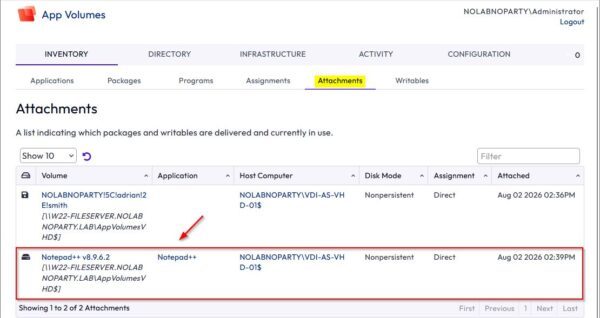
To confirm delivery from the administrative side, log in to the App Volumes Manager and navigate to the Attachments tab. Here, you can verify exactly which packages have been successfully delivered and are currently in use.
Utilizing Omnissa App Packages via In-Guest VHD significantly simplifies application management across your organization. Because the packages only require a standard SMB share, they operate completely independently of the underlying hardware, making deployment incredibly flexible and scalable.
Read the full article on StarWind blog.