


In Windows Server 2019 you can experience the error "Windows cannot access the specified device path or file" related to insufficient permissions.
Also if you login to the Windows Server using the Administrator account you can face this error because on Windows Server 2019 the Administrator user has access restrictions.
For example, if you try changing the network parameters the following error is displayed:
Windows cannot access the specified device, path, or file. You may not have the appropriate permissions to access the item.

Fix "Windows cannot access the specified device path or file" error
To fix this error, you need to enable a local policy in the Windows Server 2019.
From Start > Run type gpedit.msc and click OK.

Go to Computer Configuration > Windows Settings > Security Settings > Local Policies > Security Options and open the User Account Control: Admin Approval Mode for the Built-in Administrator policy.
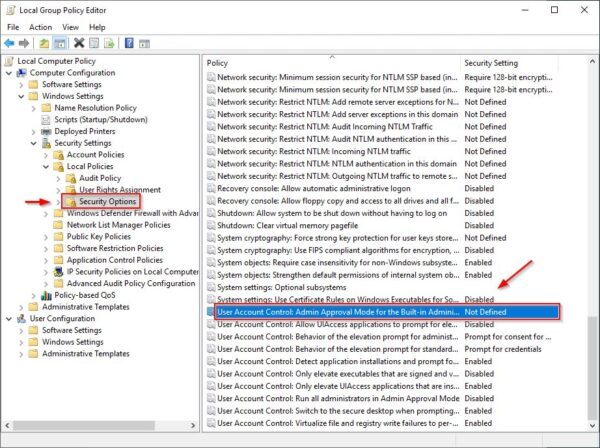
The available options are the following:
- Enabled - The built-in administrator account logs on in Admin Approval Mode so that any operation that requires elevation of privilege displays a prompt that provides the administrator the option to permit or deny the elevation of privilege.
- Disabled - If Admin Approval Mode isn't enabled, the built-in Administrator account runs all applications by default with full administrative privileges
Select Enable and click OK.

The policy is now enable. You need to logoff and logon again to activate the new policy.

Now if you try changing the network setting, the error "Windows cannot access the specified device path or file" is no longer displayed.
As best practice, the Administrator account should not be used for administrative operations. Create a new user with appropriated permissions instead.







Thanks .. it’s Worked ?.