


During the upgrade of the Domain Controllers installed in your Active Directory there is a quick way to transfer FSMO roles to the new server.
As best practice, you should avoid an in-place upgrade of the DC but perform a fresh installation of the new Domain Controller instead.
If all Domain Controllers are being upgraded, we need to identify the Domain Controller that currently holds the FSMO roles.
To identify which DC has the FSMO roles installed, from a Domain Controller open the Command Prompt as Administrator and run the following command:
C:\> netdom fsmo query
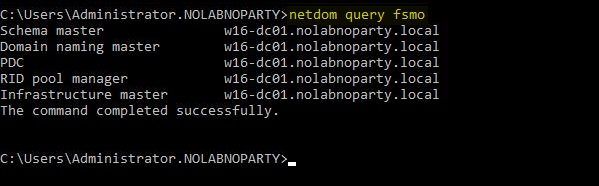
The command will return the Domain Controller with FSMO roles installed.
Transfer FSMO roles
In this example, we need to transfer the FSMO roles from the old DC w16-dc01 to the new w19-dc01 server.
Although you can use the GUI or the netdom command to transfer FSMO roles from a DC to another, there is a quicker way with PowerShell instead. From the Domain Controller, open the Windows PowerShell as Administrator.

Run the following command to transfer all five FSMO roles from the old DC to the new server (w19-dc01 in the example). Type A and press Enter when prompted.
Move-ADDirectoryServerOperationMasterRole -Identity <domain controller> -OperationMasterRole 0,1,2,3,4
The acceptable values for this parameter are:
- PDCEmulator or 0
- RIDMaster or 1
- InfrastructureMaster or 2
- SchemaMaster or 3
- DomainNamingMaster or 4
PS C:\> Move-ADDirectoryServerOperationMasterRole -Identity w19-dc01 -OperationMasterRole 0,1,2,3,4

Enter the following command to check if FSMO roles has been transferred successfully.
C:\> netdom fsmo query

All FSMO roles are now assigned to the new Domain Controller.





No Responses