


If your Microsoft Certification Authority (CA) is running on an obsolete Windows Server version, you need to migrate Root CA to a new server to keep the support from Microsoft.
You can directly migrate Root CA to version 2019 if the CA is running on any version of Windows Server from 2008R2 and later. The procedure involves several steps that need to be followed to avoid possible errors.
Migrate Root CA
The migrate Root CA procedure to a new server requires the following steps:
Old server
- Backup the current Root CA
- Backup the CA registry key
- Remove the CA role
New server
- Install the CA role on the new server
- Configure the new CA
- Import the private key
- Restore the database
Backup the current Root CA
Access the current CA Server and open the Certification Authority manager.

Right click the name of the CA (lab.local in the example) and select All Tasks > Back up CA.

The Certification Authority Backup Wizard opens. Click Next.

This article has been written for StarWind blog and can be found in this page. It covers the full procedure to migrate an existing Root CA to a new server retaining all settings configured.
Restore the database
Open the Certification Authority manager and right click the CA name and select All Taks > Restore CA.

The Certification Authority Restore Wizard opens. Click Next.
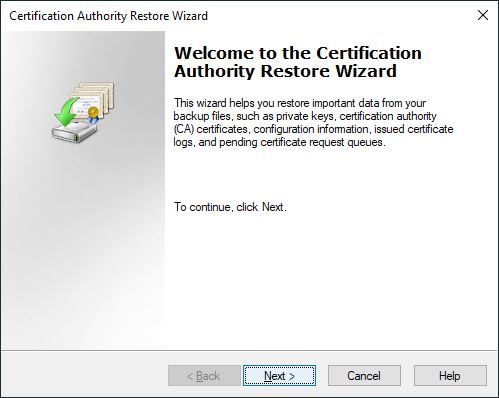
Select both Private key and CA certificate and Certificate database and certificate database log options. Click Browse and select the location where the database is located then click Next.

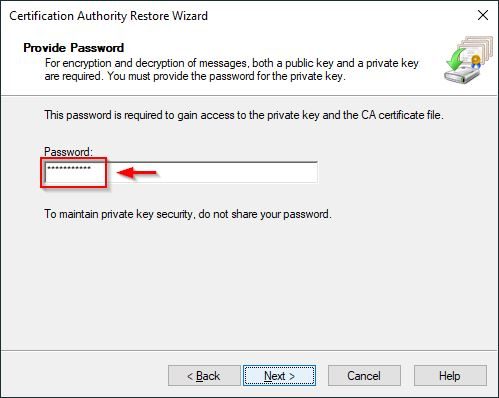
Enter the Password to gain access to the private key and click Next.
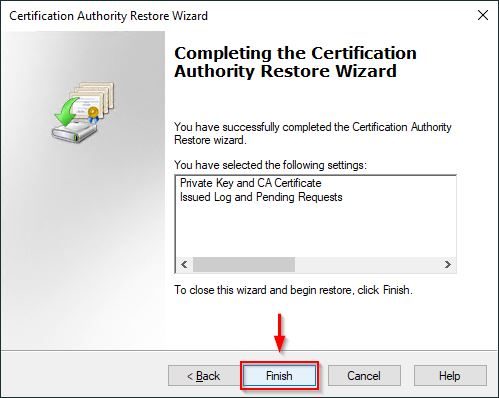
Click Finish to restore the database.
Click Yes to start Active Directory Certificate Services.

The migrated Root CA is now fully working with all data migrated from the old CA.

Once the migration of the Certification Authority has been completed, the old CA server can be safely dismissed.
Read the full article on StarWind blog.


Grazie Paolo !
Testo subito nei prossimi giorni.