


The new Veeam Backup for Microsoft 365 v8.5 has been released introducing several new enhancements and optimizations.
If you are already running an existing v8, v8.1, v8.2, v8.3, or v8.4 deployment of Veeam Backup for Microsoft 365, a direct upgrade to v8.5 is supported.
What's new Veeam Backup for Microsoft 365 v8.5
Platform & Compatibility Support
- Microsoft Graph permissions - additional Microsoft Graph permissions are required for the backup app registrations in Microsoft Entra ID to support Exchange mailbox protection after EWS retirement.
- Exchange support - Microsoft Exchange Server Subscription Edition is now supported.
- SharePoint restores - site permissions and members are now preserved when restoring a site to a different location within the same Microsoft 365 organization via the REST API.
SharePoint & Object Storage
- Asynchronous processing - accelerated SharePoint backup and object storage repository performance.
- Database Query tuning - optimized internal database queries for massive datasets.
- Memory & Infrastructure efficiency - reduced memory footprint for repositories holding SharePoint data, and lowered PostgreSQL load for large repositories.
Microsoft Exchange
- Faster Backup Windows - reduced Exchange backup job durations by up to 26% for large mailboxes by parallelizing synchronization and repository write operations.
- Large Mailbox handling - improved overall backup performance for mailboxes containing a high volume of emails within a single month.
System & Backend
- Stream management - optimized the processing of backup jobs and restore session events to prevent uncontrolled growth of the NATS controller stream.
Upgrade Veeam Backup for Microsoft 365 to version 8.5
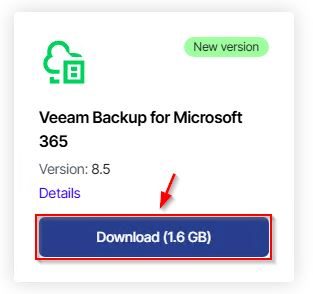
From the Veeam portal, download the Veeam Backup for Microsoft 365 v8.5 .ISO file and copy it to the VBO Server.
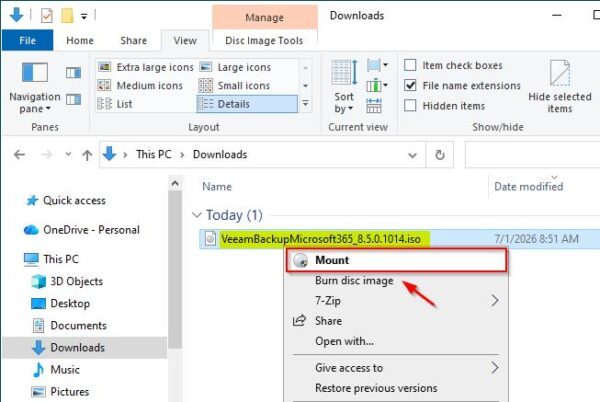
On the VBO Server, right click the downloaded .ISO file and select Mount.
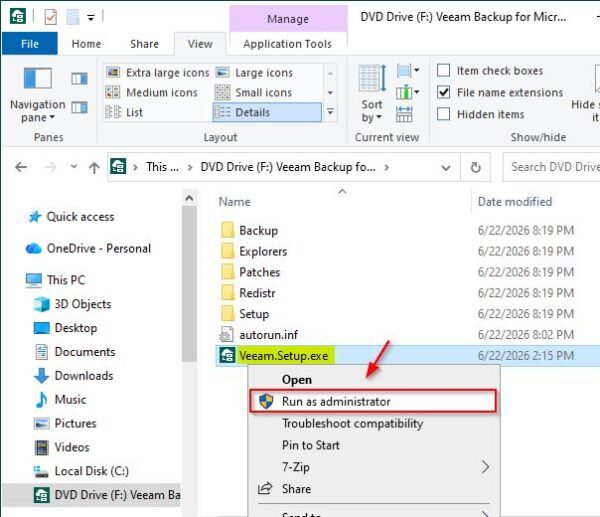
Access the mounted ISO, right click the Veeam.Setup.exe file and select Run as administrator.
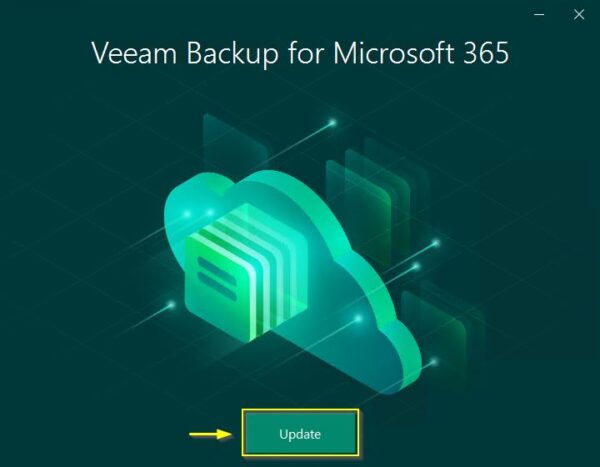
The installer will detect an existing installation, click Update to proceed.
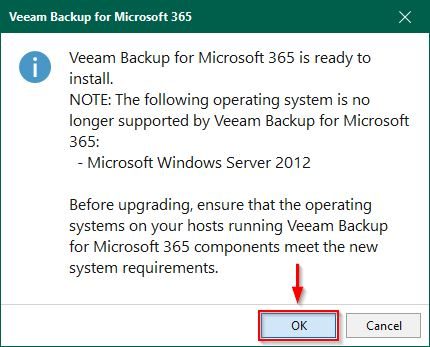
Click OK to acknowledge the displayed note.
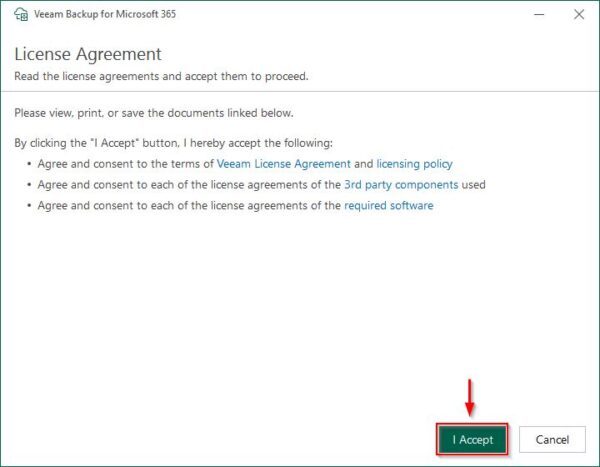
Click I Accept to accept the EULA.
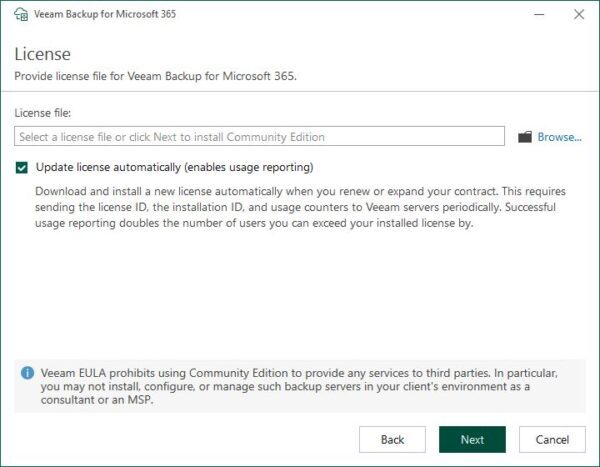
A valid license should already be installed. Click Next.
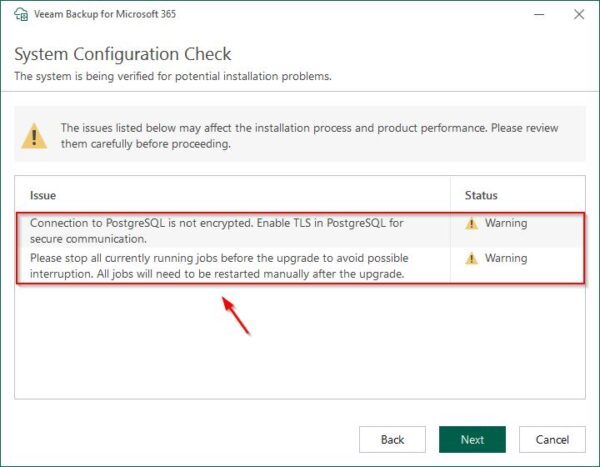
The System Configuration Check is performed to detected possible issues. If any issues are found, address the recommendations first, then click Next to proceed.
The new Veeam Backup for Microsoft 365 v8.5 requires new application permissions to connect to Microsoft 365.
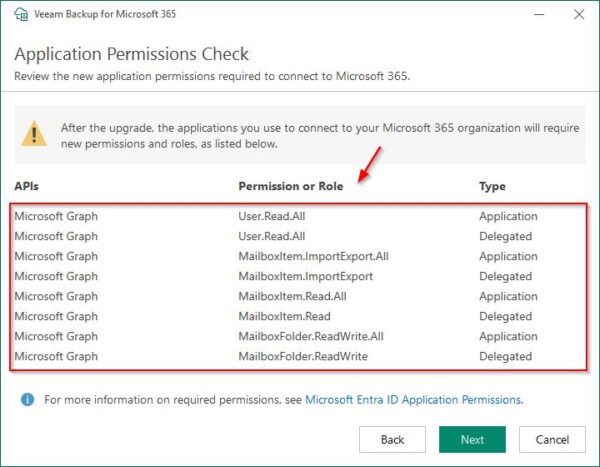
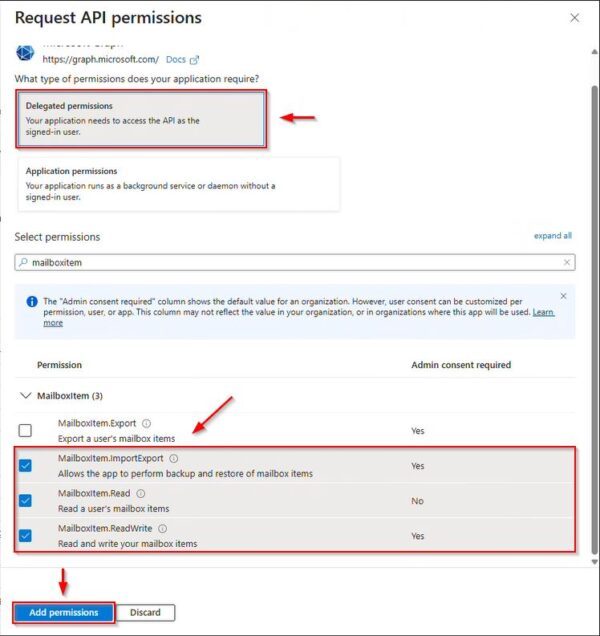
Login to your Microsoft Entra ID and add the required permissions to the configured application. Select the type of permissions to configure (Delegated and Application permissions), select the specific permissions to assign from the list, and then click Add permissions.
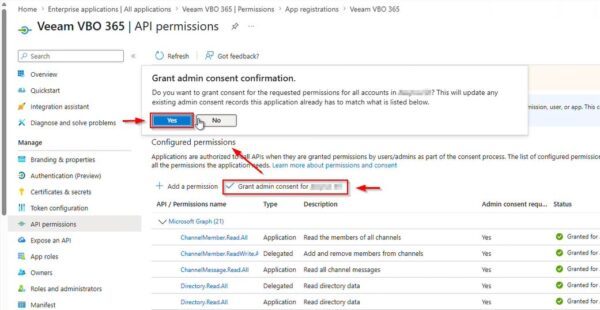
Once all required permissions have been selected, click Grant admin consent for OrganizationName then click Yes to confirm.
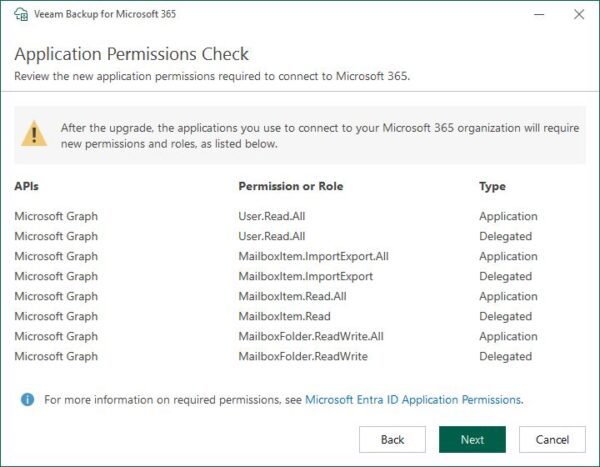
Go back to Veeam Backup for Microsoft 365 v8.5 wizard and click Next.
Click Install to install the update.
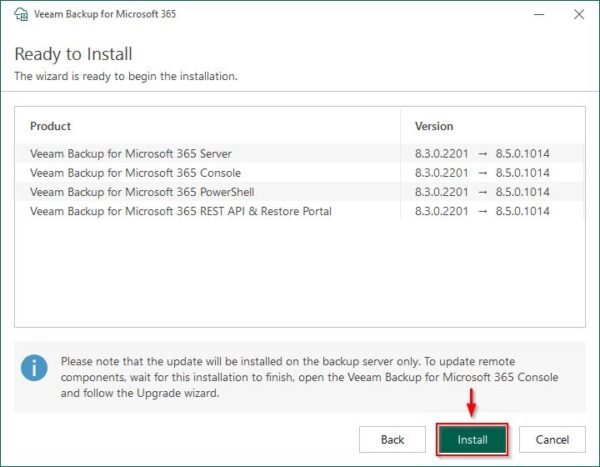
The update is now being installed on the system.
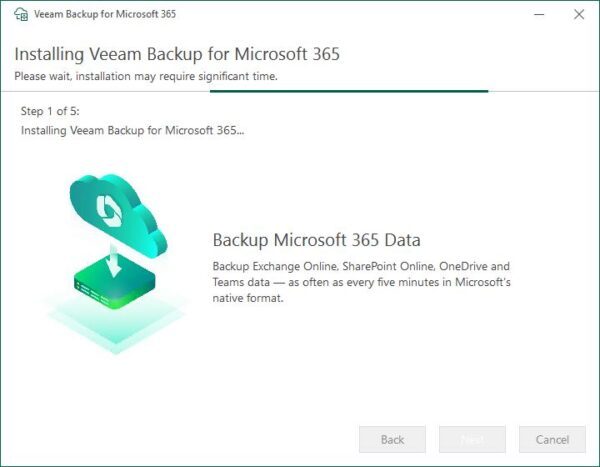
After a few minutes, the installation will be complete. Click Finish to close the wizard.
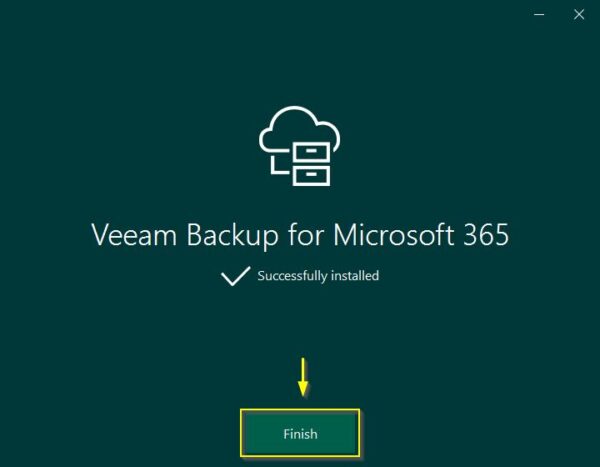
Access the console
Login to the Veeam Backup for Microsoft 365 v8.5 console by entering your credentials, then click Connect.
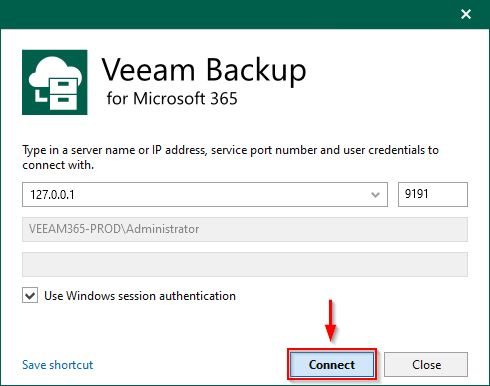
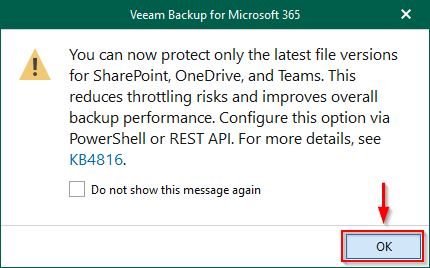
Click OK to acknowledge the warning.
Upgrade Proxies
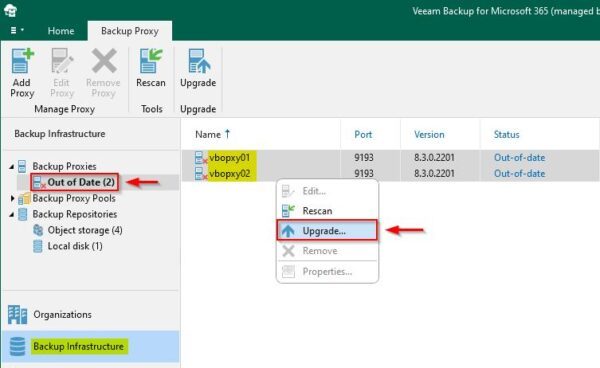
Go to Backup Infrastructure area and select Out of Date under Backup Proxies. Right click the Proxies you want to upgrade and select Upgrade.
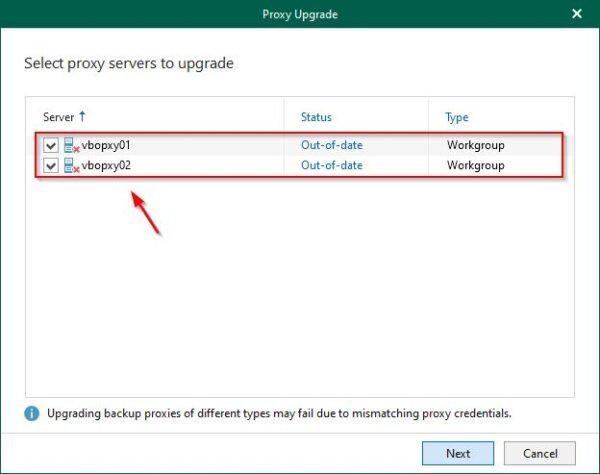
Select the out-of-date Proxies and click Next.
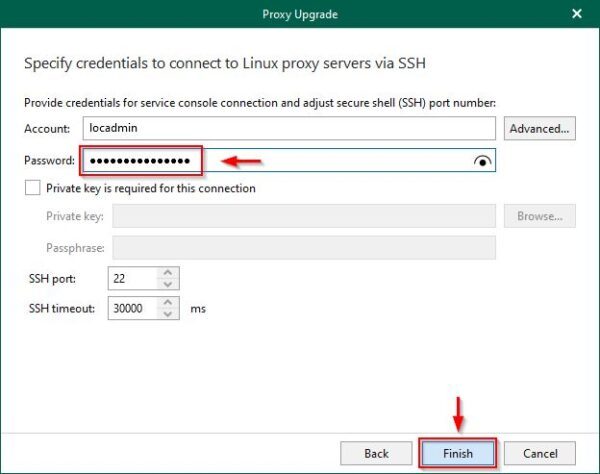
Type the Account name and click Advanced. Select Elevate specified account to root and click OK.
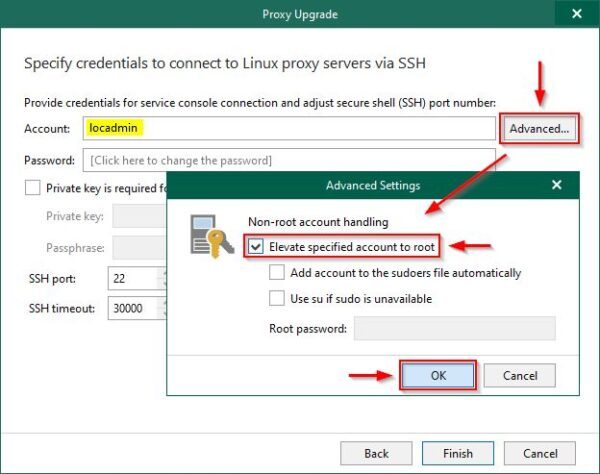
Enter the Password, then click Finish.
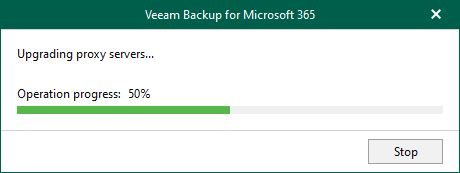
The selected Proxies are now being updated.
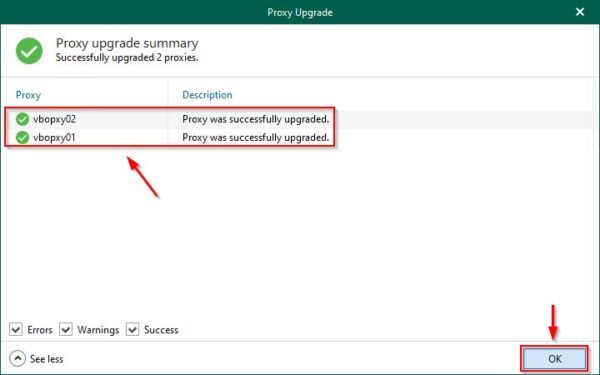
When the operation is complete, click OK close the window.
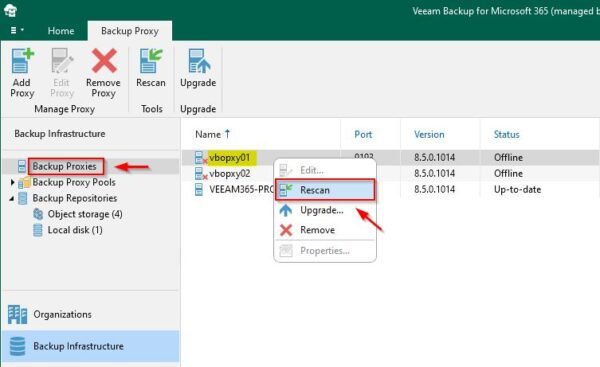
Right click the upgraded Proxies and select Rescan.
All Veeam Backup for Microsoft 365 components are now upgraded to version 8.5.
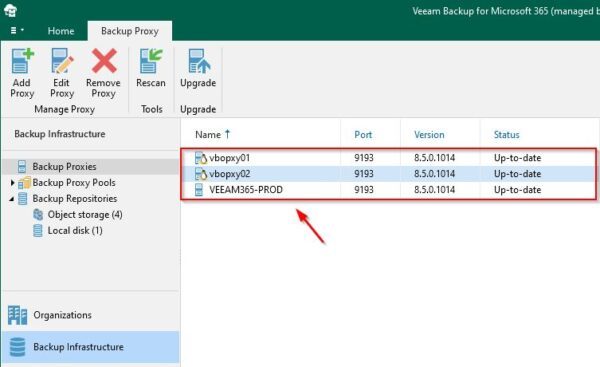
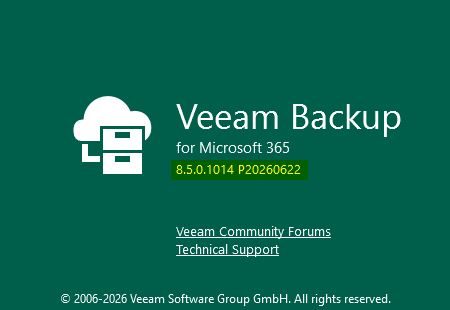
Following the installation, the new build number will be 8.5.0.1014 P20260622.
Additional info about Veeam Backup for Microsoft 365 v8.5 can be found in the Release Noes.


