


Since multiple RDP sessions are disabled by default on Windows Servers, multiple concurrent remote sessions can be enabled by editing the Registry.
Because in Windows 2008/2012 RDP sessions are limited to two with one logon for one user, this setting may be useful in organizations who work with multiple administrators in the team to perform maintenance tasks.
When you try to RDP connect the server while another user is already connected, you receive the message:

Procedure
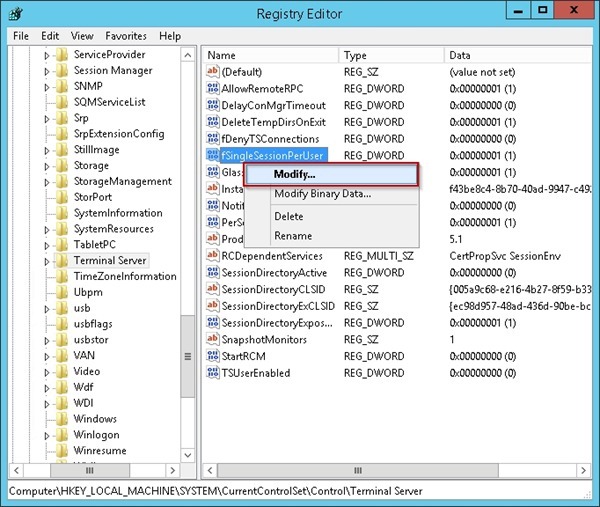
In Windows Server (2008, 2008 R2, 2012, 2012 R2) open the Registry Editor and navigate to the following key:
HKEY_LOCAL_MACHINE\SYSTEM\CurrentControlSet\Control\Terminal Server

Right click the fSingleSessionPerUser REG_DWORD and select Modify option.
Set the value from 1 to 0 then click OK.

The fSingleSessionPerUser key is now properly set.

Now you can establish multiple concurrent RDP connections to the server.




Normally every admin should have his own unique login name to logon. This tip is only if you try to logon with the same username at the same time, which is a really, really bad idea. Just think of the users profile! Which change will be saved after the log out? And that's just one example!
So please never try to login twice with the same username at the same time. Different administrators should always have different user / admin accounts! That's also a security thing, as every person has it's own unique password then!
I totally agree with you.
Unfortunately some customers have requests that not always fit into the best practices and sometimes there is a need to work with same account at the same time.
I strongly advise to avoid this configuration if not strictly necessary or temporary.