Installed the vSphere Update Manager in the Windows server, the updates deployment process is managed through the vSphere Client connected to the VCSA 6.0.
As for vSphere 5.x, the update process in vSphere 6.0 takes place in the same way.
Blog series
VCSA 6.0: setup vSphere Update Manager - pt. 1
VCSA 6.0: install vSphere Client and VUM plugin - pt. 2
VCSA 6.0: configure vSphere Update Manager - pt. 3
Install the vSphere Client
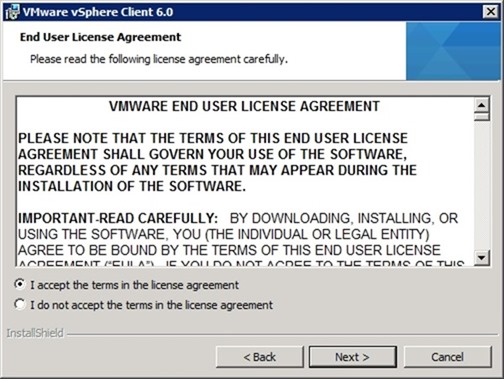
From the vCenter Installer run the vSphere Client 6.0 setup and click Next when the Installation Wizard is displayed.

Accept the EULA then click Next.
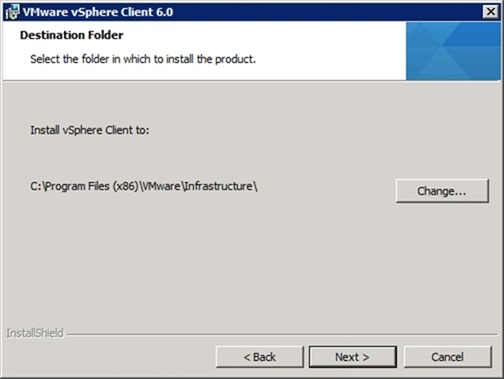
Leave default folder then click Next.
Click Install to begin the installation.

vSphere Client is being installed.

When completed, click Finish to exit the Wizard.

Install Update Manager plug-in
Open the installed vSphere Client 6.0 and type the VCSA 6.0 FQDN in the IP Address/Name field. Specify the credentials to use and click Login.

Go to Plug-ins > Manage Plug-ins menu.

In the Available Plug-ins section click Install to enable VUM service.

The plug-in installation begins.

Click Next to continue.

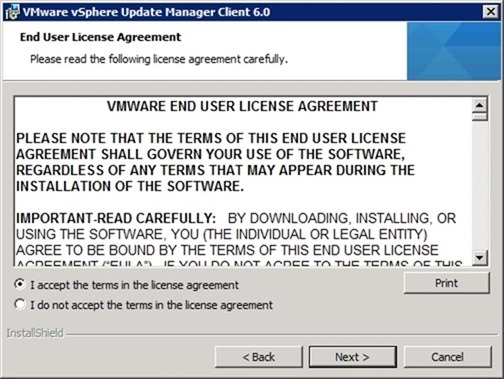
Accept the EULA then click Next.
Click Install to begin the installation.
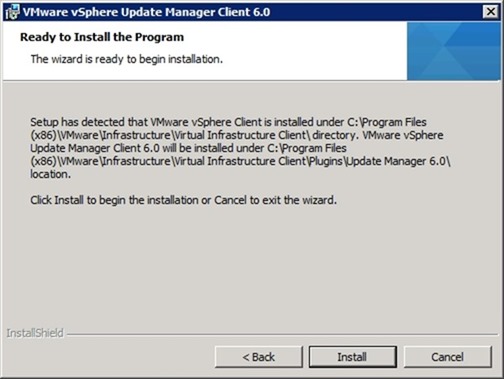
The plug-in is being installed in the system.

Click Finish to exit the Wizard.

In the Installed Plug-ins section, the VUM plug-in is now listed as Enabled.

Once the plug-in is enabled, a new Update Manager section is added to the vSphere Client.

Before starting the update process it is necessary to configure the service . Part 3 will cover the configuration of vSphere Update Manager.