


After performing the Lotus Domino 8.5 upgrade to 9.0, the environment has to be configured to take advantage of new features.
Domino Directory design upgrade, ODS upgrade and databases conversion are the next steps to accomplish in order to finalize the overall upgrade process.
Blog series
Lotus Domino 8.5 upgrade to 9.0 install - part 1
Lotus Domino 8.5 upgrade to 9.0 setup - part 2
Start Domino Server
From the server, open the IBM Domino Server (don't open it as service!) double clicking the icon.

Type Y to perform the design upgrade of the Domino Directory to the new release.
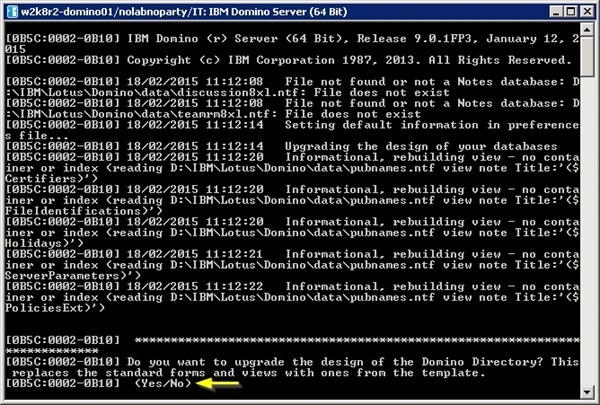
The design upgrade takes place.
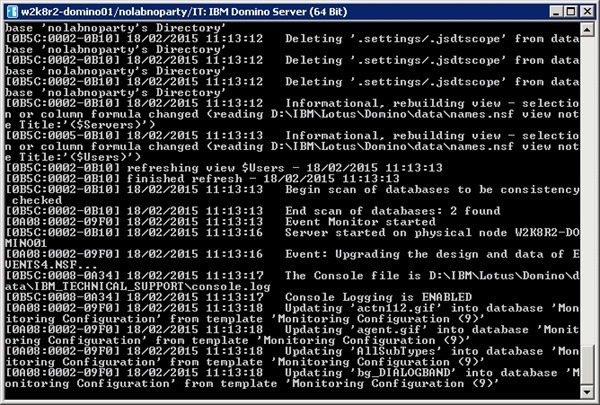
Also Notes Traveler is upgraded to the latest fix previously installed.

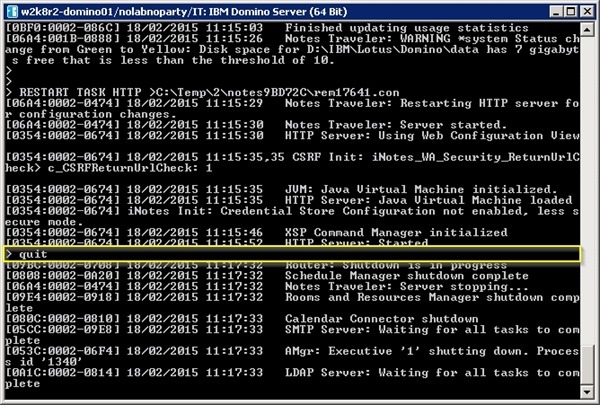
When the process has completed, shutdown the Domino Server with the command quit.
> quit
Access the server Services and Start Domino Server as service.

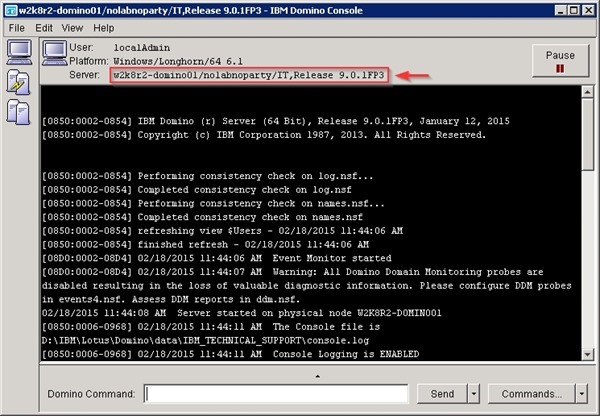
Opening the Domino Console, the Server version is now reported as 9.0.1FP3.
Upgrade ODS databases
After the Domino Server upgrade, the on-disk structure (ODS) remains at 43 (version introduced in Domino 6) and not upgraded to the new ODS version of 52 since it is not enabled by default for new or upgraded applications.
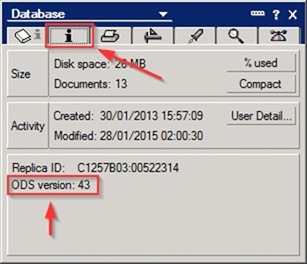
To check the current ODS release, go to Files tab from Domino Administrator, select the mail folder where users' databases are stored. Right click the database to check and select Properties.

Go to i tab and check the ODS version reported. In this example, the ODS version 43 indicates that the database version belong to Lotus Domino 7 release.
In this example, the ODS version 51 indicates that the database version belong to Lotus Domino 8 release.

To enable ODS upgrades during database compact procedure, the parameter Create_R9_Databases=1 must be added to NOTES.INI.
To add the parameter, open Domino Administrator and go to Configuration > Server > Configurations, select the server to edit and click the Edit Configuration button.
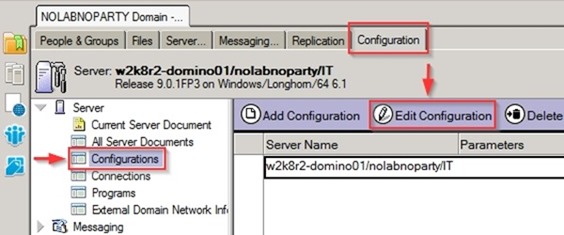
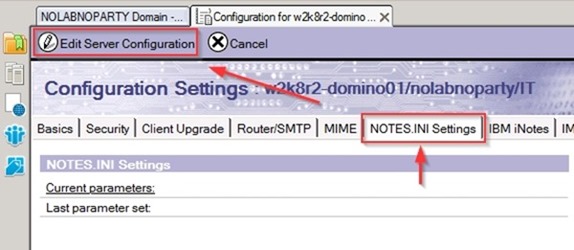
Select NOTES.INI Settings tab and click on Edit Server Configuration.
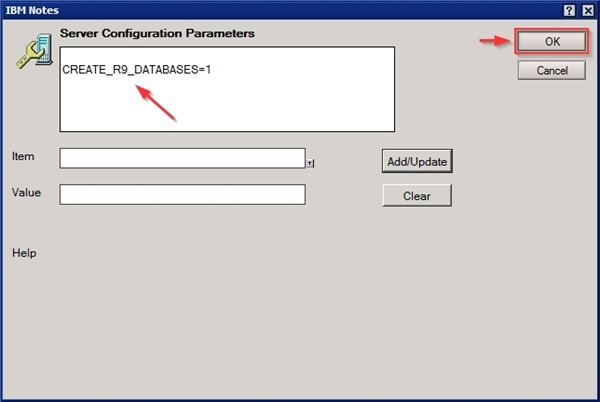
Click Set/Modify Parameters button and enter the following parameters:
Item: CREATE_R9_DATABASES
Value: 1
Click Add/update to insert the parameters.
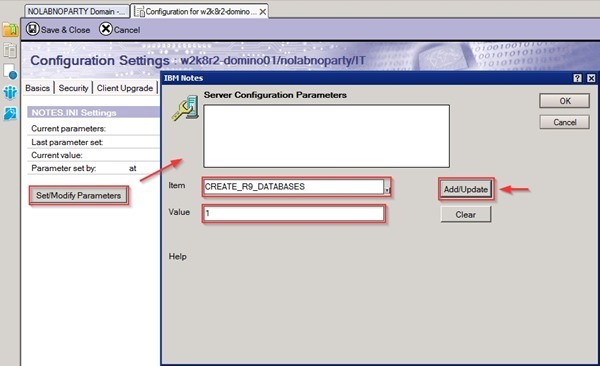
Click OK to confirm.
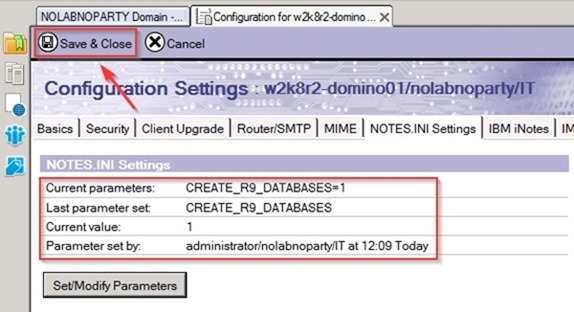
Parameters to forces ODS upgrades during database compact have been set. Click Save & Close to save the configuration.
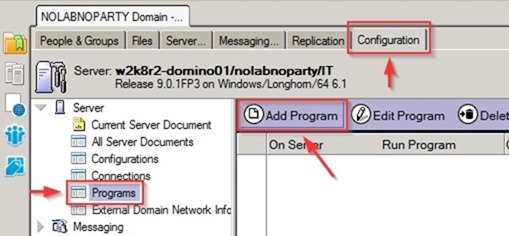
To run the compact command automatically go to Configuration > Server > Programs and click Add Program.
Insert compact as Program name and -c as Command line. Set the Schedule parameters then click Save & Close to save the configuration.
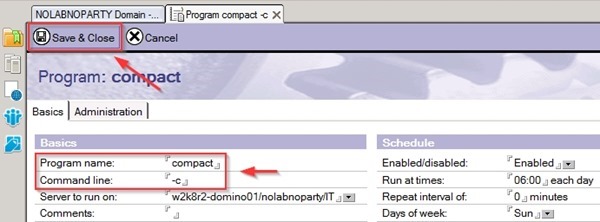
The compact command has been configured and scheduled.

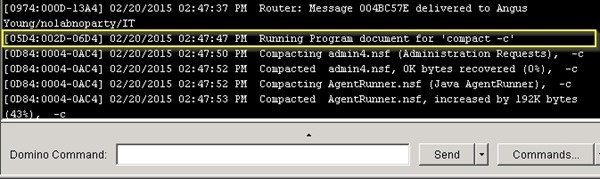
When the time match the schedule, the process is automatically started (in this example the scheduled time set is 02:47 PM).
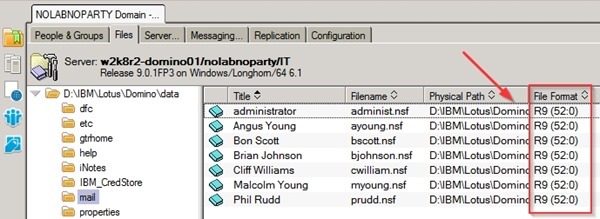
Checking the File Format column, the value reported is now R9 (52:0).
To manually run the compact command on all the databases, from the Console command type the command:
load compact database <options>
load compact mail/bscott.nsf -c

The ODS version reported prior compacting the database.
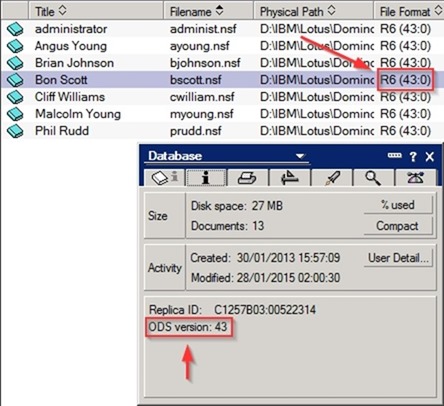
The result after running the compact command.

Run maintenance on the system databases
After the Domino Server upgrade, run maintenance on the system databases names.nsf and admin4.nsf to upgrade their ODS as well.
Before executing the maintenance, run the quit command at the Domino Command console and enter the following commands at the server Command Prompt.
Fixup the databases
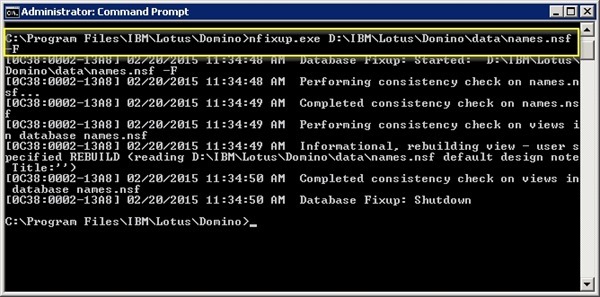
Run fixup command to repair inconsistencies in the databases.
nfixup.exe names.nsf -F
nfixup.exe admin4.nsf -F
C:\Program Files\IBM\Lotus\Domino>nfixup.exe d:\IBM\Lotus\Domino\data\names.nsf -F
C:\Program Files\IBM\Lotus\Domino>nfixup.exe d:\IBM\Lotus\Domino\data\admin4.nsf -F

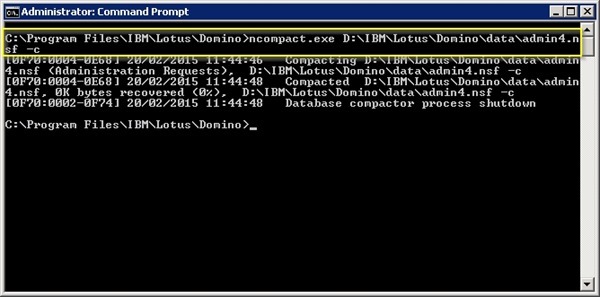
Compact the system databases
Run the compact command to convert the ODS version to the new version.
ncompact.exe names.nsf -c
ncompact.exe admin4.nsf -c
C:\Program Files\IBM\Lotus\Domino>ncompact.exe d:\IBM\Lotus\Domino\data\names.nsf -c

C:\Program Files\IBM\Lotus\Domino>ncompact.exe d:\IBM\Lotus\Domino\data\admin4.nsf -c
Updall
Run updall command to update the views of Domino Directory.
nupdall.exe names.nsf -R
nupdall.exe admin4.nsf -R
C:\Program Files\IBM\Lotus\Domino>nupdall.exe d:\IBM\Lotus\Domino\data\names.nsf -R

C:\Program Files\IBM\Lotus\Domino>nupdall.exe d:\IBM\Lotus\Domino\data\admin4.nsf -R

Checking the ID files processed, the ODS has been updated to version 52.
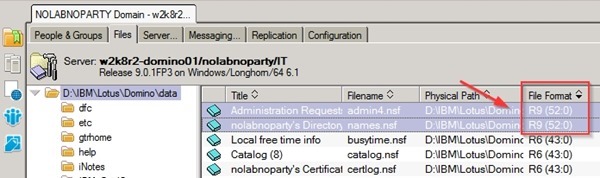
The maintenance procedure is complete.
Access users' mailboxes
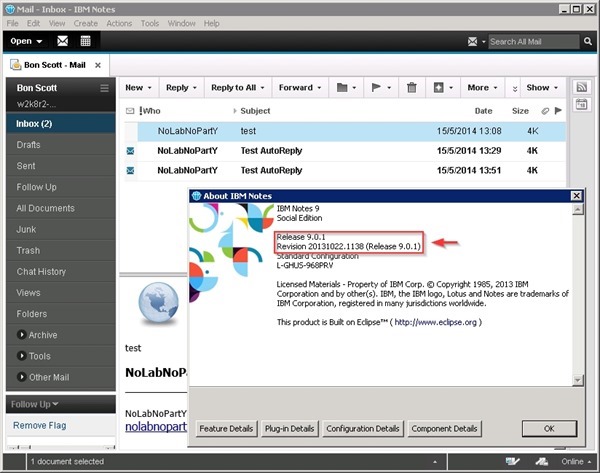
Using previous Lotus Notes clients 8.5 to access the user mailbox results in keeping the old layout with limited features.

To take advantage of the features introduced with the new release, the users' databases must be converted to the new format. Once upgraded, full features will be available to Lotus Notes 9 clients.
Opening Lotus Notes 9 client, the layout changes and all new features are available to users.
Convert the database design
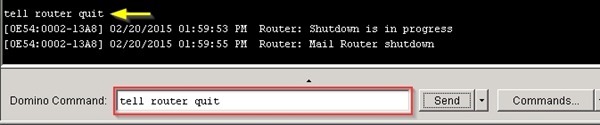
To start the conversion process, the router must be shut down.
tell router quit
To perform the database conversion, the load convert utility is used.
load convert mail\filename.nsf * mail9.ntf
To upgrade a single mail database:
load convert mail\ayoung.nsf * mail9.ntf

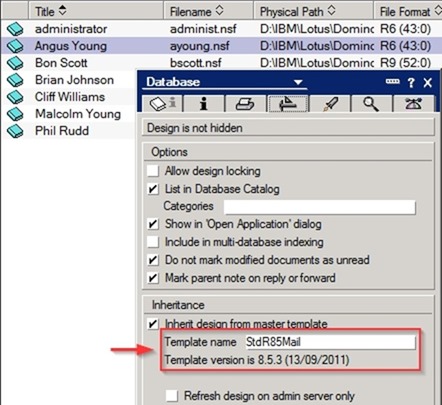
Before database conversion, the Template name and version are reported as StdR85Mail and 8.5.3.
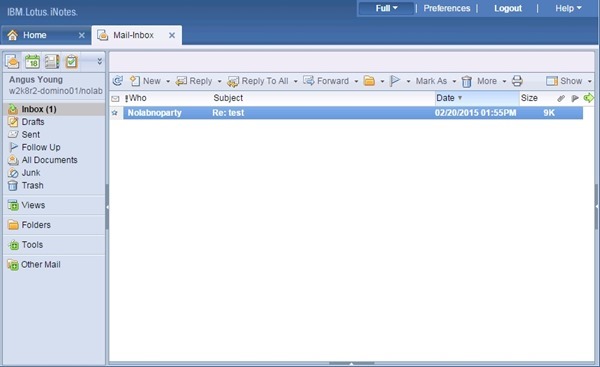
The webmail layout remains the same as previous release.
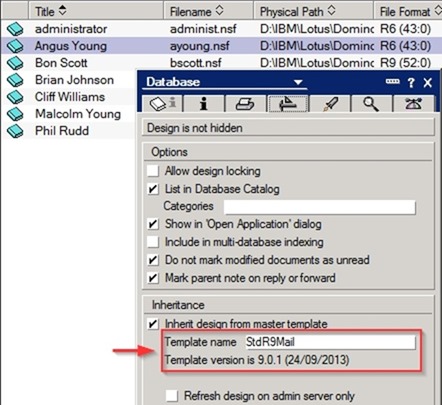
Converting the database design, both Template name and version are updated to new release StdR9Mail and 9.0.1.
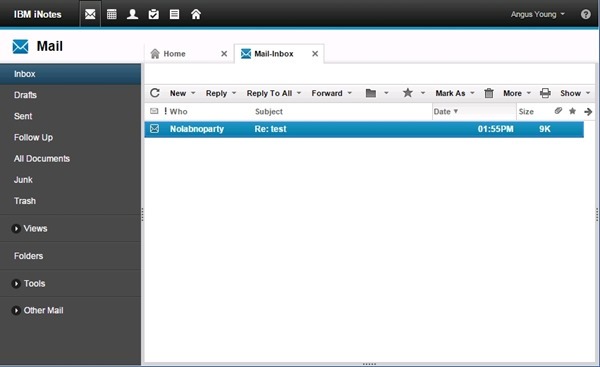
The webmail layout is also updated to the new format.
To upgrade all mail databases in a directory, run the following command:
load convert mail\* StdR85Mail mail9.ntf
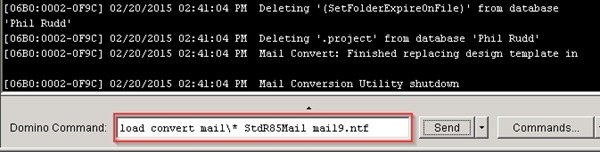
When the conversion has completed, start the router task again.
load router
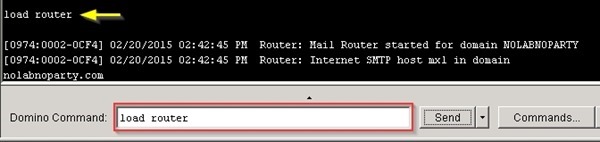
The upgrade procedure has been completed successfully. Check the system for any warning or error before giving the users the permission to login the system.


Hi Paolo!
have you template mail9.ntf in spanish?
my interface is on inglish, I can change to spanish?
Tanks