


Lotus Domino ID Vault is a users ID Files repository configured in the system that makes ID users and passwords administration easier.
Configuration changes are saved directly in the repository keeping the IDs copies always up-to-date.
Enabling the ID Vault configuration is a quite simple task but it requires a good analysis with the support of a testing period prior production.
Procedure
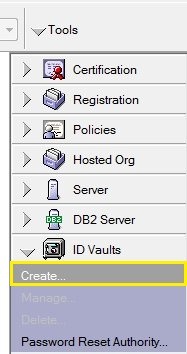
Open Domino Administrator, select menu Configuration Tab > Tools > ID Vaults and click Create.
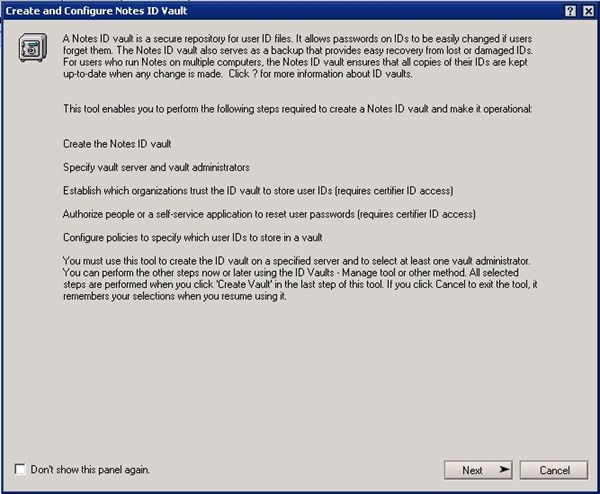
The Wizard starts by showing a short description of the ID vault functionality. Click Next to continue.
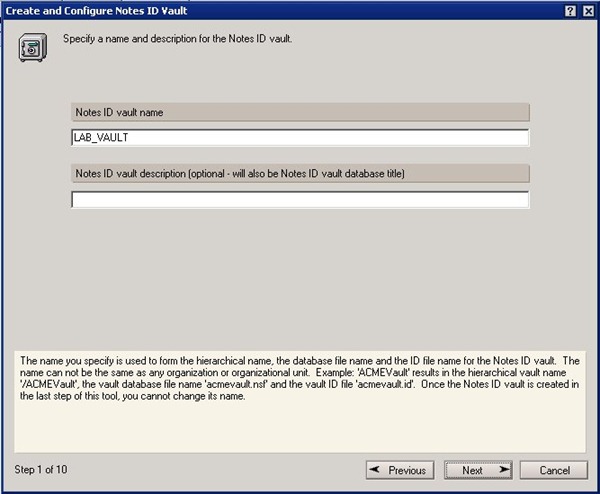
Type the name of the ID Vault you are creating in the field Notes ID vault name then click Next.
Type password and path of the Vault ID file. As done during Lotus Domino installation for the Certifier, Server and Administrator IDs, copy the Vault ID file and keep it in a safe place to avoid problems if the ID file is deleted from the server. Click Next to continue.

Specify the server where the ID Vault has to be created then click Next.

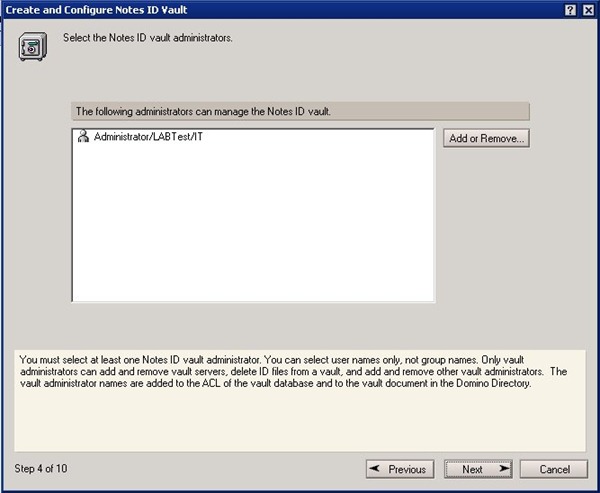
Select the ID vault administrators through the button Add or Remove. Click Next to continue.
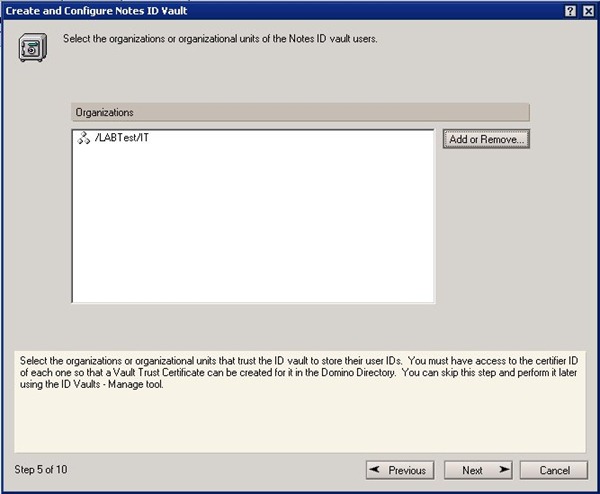
Click Add or Remove button, select Organizations will be part of the Vault and click Add.
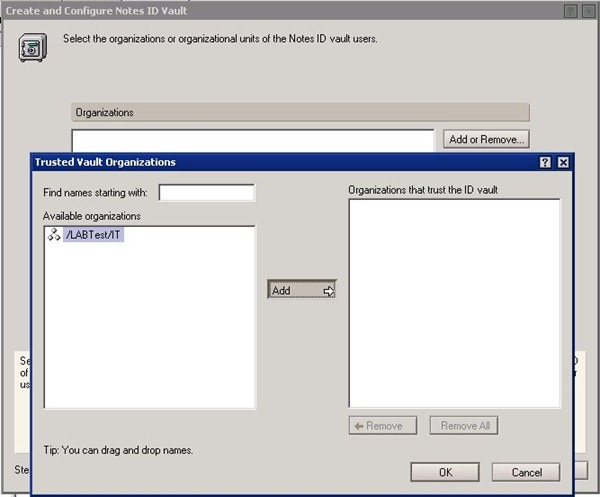
Select Organizations that trust the Vault and where Notes ID vault users will be stored.
Specify the Password Reset Authority by organization selecting the requested accounts by organization then click the Add button. It is also possible to assign the right to reset the agent password selecting the user previously added and enabling the Password reset agent authority option. Click Next to continue.

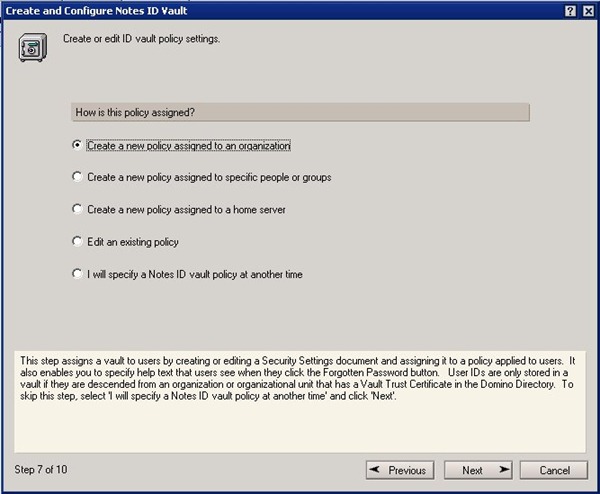
Select Create a new policy assigned to an organization option to create automatically the policy that will enable the Vault in the Trusted Organizations. Click Next.
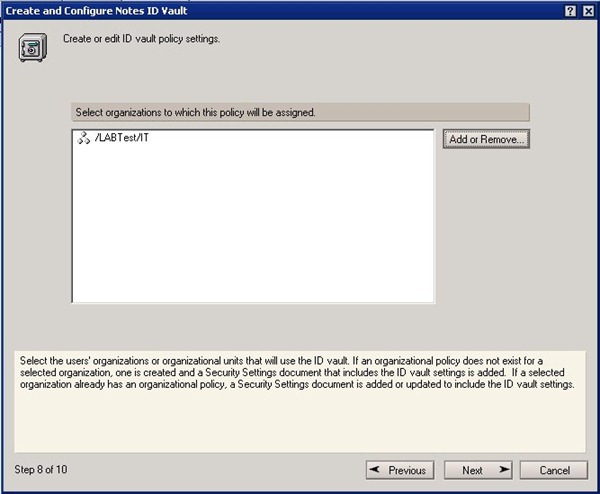
Select the Organizations to assign the policy.

Click the Add or Remove button and select the Organizations to which the policy will be assigned.
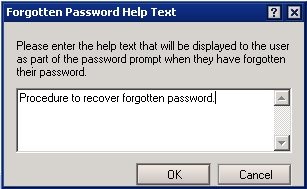
Type the text to help the user when the password is forgotten.
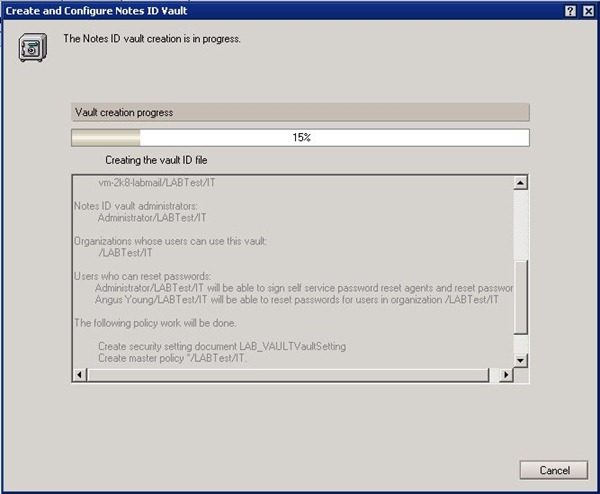
The next window shows the configuration to be applied on creation. Click Create Vault to go ahead with the installation.

The creation progress window is shown during the process.
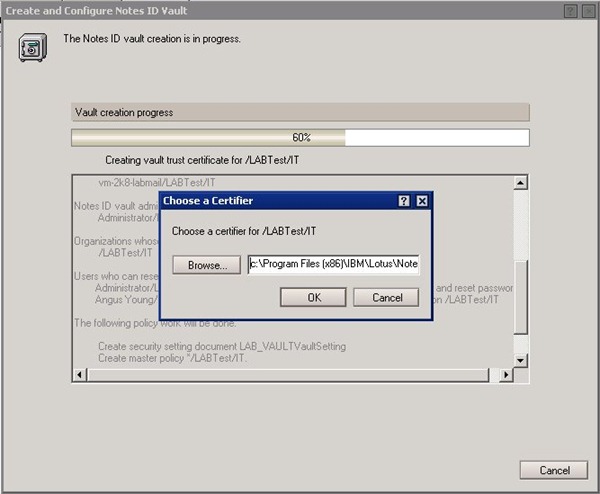
During the installation you need to enter the Certifier credentials for the Organization selected to create the trust certificate. Click Browse to set the cert.id file location.
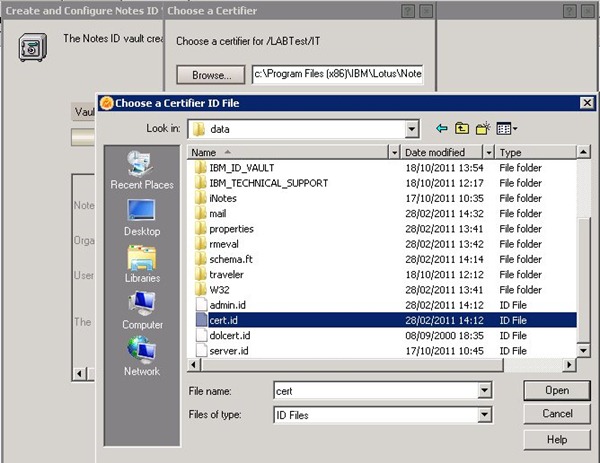
Select the cert.id file and click Open.
Type the Certifier password and click OK.

Installation continues creating the remaining components.
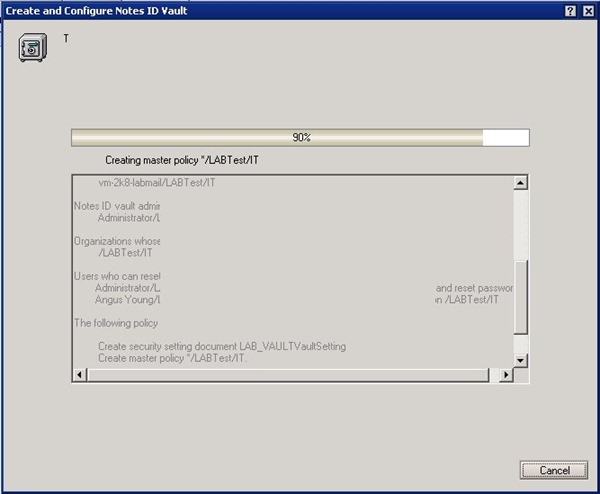
When the installation is complete, a notification window appears showing the run tasks and warnings. It is strongly suggested to copy this information and keep it as documentation. Click Done to quit.

You can access the Vault database using the Domino Administrator tool and selecting Files Tab > IBM_ID_VAULT > Vault_name menu. In the database you can check which users have been already stored in the Vault.

The Vault administration is performed using the Domino Administrator tool through Configuration Tab > Tools > ID Vaults > Manage menu.
Register users in the Vault
During the creation of a new account in the ID Info panel, the default user ID location is set as In Notes ID Vault -/vault_name.
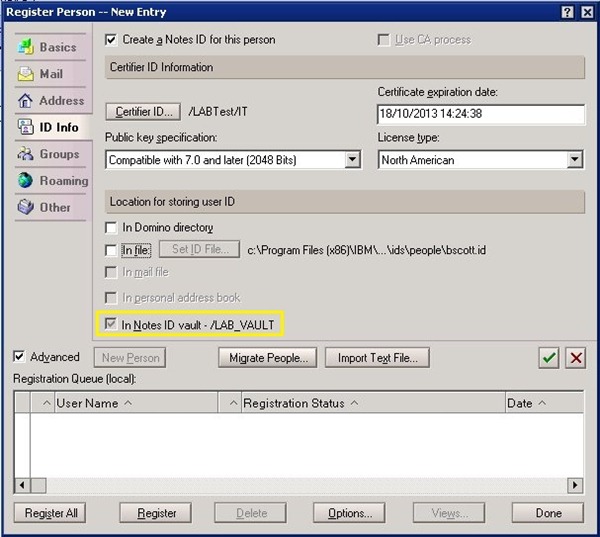
For existing accounts, when the user login to Lotus Notes, the previously configured policy will take care of copying the user ID into the Vault.

Vault configuration for iNotes
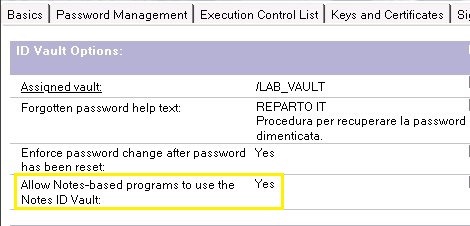
In order to synchronize the Lotus Notes and iNotes (WebMail) password, in the ID Vault policy you have to enable Notes-based programs to use the ID Vault.
Allow Notes-based programs to use the Notes ID Vault: YES
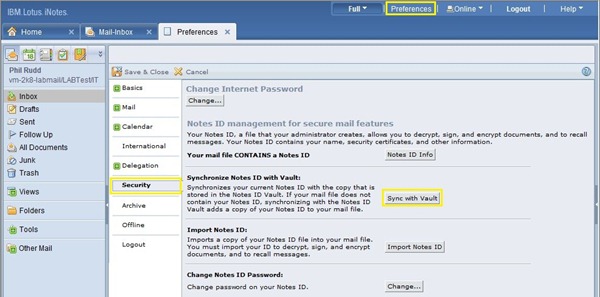
Access iNotes with the browser and select Preferences > Security then click the Sync with Vault button.
Reset client password
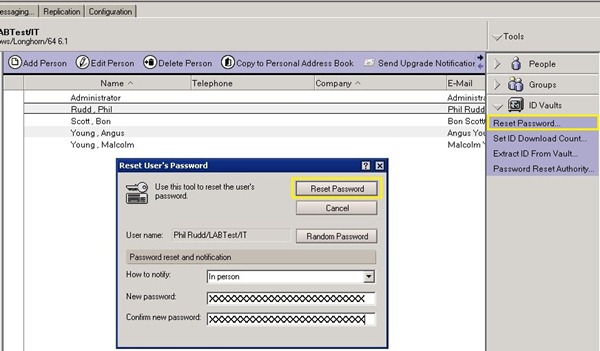
To reset the user's password you need to select the requested user and in the Tools > ID Vaults menu then click the Reset Password option. Set the new password then click Reset Password button.
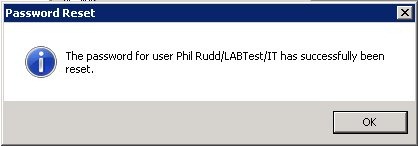
The password reset is confirmed with a notification window.
The system is now fully working and the management of users IDs is enabled. Once configuration has been tested, the Vault can be enabled in production environment without any service interruption.


