Managing backups site by site can be challenging, but with Nakivo Multi-Tenant, backups can be managed from a single dashboard, streamlining the workflow.
A typical scenario that illustrates the need for this solution is a company with a headquarters site and two or more branch offices that require protection.
Scenario
To optimize and protect local data, each branch office should have a local Nakivo Backup & Replication server. This avoids dependencies on internet lines that could interrupt backup operations.
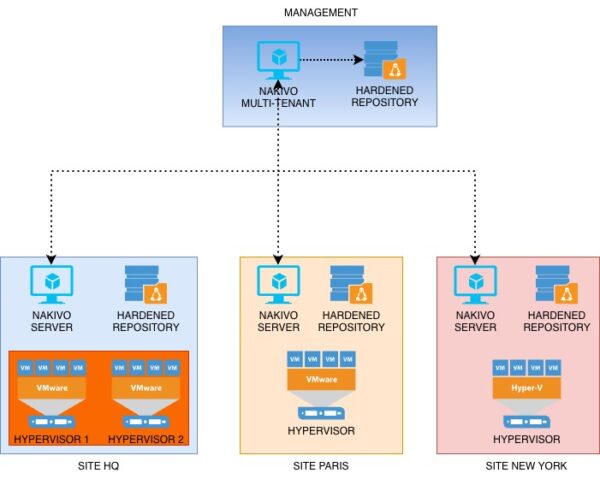
Managing corporate backups by connecting directly to each Nakivo Server is time consuming and limits the global overview of backup status, especially when several branch offices need to be managed.
By leveraging the Nakivo Multi-Tenant solution, it is possible to streamline the process and improve backup management efficiency by centralizing the global view into a single dashboard.
Deploy Nakivo Multi-Tenant
To configure Nakivo Multi-Tenant, you must first have Nakivo Backup & Replication servers deployed and configured in each branch office you plan to manage.
From the Nakivo website, download the Multi-Tenant version of the software, choosing the installation file format that best fits your OS requirements. In this example, the VMware Virtual Appliance will be used.
- Windows Installer
- Linux Installer
- VMware 6.5–9.0 Virtual Appliance
- Installer for NAS
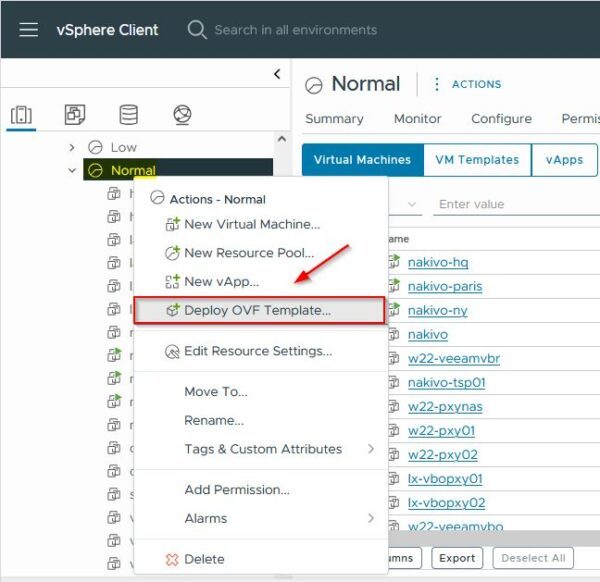
Right click the vSphere object where you want to deploy Nakivo Multi-Tenant and select Deploy OVF Template.
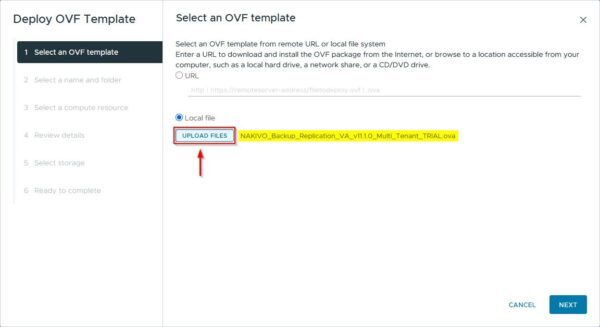
Click Upload Files, select the downloaded .OVA file, and then click Next.
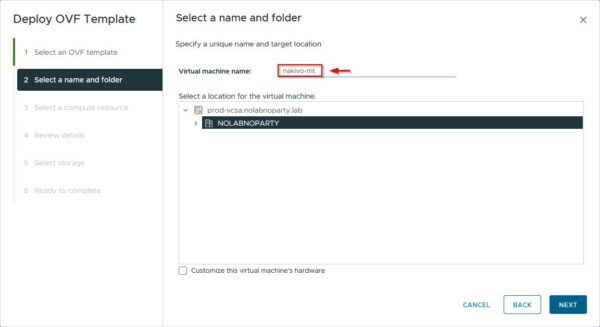
Enter the Virtual machine name and select the location. Click Next.
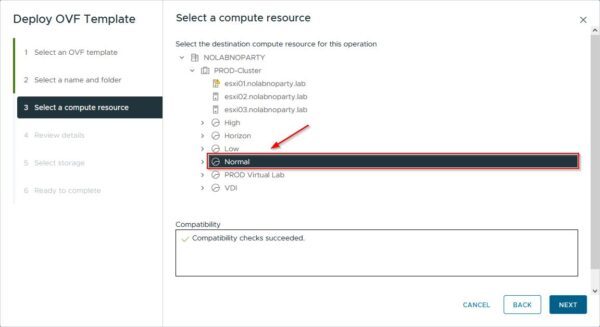
Select a Compute resource and click Next.
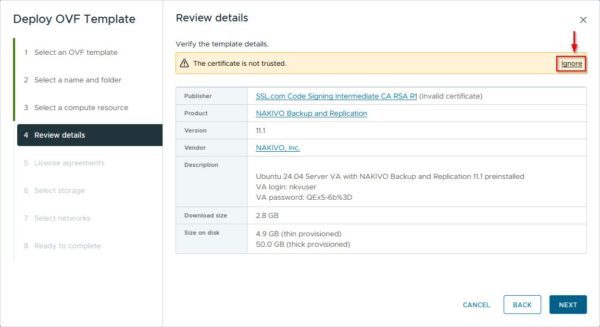
Click Ignore then click Next.
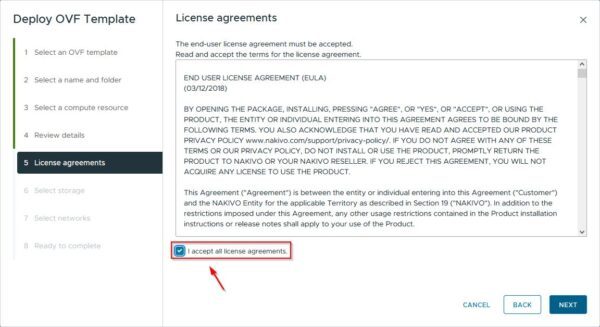
Tick the I accept all license agreements checkbox and click Next.
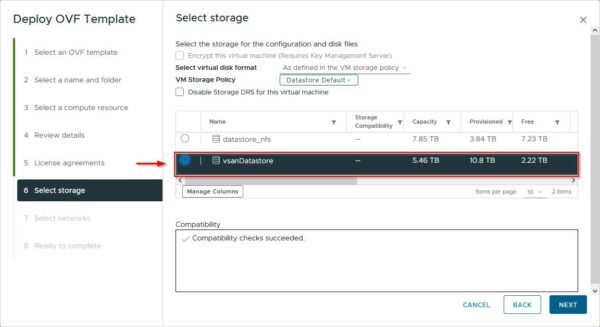
Select the desired Storage and click Next.
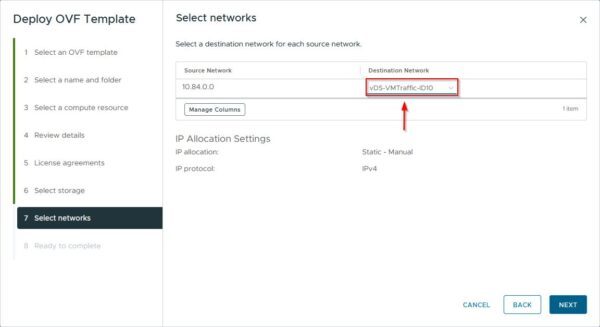
From the drop-down menu, select the Destination Network and click Next.
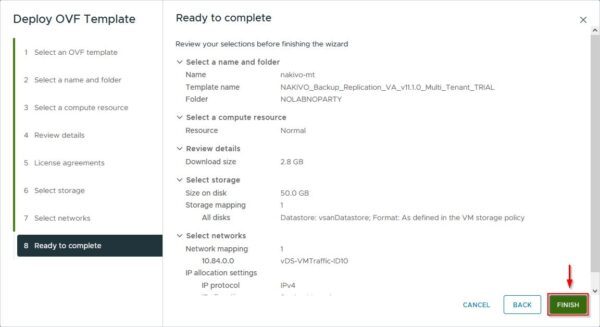
Click Finish to deploy Nakivo Multi-Tenant.
When the installation is complete, right click the VM and select Power On.

Configure the VM network
To configure the Nakivo virtual appliance, access the VM console.
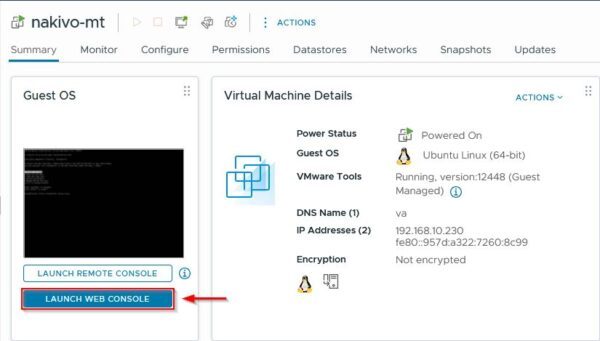
Select the VM and click Launch Web Console.
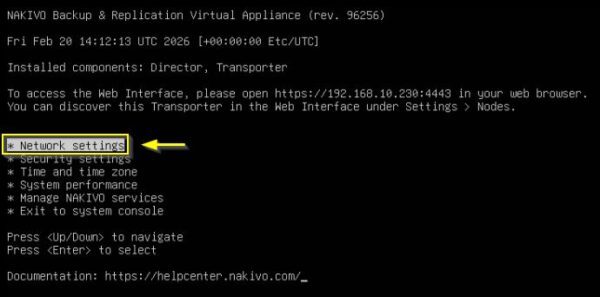
Select Network Settings and press Enter.
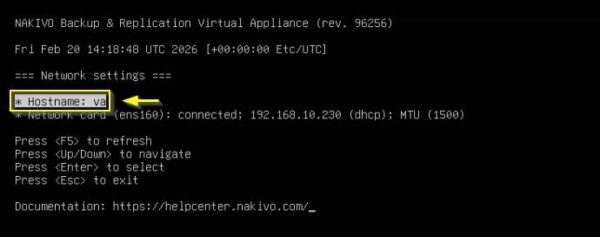
Select Hostname and press Enter.
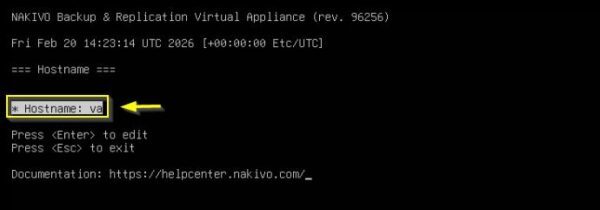
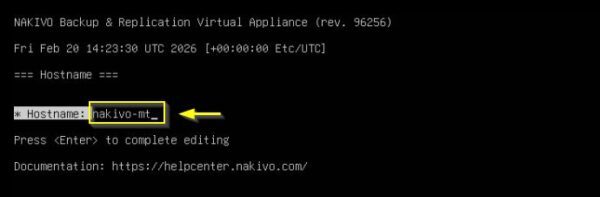
Select Hostname again and press Enter to edit.
Type the desired Hostname and press Enter.
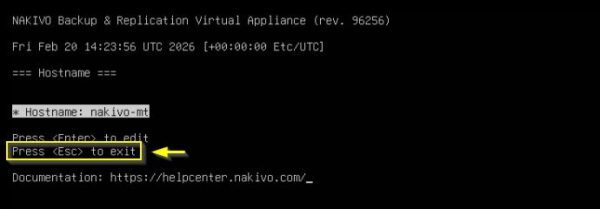
Press Esc to exit the window.
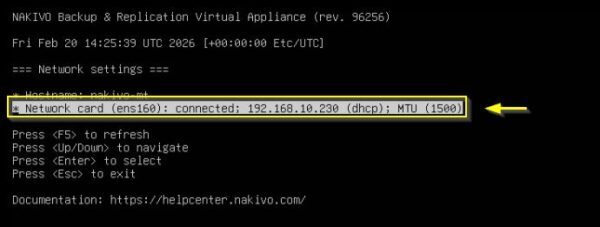
Select Network card and press Enter.
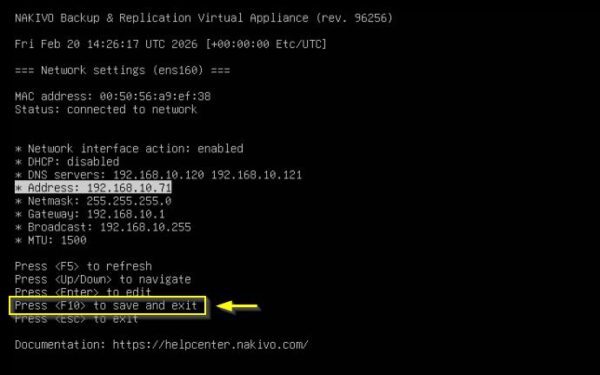
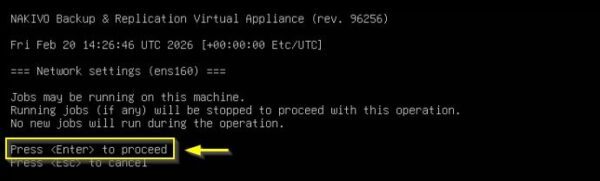
Configure the required network settings and press F10 to save the configuration and exit.
Press Enter to apply the configuration.
Access Nakivo Multi-Tenant dashboard
Once the network has been configured, the Nakivo Multi-Tenant dashboard can be reached at https://<IP_Address>:4443.
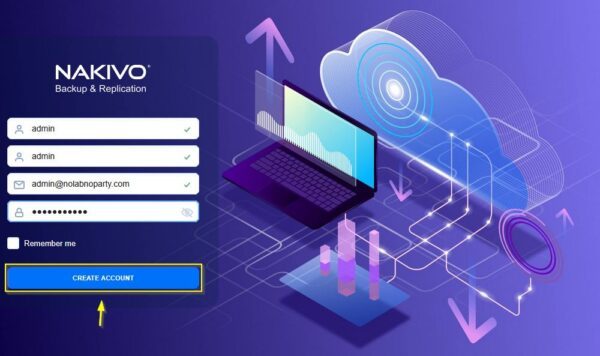
Enter the requested details to access Nakivo Backup & Replication then click Create Account.
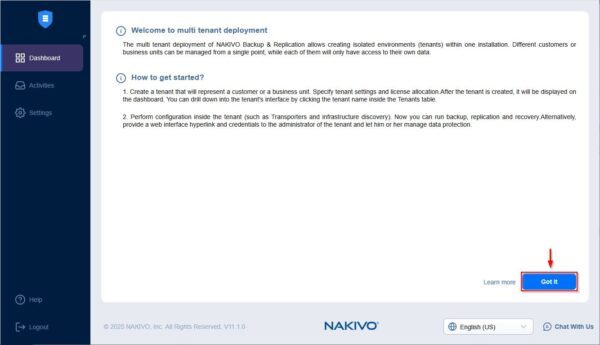
Read the welcome information and click Got it when done.
Create the Tenants to manage
From the Dashboard section, you can configure the Tenant to manage.
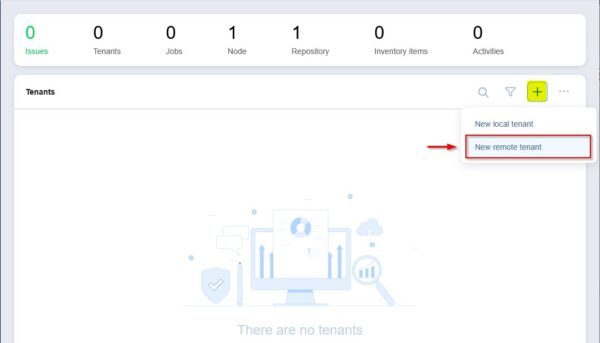
Click the + icon and select New remote tenant since we want to manage existing Tenants.
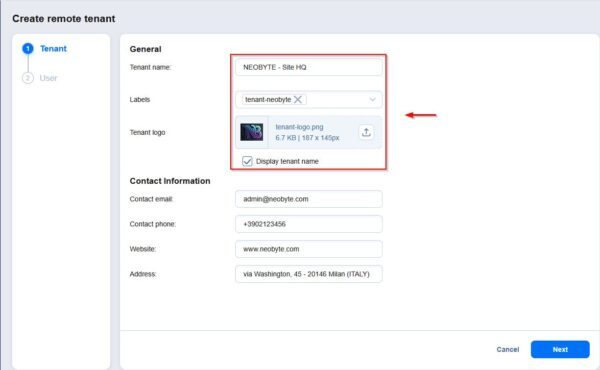
Specify the Tenant name, assign Labels, and upload the Tenant logo. To ensure the correct details, also provide the required Contact Information then click Next.
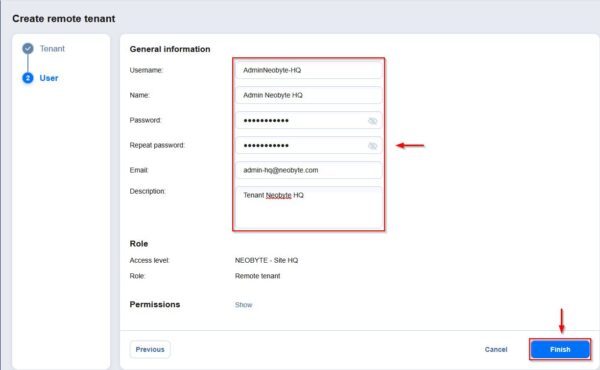
Specify the Username and Password of the account used to connect to the remote Nakivo Server. Click Finish to save the configuration.
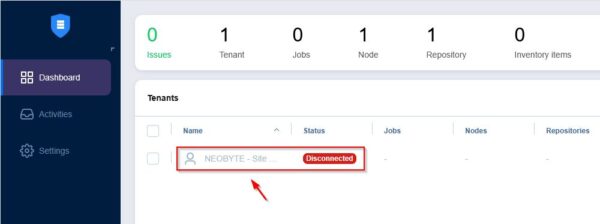
The first Tenant has now been configured in Nakivo Multi-Tenant but is not yet connected to the Nakivo Server at the remote site.
Connect the remote Nakivo Servers
To connect the remote Nakivo server to the centralized Dashboard, access the remote server and navigate to Settings > MSP.
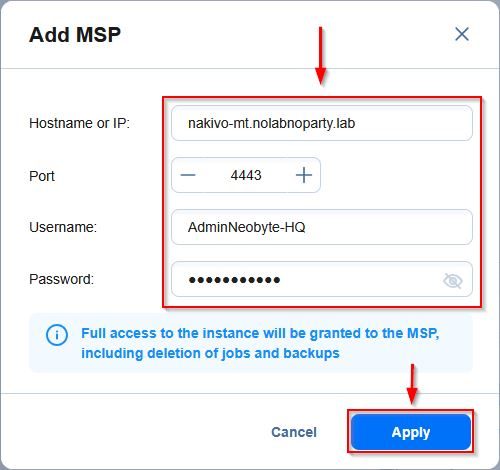
Click the + icon to add the MSP details.
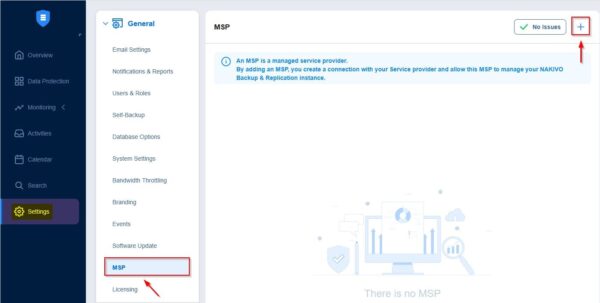
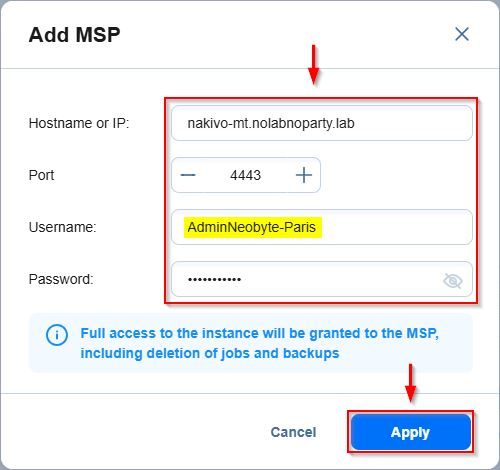
Specify the Hostname or IP of the Nakivo Multi-Tenant host and the corresponding Username and Password created earlier. Click Apply.
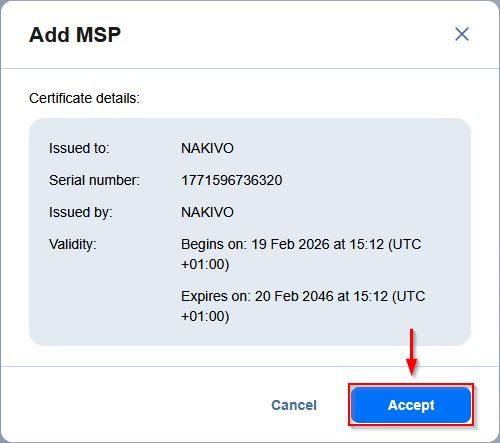
Click Accept to validate the certificate.
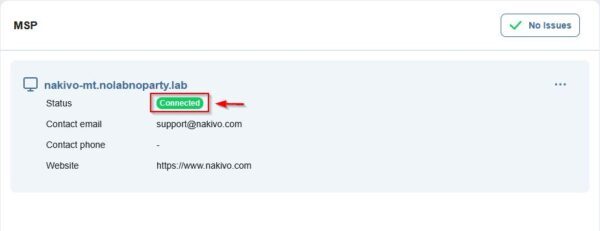
The remote server has now been successfully connected to the Nakivo Multi-Tenant server.
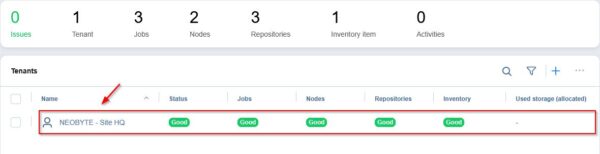
In the Nakivo Multi-Tenant Dashboard, the newly configured remote Tenant (Neobyte - Site HQ in the example) will appear.
Create remaining Tenants
In the Nakivo Multi-Tenant Dashboard, create all remaining Tenants to connect, following the same procedure explained earlier.
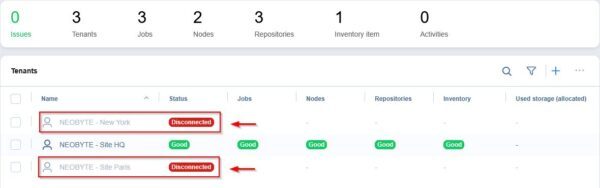
Configure the MSP section on the other remote servers.
Site Paris
Site New York
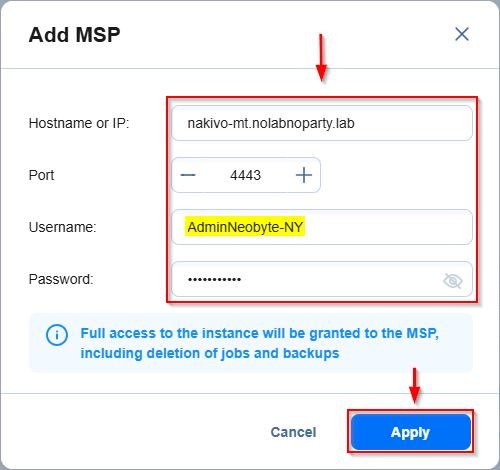
In the main Dashboard, the remote server will be added.
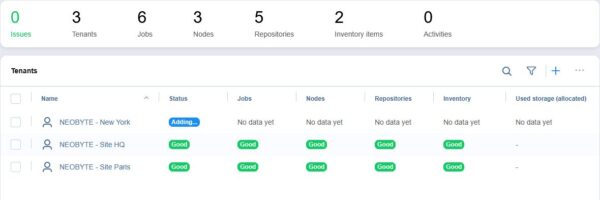
After few seconds, all configured remote server appear in the Nakivo Multi-Tenant Dashboard. From this view you can see at a first glance the status of all managed remote servers.
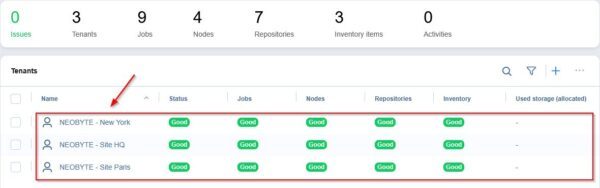
Manage the remote Nakivo Server
Once all remote servers have been added to the Dashboard, you can perform all required operations on a specific backup server simply by clicking the Tenant Name. This gives you direct access to the console of the remote server.
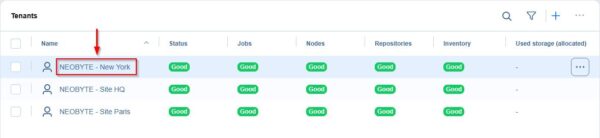
You now have full access to the remote Nakivo console of the selected Tenant, where you can manage Backup Jobs, Replicas, Restores, and more.
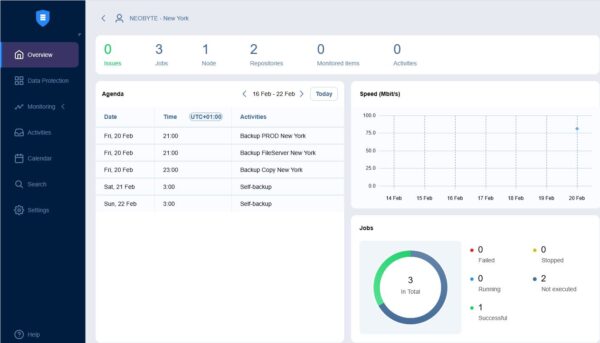
Nakivo Multi-Tenant solution simplifies the management of branch offices backups by allowing to centralize the entire backup infrastructure from a single pane of glass.