To protect backup data from overwrites, deletions, and modifications, you must make the backups immutable by saving them to a Nakivo Hardened Repository.
Nakivo Backup & Replication supports immutability and allows administrators to configure Hardened Repositories without relying on commercial storage solutions only.
Configure a Nakivo Hardened Repository
To make your backups immutable, you need to install a file system that supports XFS. Linux provides the XFS file system and the distribution you use must be supported by the Nakivo Transporter.
Install the OS Linux
In this example, the Linux Ubuntu Server LTSC 22.04 is used as the operating system.
Install the OS and make sure to create an XFS partition where backups will be stored to leverage the immutability capability.
# df -Th
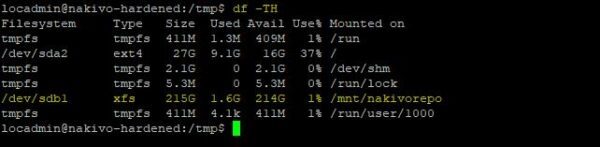
Deploy the Transporter to the Hardened Repository
Once the OS installation is completed, download from Nakivo website the Linux installer. Using a tool like WinSCP, copy the installer to the Linux machine to configure.
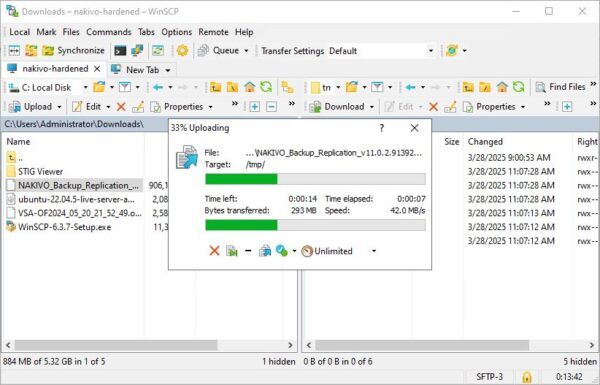
Add the permissions to execute the file.
# chmod +x ./NAKIVO_Backup_Replication_v11.0.2.91392_Installer-TRIAL.sh

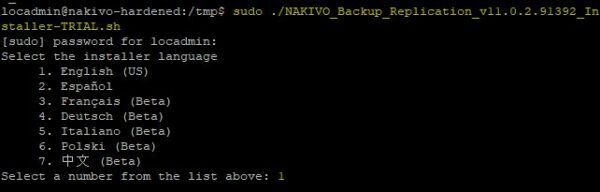
Run the installer and choose the desired language (1 English in the example).
# sudo ./NAKIVO_Backup_Replication_v11.0.2.91392_Installer-TRIAL.sh
The installation begins by showing the EULA.
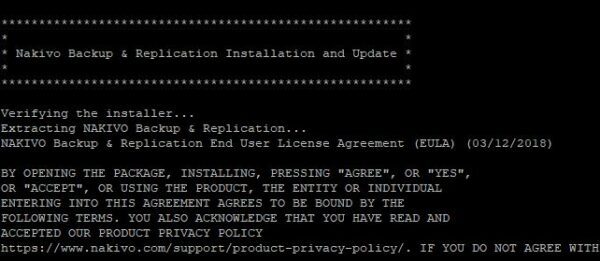
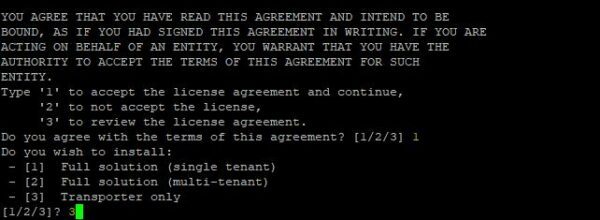
Scroll the EULA till the end and type 1 to accept the license agreement then the option 3 to install the Transporter.
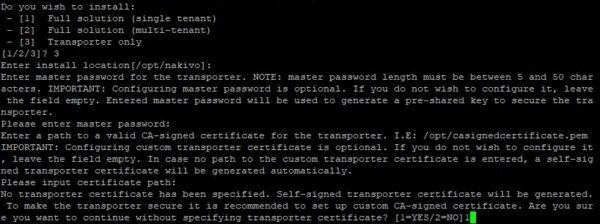
Specify the location to install the Transporter (default /opt/nakivo) and press Enter. Enter the master password used to connect the Nakivo Server. Type 1 to skip the custom certificate installation and press Enter.
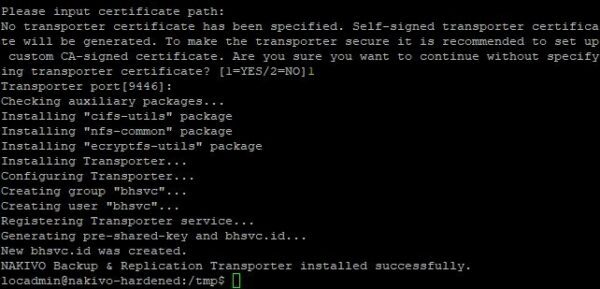
The Transporter has been installed successfully.
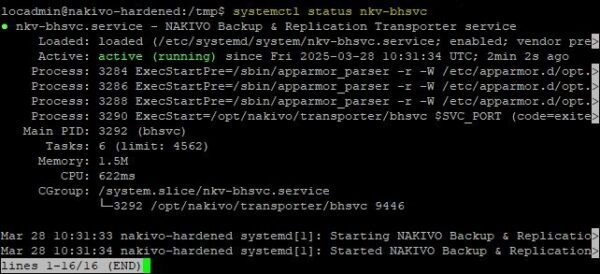
Check the Transporter service status with the command:
# systemctl status nkv-bhsvc
Create the folder for the repository.
# sudo mkdir /opt/nakivo/repository

Apply required permissions
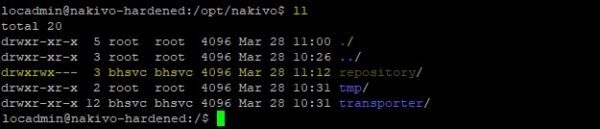
Apply the required permissions to the folder. You must grant the required permissions to bhsvc account.
# sudo chown -R bhsvc:bhsvc /opt/nakivo/repository
# sudo chmod -R 770 /opt/nakivo/repository

Check the applied permissions.
# ll
Adjust the required mount point
Nakivo can add the repository to the server if the folder is created in /opt/nakivo. However, if you specified a different location during the OS installation, some adjustments will be required.
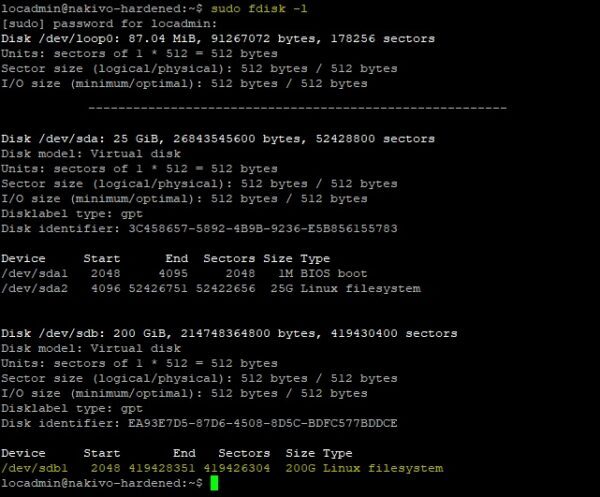
Identify the disk that will be used for the repository.
# sudo fdisk -l
Unmount the current partition.
# sudo umount /mnt/nakivorepo

Mount the partition to the created folder.
# sudo mount /dev/sdb1 /opt/nakivo/repository

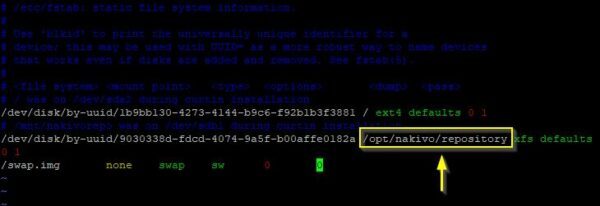
To make the mount persistent, you need to edit the /etc/fstab file to modify the partition path. Change the mount point with the correct path and save the configuration.
# sudo vi /etc/fstab
Reload the mounting points.
# sudo mount -a

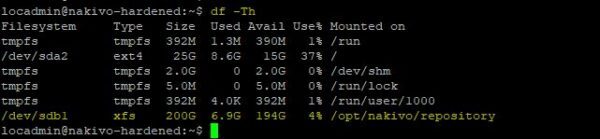
Check the mounted partition.
# df -Th
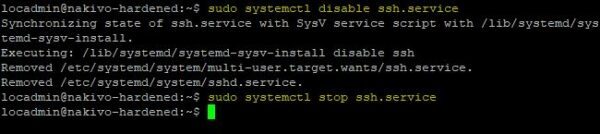
To secure the access to the Nakivo Hardened Repository, disable SSH service.
# sudo systemctl disable ssh.service
# sudo systemctl stop ssh.service
Test the backup
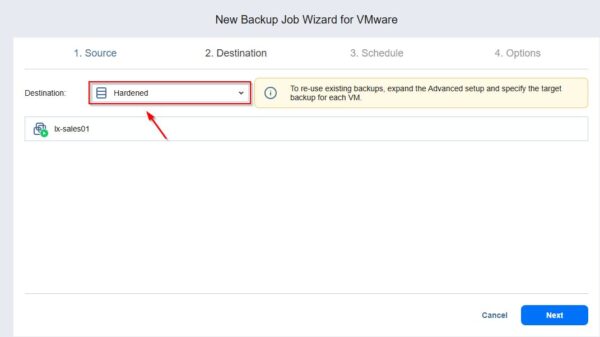
Create a new Backup Job by specifying the new Nakivo Hardened Repository as Destination.
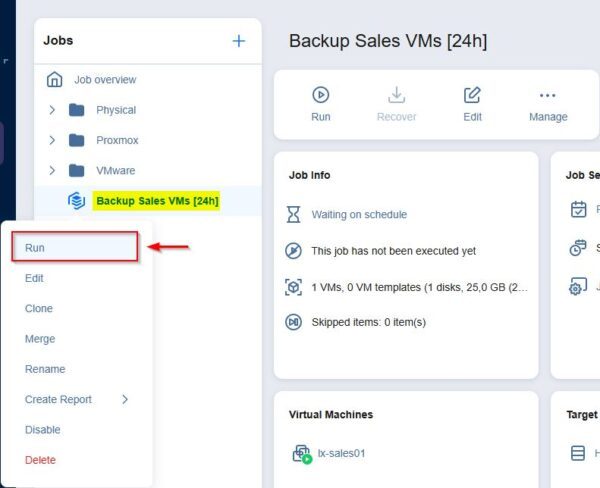
Run the job.
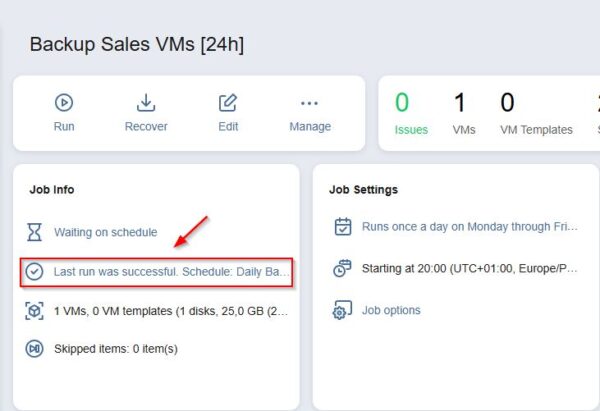
Depending on the VM size, after a few minutes the job is completed successfully.
Test immutability
To test the Nakivo Hardened Repository, try deleting the just created backup. Access the Settings > Repositories section and select the Hardened Repository.
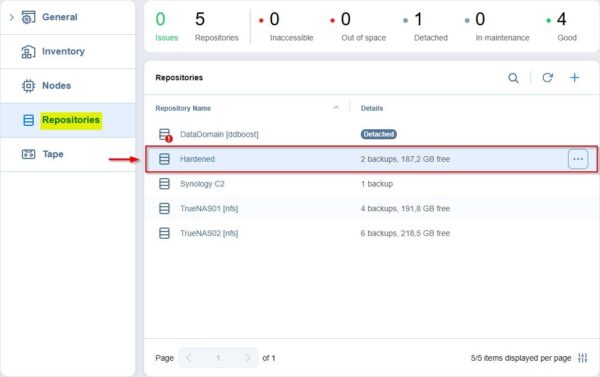
Select the job to test, and then try to delete it. As expected, the backup cannot be deleted because it's immutable.
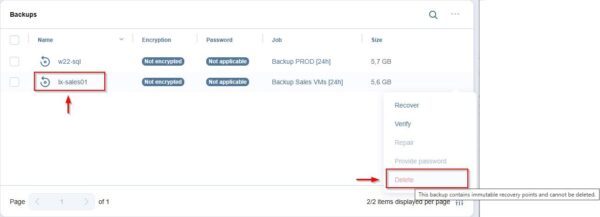
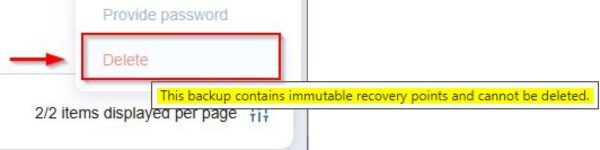
The message displayed is self-explanatory.
Ensuring immutability for backups stored in the Nakivo Hardened Repository is the only defense a company has to protect its business against potential ransomware attacks.