

When planning the Veeam v13 upgrade, it is important to consider not only the new capabilities but also the features and operating systems that are no longer supported.
As a best practice, perform a deep analysis of your configured backup infrastructure before beginning the Veeam v13 upgrade. This helps to identify potential issues that could cause service disruption due to compatibility problems or discontinued features.
System Requirements
Before upgrading to version 13, be aware that the new version introduces changes in backup management and some features have been deprecated or discontinued.
- VMware vSphere support - the minimum supported version for VMware ESXi and VMware vCenter is 7.0.
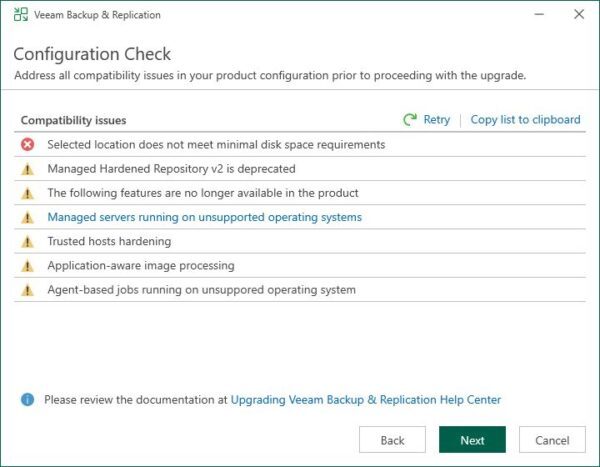
- Managed Hardened Repository v2 - managed hardened repository v2 is still supported but must be upgraded using the Veeam Virtual Infrastructure Appliance to continue receiving security updates.
- Deprecated features:
- Restore point retention is no longer available for new Backup Jobs.
- Reversal incremental backup mode is no longer available for new Backup Jobs.
- Single storage backup format is no longer available in the repository settings.
- Active Directory authentication is no longer available for Veeam Cloud Connect tenants.
- Discontinued features:
- U-AIR wizard.
- Initiating restore by double clicking VBK/VBM in Windows Explorer.
- Burning Recovery Media to CD/DVD media.
- Managed servers running unsupported OS - remove any managed server running an unsupported OS from the backup infrastructure.
- Trusted host hardening - after upgrading to v13 verify that all servers in the backup infrastructure are trusted because as the remote host trust is set to Manual.
- Application-aware image processing - Windows 7 and Windows 8.x are no longer supported. The minimum supported version are Windows 10 1507 LTSB/LTS, Windows 10 22H2 e Windows 11 22H2.
- Agent Backup Jobs running on unsupported OS - agents running on unsupported OS won't be upgraded and will stop receiving new features.
- Certificates - review the list of required Trusted Root Certificates and ensure all are installed.
Veeam v13 upgrade procedure
Before beginning the Veeam v13 upgrade procedure, keep the following in mind:
- Upgrade path - a direct upgrade is supported if the installed version is 12.3.1 (build 12.3.1.1139) or later.
- License format - Veeam Backup & Replication 13 uses the same license file format introduced with version 10.
- Veeam Backup for Microsoft 365 - if Veeam Backup & Replication and Veeam Backup for Microsoft 365 are installed on the same machine, upgrade Veeam Backup for Microsoft 365 first.
- Veeam ONE - if this application is used to monitor the backup infrastructure, upgrade Veeam ONE first. The new version supports monitoring version 12 or later.
- Veeam Backup Enterprise Manager - if installed, upgrade this component before upgrading Veeam Backup & Replication.
- Scale-Out Backup Repositories - all immutable performance extents must have the same immutability settings.
Install the upgrade
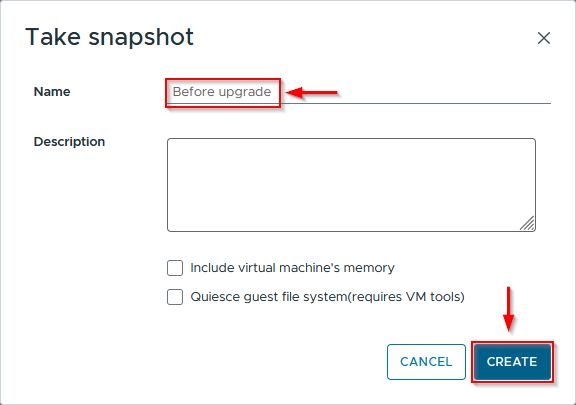
If Veeam Backup & Replication is installed on a virtual machine, take a snapshot before proceeding to allow rollback in case of upgrade failure.
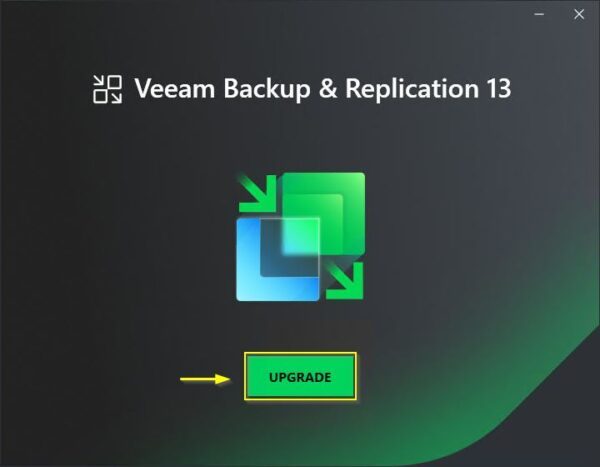
Mount the ISO file and run the installer. Click Upgrade to begin the Veeam v13 upgrade.
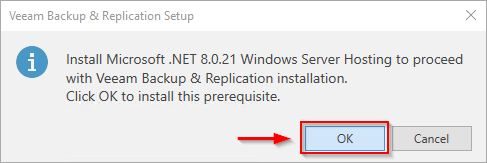
If prompted, click OK to install the required package.
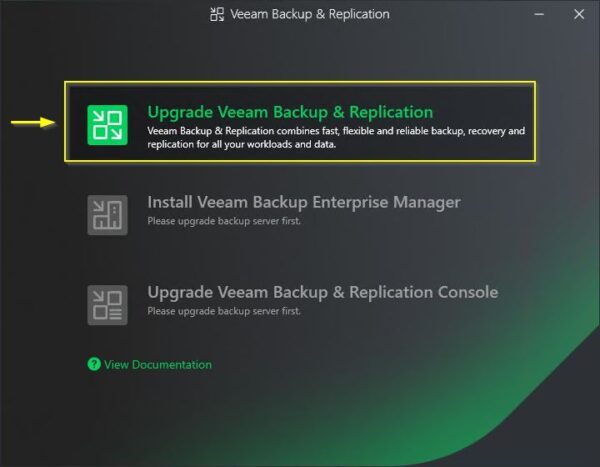
Click on Upgrade Veeam Backup & Replication option.
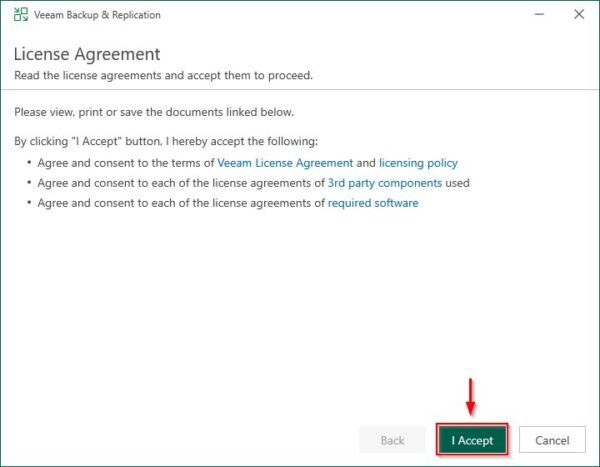
Click I Accept to agree to the EULA.
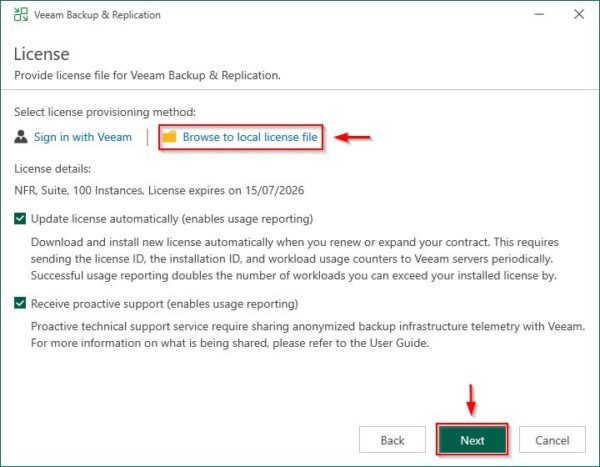
If the license is not yet installed, click Browse to local license file to select the correct license. If already installed, click Next.
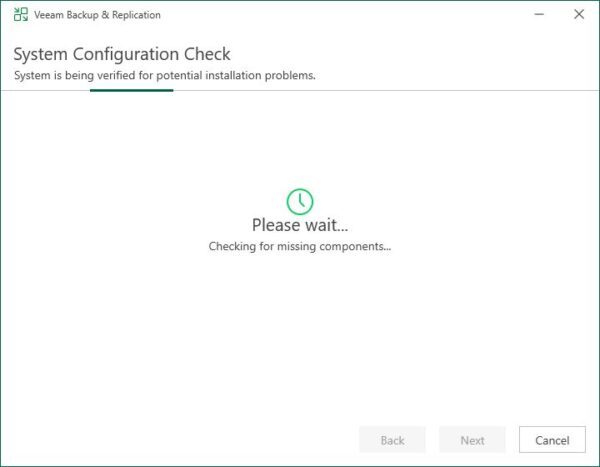
The installer will check for any missing components.
Missing features are enable automatically.
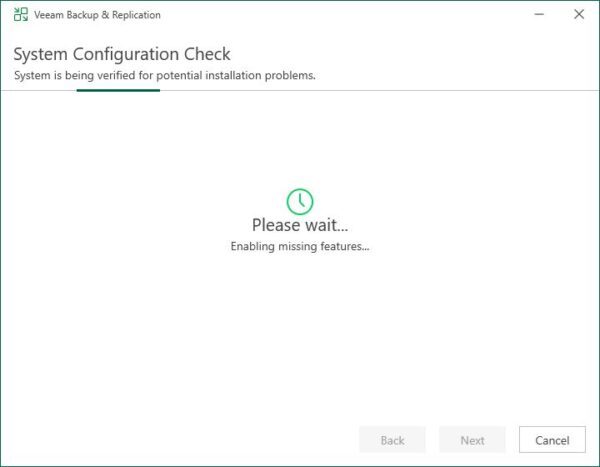
A configuration check ensures the system meets the prerequisites.
If prerequisites are not met (disk space in the example), resolve the issue and restart the installer. Review the list of warnings regarding deprecated/discontinued features and unsupported OS. Click Next when ready.
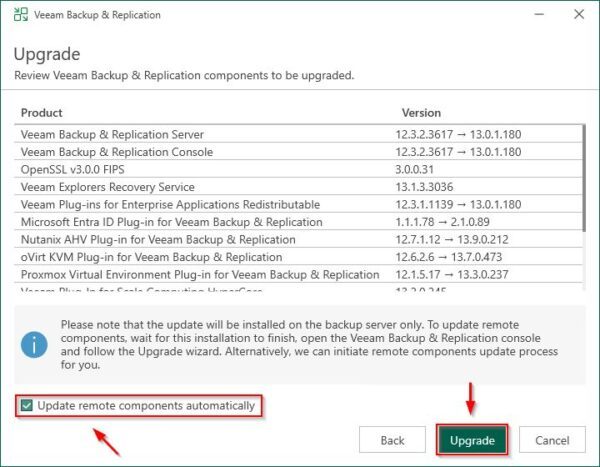
Enable the Update remote components automatically and click Upgrade.
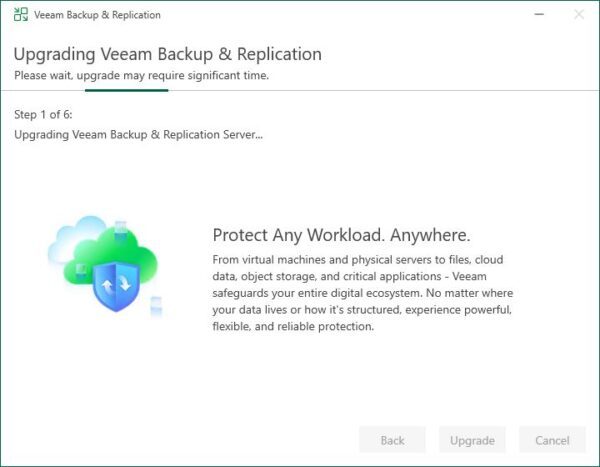
Wait for the six-step upgrade process to complete the Veeam v13 upgrade.
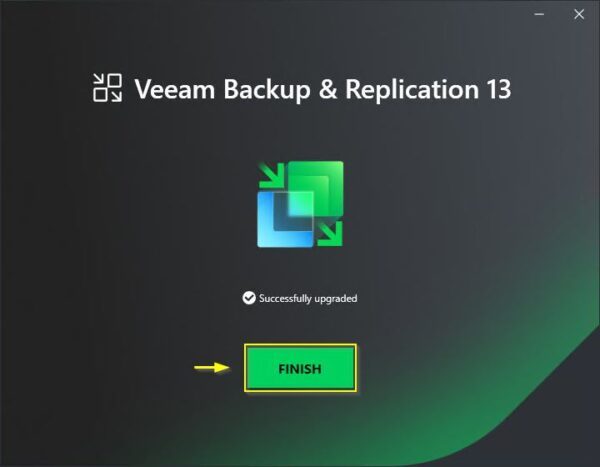
When the installation is complete, click Finish.
Access the Veeam 13 console
Double click the Veeam console icon and click Connect.

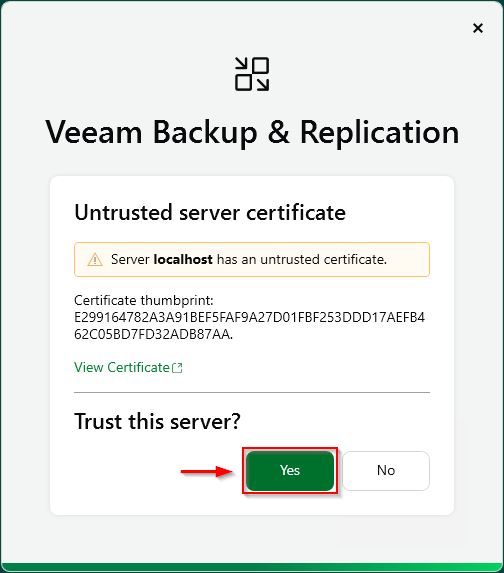
Click Yes to accept the certificate thumbprint.
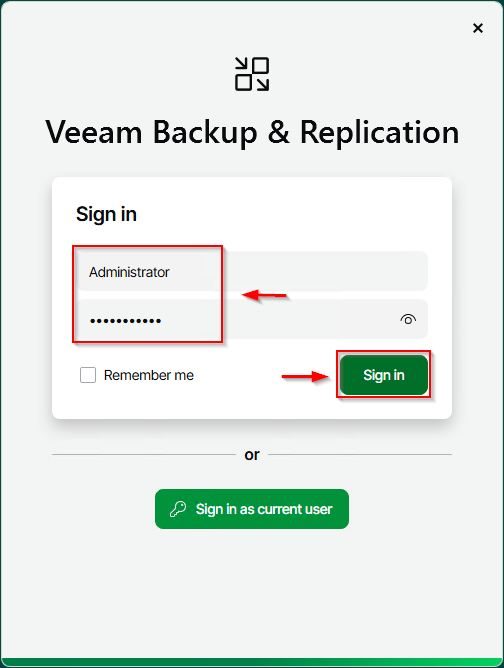
Enter the credentials and click Sign in.
Upgrade components
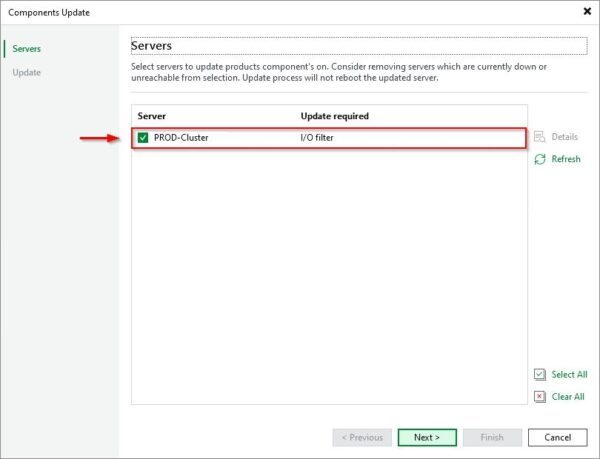
If Replica CDP is used in the backup infrastructure, you will be prompted to upgrade the I/O filter. If the upgrade fails manually upgrade the I/O filter via vSphere Client.
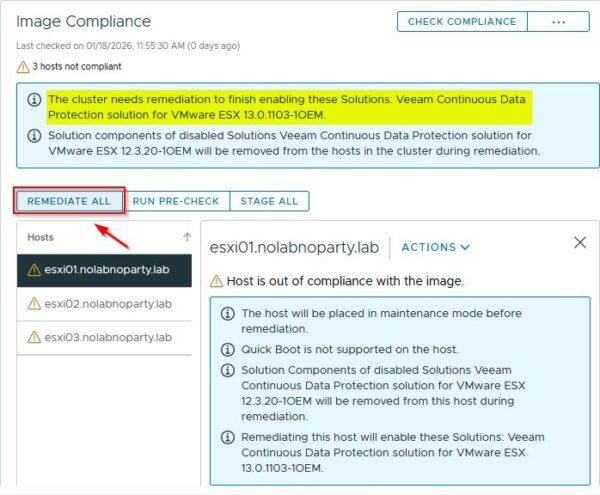
In the vCenter Server go to Updates > Image Compliance and click Remediate All.
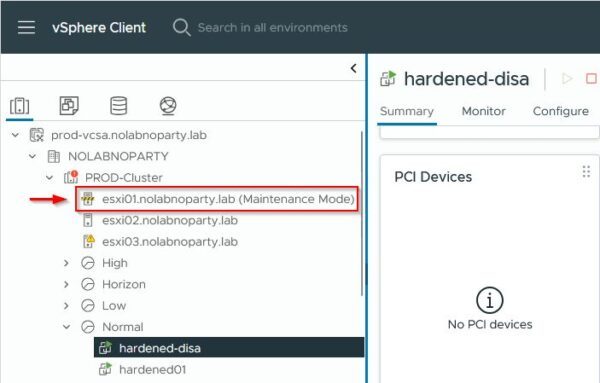
Cluster node will enter Maintenance Mode to upgrade the I/O filter.
Upgrade Agents
If Protection Groups are configured in Veeam Backup & Replication, navigate to Inventory > Physical and Cloud Infrastructure and access the Out of Date folder. The Backup agent column will show Upgrade Required. Right click the Out of Date folder and select Upgrade.
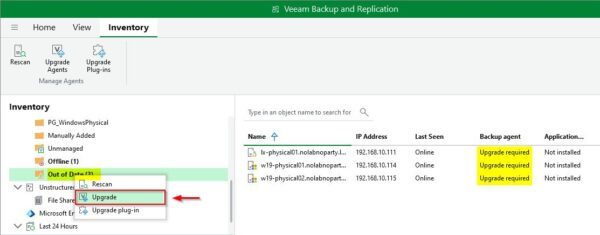
The Agents will being upgrading.
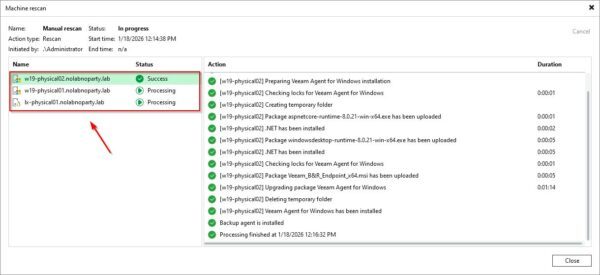
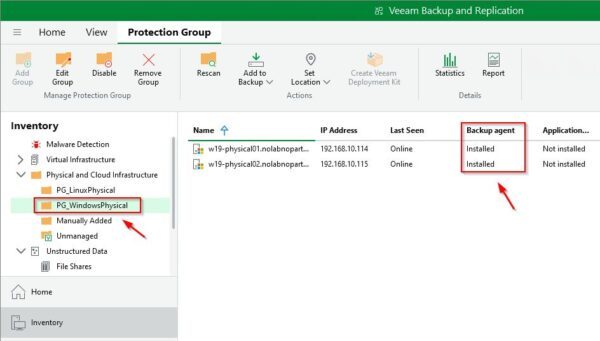
Once upgraded, the Backup Agent column will display Installed for each Protection Group configured.
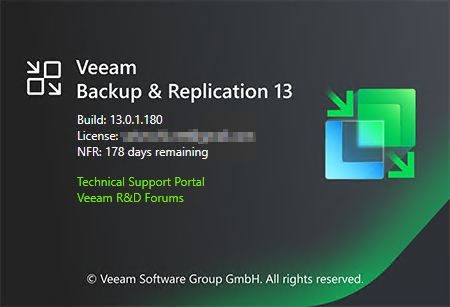
Build number
After completing the upgrade, the new build number will be 13.0.1.180.
Veeam Backup & Replication is now upgraded to the latest version and all the new features can be tested if supported by the installed license.





VMware vSphere support
Will the upgrade list that as an error if a 6.7 vcenter is still in play?
"Scale-Out Backup Repositories - all immutable performance extents must have the same immutability settings."
This was already the case in v12 (maybe even v11?)
Veeam Backup & Replication v13 supports vSphere 7 and later, as detailed in the official VMware compatibility matrix (https://www.veeam.com/kb2443). If you are running an older version of vSphere, you must upgrade vSphere before upgrading Veeam to avoid unexpected issues.
Additionally, note that the prerequisite for Scale-Out Backup Repository performance extents to have the same immutability retention period was introduced in Veeam v12 and remains a requirement in v13.