Latest Veeam Backup & Replication v13 introduces the Veeam Deployment Kit, a package used to enable certificate-based authentication.
Once installed on a target server, Veeam leverages the certificate for authentication instead of the traditional username and password.
The Veeam Deployment Kit can be used to connect Windows-based servers and to add Veeam Agents (both Windows and Linux) to a Protection Group.
When the Veeam Deployment Kit should be used
Veeam Deployment Kit is recommended in the following scenarios:
- Kerberos unavailable - if NTLM or Kerberos authentication is not available in your infrastructure.
- Security - certificate-based authentication offers stronger security than username and password.
- Passwordless - once the Deployment Kit is installed on the target server, no username or password is required.
Deployment
By default, the Deployment Kit is installed on all JeOS infrastructure components so you only need to pair them with Veeam Backup & Replication.
For other supported components, the Deployment Kit must be installed manually.
- Microsoft Windows servers
- Hyper-V hosts
- Microsoft Windows-based and Linux-based Veeam Agent computers
- Guest Interaction proxies
- Protected Microsoft Windows VMs (for persistent guest agent installation)
How to create the Veeam Deployment Kit
Creating the Veeam Deployment Kit is simple and straightforward.
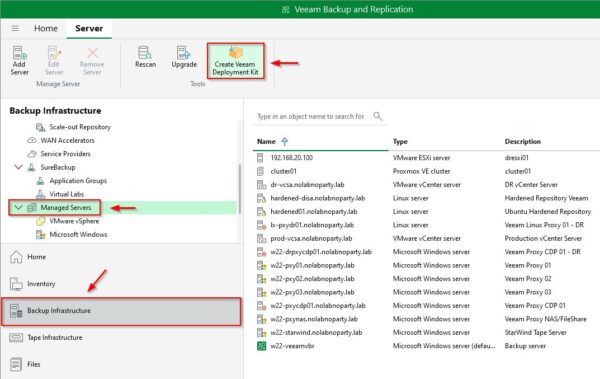
In the Veeam Console, navigate to Backup Infrastructure > Managed Servers. Click the Create Veeam Deployment Kit in the ribbon.
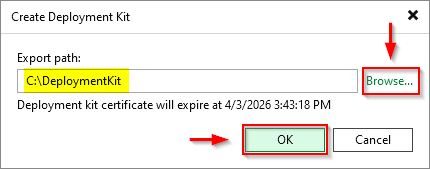
Click Browse, select the folder where you want to save the Deployment Kit then click OK.
The kit is being created in the selected folder.
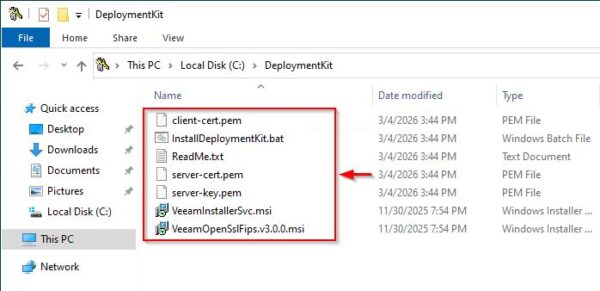
The created files.
Install the kit on Managed Servers
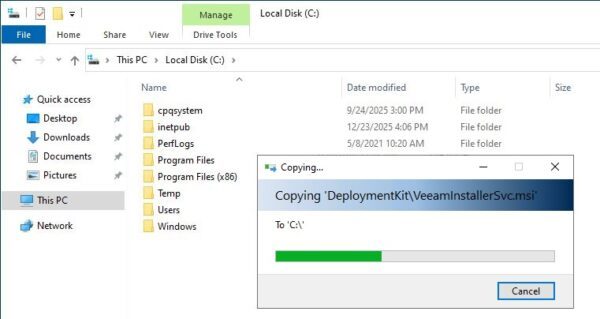
To install the Deployment Kit on a managed server, you need to copy the created kit to the target remote host.
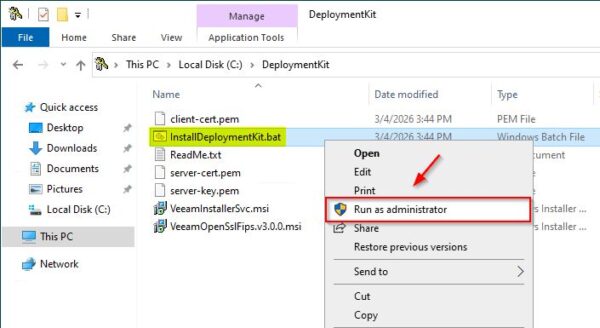
Run the InstallDeploymentKit.bat script to automatically install and configure the kit.
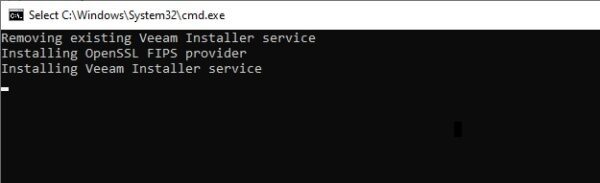
Once complete, the kit is installed on the target host.
Create the Kit for Veeam Agents
The Deployment Kit for Veeam Agents is different from the one used for Managed Servers and must be created from the appropriate location.
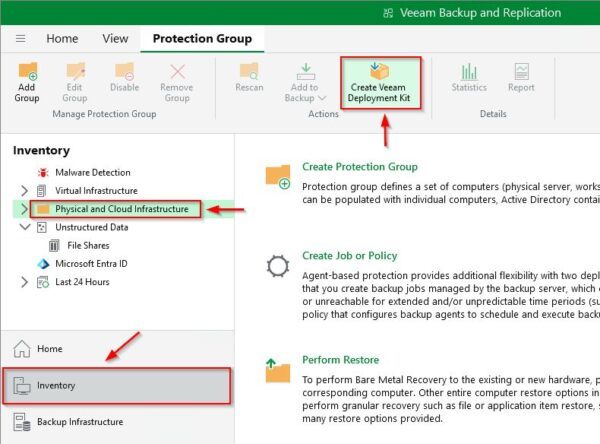
Navigate to Inventory > Physical and Cloud Infrastructure and click the Create Veeam Deployment Kit in the ribbon.
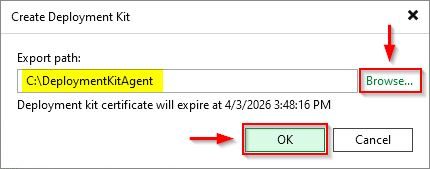
Click Browse, select a folder to save the Kit then click OK.
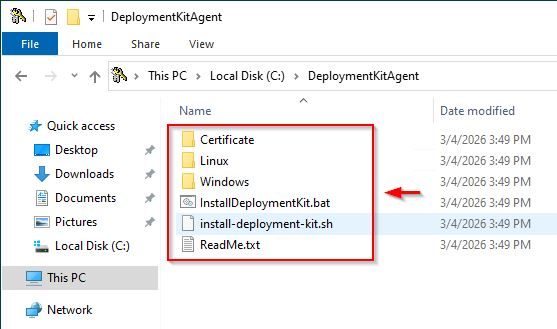
The created Kit.
Install the Kit on the Veeam Agent Windows computer
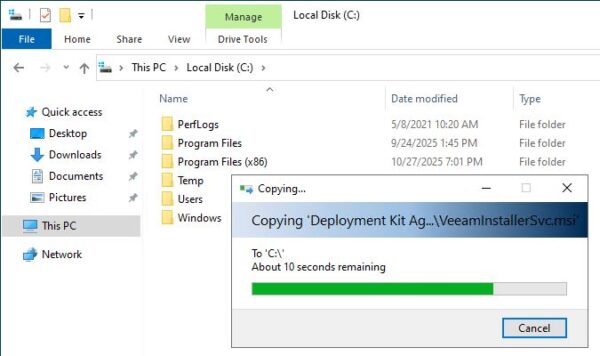
Copy the created kit to the target Windows computer.
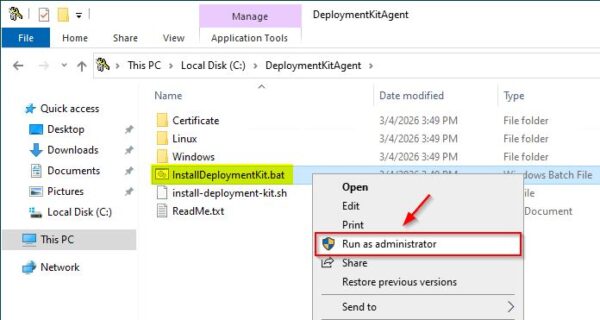
Run InstallDeploymentKit.bat to install the Kit automatically.
The kit is now installed on the Windows computer.
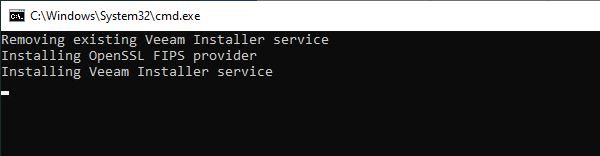
Install the kit on the Veeam Agent Linux computer
Using a tool like WinSCP to copy the Deployment Kit to the target Linux computer.
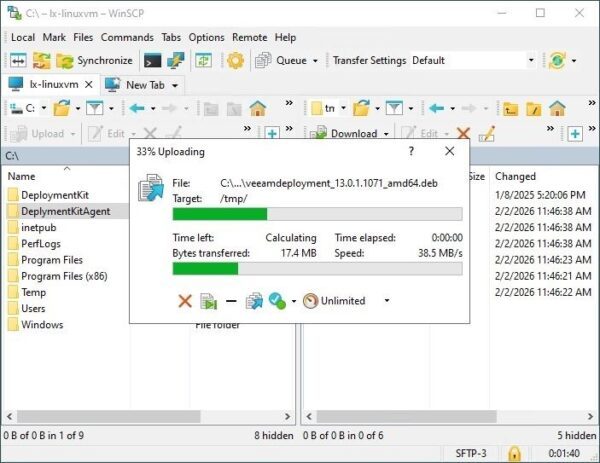
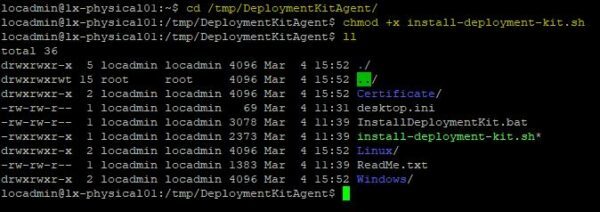
Make the installer script executable.
# cd /tmp/DeploymentKitAgent/
# chmod +x install-deployment-kit.sh
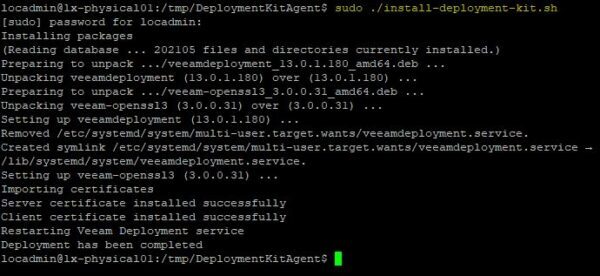
Run the script install-deployment-kit.sh to install the Kit automatically.
# sudo ./install-deployment-kit.sh
Connect Windows Managed Servers to the Veeam Server
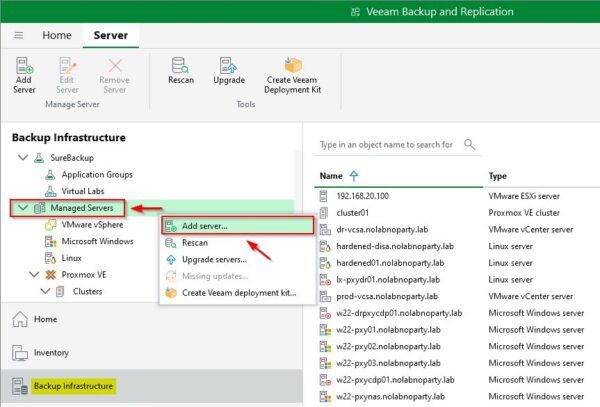
To connect a managed server using certificate-based authentication, navigate to Backup Infrastructure > Managed Servers. Right click in the right pane and select Add server.
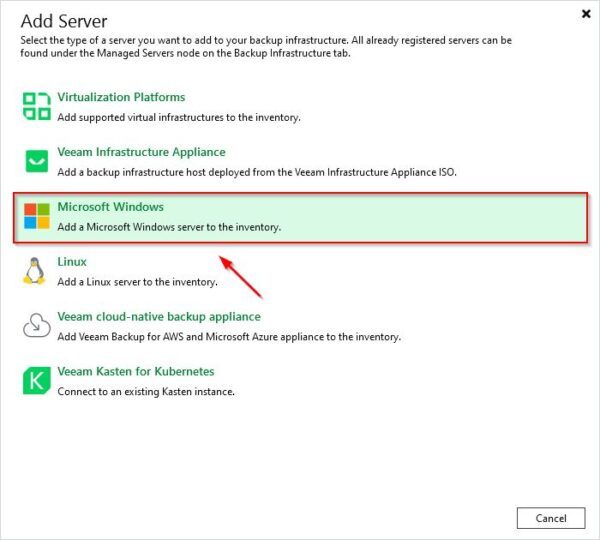
Choose Microsoft Windows.
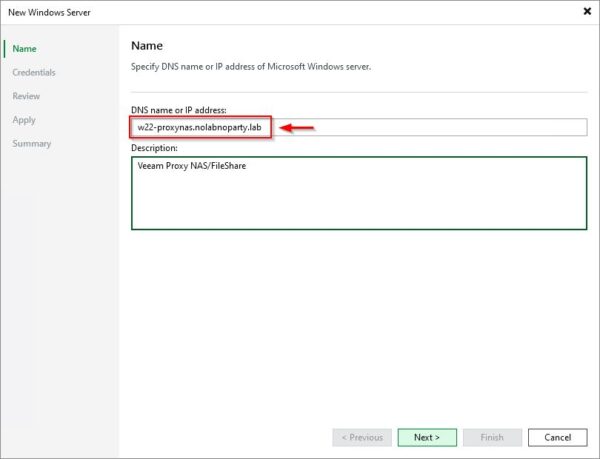
Enter the DNS name or IP Address and optionally a Description. Click Next.
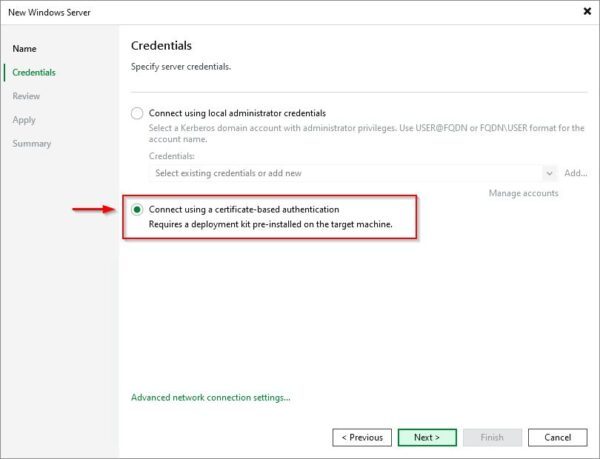
Select the Connect using certificate-based authentication and click Next.
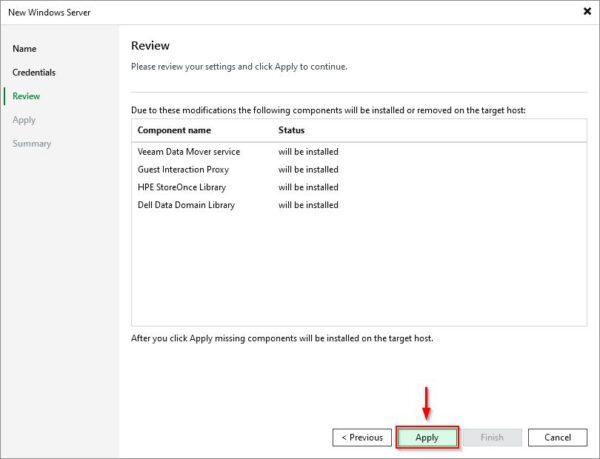
Click Apply to install required components.
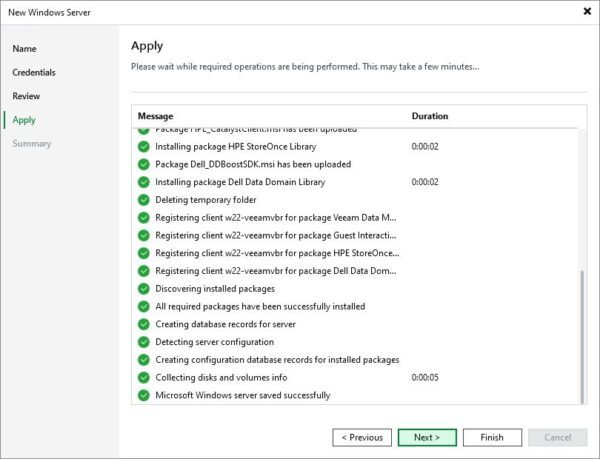
Once installation completes, click Next.
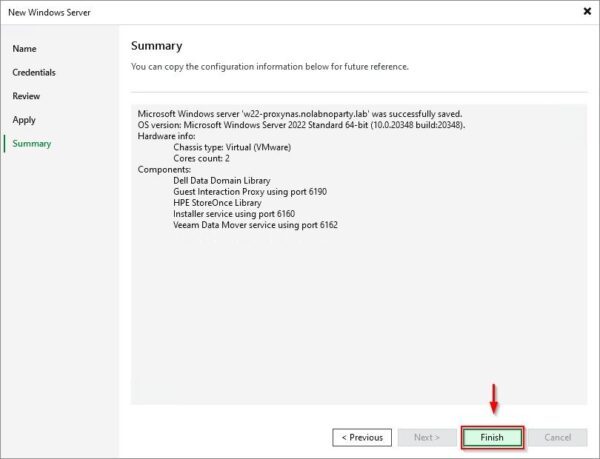
Click Finish.
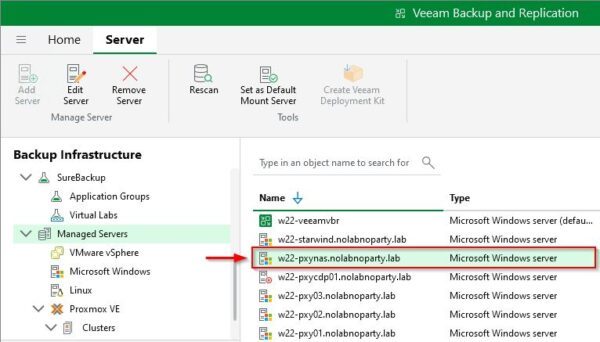
The connected server.
Connect Veeam Agent computer to a Protection Group
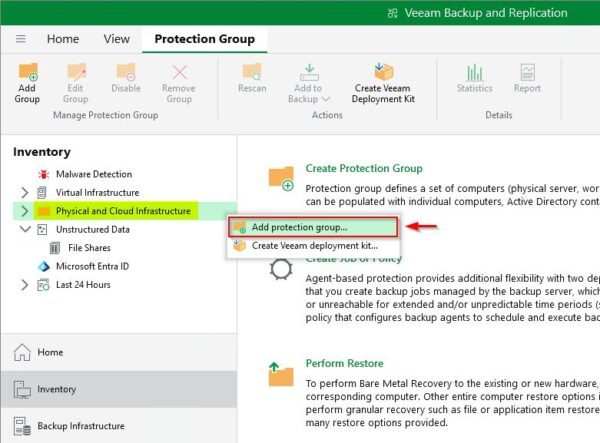
Navigate to Inventory > Physical and Cloud Infrastructure, right click and select Add protection group.
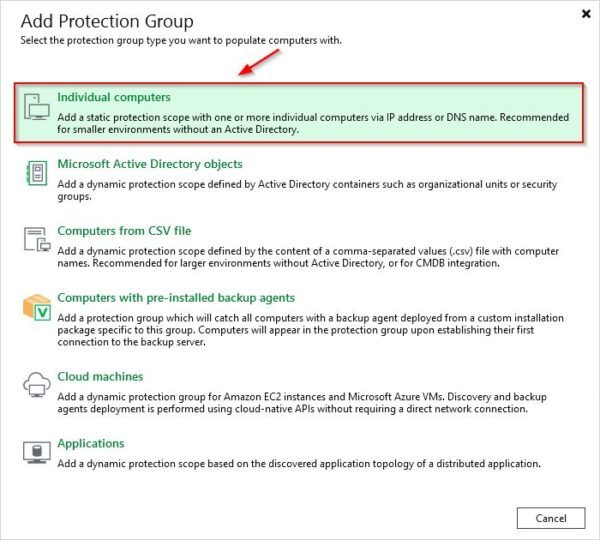
Choose Individual computers.
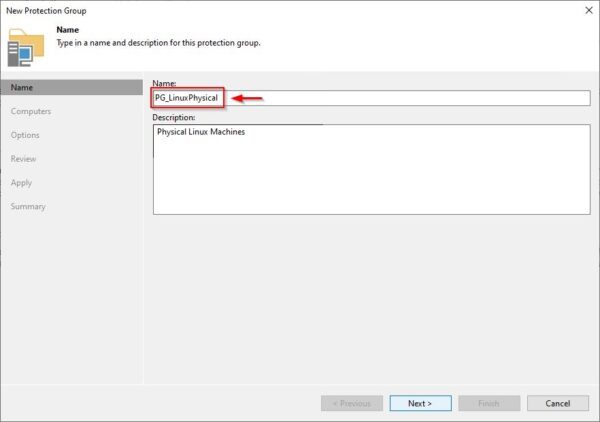
Enter a Protection Group Name and click Next.
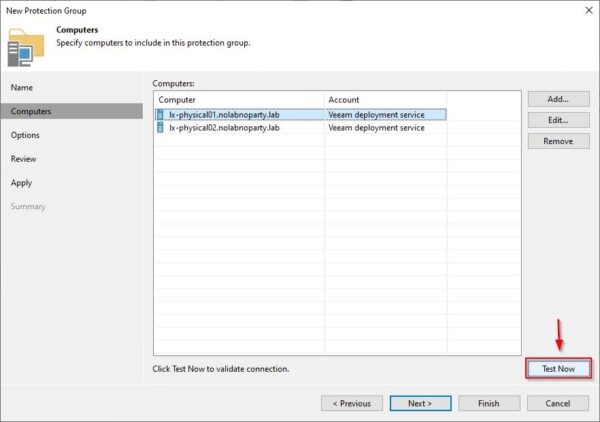
Click Add and enter the Host name or IP address of the machines to protect. Select the Connect using certificate-based authentication option and click OK.
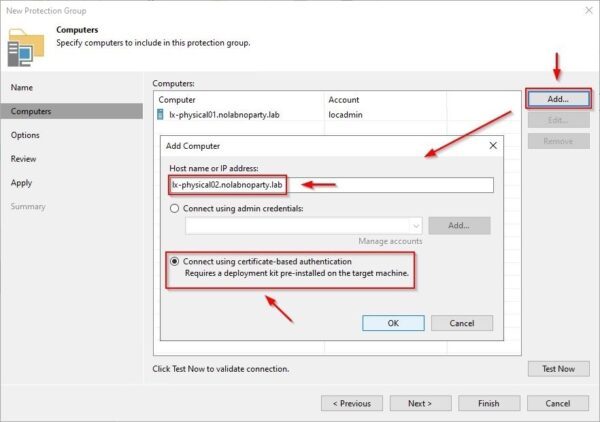
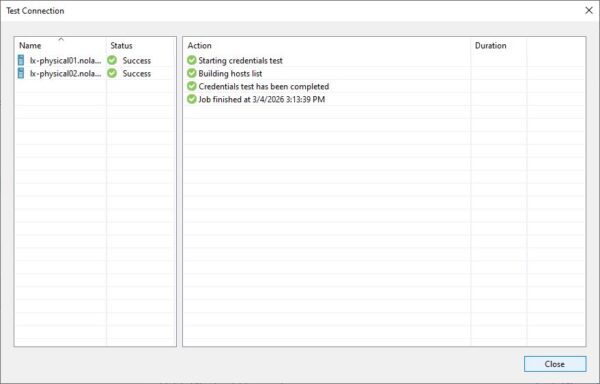
To verify the connection, click Test Now.
The connection has been established successfully. Click Close then Next.
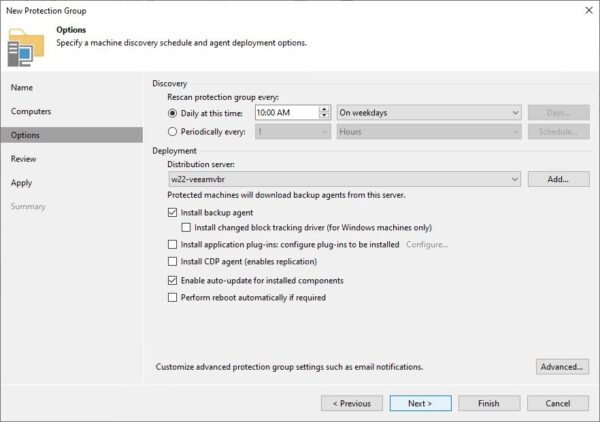
Click Next.
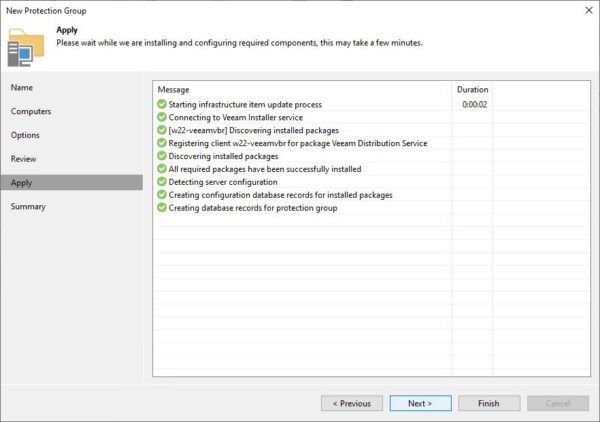
Click Apply to install required Veeam components.
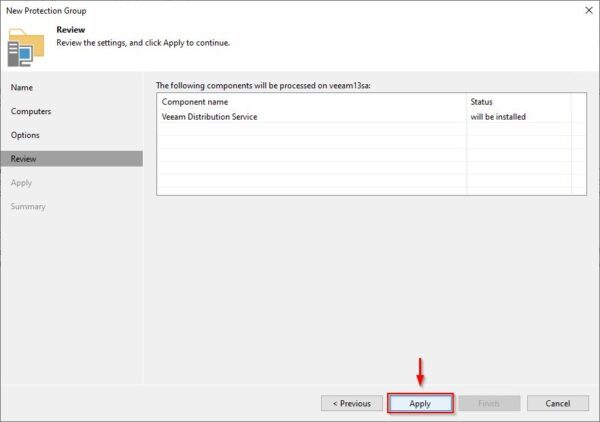
After installation, click Next.
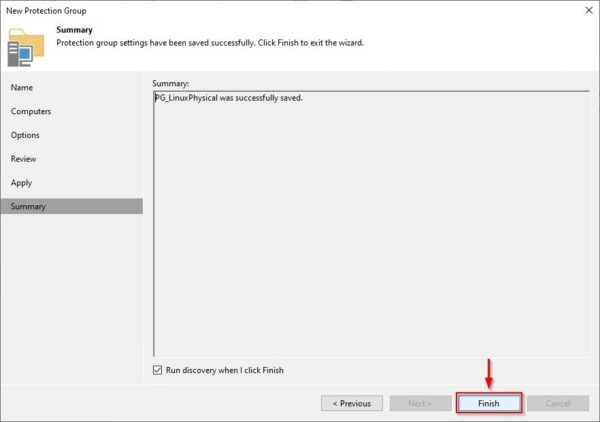
Click Finish to close the wizard.
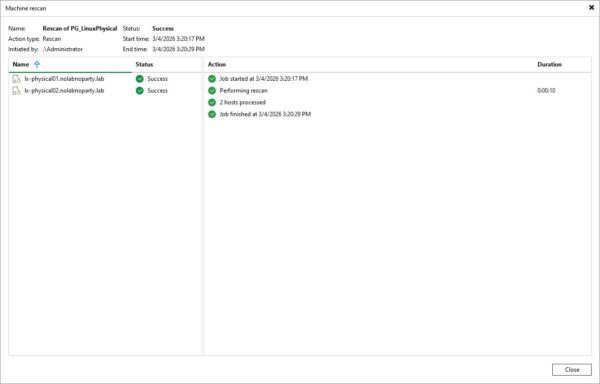
Once connected, the Veeam Agent is installed on the target system.
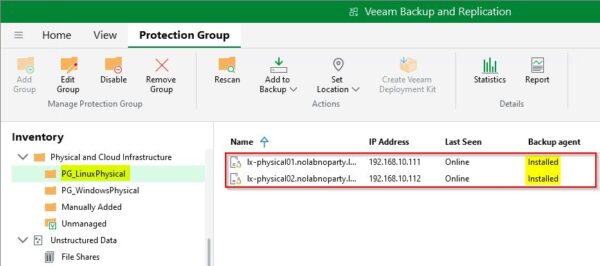
The Protection Group is successfully created with the added Veeam Agent Linux computers.
Using certificate-based authentication strengthens security and makes your backup infrastructure more resilient against potential intruders.
Veeam Backup & Replication v13 is available as 30-day trial.