When upgrading to Veeam v13, you must also upgrade any installed managed Veeam Hardened Repository v2 as part of the process.
The procedure is not complicated, but it requires temporarily stopping all Backup Jobs that use the Veeam Hardened Repository v2 while the upgrade is performed.
Keep in mind that the upgrade process will preserve all stored backups, leaving them intact.
Prepare the server
As a best practice, the Veeam Hardened Repository should be a physical server for security reasons. To proceed we need to prepare the server for the upgrade.
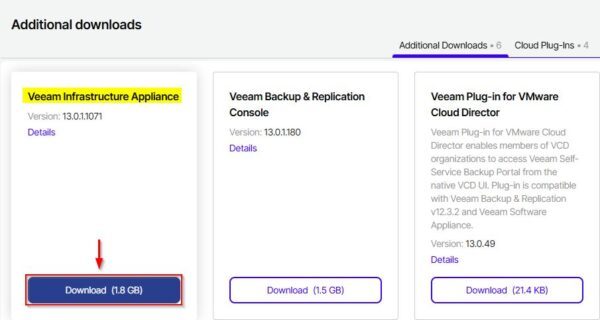
To upgrade the Veeam Hardened Repository v2, download the Veeam Infrastructure Appliance ISO that can be found in My Account > Additional downloads.
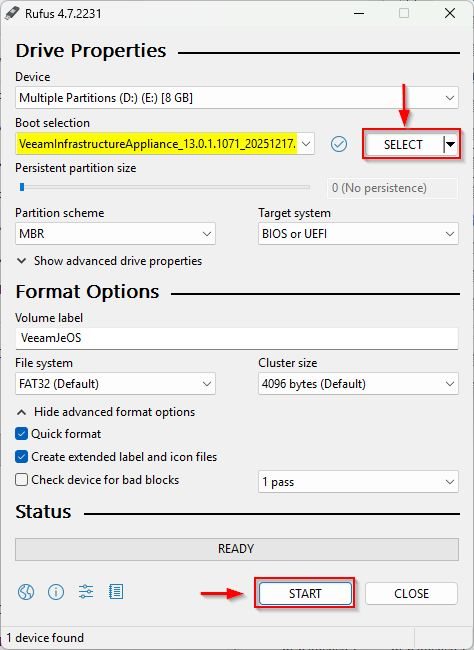
Once the latest .ISO version is downloaded, create a bootable USB stick using a tool like Rufus. Select Write in DD Image mode option when prompted.
Plug the USB stick into the server's USB port, configure the boot sequence to boot from the USB and power on the Hardened Repository v2 server.
Upgrade Veeam Hardened Repository v2
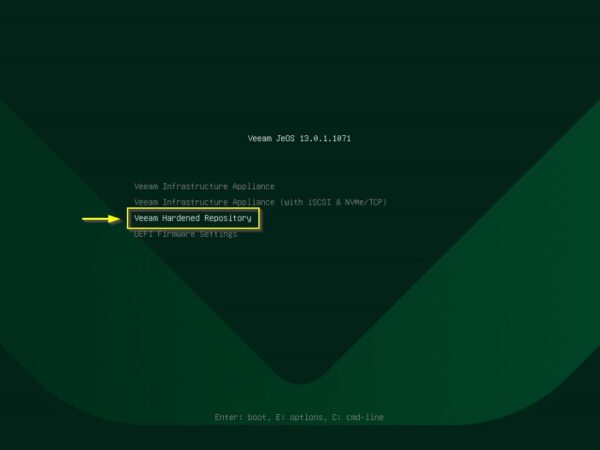
When the ISO Appliance has booted, select Veeam Hardened Repository.
Select Upgrade - upgrades Hardened Repository to a latest version option.
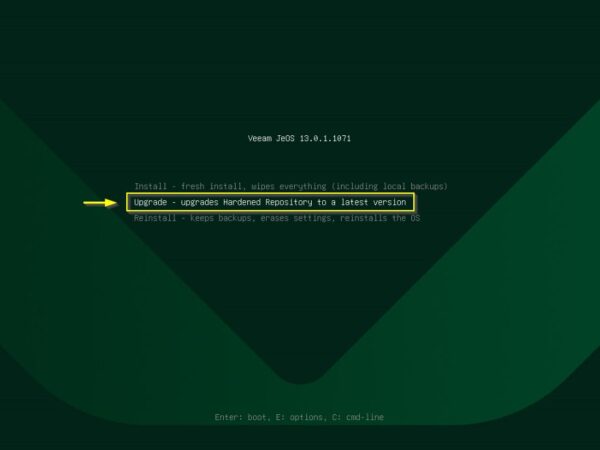
The system begins the upgrade procedure.
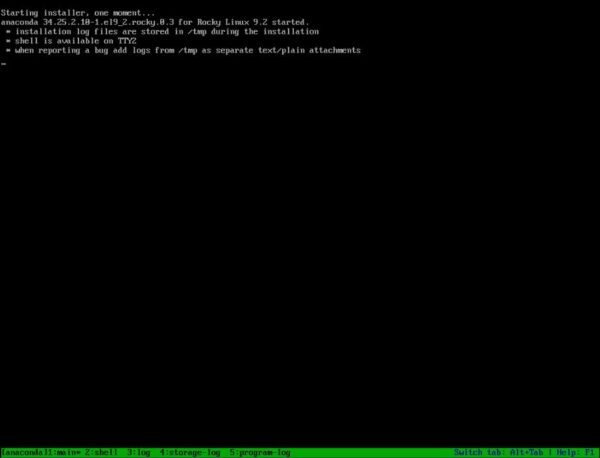
Click Yes to confirm.
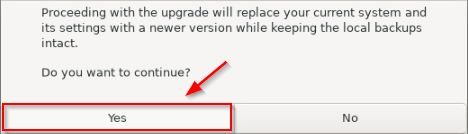
The system will proceed with the upgrade.
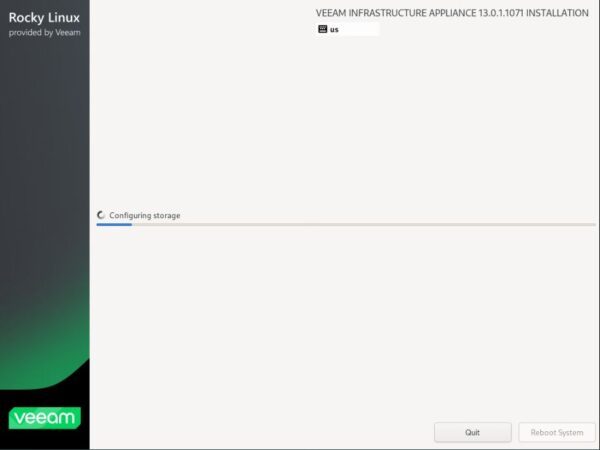
Once the upgrade process has been completed, the system will reboot automatically.

Complete the Hardened Repository configuration
After rebooting, finalize the initial configuration.
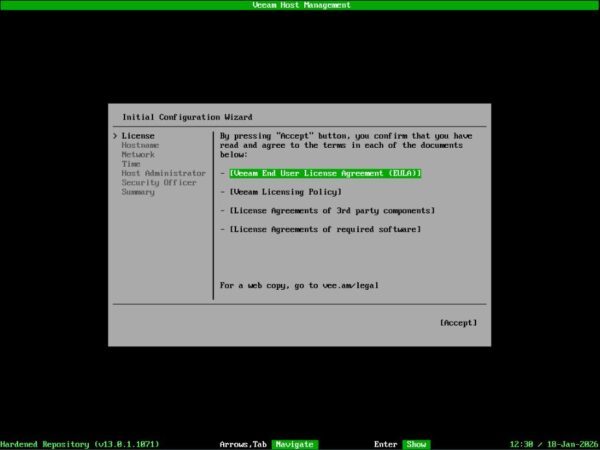
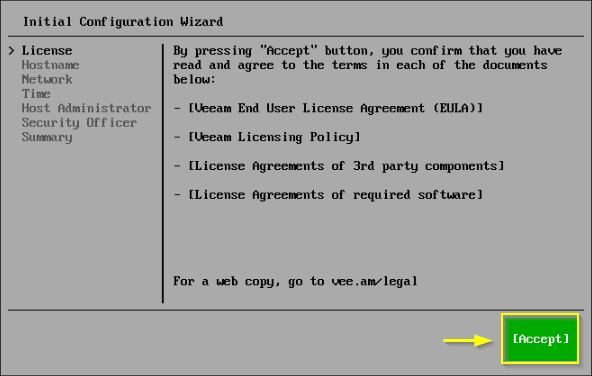
Select Accept then press Enter to accept the EULA.
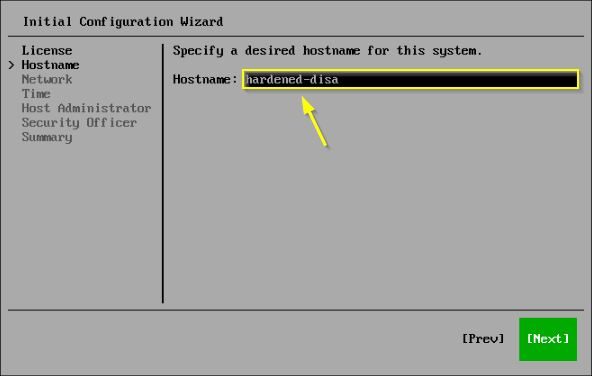
Make sure to specify same Hostname used before the upgrade. Select Next then press Enter.
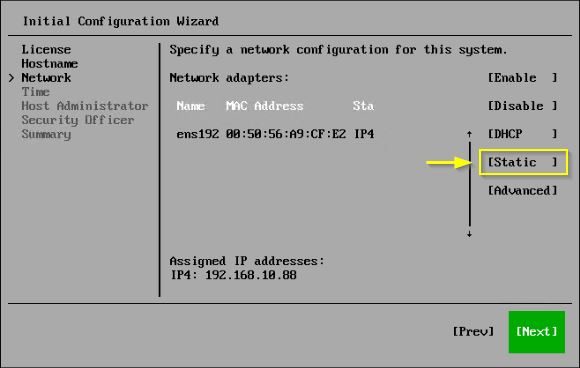
Network settings must also remain the same. Click Static to assign the correct Network configuration. Select Next then press Enter when done.
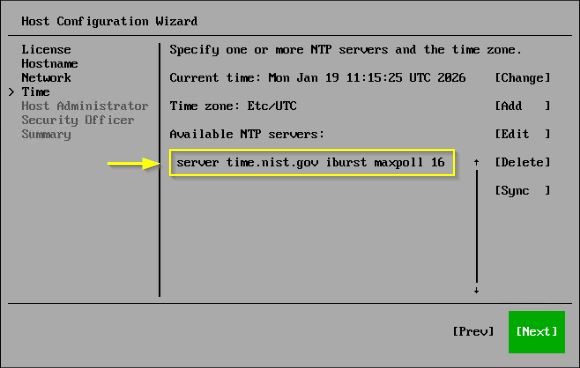
If the NTP server configuration is correct, select Next then press Enter.
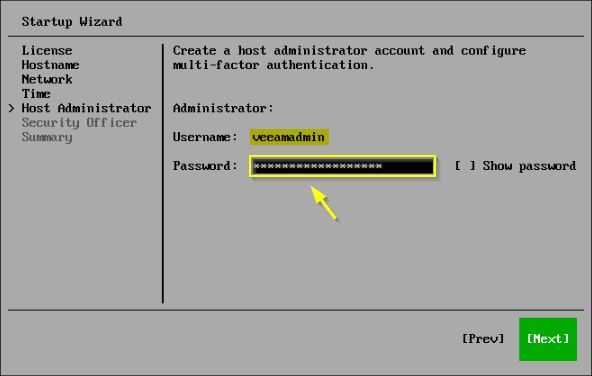
Enter the Password for the veeamadmin Host Administrator then select Next and press Enter.
Select Show QR-code and press Enter.
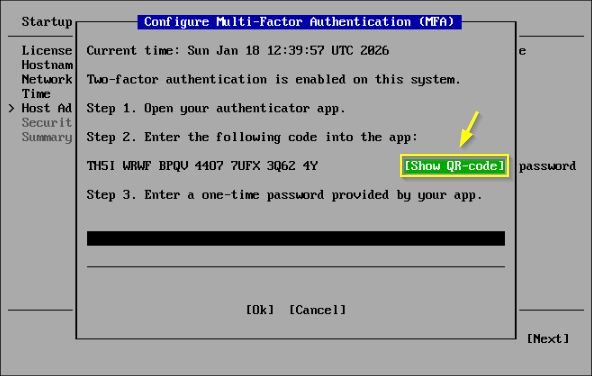
Open an Authenticator app on your phone to configure the MFA.

Enter the one-time password and press OK.
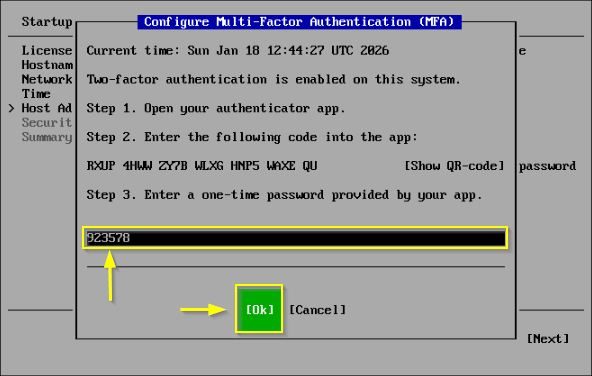
Select Next and press Enter.

Enter a Password for the veeamso Security Officer account. Select Next and press Enter.

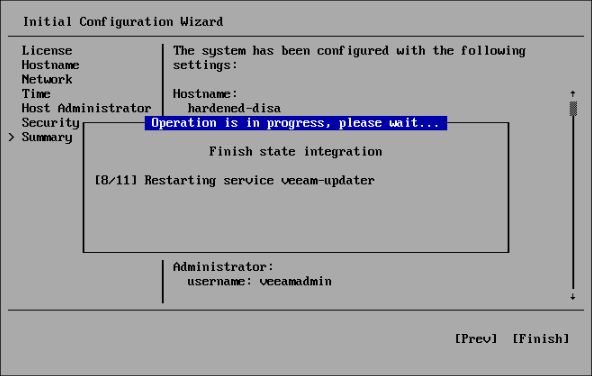
Select Finish then press Enter.

Click OK.
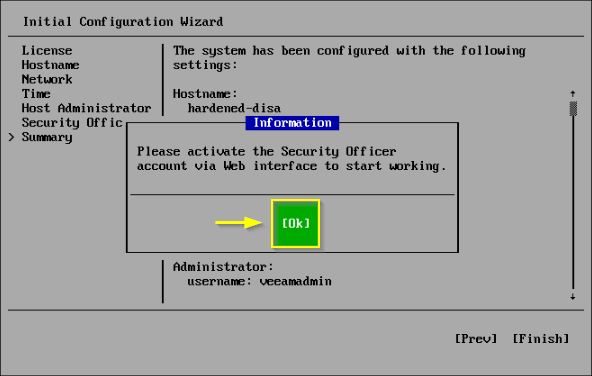
The configuration is applied to the system.
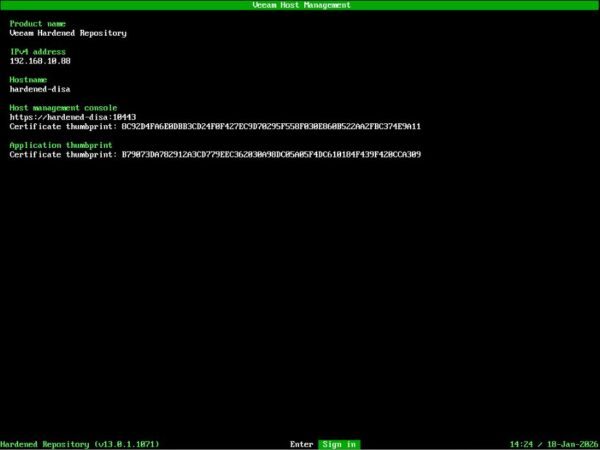
Press Enter to Sign in.
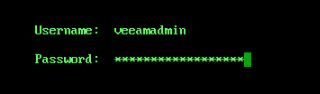
Enter veeamadmin as the Username and the Password configured earlier then press Enter.
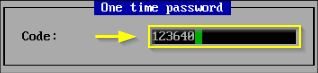
Enter the OTP Code and press Enter.
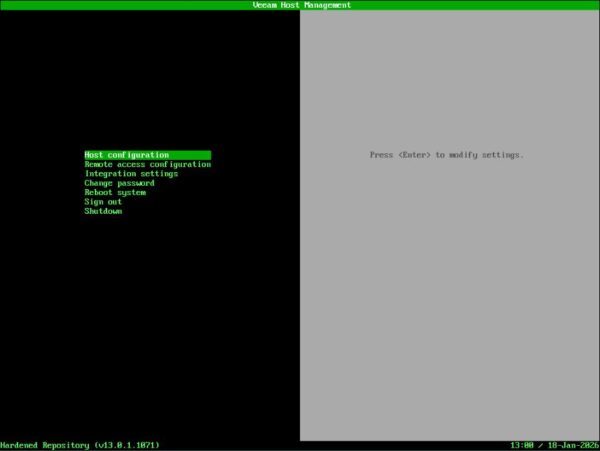
The Veeam Hardened Repository main dashboard will be displayed.
Reconnect in Veeam Backup & Replication Console
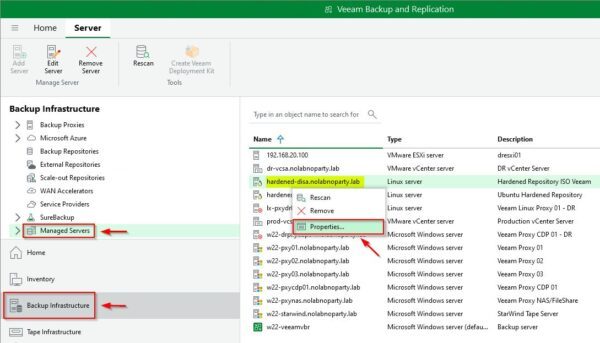
Open the Veeam console and navigate to Backup Infrastructure > Managed Servers. Right-click the Veeam Hardened Repository and select Properties.
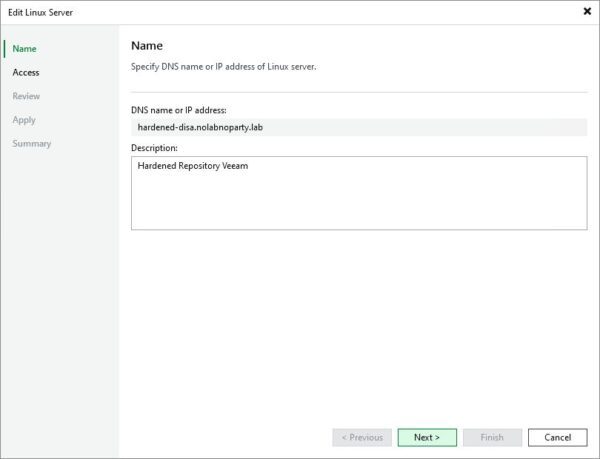
Click Next.
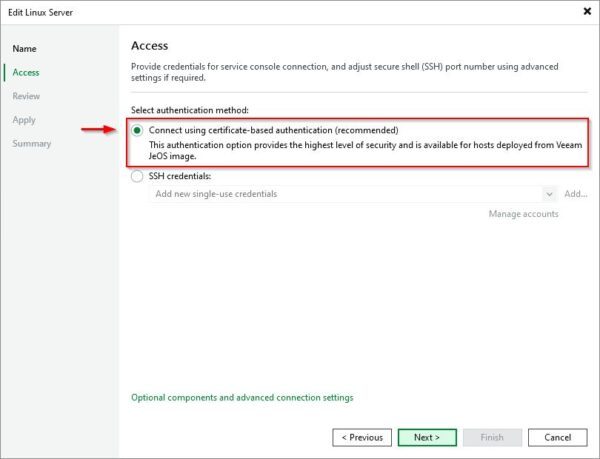
In the Access step set the Authentication method to Connect using certificated-based authentication and click Next.
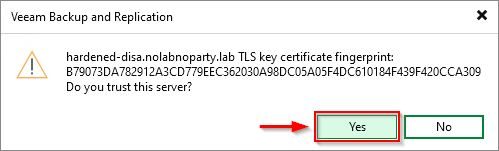
Click Yes to accept the TLS key certificate fingerprint.
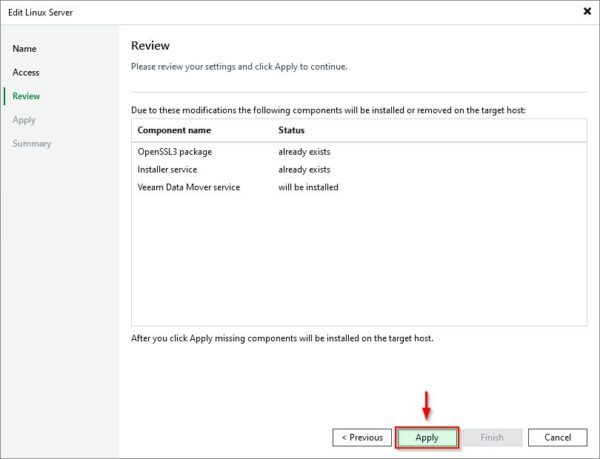
Click Apply.
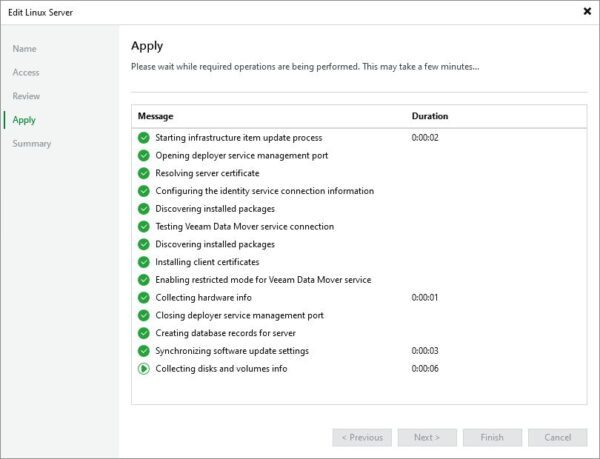
The required components will be installed to the system. Click Next when completed.
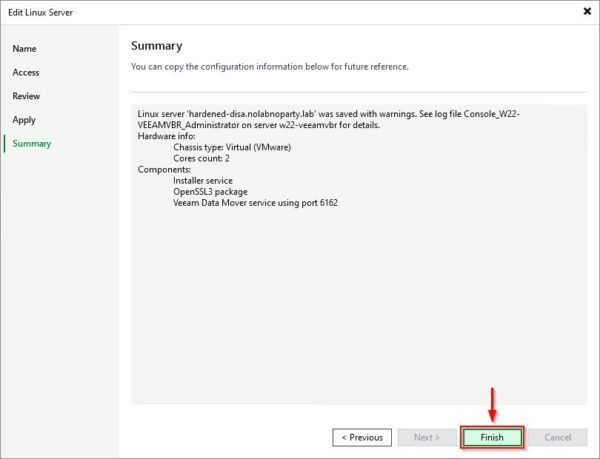
Click Finish to exit the wizard.
Test a Backup Job
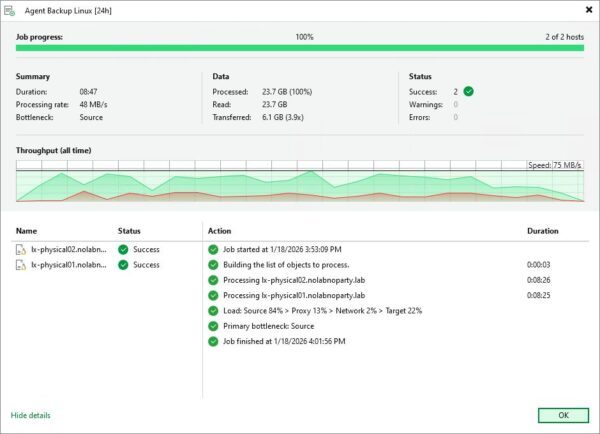
Run a Backup Job with the upgraded Veeam Hardened Repository configured as target.
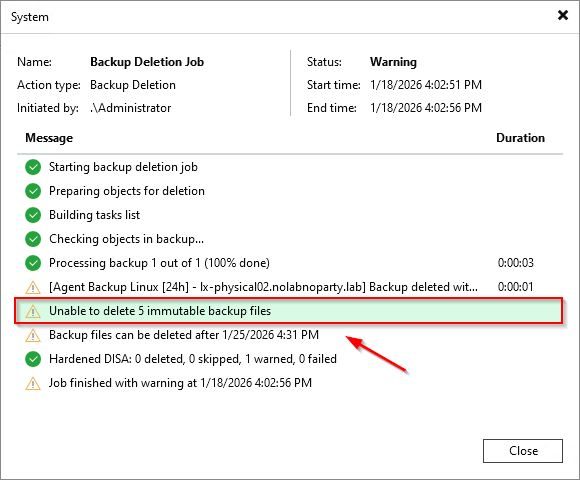
Try to delete a Backup file to verify that immutability is still enforced.
The Veeam Hardened Repository is now ready and successfully upgraded to latest version.