Because vSphere Update Manager is available only with licensed version, you can upgrade ESXi 5.5 free edition to Update 1 with vSphere Management Assistant (vMA).
If no other hypervisors are installed in your network, you can run vMA appliance also from VMware Workstation.
Procedure
Access the host to upgrade with vSphere Client and shutdown all running virtual machines. Right click the VM and select Power > Shut Down Guest. Note the current ESXi 5.5 installed release with build number 1331820.

Once all virtual machines have been shutdown, put the host in maintenance mode right clicking the ESXi and selecting Enter Maintenance Mode option.

When the host is in the maintenance mode state, start the vSphere Management Assistant.

Login vMA with the credentials set during setup.
username: vi-admin
password: set during setup

Before proceeding with installation, you need to download the Update 1 patch from VMware web site then copy it to a folder in the host vmfs datastore.

Check the patch content with the command:
esxcli --server=hostname.domain.local software source vib list --depot=path_to_datastore/patch_name.zip
# esxcli --server=prod-esxi04.nolabnoparty.local software source vib list --depot=/vmfs/volumes/lun01_service/patches/update-from-esxi5.5-5.5_update01.zip

To install the patch, type the command:
esxcli --server=hostname.domain.local software vib update --depot=path_to_datastore/patch_name.zip
# esxcli --server=prod-esxi04.nolabnoparty.local software vib update --depot=/vmfs/volumes/lun01_service/patches/update-from-esxi5.5-5.5_update01.zip

Enter the host root and password credentials then press Enter to start installation.

Reboot the host to complete the installation. Right click the ESXi then select Reboot option.

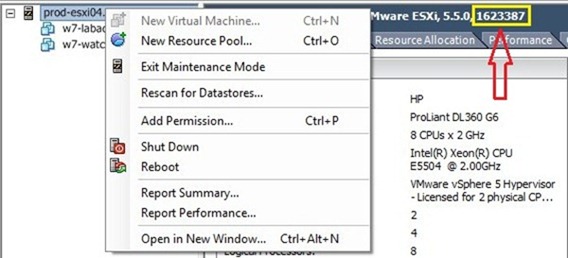
Once rebooted, check the new ESXi release build number changed to 1623387. Right click the host and select Exit Maintenance Mode.
Power on the virtual machines.

The update process has been completed and host has latest patch installed.