


Once the installation and configuration of the Veeam Hardened Repository ISO are complete, it's time to test if everything works as expected.
To validate the new installation, we need to configure the repository in Veeam and create a Backup Job.
Blog series
Veeam Hardened Repository ISO installation - pt.1
Veeam Hardened Repository ISO configuration - pt.2
Veeam Hardened Repository ISO test backup - pt.3
Add the Hardened Repository in Veeam
Login to Veeam console to proceed with the repository configuration.
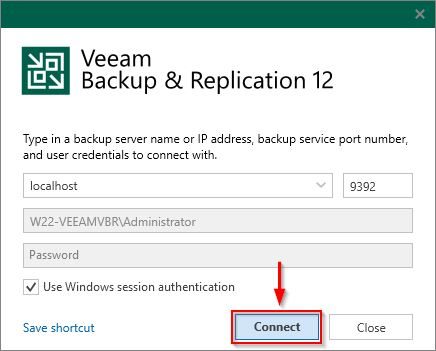
Add the Linux server in Veeam
Go to Managed Servers area, right click anywhere in the right pane and select Add server.

Select Linux.

Enter the DNS name or IP address and optionally a Description. Click Next.

Click Add and select Single-use credentials for hardened repository.

Enter Username and Password previously created during the configuration of the Veeam Hardened Repository ISO (step Start SSH) and click OK.

Select the Credentials just created and click Next.

Click Yes to trust this server.

Click Apply to install the required components.

Once the required components are installed, click Next.

Click Finish.

The configured Linux server.

Add the new Hardened Repository
Go to Backup Repositories area, right click anywhere in the right pane and select Add backup repository.

Select Direct attached storage option.

Select Linux (Hardened Repository).

Specify the Name and optionally a Description then click Next.

Select the Repository server and click Populate. Choose the Path to store the backups and click Next.

Ensure that the Use fast cloning on XFS volumes option is enabled, and specify the immutability retention period in the Make recent backups immutable field. Then click Next.

The system checks if fast clone requirements are met. When using the Veeam Hardened Repository ISO no additional action is needed on the XFS volume as it is automatically formatted to meet the fast clone requirements.

Specify the Mount server and click Next.

Click Apply to finalize the repository configuration.

The Hardened Repository is configured and saved in Veeam. Click Next.

Click Finish.

The created Hardened Repository.

Disable SSH in the Hardened Repository
When the configuration in Veeam is complete, you need to disable SSH on the Hardened Repository to secure access. In this step, the SSH service will be disabled and the user used by Veeam to connect to the repository will be removed from the sudo group. Access the console and select Stop SSH.

Click Yes.

Click OK.

Create a Backup Job to test the repository
To test if the Veeam Hardened Repository ISO works as expected, create a new Backup Job and select the newly configured Hardened Repository as the Backup repository. Specify the Retention policy ensuring it is equal to or greater than the value set for immutability retention, then complete the Backup Job creation.

Run the Backup Job
Run the Backup Job to create a new backup in the Hardened Repository.

Test the immutability
Go to Backups > Disk, select a VM that was previously included in the Backup Job, and choose Delete from disk to remove the selected VM backup.

Click Yes to confirm.

As expected, the deletion operation fails because the backup is immutable. The Hardened Repository works as expected.

The Veeam Hardened Repository ISO is an excellent solution that simplifies the installation of a Hardened Repository by leveraging the hardening configuration provided by the ISO, securing the operating system in accordance with the DISA STIG.
The Veeam Hardened Repository ISO can be downloaded for free from the Veeam website.


