


If the vCenter database is installed on a dedicated SQL server, we need to create the vCenter database and DSN to link the DB to the vCenter.
To perform this configuration is required a working MS-SQL server.
Installation guide
- Part 1 - Install guide introduction
- Part 2 - Install ESXi 5.5
- Part 3 - Install vCenter Single Sign-On
- Part 4 - Install vSphere Web Client
- Part 5 - Install Inventory Service
- Part 6 - Create vCenter database and DSN
- Part 7 - Install vCenter Server
- Part 8 - Create Update Manager database and DSN
- Part 9 - Install Update Manager
Part 6 - Create vCenter database and DSN
From the MS-SQL Server, open the SQL Studio Management tool and access the system.

In Security > Logins define the account used in vCenter to manage the database.

Right click Databases item and select New Database option.

Type a Database name (VIM_VCDB) and assign as Owner the dedicated account previously defined. The owner has to be same account used in vCenter. Click OK to confirm then exit SQL Studio Management.

Install SQL Native Client in vCenter
To link the database created in MS-SQL Server to vCenter, the SQL Native Client must be installed in vCenter Server. You can download the SQL Server 2008 R2 Native Client driver here. Select the version that match your architecture (32 & 64 bit) then launch the installation wizard.
Click Next to start the installation.

Accept the EULA then click Next.

Click Next to continue.

The Client Components is what we need then leave default settings and click Next.

Click Install to begin the installation.

The screen shows the installation Status.
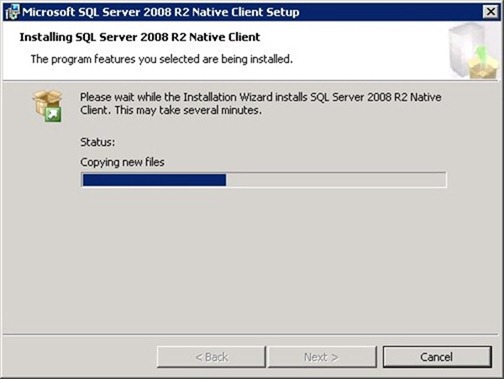
When installation completes successfully, click Finish to exit the wizard.

Setup DSN
Access ODBC Data Source Administrator from Start > Administrative Tools. Select System DSN and click Add button.
From the Create New Data Source window select SQL Server Native Client 10.0 driver and click Next to start the configuration.

Type a Name and a Description for your data source. Click the right arrow in the Server field and select the SQL instance you want to connect to. Click Next.

Leave default settings then click Next.

Tick Change the default database to field and select the vCenter database VIM_VCDB previously created in the MS-SQL Server. Click Next to continue.

Leave default then click Finish.

Test the connection with a click on Test Data Source button.

The system is properly configured if you get the message:
TESTS COMPLETED SUCCESSFULLY!
Click OK to save the DSN parameters.

The System Data Source is configured. Click OK to exit ODBC Data Source Administrator.

When vCenter database is created and DSN configured, we are ready to proceed with next installation step: vCenter Server.
Next: Part 7 - Install vCenter Server





Very Usefull. Thanks...