vRealize Automation is a solution by VMware to automate the delivery of personalized infrastructure, applications and custom IT services.
In version 7 the installation process has been simplified and during the prerequisites check, there is a fix button that automatically fix any missing elements in your Windows servers through the new agent.
Blog series
vRealize Automation 7 minimal installation - pt.1
vRealize Automation 7 configuration - pt.2
Install vRealize Automation VA
From vSphere Web Client, right click the cluster and select Deploy OVF Template option.

Click Browse to select the VMware vRealize Automation OVA file downloaded from VMware and click Next.

Click Next.

Accept the EULA then click Next.
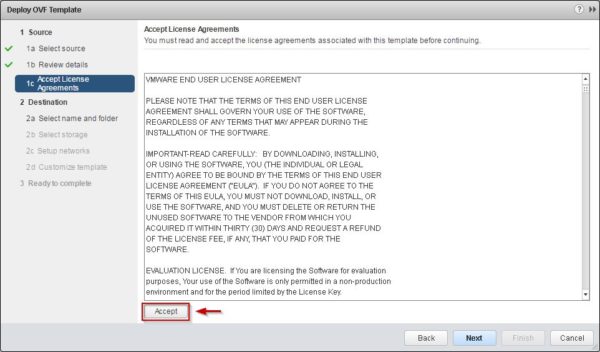
Type a Name for the appliance then click Next to continue.

Select virtual disk format, datastore then click Next.

Click Next to continue.

In the Application area set the password, enable SSH service and enter the Hostname providing the FQDN.

In the Networking Properties area type all the requested network parameters then click Next.

Optionally enable Power on after deployment then click Finish to begin the VA deployment.

The VA is being deployed.

When the process completes successfully, the console displays the parameters to access the VA.

Setup the vRA
Login the virtual appliance using the below parameters then click Login.
User name: root
Password: configured during setup

Click Next to begin setup using the installation wizard.

Accept the EULA then click Next.

Choose the Minimal deployment option and enable the Install IaaS option. Click Next to continue.

Selecting the Enterprise deployment option instead, you have the possibility to design the topology best suited to your organization's needs. Note that selecting this option additional steps are required to complete the configuration.

Since the Install IaaS option has been previously selected, in this screen you find a link to download the Management Agent installer. Click on vCAC-IaaSManagementAgent-Setup.msi link to download the application to deploy to your Windows Servers.

Enable the Use Time Server option and type the IP address of your NTP server to keep the time in sync. Click Change Time Settings button to apply the new configuration.

The settings have been updated.

Install the Management agent
For each Windows Server that acts as IaaS machine, run the installer just downloaded. Click Next.

Accept the EULA then click Next.

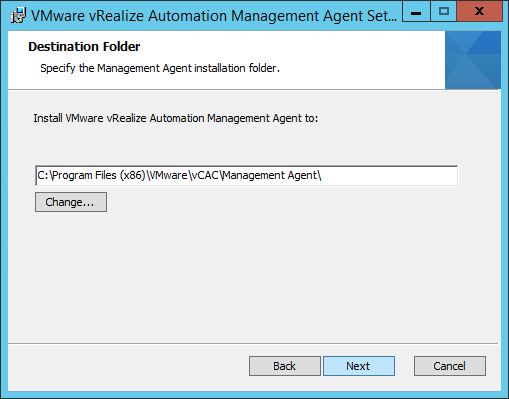
Leave default destination folder and click Next.
Enter the address and credentials for your vRA appliance. Click the Load button to get the SSL fingerprint and enable the I confirm the fingerprint... option. Click Next.

Enter the credentials of the dedicated Active Directory service account then click Next.

Click Install to begin the installation.

The agent is being installed.

When the process has been completed, click Finish to exit the wizard.

Once the Management Installer finishes, go back to the VA wizard. At the bottom of the screen there is now an IaaS Server listed.

The VA installation is now complete. Part 2 will cover the complete configuration to make vRealize Automation up and running.