

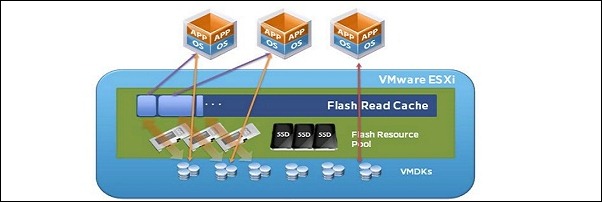
vSphere 5.5 Flash Read Cache (vFRC) is a new feature that allows you to leverage host local SSDs in a very effective way. The benefit is the offload of I/O from the SAN to local SSD.
A Virtual Flash resource is configured on an SSD device connected to your ESXi formatted with a new file system called VFFS (Virtual Flash File System). Up to 8 SSD devices can be configured.
Configure vFRC
From vSphere Web Client navigate to Home > vCenter > Hosts and Clusters and select the host to configure. Go to Manage > Settings tab then under Virtual Flash select Virtual Flash Resource Management option.

Click on Add Capacity button to add the SSD device to use for virtual flash.

From the list select the flash device to use then click OK.
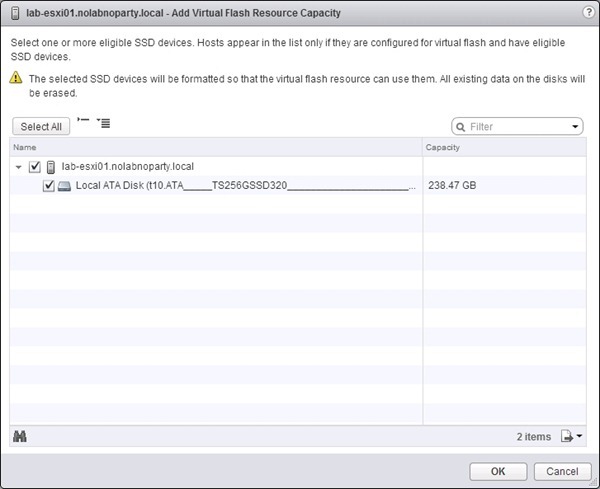
The device is then added to the system.
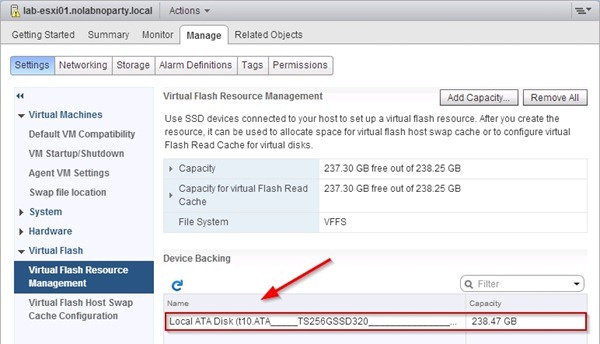
Repeat same steps for all ESXi hosts to configure.

From the host Summary tab you can see the Virtual Flash Resource just configured.

It’s possible to use this flash capacity not only for vFRC but for Host Swap Cache as well.
Configure Host Swap Cache
To configure the Host Swap using same SSD device used for vFRC, select under Virtual Flash the Virtual Flash Host Swap Cache Configuration item. Click on Edit button and thick Enable virtual flash host swap cache option, specify the capacity then click OK.
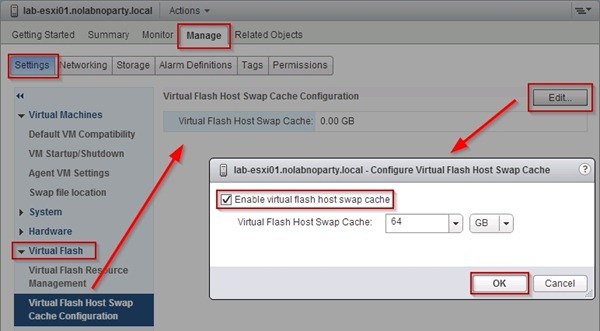
The cache has been configured.

Perform same steps to enable the cache for the other ESXi hosts equipped with SDD devices. The Summary tab shows the new Virtual Flash capacity available after having enabled Host Swap.

To use vSphere Flash Read Cache you need Enterprise Plus Licensing.


