

Object First is a powerful backup storage ransomware-proof and immutable out-of-the-box optimized specifically for Veeam.
With Object First solution you can configure a high-performance and immutable S3 Object Storage Repository to store Veeam primary backups.
This solution is designed to provide a hardened object storage appliance with zero access to the operating system providing the highest level of security without affecting the performance.
Note that the VSA solution is intended for testing and lab use only and, for security reasons, it should not be deployed in production environments.
Key features
- Type - S3 compatible Object Storage.
- Immutability - Object First leverages the native S3 Object Lock feature.
- High performance - the Ootbi is designed specifically for Veeam.
- Deployment - Object First is available as Physical Storage and as Virtual Storage Appliance.
- Easy configuration - 3 IPs required (two physical and one vIP), credentials and MFA setup with no expertise requirements.
- Unlimited Scalability - additional nodes can be added in minutes.
- Large storage capacity - the solution allows up to 192TB on a single node.
- SOSAPI - supports Veeam Smart Object Storage API for an easier management.

Install Object First VSA
Download the Free Virtual Storage Appliance (VSA) from Object First website and save the .OVA file anywhere in your computer.
Open the vSphere Client, right click the vSphere object where you want to install the VSA appliance and select Deploy OVF Template.

Click Upload Files and select the .OVA file previously downloaded from Object First. Click Next.

Specify the Virtual machine name and the location. Click Next.

Select the Compute resource and click Next.

Click Next.

Select the Storage to save the appliance and click Next.

Select the Destination Network to use and click Next.

Click Finish to begin the VSA deployment.

When the deployment has been completed, power on the VSA.

Configure a new cluster
Once the VM has been booted, from the vSphere Client access the appliance's console.
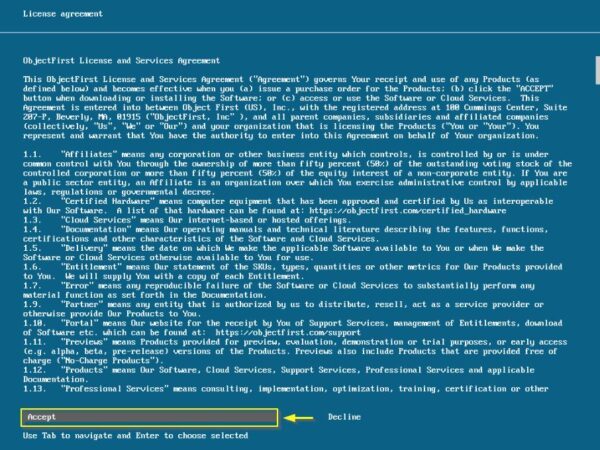
Select Accept and press Enter to accept the EULA.
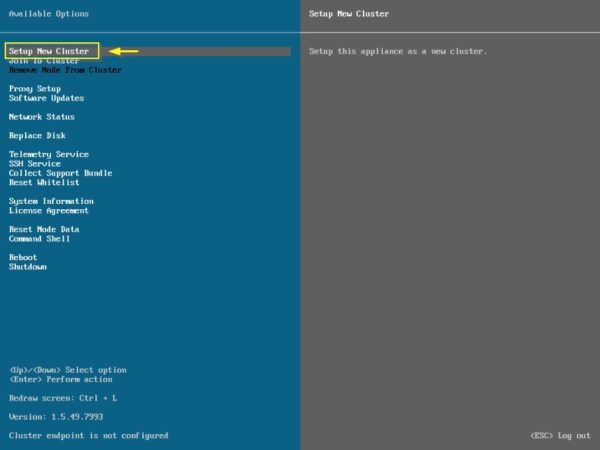
Select Setup New Cluster to configure a new cluster.
Configure the Network interface (Configure interface must be selected) and press Enter.

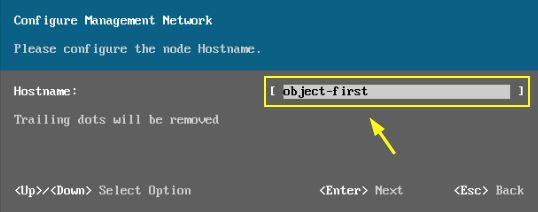
Assign the Hostname a name and press Enter.
The wizard checks automatically for available updates.

If any update is found, press Enter to upgrade the appliance.

The update is being installed.

When the update installation has been completed, click Setup New Cluster once again.

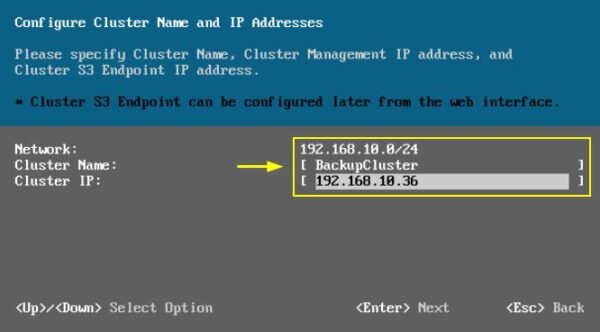
After confirming the Network interface configuration, enter the Cluster Name and the Cluster IP (this IP will be used to access the VSA via browser). Press Enter.
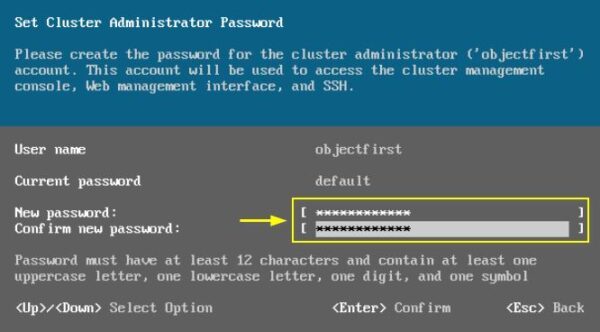
Type the New password (at least 12 characters) for the objectfirst User name. Press Enter to confirm.
Press Enter to continue.

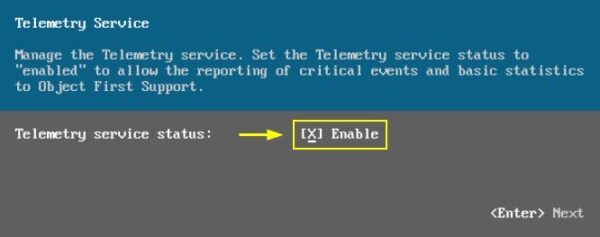
As best practice Enable the Telemetry service status. Press Enter.
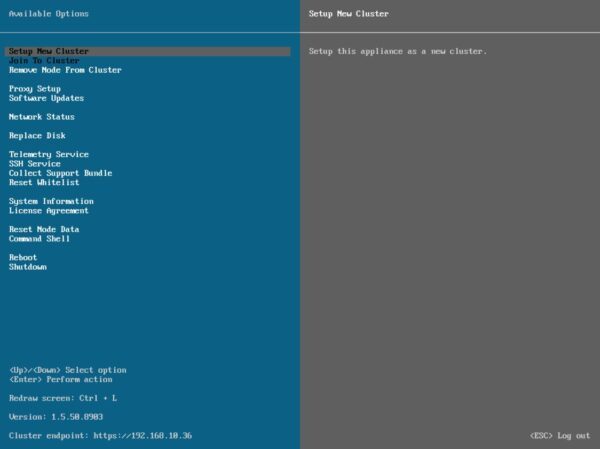
The VSA first configuration is now complete and the appliance is accessible via https using the Cluster endpoint IP shown at the bottom of the screen.
Using the preferred browser, type the address https://<IP_VSA> and enter the following credentials:
Login: objectfirst
Password: the password previously configured
Click Log in to access the appliance.

Configure the OOTBI appliance
When you access the console for the first time, the wizard drives you through the parameters to configure (click skip to close the wizard).

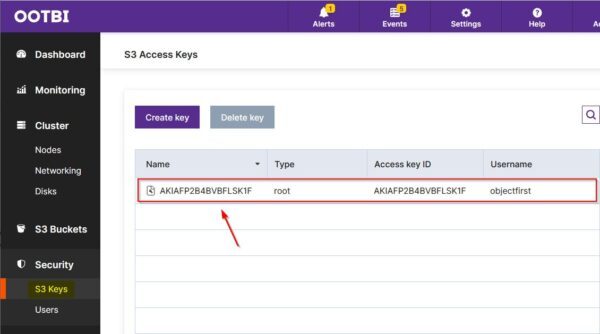
Access the S3 Keys area and click the Create key button to create the keys used to access the buckets.

Store the created keys in a safe place then click Close.

The created S3 Access Keys.
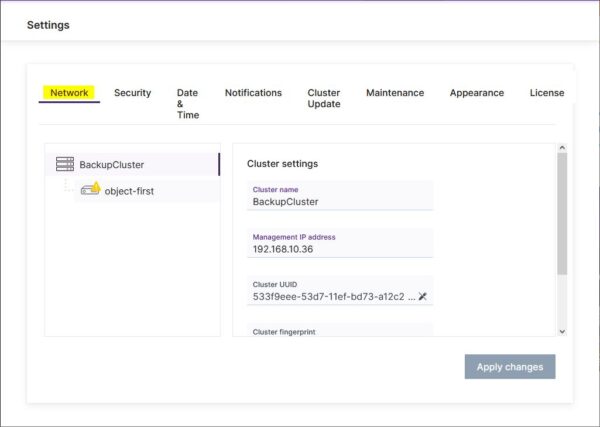
Click Settings to configure the storage.

In this section you can configure the following:
- Network - cluster setting network parameters.
- Security - to change the Password and set the MFA.
- Date & Time - specify date and time format (i.e. DD/MM/YY - 24h).
- Notifications - to receive system notifications via email.
- Cluster Update - check for new updates availability.
- Maintenance - used to shutdown the cluster in case of maintenance.
- Appearance - dark mode.
- License - to install the license.
Click Apply changes when done.
Create a S3 Bucket
Access the S3 Buckets area and click Create a bucket.
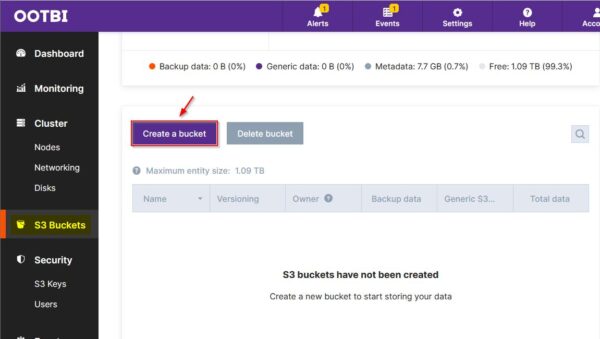
Type the New bucket name (veeam-repo-lock in the example) and select Enable versioning option to have immutable backups. Click Create.

The S3 bucket has been created successfully. Click Close.

The created S3 bucket.

Add the Object First VSA as Repository in Veeam VBR
From the Veeam Backup & Replication console, access the Backup Infrastructure area and right click Backup Repositories. Select Add backup repository.

Select Object storage as Backup Repository type.

Select S3 Compatible as Object Storage type.

Select S3 Compatible.

Enter the Name for the repository and optionally a Description. Click Next.

From the Object First Dashboard, copy the Service Point value.

Paste the Service point previously copied and specify a Region. Since you have an on-prem storage then you can keep the default value or specify a custom Region. Click Add to specify the Credentials used to access the bucket. Enter the Access key and Secret key previously noted and click OK.

Click Next.

Click Continue to accept the self-signed certificate.

Click Browse and select the bucket to use previously created in the Object First storage. Click OK.
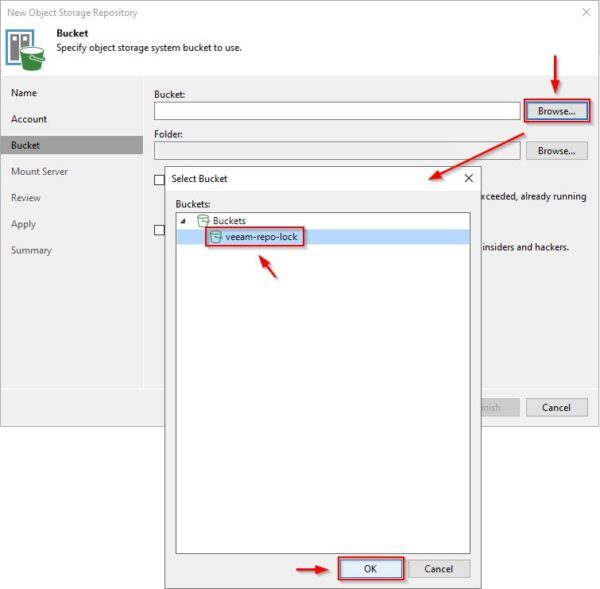
Click Browse and click New Folder to create the Folder to store the backups. Click OK.

Leave the Make recent backup immutable for xx days option unselected if you don't want to create immutable backups and click Next.
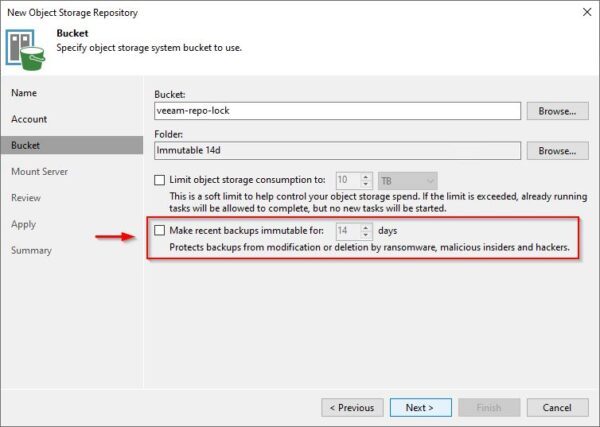
Since the bucket was created immutable and the Repository immutability retention was not specified, you will receive an error message. Click OK.
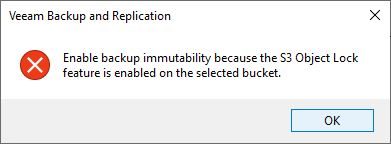
If the bucket was created with versioning option enabled, you must enable also the Make recent backup immutable for xx days option in Veeam Backup & Replication. Click Next.

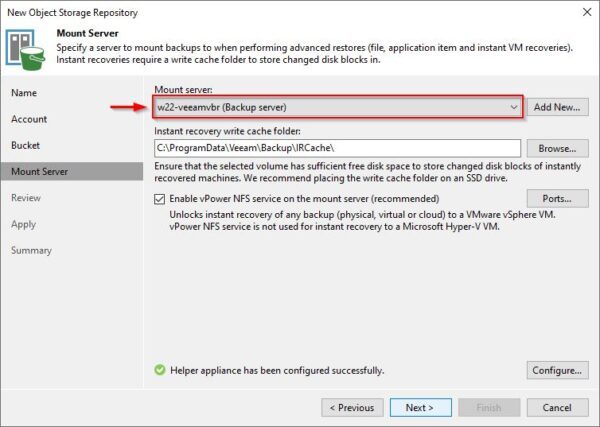
Specify the Mount Server to use and click Next.
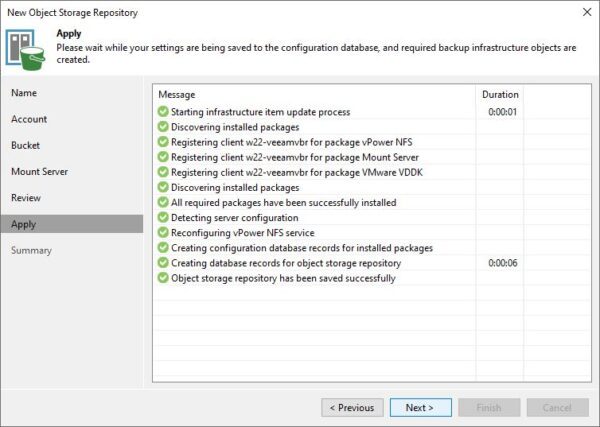
Click Apply to create the new repository.

The repository was created successfully. Click Next.
Click Finish.

The created Object First Repository.

Test the backup
Create a new Backup Job in Veeam Backup & Replication selecting Object First as target Repository.
Right click the Backup job and select Start.

The backup operation is completed successfully storing the data to the Object First repository.

Test immutability
To verify if the backup is immutable, go to Backups > Object Storage section. Right click a VM belonging to the Backup Job and select Delete from disk.

Click Yes to confirm.

As expected, the VM cannot be deleted because the backup is immutable.

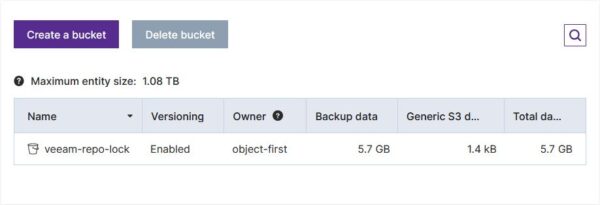
Checking the Object First console, the bucket used by Veeam Backup & Replication now contains some data.
The installation and configuration of the Object First Ootbi appliance is really a matter of a few minutes and because it is a storage specifically designed for Veeam backup & replication, you can achieve high performance with a strong security factor.


No Responses