


Veeam Plugin for Microsoft SQL is a backup tool for MS-SQL databases used to transfer Database and Transaction Log backups to Backup Repositories configured in Veeam Backup & Replication.
The Veeam Plugin leverages the native application-level backups of Microsoft SQL Server allowing to backup and restore individual MS-SQL databases with independent backup schedule for full, differential and log backups (SQL Agent Job required).
Prerequisites
Veeam Plugin for Microsoft SQL supports the following versions:
- Supported Microsoft SQL Server versions: 2014 SP3, 2016, 2017, 2019, 2022
- Microsoft SQL Server Express is not supported.
- Windows Server Failover Clusters are supported.
- Always On Availability Groups, Always On Clusterless Availability Groups and Always On Failover Cluster Instances are supported.
It also required to install Microsoft SQL Server Management Studio (SSMS):
- SSMS v19.x must be installed if Veeam v12.1 is used.
- SSMS v18.x must be installed if an earlier version of Veeam is used.
Install Veeam Plugin for Microsoft SQL
Copy from the Plugins folder located in the Veeam installer ISO file the VeeamPluginforMSSQL.exe file to the SQL Server.

Run the installer. Click Next to begin the installation of the Veeam Plugin for Microsoft SQL.

Click I Accept.

The plugin is being installed in the SQL Server.

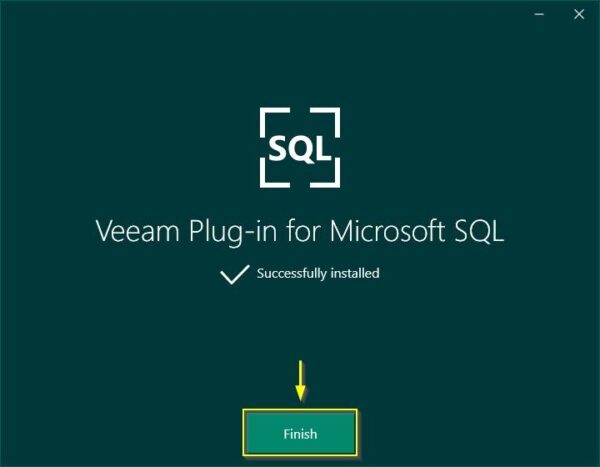
When the installation has been completed, click Finish to exit the wizard.
When you open the Microsoft SQL Server Management Studio, you should find a new Veeam toolbar.

Configure the plugin
Before using the Veeam Plugin for Microsoft SQL, a minimal configuration is required.
Configure the Backup Repository
Click on the gear icon to configure the Veeam Backup Repository to store the database backups.

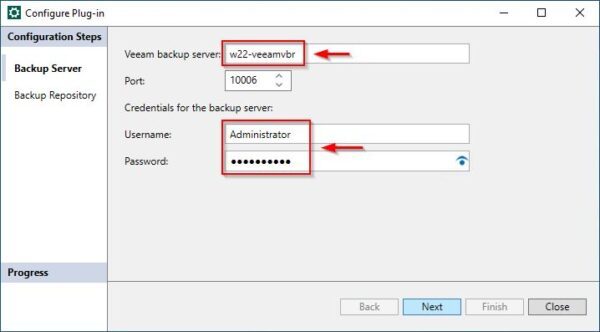
Enter the Veeam Backup Server and specify the credentials to access the backup server (make sure the account has the permissions to access the repository). Click Next.
Specify the Backup repository to use and click Finish.

Now click on the Backup database icon to configure the backup.

Select the Databases to backup, enter the Backup set name and select Full as Backup type. Click Next.

Configure the desired Retention and click Run to execute the Backup Job.

The selected database is being processed.

Looking at the configured Veeam Server, the SQL Backup Job is running.

After a few seconds the backup completes successfully. Click Close to close the window.

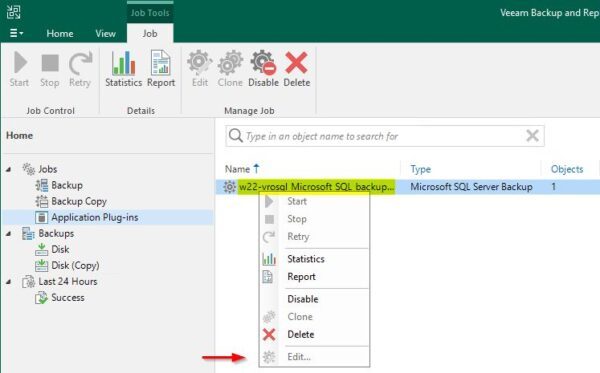
In the Veeam Backup Server a new Application Plug-ins group is now displayed.

The processed database is also available in the Backups > Disk section.

Unfortunately, this method doesn't provide the option to schedule the backup and the Edit option is greyed out.
Configure the Backup Job with SQL Agent
To schedule the Backup Job for both Database and Transaction Log, you need to configure the Veeam Plugin for Microsoft SQL job using the SQL Agent. Open the database backup configuration once again.
Configure Database backup
Specify the Databases to backup, Backup set name and select Full as Backup type. Click Next.

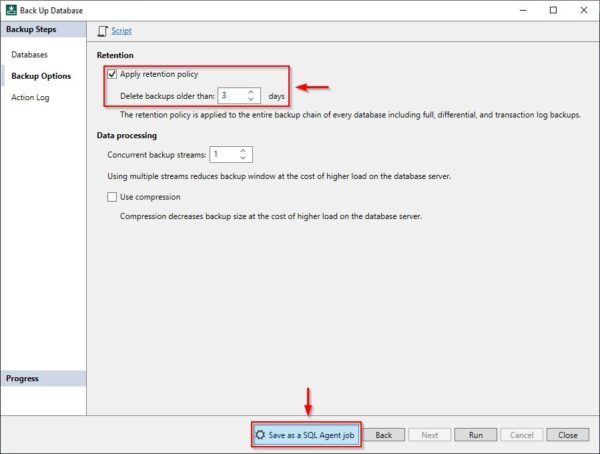
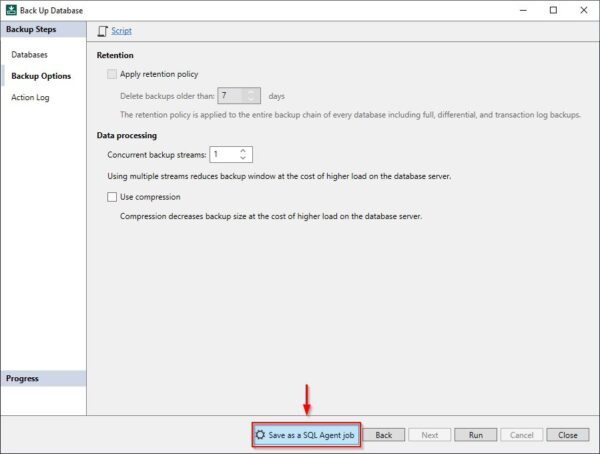
Configure the desired retention and click Save as a SQL Agent job.
Click Create.

Click OK.

Configure Transaction Log backup
Repeat the same procedure to configure the Log Backup Job. Specify the Databases to backup, Backup set name and select Log as Backup type. Click Next.

Click Save as a SQL Agent job.
Click Create.

Click OK.

Schedule the backup
In the left side of the SSMS, right click the SQL Server Agent (Agent XPs disabled) item and select Start.

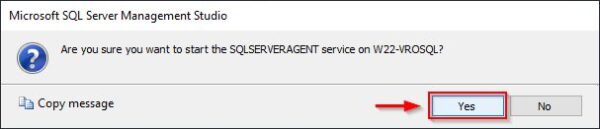
Click Yes to start the Agent.
Expand SQL Server Agent and Jobs sections. Here you can find the configured SQL Backup Jobs.

Schedule a database Backup Job
Right click the configured DB Backup Job (Veeam_moviescatalog-backup in the example) and select Properties.

Select Schedules and click New.

Enter a Name and specify the desired schedule. Click OK to save the configuration.

Click OK.

Schedule a Transaction Log Backup Job
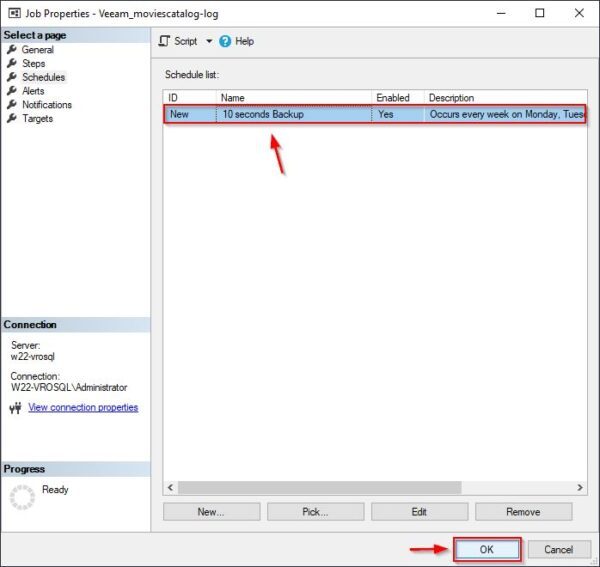
Repeat the same procedure for the Log backup. Right click the configured Transaction Log Backup Job (Veeam_moviescatalog-log in the example) and select Properties.

Select Schedules and click New.

Enter a Name and specify the desired schedule. Click OK to save the schedule.

Click OK.
Run the first backup
To avoid issues with the Transaction Log Backup Job if the configured RPO is very small, run the first Full backup manually. Right click the DB Backup Job and select Start Job at step.

The full backup is being executed.

The Backup Job in Veeam Backup & Replication.

Once configured, both Database and Transaction Log Backup Jobs will be executed on schedule.
Restore a database
From the Veeam toolbar, click the Restore database icon.

Specify SQL server name, Instance and the Databases to restore (MoviesCatalog in the example). Select the Backup Job that contains the database to restore and select the restore point to use. Click Next.

If it is requested to restore the database at specific point in time, select option Restore to any point in time (requires transaction logs backup). This option only works if we have Transaction Log backup configured.

Enter the Database name to use and click Run.
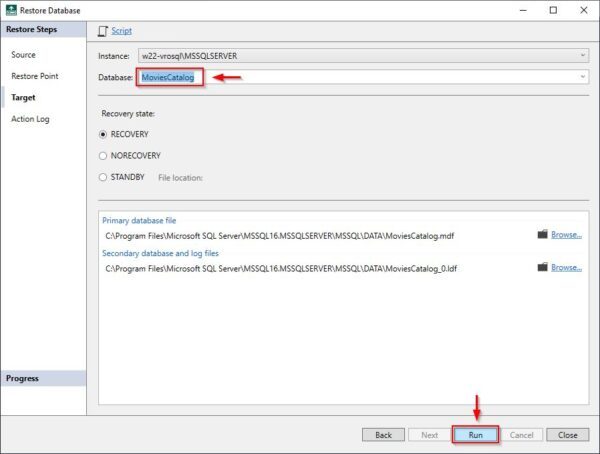
Click OK to proceed with the restore of the selected database. This operation will override the existing database.

Restore to a new database
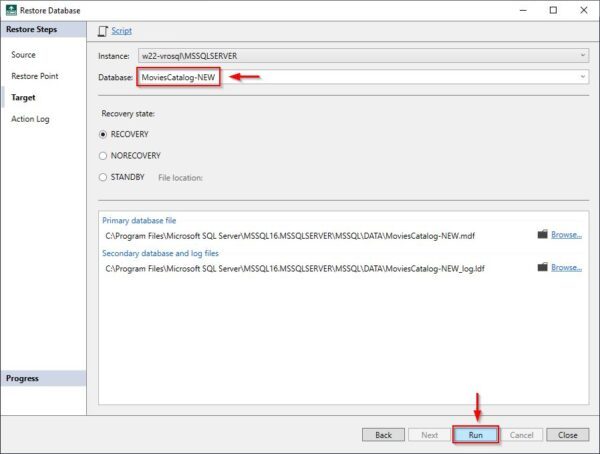
Open the Restore Databases wizard. Select same options as done in previous steps but specify a different Database name in the Target section. Click Run.
The restore operation is being performed.

After a few seconds the database restore completes successfully. Click Close to close the window.

The new database is displayed in the SSMS.

Veeam Plugin for Microsoft SQL allows you to configure a lower RPO compared to snapshot-based backup limiting the data loss.




Good Article . Is there smart ways to handle 50 databases .