


VMware vRealize Operations Manager 7.5 is a data center monitoring solution that provides analytical tools and the overview of the virtual infrastructure health.
vRealize Operations Manager (vROPs) is able to detect potential issues in the infrastructure and alert the administrators providing the actions to take to fix the problem.
Blog Series
vRealize Operations Manager 7.5 deployment - pt.1
vRealize Operations Manager 7.5 configuration - pt.2
vRealize Operations Manager benefits
The software provides the Smart Alerts feature to identify the cause of an issue providing recommendations to fix the problem and alert administrators. This reduces troubleshooting time and services disruption.
vROPs allows to define a set of rules (policy) to analyze objects in your infrastructure. Policies can be created and modified to adjust how information are displayed in the dashboard, views, and reports.
For misconfiguration or inconsistent configuration in the infrastructure, vROPs displays information about what objects are affected (Virtual Machines, Hosts, Clusters, etc.) and the actions to take to prevent possible problems due to the detected issues. Hosts and VMs are also analyzed to ensure they are compliant with the Hardening Guide.
Editions and licensing
vRealize Operations Manager 7.5 is available in three editions:
- Standard edition
- Advanced edition
- Enterprise edition
Check out this page for editions comparison.
vRealize Operations Manager is licensed as a standalone product and bundled with various VMware suites. There are three available licensing models:
- Portable licensing units: license metric for vCloud Suite and vRealize Suite.
- Per processor with unlimited VMs: licensing metric for vRealize Operations Standard and Advanced editions, vRealize Log Insight and vRealize Business for Cloud Advanced edition.
- Per virtual machine or physical server: licensing metric for vRealize Operations Standard, Advanced and Enterprise editions, vRealize Log Insight and vRealize Business for Cloud Advanced edition.
Deploy vRealize Operations Manager 7.5
Download vRealize Operations Manager 7.5 from VMware website. Before proceeding with the deployment, make sure you have created a forward and reverse lookup records in your DNS.
In vSphere Client, right click the inventory object where you want to deploy vRealize Operations Manager appliance and select Deploy OVF Template option.

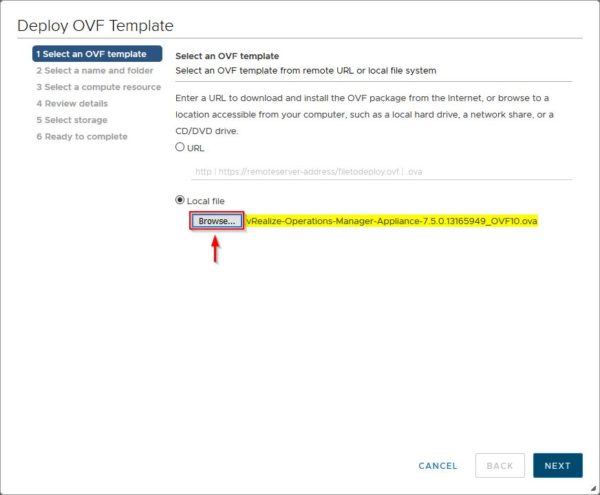
Click Browse and select the OVA file to install. Click Next.
Specify the Virtual machine name and the location, then click Next.

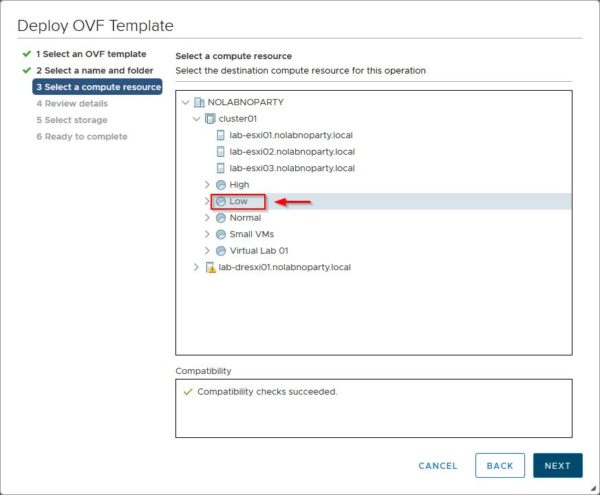
Select the Compute resource for the appliance and click Next.
In Review details click Next.

Enable the I accept all license agreements check box and click Next.

Based on your environment size, specify the deployment configuration. In the example the Small configuration type has been selected (4 vCPUs, 16 GB RAM). Click Next.

Select the datastore to store the appliance and the VM Storage Policy if vSAN datastore is used. Click Next to continue.

Select the appropriate Destination Network and click Next.

Specify the deploy properties, such as network parameters, and click Next.

Click Finish to proceed with the deployment.

When the process has been complete successfully, right click the vRealize Operations Manager VM and select Power > Power On option.

Initial setup
Enter the appliance's IP address in your preferred browser and select the installation type. Click New Installation for a fresh installation of vRealize Operations Manager.

Click Next.

Specify the New Password twice for the admin account then click Next.

Select Use the default certificates option and click Next.

Enter the Cluster Master Node Name and specify the NTP server to use. Click Next.

Use this page to add new nodes to the cluster and enable HA. Enabling the option Enable High Availability for this cluster you can select the node that will act as Master Replica. Click Next.

Click Finish to start and configure the new cluster.

The system starts the cluster configuration.

Click Start vRealize Operations Manager to start the application.

Click Yes to confirm.

The cluster is initializing.

After few seconds the cluster goes online.

When the application is up and running, the login page is displayed. Enter the correct credentials (admin / configured_password) and click Log In.

Finalize the configuration
In the vRealize Operations Manager Configuration wizard click Next to finalize the configuration.

Accept the EULA and click Next.

If you have a valid license key, select Product Key option and enter the license number. Click Validate License Key.
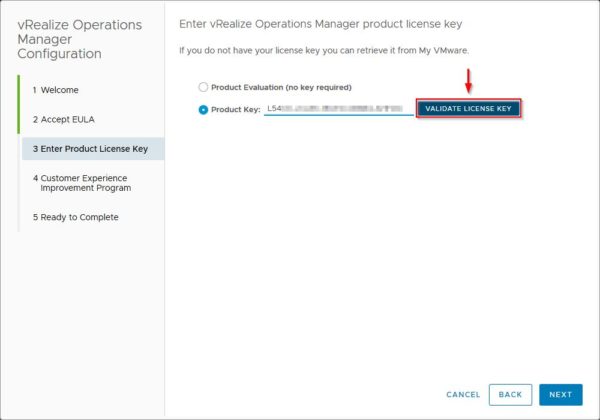
When the license has been validated successfully, click Next.

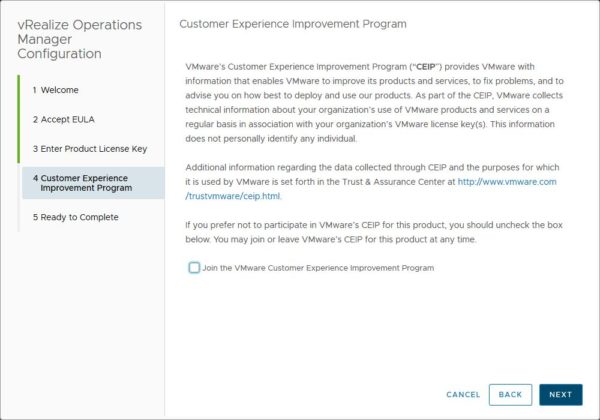
Optionally you can join the Customer Experience Improvement Program. Click Next.
Click Finish to complete the configuration.

The deployment of vRealize Operations Manager is now complete. Next step is the configuration of the available solutions.

Part 2 will explain the procedure to configure some solutions such as vCenter, vSAN and vRealize Log Insight Adapters.


No Responses