


If you need to apply an HKLM registry entry in your VDI using Dynamic Environment Manager (DEM), you must leverage the Elevated Task feature to accomplish this.
Since adding a registry key requires administrative privileges, DEM is the appropriate tool to automate this configuration.
Enable Privilege Elevation in DEM
Open the DEM console and go to User Environment tab.

Select Privileges Elevation section and click Global Configuration.

Enable the Activate Privilege Elevation option and click OK.

Click OK to continue.

Create the elevated task
From Privilege Elevation section, click Create.

Enter the Name of the task to configure and select Elevated task from the Type drop-down menu. Click Add.

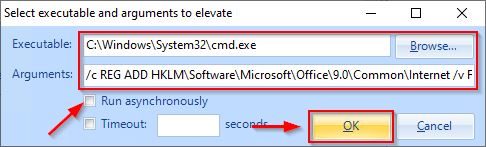
Click Add and define the task to run. In this example, the following command is configured:
Executable: C:\Windows\System32\cmd.exe
Arguments: REG ADD HKLM\Software\Microsoft\Office\9.0\Common\Internet /v ForceShellExecute /t REG_DWORD /d 1 /f
Click OK.
When the task has been created, click Save.
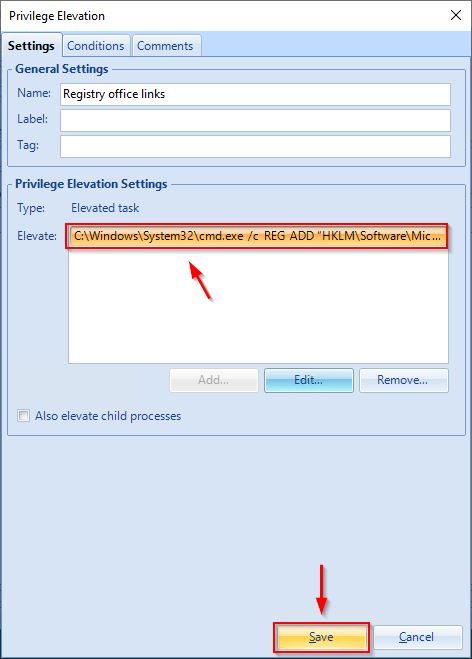
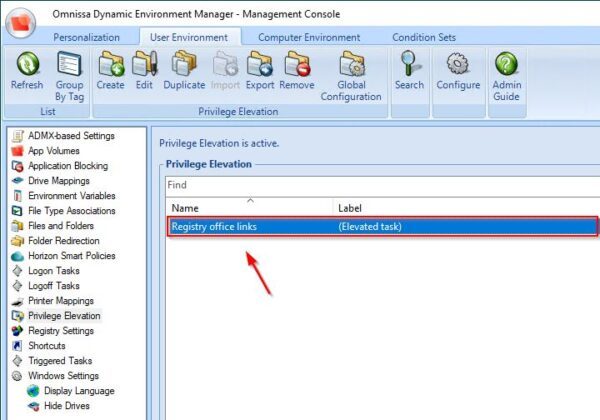
The created task.
Create a Logon Task
To apply the registry key we need to run the previously created task during the logon process. Select the Logon Tasks section and click Create.

Specify the name for the task to run, then tick the Elevated task checkbox. Select the previously created task from the drop-down menu and leave the Run task field set to After. Enable the Run asynchronously option and click Save to apply the configuration.

The configured Logon Task.

Test the DEM configuration
Access the VDI portal and Login to the system using the correct credentials.
Check the VDI's registry to verify if the key has been created. The registry key should be present with the correct data specified in the DEM configuration.

Additional info about DEM can be found in the Omnissa website.




We are testing this feature. But the reg key isn't show.
In the flexengine.log is see, that the elevated task is exectued:
2025-05-13 11:48:16.266 [INFO ] Elevated task 'Test Pieter' 1 time
In FlexEngine-ElevatedTasks.log I see:
2025-05-13 11:46:53.627 [INFO ] Successfully launched elevated task 'Test Pieter'
In the Elevation task I used:
Executable: C:\Windows\System32\cmd.exe
Arguments: /c REG ADD HKLM\Software\Test /v Test /t REG_DWORD /d 1 /f
But the reg key isn't created. Any idea where the problem is?
Try the following:
Executable: C:\Windows\System32\reg.exe
Arguments: ADD HKLM\Software\Test /v Test /t REG_DWORD /d 1 /f
What account does this run under? I am testing privilege elevation but the Powershell script I am running calls a database and log file that has specific permissions.