To add an extra layer of security on top of standard multi-factor authentication (MFA), you can secure Omnissa Horizon using Microsoft Entra ID 2FA.
This allows you to enforce an additional authentication factor when users log in to the Omnissa Horizon VDI infrastructure.
Prerequisites
Before proceeding with the configuration of Microsoft Entra ID 2FA, ensure the following prerequisites are already implemented for the solution to work correctly.
- Azure MFA - Azure MFA must be configured to leverage the SAML-based authentication feature.
- UAGs - configured to allow SAML authentication.
- Connection Servers - configured for SAML authentication.
- True SSO - implemented to prevent users from having to enter their credentials twice.
- Active Entra ID license - At least the Microsoft Entra ID P1 is required to enable and customize the 2FA feature.
Microsoft Entra ID 2FA configuration
Login to your Azure portal and and navigate to the Entra ID admin area.

Add users in Entra ID to allow external access
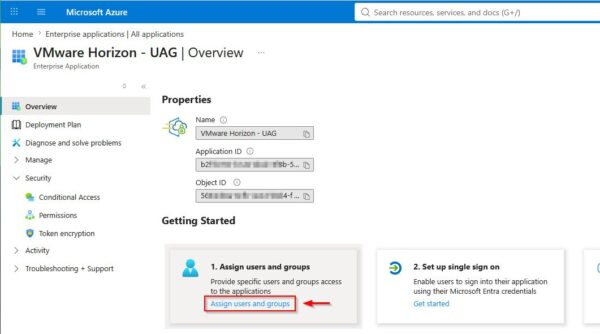
Before implementing Microsoft Entra ID 2FA, you must grant external access to the Horizon infrastructure for the users entitled to use the VDIs. Expand Manage and select All applications. Select or create the application used for the SAML authentication. In the example an existing VMware Horizon - UAG application is used.

In the application properties, click the Assign users and groups link to grant the access to the required users.
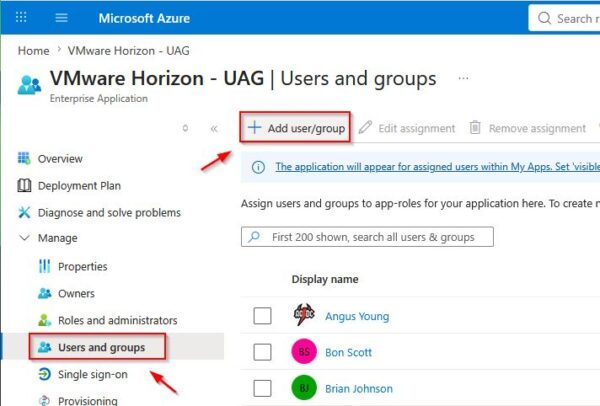
Go to Manage > Users and groups and click Add user/group.
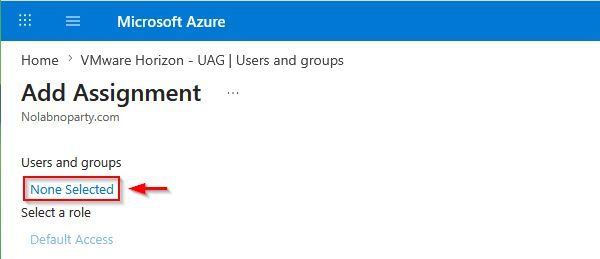
Click None Selected to choose the users synchronized from Active Directory.
Select the users you want to grant access to and click Select.

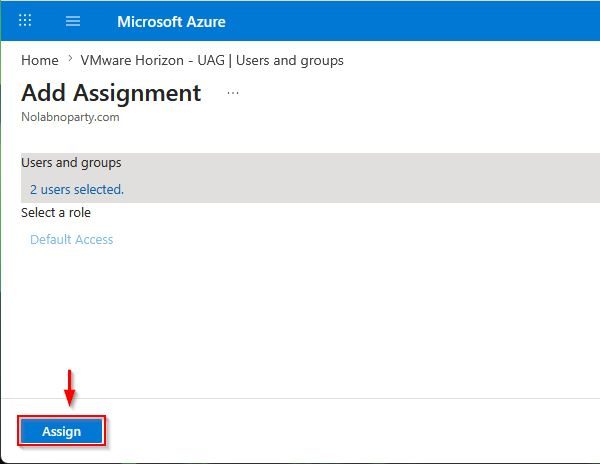
Click Assign to add the select users to the application.
Verify that the selected users have been successfully added.

Create a new Entra ID group
To simplify management, it is recommended to use a group rather than managing a list of individual users when configuring Microsoft Entra ID 2FA. From Entra ID, select Manage > Groups.

Click New group to create a new group.
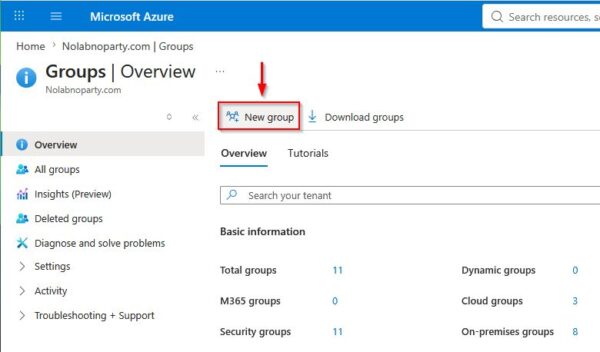
Leave the default Security as Group type, then specify a Group name and a Group description. Click No members selected to add members to this group.

Select the users to add, then click Select.
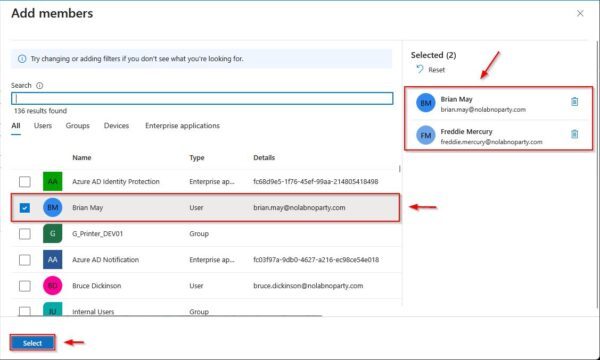
Click Create to create the new group.

Verify that the newly created group appears in the list.

Configure the Authentication Method
From the Entra ID Organization page, click Security.

Select Manage > Authentication methods.

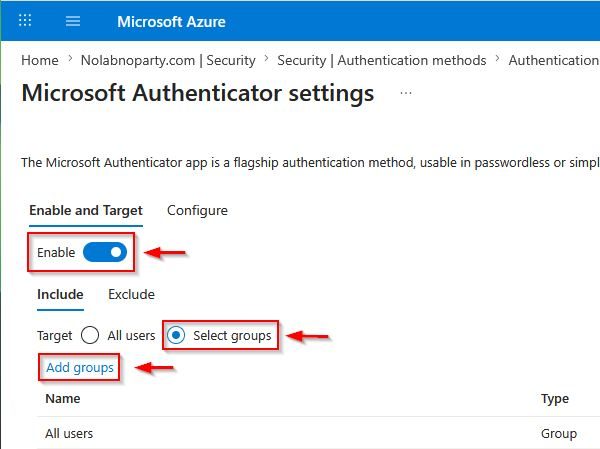
Select Manage > Policies and click Microsoft Authenticator. Microsoft Authenticator will be the tool used for the 2FA verification process.

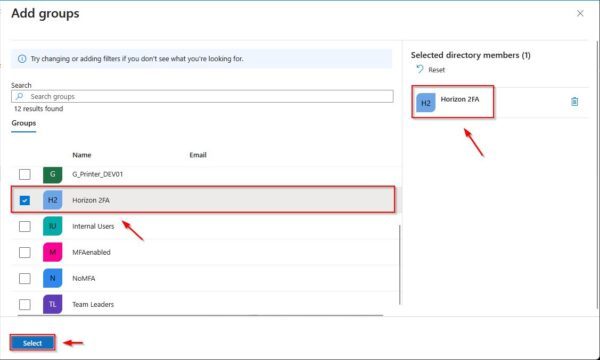
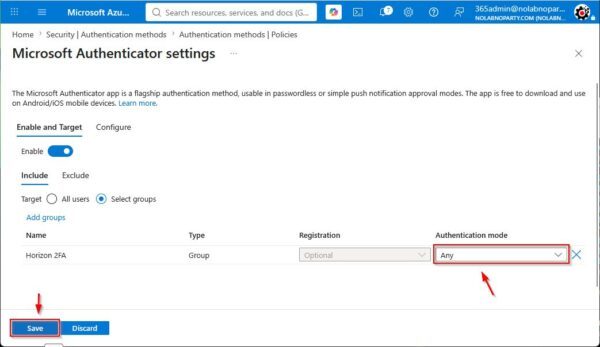
Toggle the Enable switch to enable this capability. Check the Select groups option to specify the group that will use the Microsoft Authenticator. Click Add groups to select the desired group.
Select the group created earlier (Horizon 2FA) and click Select.
Ensure Authentication mode is set to Any, then click Save to apply the configuration.
Configure the Conditional Access policy
To force users to use 2FA when accessing the Omnissa Horizon infrastructure, you must configure a dedicated Conditional Access policy in Entra ID.
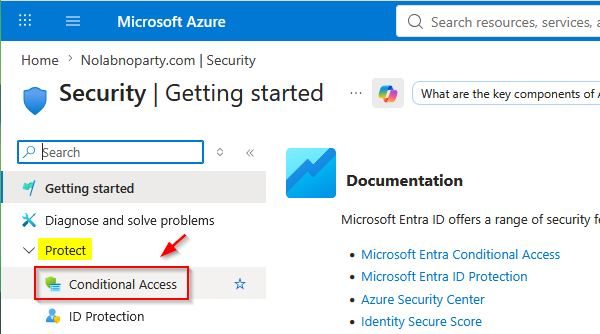
From the main Entra ID Organization dashboard, click Security. On the new page, go to Protect > Conditional Access to create the required policy.
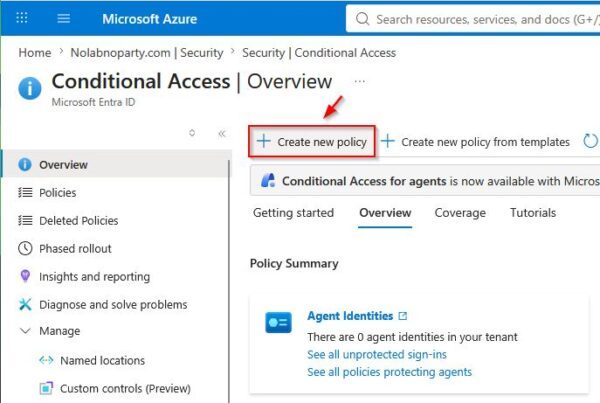
Click Create new policy.
Add Users or Group to the policy
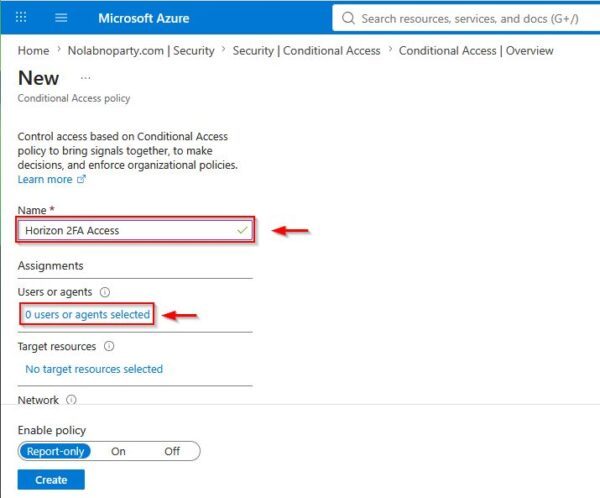
Type a policy Name and click 0 users or agents selected to assign the policy to the required users or groups.
Select Users and groups value from the drop-down menu, then check Select users and groups to Include. Check Users and group to specify who will be affected by the policy.

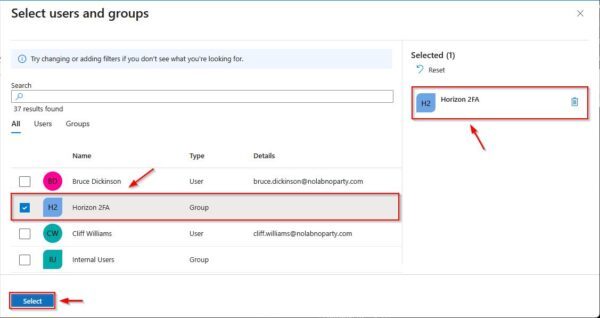
Select the group created earlier (Horizon 2FA) and click Select.
Configure the Target Resources
Specify which resource the Conditional Access policy will apply to. Click No target resources selected.
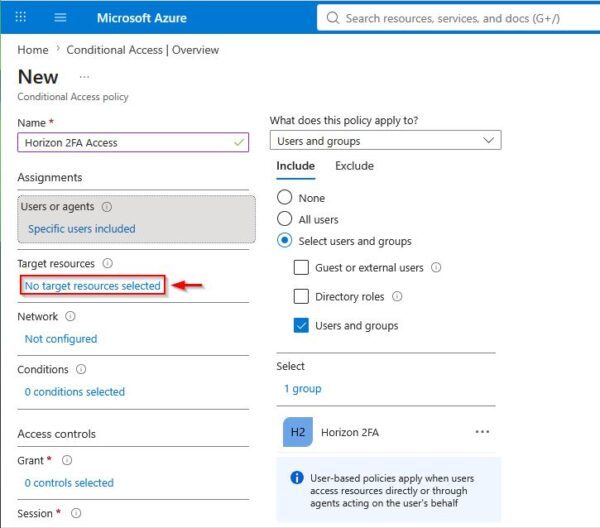
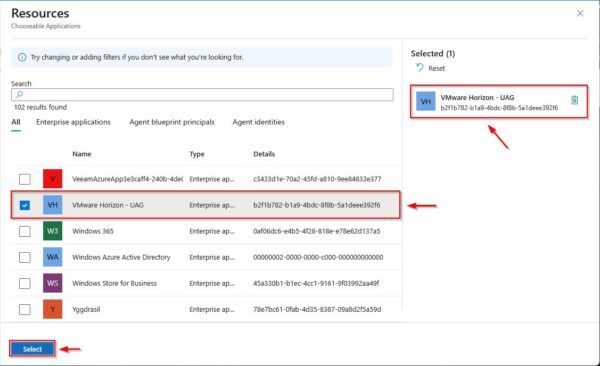
Select Resources (formely cloud apps) from the drop-down menu, then check Select resource to Include. Click None to specify the resources.

Select the application created in Azure for SAML authentication, then click Select.
Grant Access
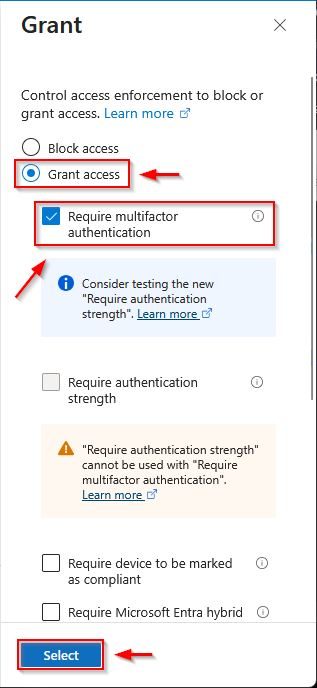
Click 0 controls selected under Access control section to specify enforcement.

Select Grant access, check Require multifactor authentication checkbox and click Select.
Select On in the Enable policy field, then click Create.

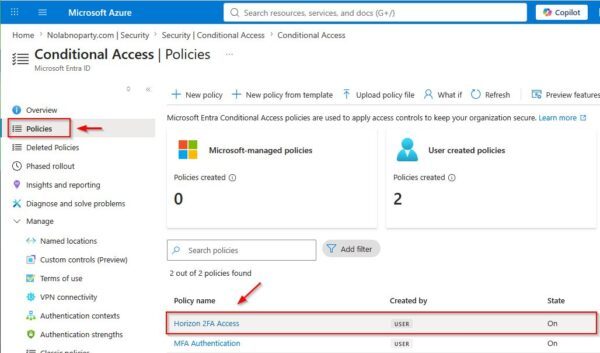
Click Policies from the left menu to display and confirm your newly configured policy.
Configure 2FA for the account
To test if the configuration works as expected, the end-user account must be set up to use 2FA for authentication.
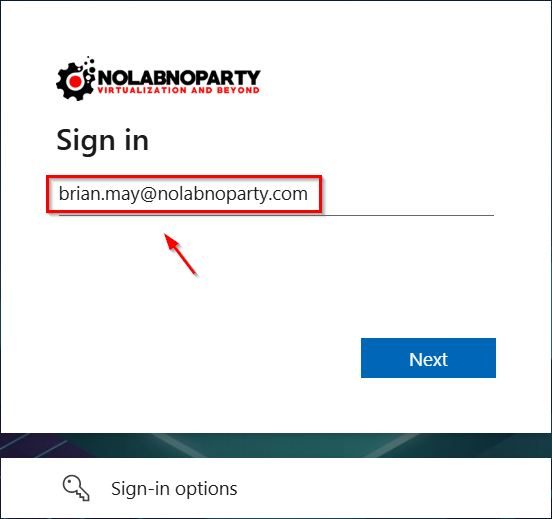
Using your preferred browser, access the Omnissa Horizon infrastructure. Type the Username when requested, then click Next.
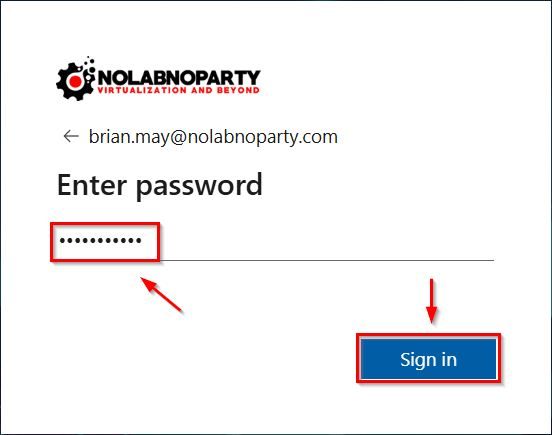
 Specify the Password and click Sign in.
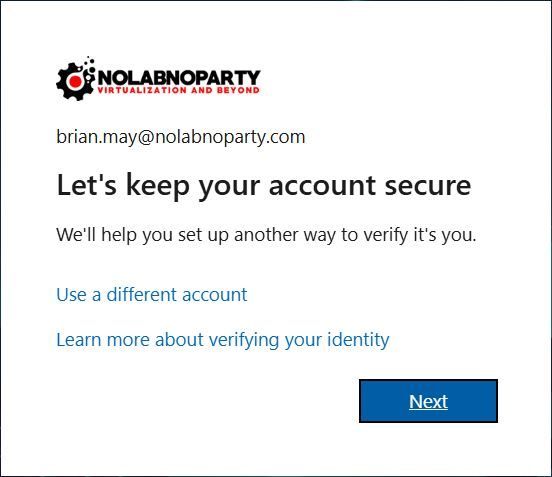
Because the Conditional Access policy is active, the system will prompt the user to configure an additional identity verification method (2FA). Click Next.
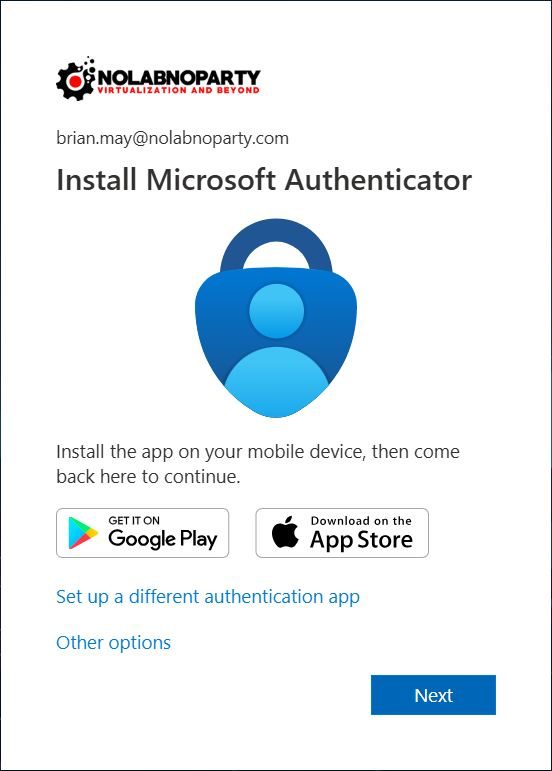
You will be prompted to install the Microsoft Authenticator app on your mobile device to configure 2FA. Click Next.
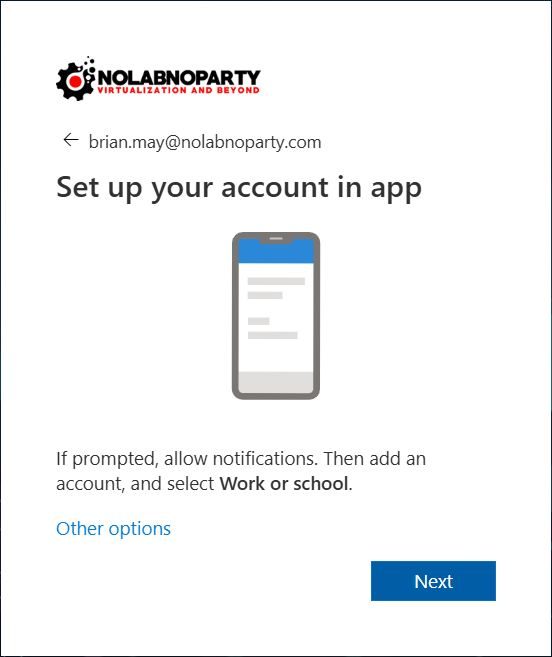
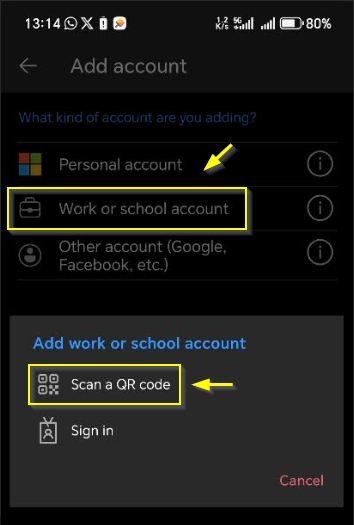
Open the app on your mobile phone and select Work or school as the account type. Click Next.
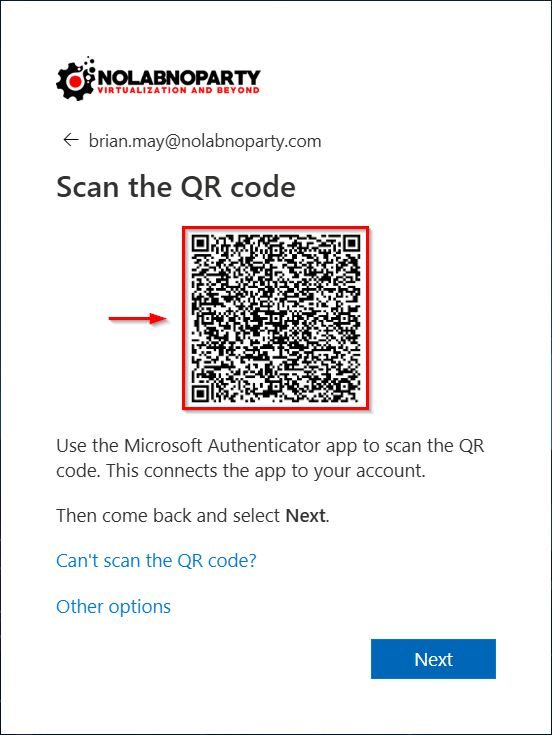
Scan the provided QR code on the screen to link the app to the account.
Follow the on-screen prompts within Microsoft Authenticator to complete the configuration.
Once the QR code is scanned, click Next to display the number required to approve the sign-in request.
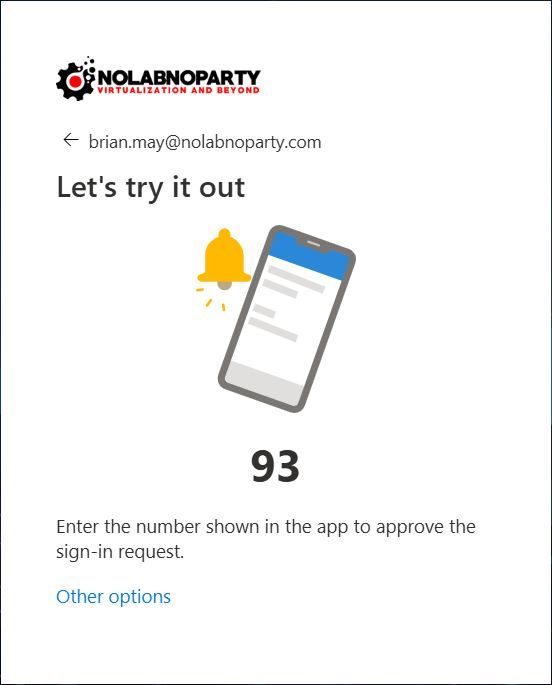
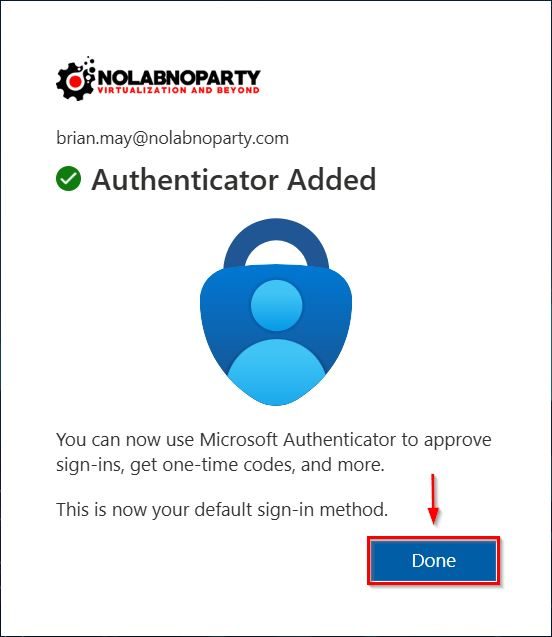
The configuration is now successfully complete. Click Done to close the wizard.
Test 2FA access in Omnissa Horizon
Now it's time to verify if that Microsoft Entra ID 2FA works properly.
Open your Horizon Client and enter Username and Password. Because 2FA is enforced, credentials alone are no longer enough to grant access to the VDI. The system will display a number.
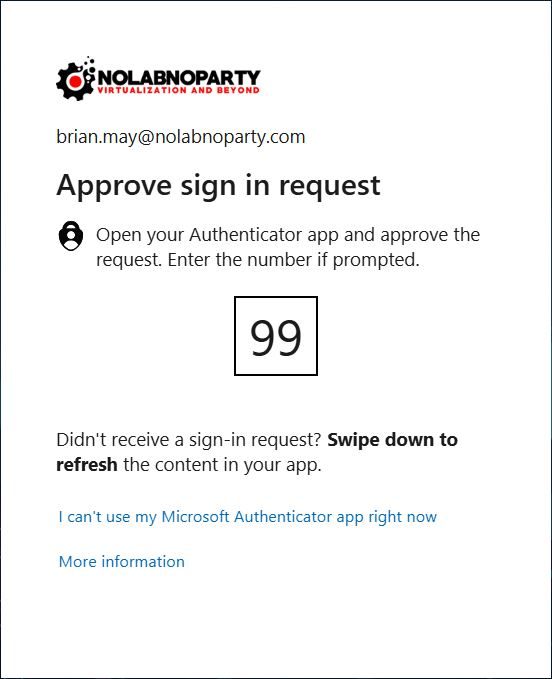
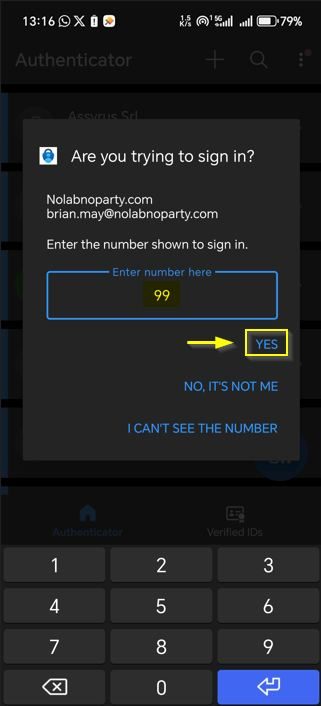
Open the Microsoft Authenticator app on your mobile device, enter the provided number, and tap Yes.
Once the second authentication factor succeeds, you will gain access to the VDI infrastructure. Select the appropriate Desktop Pool to launch your desired VDI.
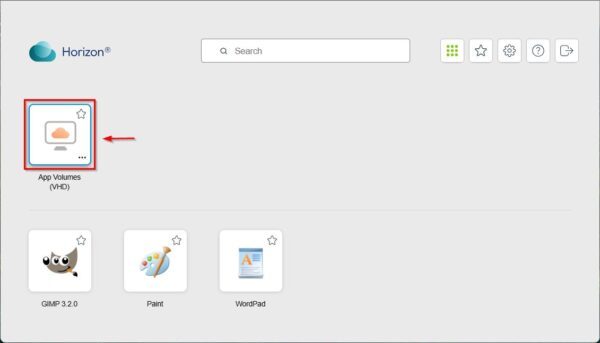
Because True SSO is configured in this infrastructure, the user can access the VDI seamlessly without entering their Windows username and password a second time. Implementing True SSO for your Omnissa Horizon infrastructure is highly recommended to avoid redundant login prompts.
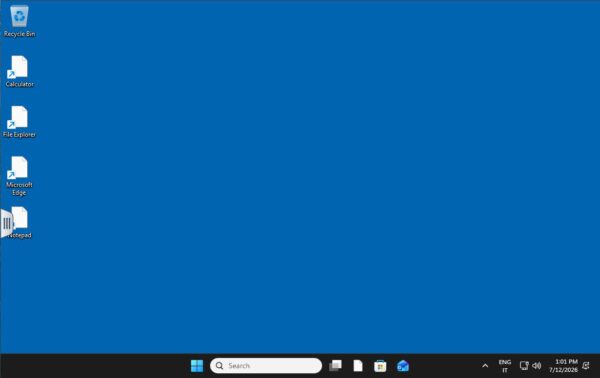
The configuration to secure Omnissa Horizon with Microsoft Entra ID 2FA is now complete, providing an extra layer of security for your environment.