Once vCenter Server has been updated successfully, next step is to upgrade ESXi 5.5 to 5.5 update 1 with vSphere Update Manager.
Previous post described the procedure to upgrade vCenter Server. Now it's time to upgrade ESXi hosts using vSphere Client because VMware Update Manager is not yet fully integrated into vSphere Web Client.
Upgrade VMware vSphere Client
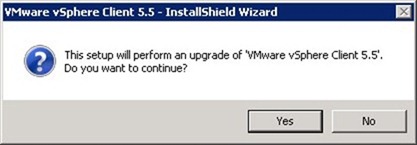
Run VMware vCenter Installer to update VMware vSphere Client. Because an earlier release is installed on the computer, the system informs that an upgrade will be performed. Click Yes to continue.
Click Next to start the installation wizard.

Accept the EULA then click Next.

Click Install button to start the installation.

The progressive bar shows the ongoing installation Status.

Once installation has completed, click Finish to exit the wizard.

Upgrade vSphere Update Manager Plug-in
Using the updated vSphere Client, access vCenter Server to upgrade the vSphere Update Manager plug-in. From the menu click Plug-ins > Manage Plug-ins.

In Available Plug-ins, click Download and Install item in the Status column.

Click Run to launch the installation.

Click Next to start the installation wizard.

Accept the EULA then click Next.

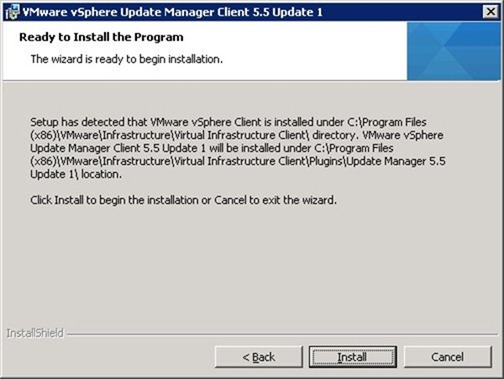
Click Install to begin installation.
The progressive bar shows the ongoing installation Status.

Once installation has completed, click Finish to exit the wizard.

The vSphere Update Manager plug-in is now enabled in the Installed Plug-ins list.

Upgrade ESXi hosts
Prior upgrading the ESXi hosts, take note of current release. In the example current version is 5.5.0 build number 1474528.

Stage patches
Select the cluster or host you want to update, then go to the Update Manager panel. Click Stage button to download updates directly to the selected hosts.

Select Baselines to use and hosts to upgrade then click Next.

A list of available patches is shown. Click Next to continue.

Click Finish to start the process.

Stage task start downloading patches to selected ESXi hosts.

Remediate patches
Once Stage process has completed successfully, click Remediate button to perform hosts upgrade.

Select hosts to upgrade then click Next.

Patches ready to install are listed in Patches and Extensions screen. Click Next to continue.

Type a Task Name and Description and specify the Remediation Time. Click Next.

Click Next to continue.

Select options that best match your environment then click Next.

When ready to install, click Finish button.

You can follow the remediation process looking at the Recent Task view.

During the remediation, hosts are rebooted.

When the task completes, the ESXi hosts version change to 5.5.0 build number 1623387.

ESXi hosts are now updated to version 5.5 update 1.