


VMTurbo Operations Manager installation is pretty easy and takes only few minutes. Once deployed, the working environment configuration is the next step to perform.
To complete the configuration successfully you need the license key and some info related to your virtual infrastructure.
Blog Series
VMTurbo Operations Manager deployment - part 1
VMTurbo Operations Manager configuration - part 2
Configure Operations Manager
Using your preferred browser, type the address http://VMTurbo_IP_address to access the login page. Type the default credential administrator/administrator for User Name and Password then click Log In.

The Setup Wizard window appears. Click Next to continue.

Select the License Installation option and click Next.

To get the license you need to submit a license request. Click on Submit Request link to access the VMTurbo web page.

In the VMTurbo web page, fill the form and click Submit Request.

You will receive an email with an attached license.txt file with the trial license key.

Copy and paste the license then click Save.
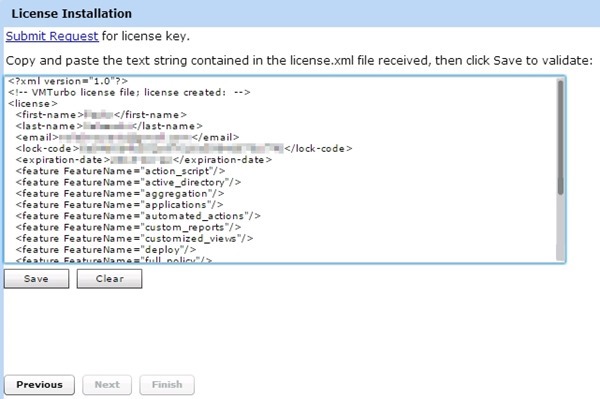
Click Next to continue.
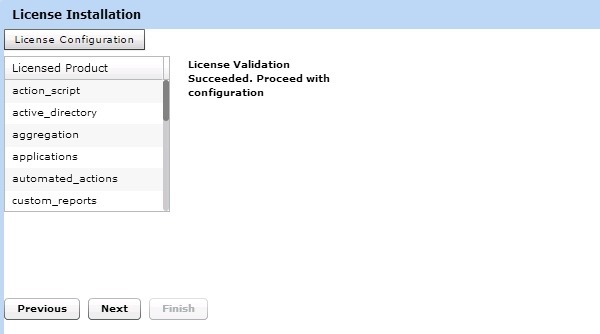
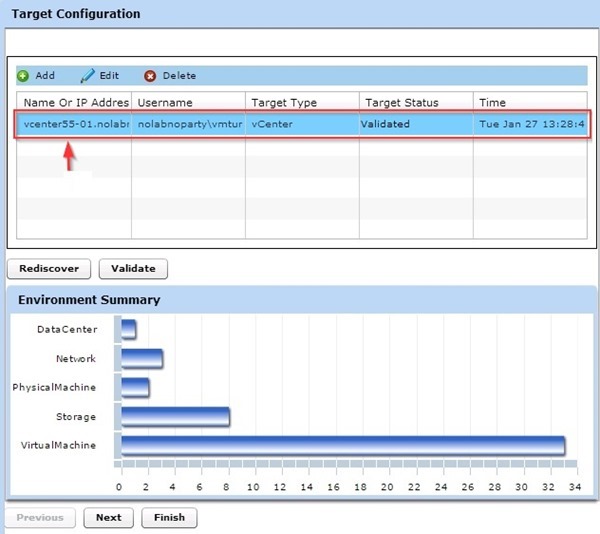
To set a vCenter Server in the Target Configuration window, select Hypervisor > vCenter options then type Host name, Username and Password. Click Save to store the configuration.

The vCenter Server has been validated.
Integration with Active Directory
From the main screen access the Admin tab. On the right side of the window, type the Active Directory Domain and the Active Directory Server then click Apply.

On the left side select Group option and click on Add button.

Type the Group Name, assign a Group Role then click Create. Same group must exist in Active Directory.

The group has been created successfully.

Now login VMTurbo using an account member of the administrator group just created. Click Log In to access the system. In the upper-right corner you can see the logged username.

Configure email notification
Access the Policy section and click under Category the Email/Trap Notification item. In the right pane fill the SMTP and From Address fields then click Apply.

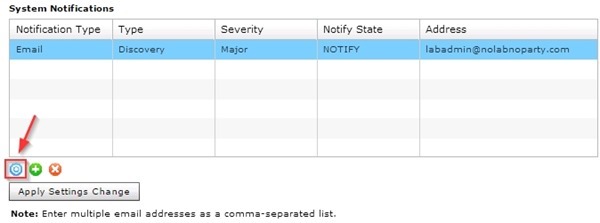
Select Operation Manager Notifications item and in the right pane click on green plus icon to add an email address. Set the parameters and click Apply Setting Change button when done.

Test the email notification by clicking the blue circle icon.
Working with Operations Manager
To take benefit of VMTurbo features, after the installation let the system run for a couple of hours in order to collect the infrastructure info. After a while first recommendations start coming up.
To set the default main screen view, click in the left side the Dashboards button e select the desired view.

If the view is set as Assure Service Performance, recommendations to improve performance are shown.

In this example, the system suggest to move the VM to another host to prevent Mem congestion.

Click in the right side on Details to display additional info.
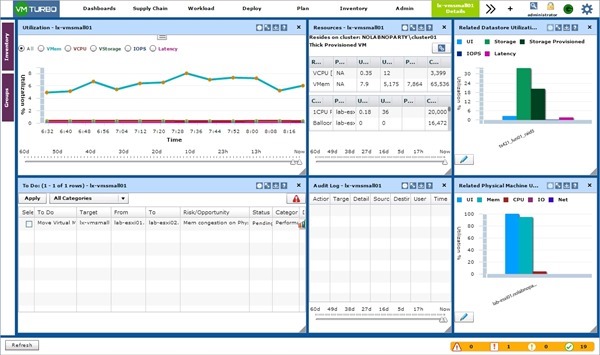
To apply suggested actions, check the VM and click on Apply button. In this example, the VM is moved to a different host.

In the left side click again on Dashboard button and select Improve Overall Efficiency item.

System shows some actions to perform in order to optimize efficiency. To apply suggested actions, edit the VMs and adjust parameters as recommended.

There are some views available to better analyze your environment.
Supply Chain view represents the flow of resources from the datacenter through the physical tier of your environment into the virtual tier, ultimately delivering these resources to customers through applications.

In the Workload view you have a unique perspective on the distribution of workload throughout your environment.
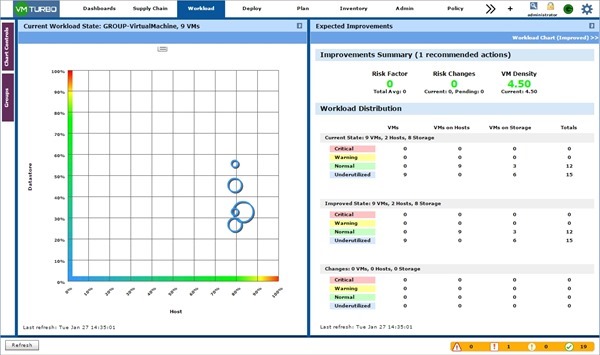
Inventory view shows the health of your entire virtual environment from a single view.

Software Updates
To check for new software updates go to Admin view. In the left side click Workflow, select Maintenance option then click Check button under Software updates section.

If any update is found, click Update button to proceed.

Click Yes to proceed.

The update starts. The process takes some minutes to complete.

Many other features and reports are available in VMTurbo Operations Manager. Docs and additional info can be found in VMTurbo website.


