


VMware Remote Console is a standalone Windows application included in VMware vCenter 5.5 Update 2b that provides console access and client device connection to VMs on a remote host.
VMRC has been made available again since Google announced they drop NPAPI (Netscape Plugin API) support in Chrome. This update makes Chrome browser unable to open the virtual machine console and to connect to devices using the virtual machine console plugin available in vSphere Web Client.
To launch VMRC from vSphere Web Client, you need to download the installer from VMware website. Two new options are found in the VM's Summary tab: Open with VMRC and Download VMRC.

VMRC features
Compared to the vSphere Web Client console, standalone VMRC offers some improved features:
- ability to Power On, Shut Down, Suspend and Restart guests.
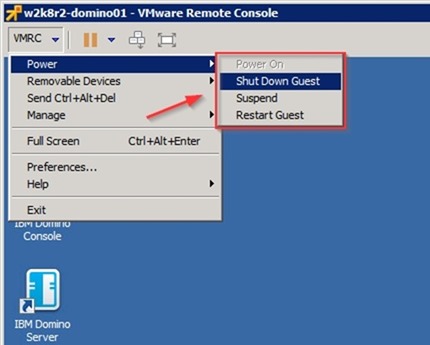
Same functions can be accessed through the || icon.

- ability to configure VM settings or Reinstall VMware Tools.
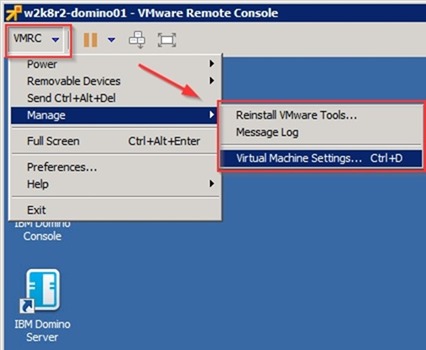
The Virtual Machine Settings window.

Install VMRC
Download VMRC from VMware website and run the installer. Click Next to continue.

Accept the EULA then click Next.

Leave default and click Next.

Select the desired options then click Next.

Click Install to proceed with installation.

The application is being installed.

When the installation has completed successfully, click Finish to exit the Wizard.

Reboot the system to apply the new configuration. Click Yes to proceed.

Select Remember my choice for all links of this type option and click Launch Application.

Accept the certificate and click Connect Anyway.

The application opens giving access to the virtual machine.

From this window you can administer the VM in console mode.


