Login to VMware vCSA 6.0 using the Windows Session authentication requires vCenter Server joined to the Active Directory domain.
With the correct vCenter permissions assigned, authenticated administrators can manage the virtual infrastructure from vCSA.
Blog series
VMware vCSA 6.0 deployment – pt. 1
VMware VCSA 6.0 configuration – pt. 2
Join vCSA to Active Directory
Login to the appliance using the SSO Administrator credentials then click Login.

From main vCenter Server screen, select Administration section.

Select System Configuration.

Click on Nodes item and select the appliance name (vcsa60-01.nolabnoparty.local in the example) under Nodes. In the right pane select Manage > Settings then click on Active Directory option. Click on Join button to configure AD settings.

Type the Domain, User name and Password of the Domain Administrator then click OK.

To join the domain you need to reboot the node. Click on the Refresh icon to enable vCSA to use AD authentication method.

Enter a reason for rebooting the node then click OK.

System reboots the node to apply new changes.

In the Domain field appears the domain name just joined.

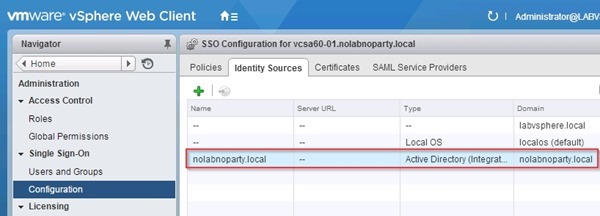
From Home > Administration select Configuration under Single Sign-On item and click the green plus icon in the right pane to add an identity source.

The Identity source type should be Active Directory (Integrated Windows Authentication) whilst the Domain name should report the domain previously joined. Click OK.

The Active Directory domain has been configured and it's listed in the Identity Source section.
Grant permissions to access vCenter
To give AD users access to vCSA, we have to grant access permissions in the vCenter Server. From Home > Administration select Global Permissions section under Access Control. Click on the green plus icon to add a new User/Group.

From the drop down menu select Administrator as Assigned Role then click Add at the bottom to assign the correct User/Group.

In the Domain field select the joined domain to display members then select the User/Group you want to grant vCenter access. Click Add then OK to save the configuration.

The selected User/Group has now access to vCenter Server with the Administrator role.

Login to vCSA using a domain user with permissions to access vCenter. Type the User name (domain\username) and Password of the account to use or thick Use Windows session authentication option to perform authentication against Active Directory with current user logged in Windows. Click Login to proceed.

The used account accesses the vCenter Server with the role assigned in previous steps. The username appears on the top right side of the screen.

Add ESXi hosts to vCSA
From Home, click Hosts and Clusters item on the right pane of the screen to begin the configuration of the virtual environment.

First step is the Datacenter creation. Right click the vCSA name and select New Datacenter option.

Type the Datacenter name then click OK.

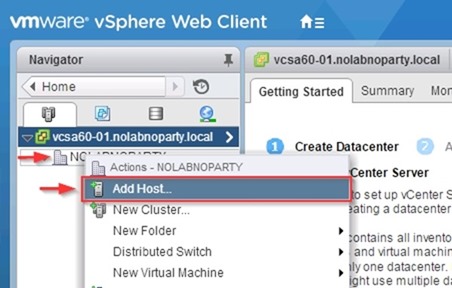
To add an Host to the datacenter, right click the vCSA and select Add Host option.
Install vSphere Client
To access vCSA 6.0 using vSphere Client you need to upgrade/install the client to the new version as well. Try login with an older client version.

The system detects you are using an older version of the client and offer to run or save the installer to perform the upgrade. Click Run the installer to begin installation.

The installation files are retrieved from the vCSA.

Click OK to continue.

Select the language for the installation then click OK.

The installation Wizard startup screen is shown.

Click Next to continue.

Accept the EULA then click Next.

Leave default destination folder and click Next.

Click Install to begin installation.

The vSphere Client is being installed.

When installation has completed, click Finish to exit the Wizard.

Open the vSphere Client, enter the vCSA parameters then click Login.

The Security Warning window is displayed. Thick Install this certificate and do not display any security warning for… check box and click on Ignore button.

vCSA 6.0 main screen displayed from vSphere Client.

Administrators are now able to start configuring the working environment adding all required components hosts, clusters, network, and so on.