


PernixData FVP 2.0 has been released introducing new interesting features like DFTM, NFS datastore support, Fault Domains and Adaptive Network Compression.
The software used to accelerate reads and writes to shared storage, with the new release 2.0 make PernixData in a stronger position in the market as flash-caching solution.
What’s new
The new features introduced in this new release are the following:
- NFS datastores fully supported.
- Distributed Fault Tolerant Memory (DFTM): RAM support as additional flash device.
- Fault Domains.
- Adaptive Network Compression.
Overview
Once installed the new release, using the vSphere Web Client, navigate to PernixData FVP main screen. At first glance you can recognize some little differences compared to previous version.

Flash Cluster is now called FVP Cluster because also RAM is now supported in addition to SSD and cards flash devices.

In Resources tab you can find resources referred as both flash and RAM.

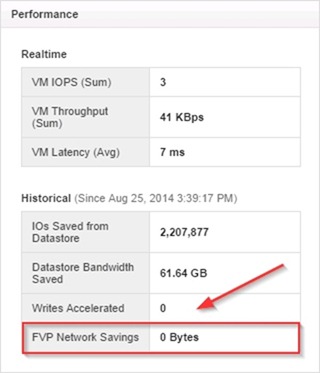
In Performance Summary there is a new FVP Network Saving item that reflect the bandwidth saving as result of the Adaptive Network Compression.
NFS datastores support
In version 2.0 NFS datastores are now fully supported. During the cluster creation, the datastores or VMs to accelerate can be added navigating to Datastores/VMs tab.

Clicking on Add Datastores button, all datastores available in the vSphere cluster that can be used in the acceleration are shown. In the available list also NFS datastores are now showing up and can be accelerated in Write Through and Write Back with replication.

In the accelerated NFS datastores, nothing change from the operational prospective and everything remains the same.
RAM support
The first new feature of release 2.0, in addition to SSD and flash card devices, also available RAM is now shown in the list and can be used as acceleration resource.

You can take the RAM available in the selected host and use it for the FVP Cluster. RAM and SSD flash devices cannot be added from the same host.
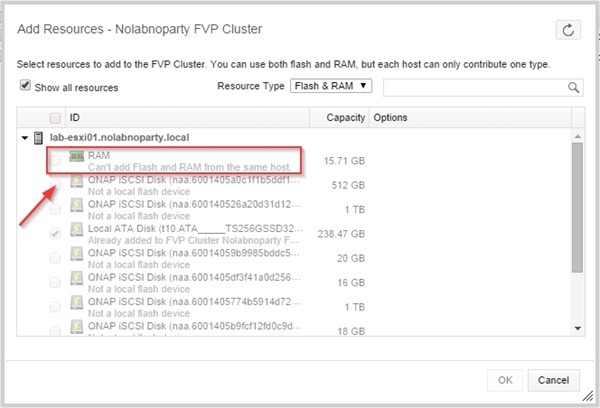
When selecting RAM you have to specify the amount to use for acceleration. The minimum amount of RAM you can add to an FVP Cluster is 4 GB per server and max amount is 1 TB per server. RAM must be added in multiple of 4 GB.

When RAM is used, there are some key points to keep in mind:
- It is not required that every host participates in terms of resources in the FVP Cluster.
- It is not required that all hosts provide same amount of RAM in the cluster.
To change the amount of RAM for acceleration, from Manage > Acceleration Resources tab select the host then click Edit. Change the value to fit your needs.

All functionalities in version 1.5 are now supported also with RAM.
RAM vs Write Back policy
While in the Write Back mode, the VMs leverage the RAM on the host in which they are running for their acceleration. All I/O Reads and Writes recall the RAM of the host in which they are running.
All writes are replicated to RAM on another host as part of the Write Back + 1 settings enabled.
When the VM uses the environment to vMotion from one host to another, it accesses the RAM on the host it was previously running on.
Fault Domains
Fault Domains is another new feature introduced in this new release and allows the administrators to align their FVP Cluster design with the Datacenters design. It’s useful to control where the replica lands when Write Back mode is used.
With Fault Domains it is possible to logically partition the hosts in vSphere cluster in two different Fault Domains.
If the Write Back policy is set, when a datastore is added to the FVP Cluster in previous release you were requested the number of replications you want to use (0,1,2). Now you are asked which Fault Domain you want the Peer to be.

Create a Fault Domain
In the Fault Domains tab, by default the hosts configured in the FVP Cluster are identified under Default Fault Domain item.

During the Fault Domain configuration, you can add hosts in any order and control where the replica lands when VMs run in any host in Fault Domain. To create a new Fault Domain click on Add Fault Domain button and type a Name.

To logically partition the host click a Fault Domain just created and click on Add Host button. Select a host from the list and click OK to confirm.

Repeat same procedure to create additional Fault Domains.

Associate Fault Domains
Select a Fault Domain previously created then click Edit Association. The other available Fault Domains are shown in the Edit Associations window. Select an available Fault Domain (i.e. fault02) then click OK to confirm.

Do the same for the fault02 Fault Domain. The result is that VMs running in fault01 host will have the replica landing in fault02 Fault Domain.

If due to DRS or custom rules the VMs move to different hosts in fault01 or fault02, the replication is automatically changed.
Adaptive Network Compression
Last new feature of FVP 2.0 is the Adaptive Network Compression. In case of network bandwidth constrain, especially in 1 GB environments when Write Back mode is used, the latency of replication to remote resources sometimes impacts the VMs performances.
The compression occurs in this step before pushing the data over the network to make another copy: data are shipped in compressed mode to remote resources.
Cost of compression in terms of CPU workload is around 2% and it shouldn’t be a bottleneck and this new feature is enabled for 1 GB environments because in 10 GB environments doesn't bring real benefits.
FVP is smart enough to understand if 10GB switching environment is used and then the compression is not enabled.
Licensing
Four editions are available to accommodate any data center environment.

PernixData FVP confirmed to be a solution to keep in mind if you are experiencing I/O constrains in your shared storage. Easy to install, easy to configure, easy to use.


