


When Active Directory is synced with Okta, you need to configure Okta SAML in your VMware UAG components to access the VDI infrastructure.
Both Okta environment and VMware UAG must be configured accordingly to take advantage of SAML capability.
Blog series
VMware UAG: Okta SAML integration - configure Okta environment
VMware UAG: Okta SAML integration - configure SAML in Okta and UAG
Configure Okta SAML Application
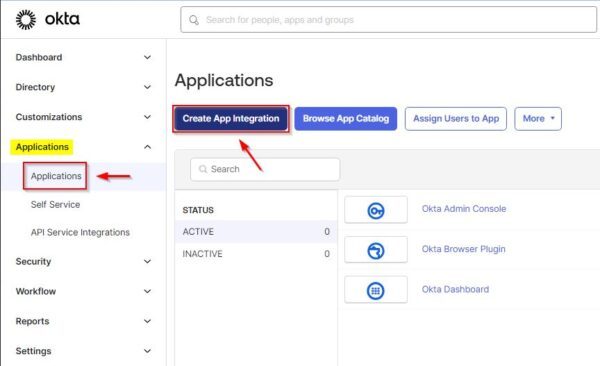
From Okta Admin console, go to Applications > Applications area and click Create App Integration.
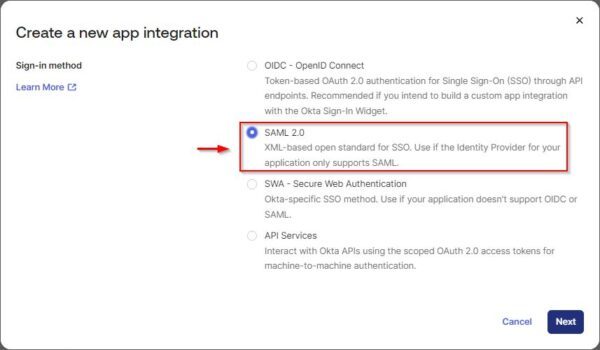
Select SAML 2.0 option and click Next.
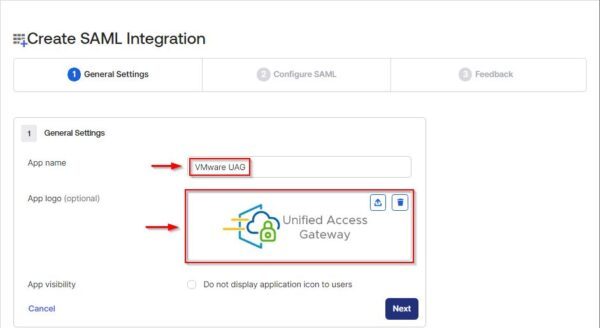
Specify the App name and optionally upload the App logo. Click Next.
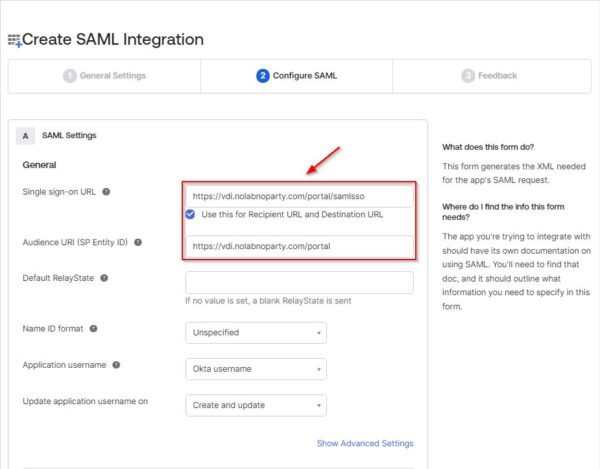
In the SAML Settings enter the requested values:
- Single sign on URL - https://<UAG-FQDN>/portal/samlsso
- Use this for Recipient URL and Destination URL - make sure this option is enabled
- Audience URI (SP Entity ID) - https://<UAG-FQDN>/portal
Click Next at the bottom.
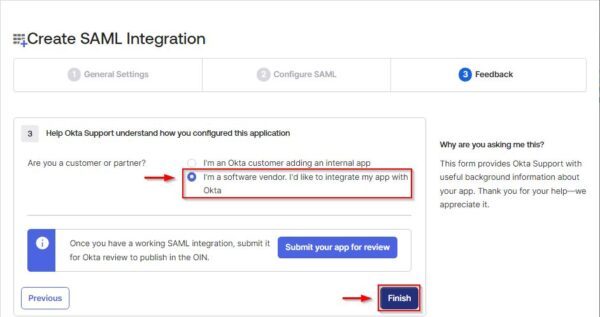
In the Feedback tab, the choice doesn't affect SAML configuration. Select I'm a software vendor. I'd like to integrate my app with Okta option to avoid further questions. Click Finish.
You are automatically redirected to Sign On tab. Click Copy to copy the URL to dowload the Identity Provider metadata.

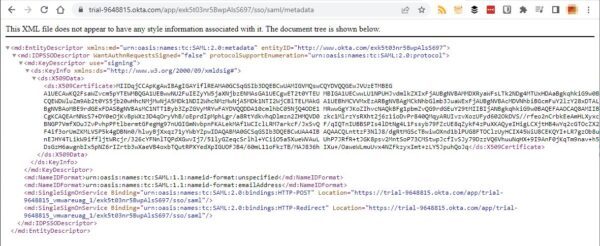
Using your preferred browser, paste the copied URL and copy the metadata info displayed.
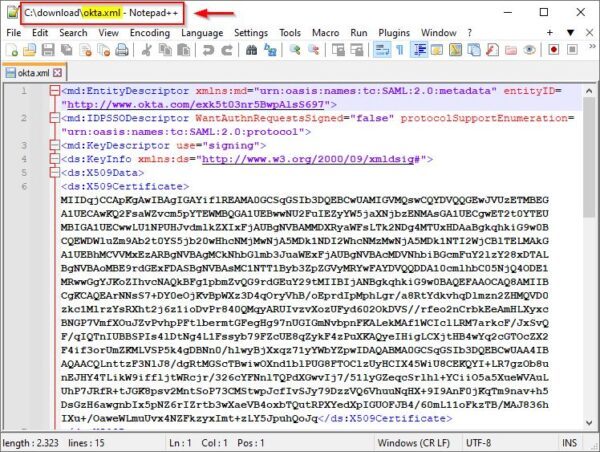
Paste the metadata in an editor and save the file as .xml (okta.xml in the example).
Assign Users to application
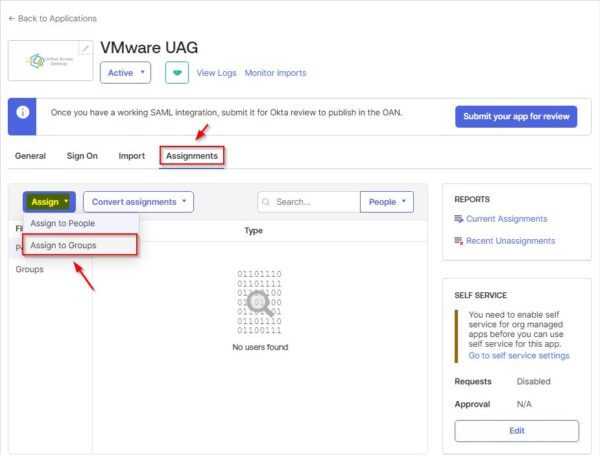
Go to Assignments tab and select Assign > Assign to Groups.
Select the appropriate groups and click Assign.
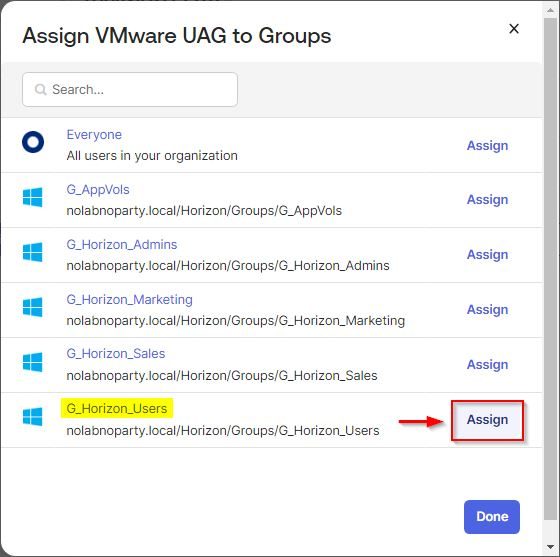
When the desired AD groups have been assigned, click Done.

The assigned Users/Groups.

Check in the Application tab if the just created application is active.

Configure SAML in the UAG
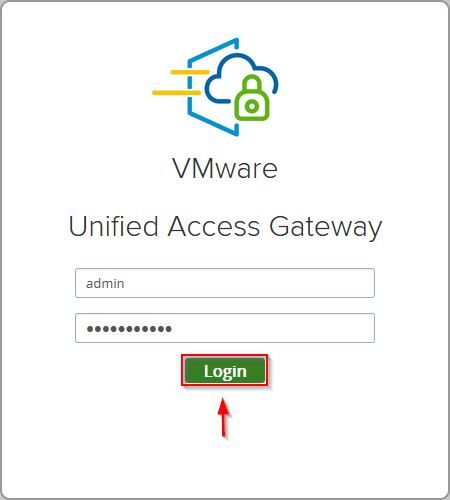
Login to UAG by entering the correct credentials. Click Login.
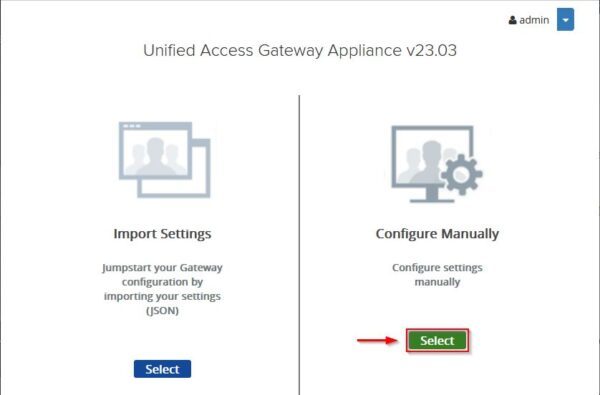
Click Select in the Configure Manually side.
Under Advanced Settings > Identity Bridging Settings click the gear icon next to Upload Identity Provider Metadata.

In IDP Metadata field click Select and choose the Okta .xml file previously downloaded.
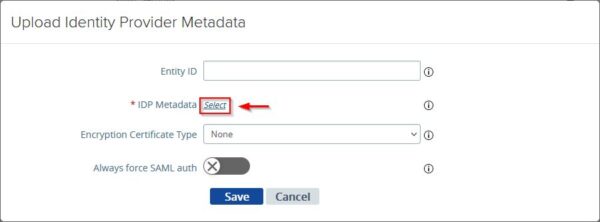
Click Save.
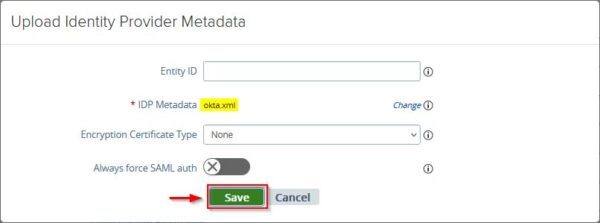
Now under General Settings, turn the Edge Service Settings on and click on the gear icon next to Horizon Settings.

Click More at the bottom.

Set Auth Methods as SAML and Passthrough. Select the appropriate Identity Provider from the drop-down menu (http://www.okta.com/xxxxxxx in the example) and click Save at the bottom.

Test connection to VDI
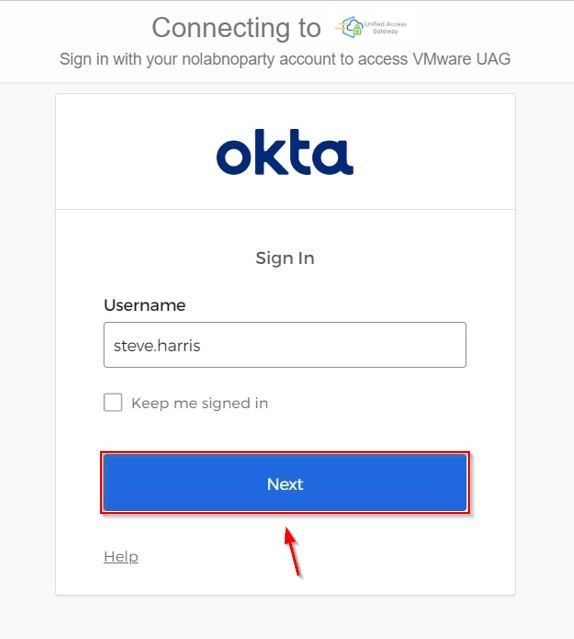
Using your favorite browser, enter the public URL to access your Horizon infrastructure. You are automatically redirected to the Okta login page. Enter the Username and click Next.
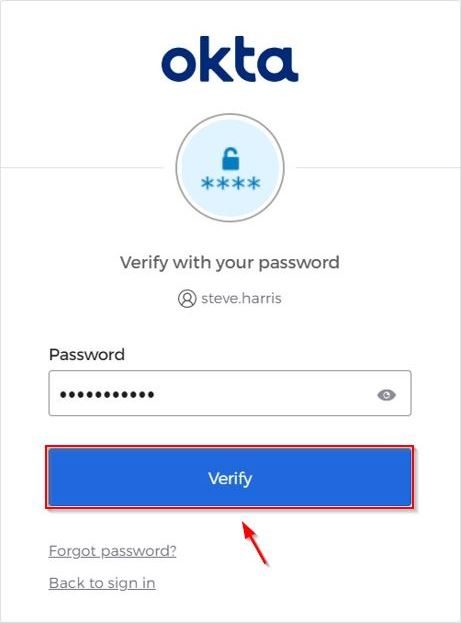
Enter the Password and click Verify.
First connection to Okta
The first time the user connects with Okta after verifying the password, the user is prompted to enter the Secondary email. Enter the email address then click Finish.

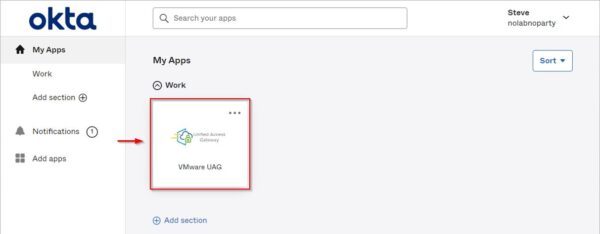
Applications that have been assigned to the user are displayed. Click the created VMware UAG application to access the VDI infrastructure.
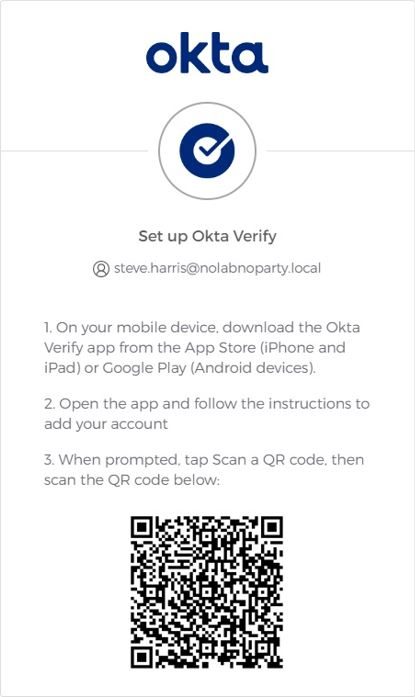
As additional layer of security during the authentication process, you need to setup the preferred security method used to access. Select Okta Verify and click Set up to leverage token and push capabilities.

Install the Okta Verify application in your mobile and scan the QR code to configure your account.
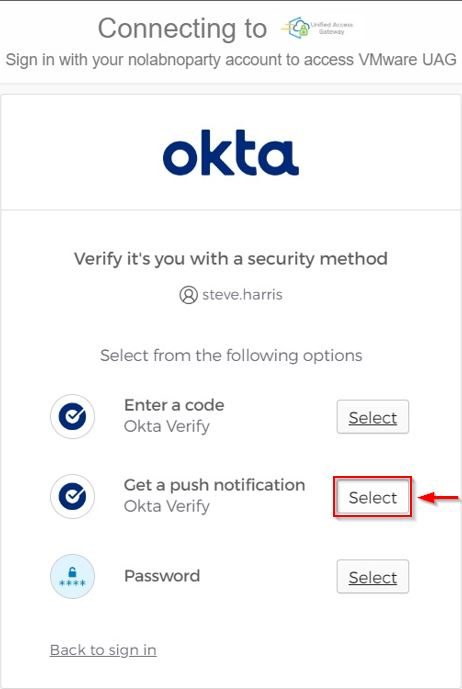
Once the security method has been configured, select the preferred option (Get a push notification in the example) to access.
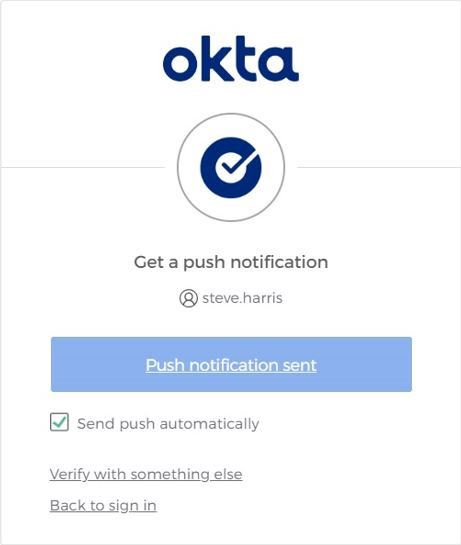
A push notification is sent to your mobile application.
From Okta Verify application grant the access by selecting Yes, It's Me.

If the authentication through Okta SAML completes successfully, you are signed to your Horizon VDI infrastructure.
The typical Horizon Client interface is displayed showing Desktop Pools and Applications the user is entitled. Select the desired Desktop Pool to access the VDI.

The VDI is now available and ready for the user.
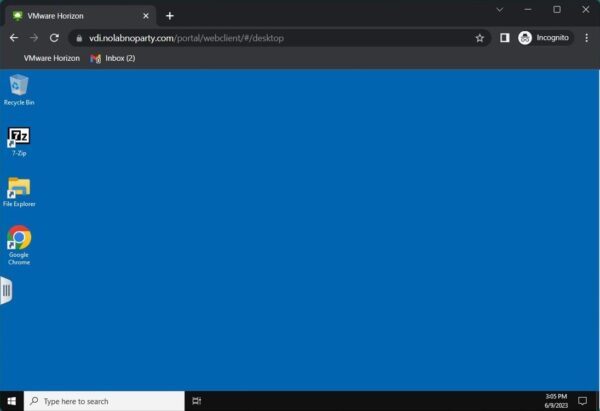
Okta SAML has been configured successfully and your users can now leverage MFA to securely access virtual desktops.





Hi, great instructions just stuck on the logging in, I am redirected through Okta but when it hits the connection server I am prompted with username / password /domain box rather than it signing into my application dashboard what step am I missing? Thanks