
To enforce the login process, FIDO2 authentication adds an additional layer of security, enabling a robust MFA authentication process.
Leveraging Azure authentication methods and Omnissa Horizon True SSO capabilities enhances the security of the VDI infrastructure against unwanted access.
Configure Omnissa Horizon True SSO
Before configuring the FIDO2 authentication, you must have a working Omnissa Horizon infrastructure that leverages SAML and True SSO (True SSO is recommended but not mandatory) for authentication.
To configure Horizon True SSO, you can follow this guide.
Configure the Azure security group
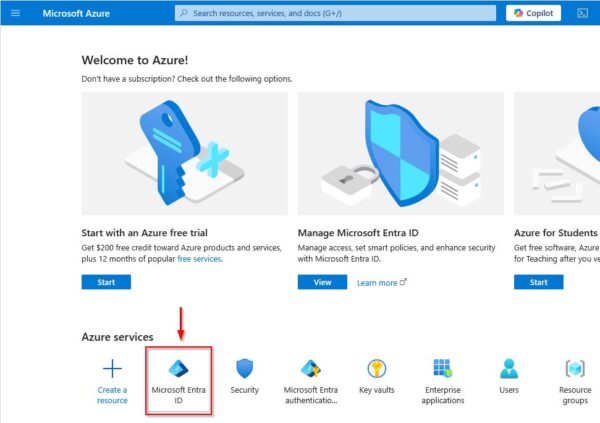
Login to the Azure portal and click on Microsoft Entra ID.
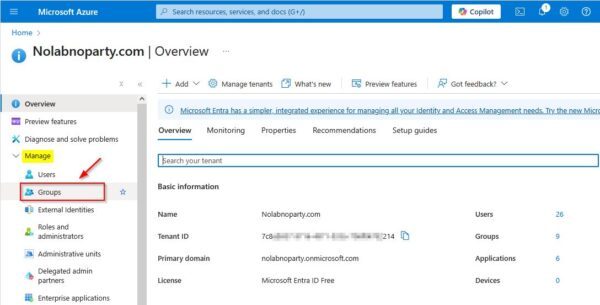
Select Manage > Groups to create a new group.
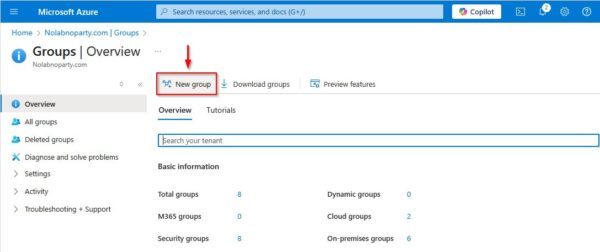
Click New group.
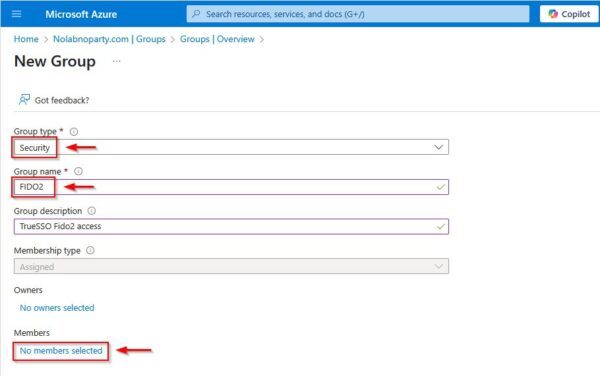
Specify the Group type as Security and enter the desired Group name. Click the link No members selected to add the required users.
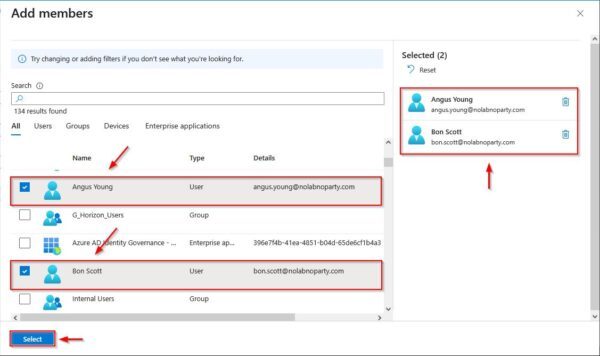
Select the users to add and click Select to confirm.
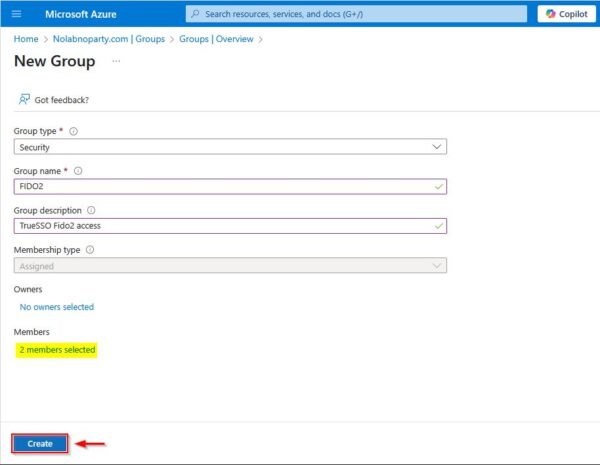
Click Create.
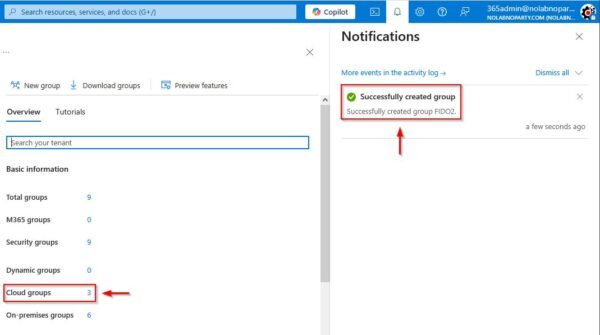
The new Security Group has been created successfully.
Enable passkeys (FIDO2) for the organization
After creating the Security Group, navigate to Microsoft Entra ID > Manage > Security area. Select Manage > Authentication methods.
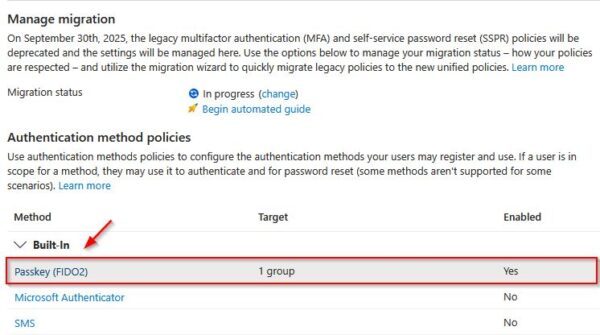
In the Authentication method policies section, click Passkey (FIDO2) to proceed with the configuration.
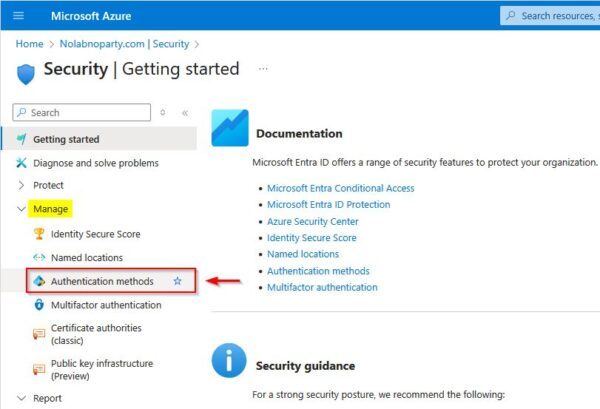
Go to Manage > Policies section and click Passkey (FIDO2) option.

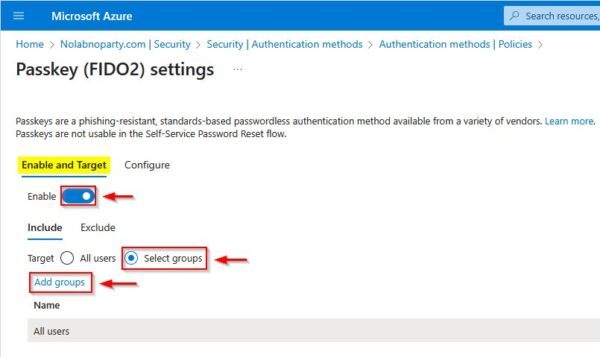
In the Enable and Target tab, click on Enable switch and thick the Select groups option. Click the Add groups link to assign the desired security group for the selected authentication method.
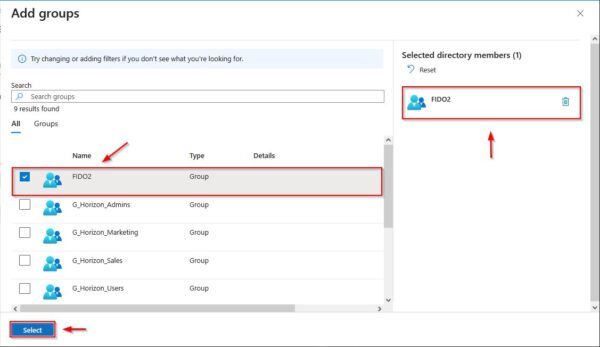
Select the security group created earlier (FIDO2 in the example) then click Select.
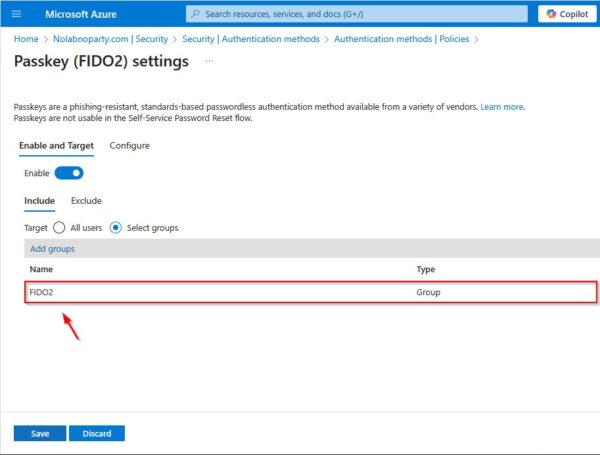
The chosen group has been added.
Now move to Configure tab and under GENERAL select Yes for both Allow self-service set up and Enforce attestation options. Click Yes for option Enforce key restriction.
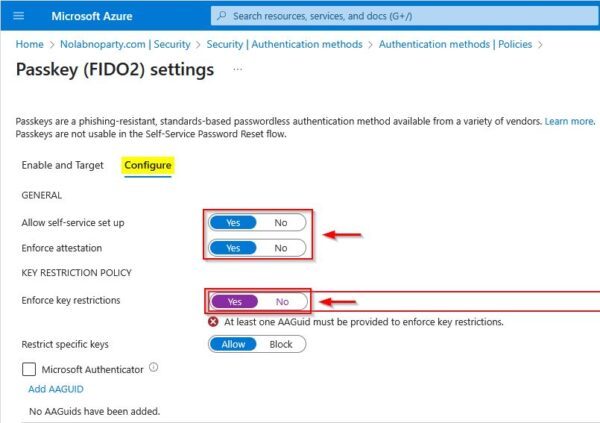
This option requires to add the AAGUID to enforce key restrictions. Each security key vendor must provides the Authenticator Attestation GUID (AAGUID), a 128-bit identifier indicating the key type, such as the make and model. In this example the Thetis PRO-C FIDO2 Security Key Device - Passkey, USB-C & NFC was used.
A list of security keys eligible for attestation with Microsoft Entra ID can be found in this page.
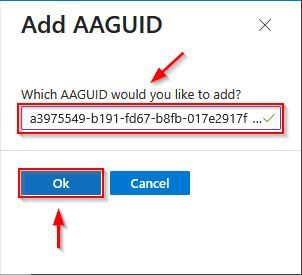
Identify and copy the AAGUID written at the bottom of the corresponding Product page (AAGUID a3975549-b191-fd67-b8fb-017e2917fdb3).

Now click Add AAGUID to add the correct code.

Paste the code copied from the website and click OK to save.
Click Save to save the FIDO2 authentication method configuration.

The Passkey (FIDO2) has been configured successfully.
Configure the security key
First, insert the security key into the computer's USB port.
Download the Key Manager software for the FIDO2 security key in your hands and run the application.
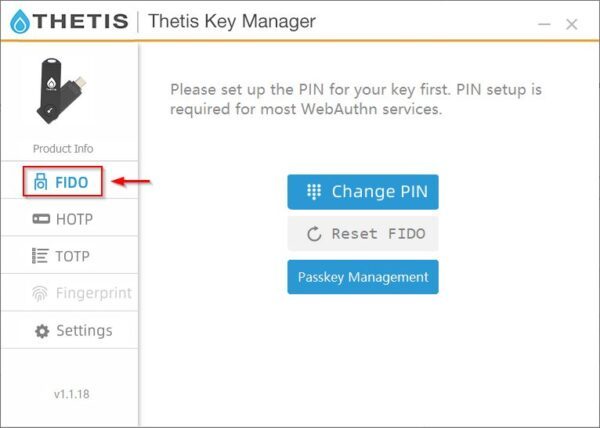
In the example the Thetis security key has been used. Access the FIDO area and specify the PIN for your key. A 6 numbers PIN is required to configure the PIN successfully.
Go to Settings and select OATH OTP then click Save.

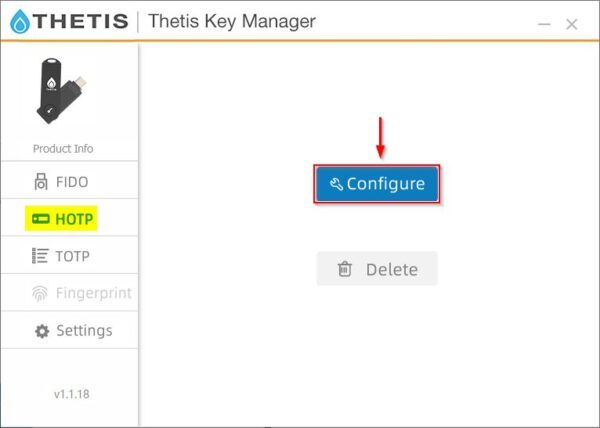
In HOTP area, click Configure.
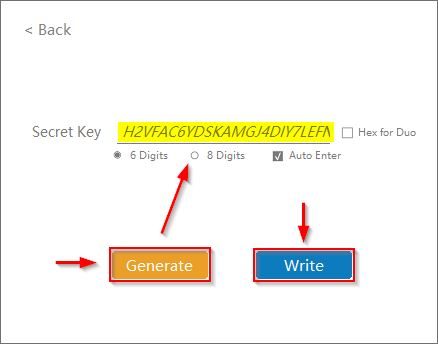
Click Generate then Save.
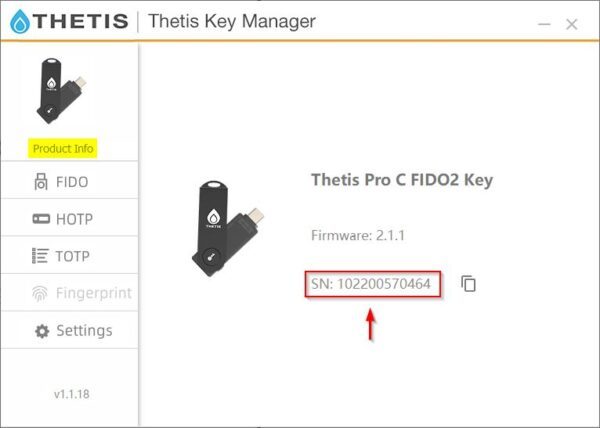
Now go to Product Info and write down the serial number to better identify the key in case of need.
Configure FIDO2 authentication to users
Open your preferred browser and enter the URL: https://mysignins.microsoft.com/security-info. Enter the username of the user you want to configure then click Next.

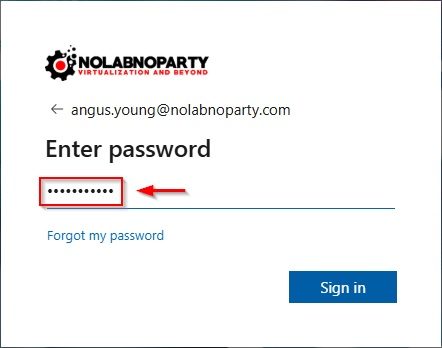
Enter the Password and click Sign in.
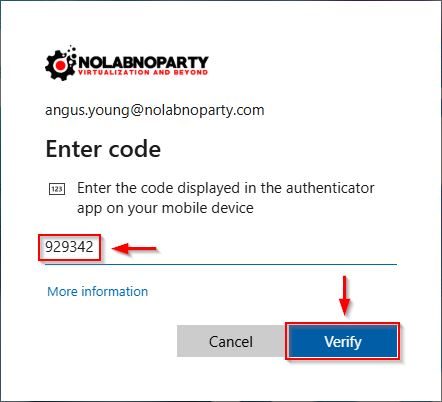
Specify the MFA Code using the Authenticator then click Verify. Note the user you want to configure with FIDO2 must have MFA enabled in Azure.
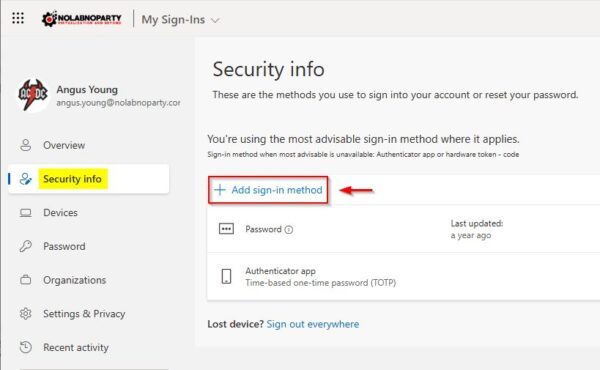
In Security info area, click Add sign-in method.
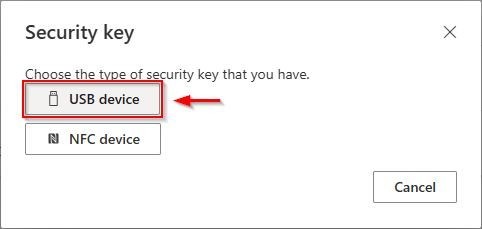
Select Security key option.

Select USB device.
Click Next to proceed.
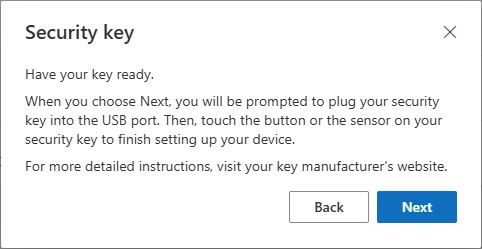
You are redirected to a new window.
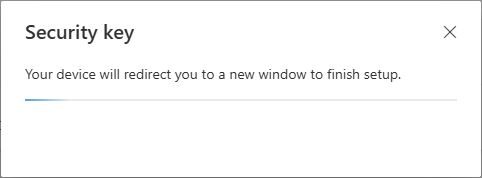
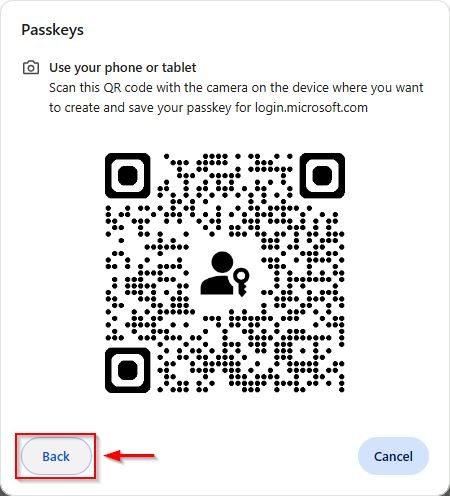
Insert the security key into the USB port and click Back.
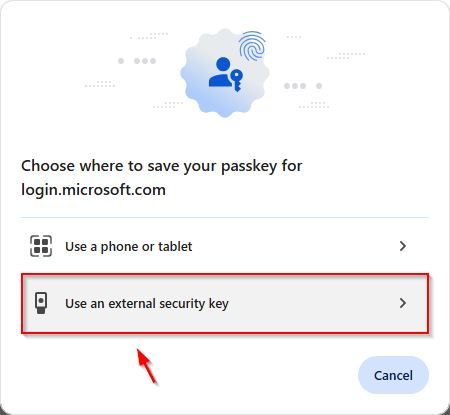
Select Use an external security key.
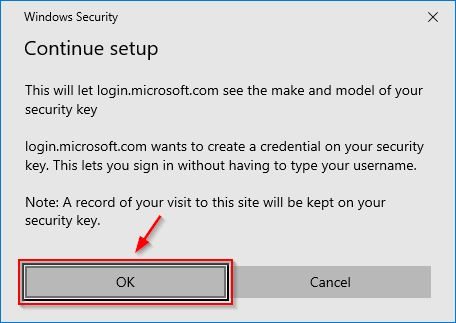
Click OK.
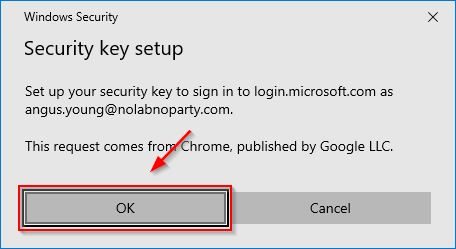
Click OK.
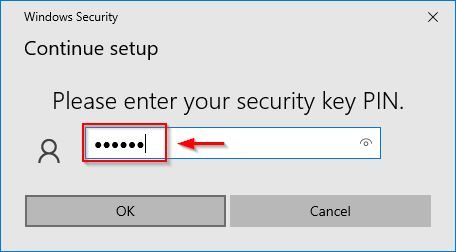
Enter the security PIN configured earlier and click OK.
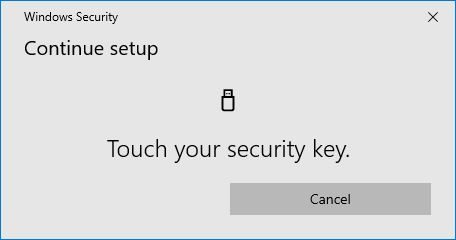
Push the button from the security key.
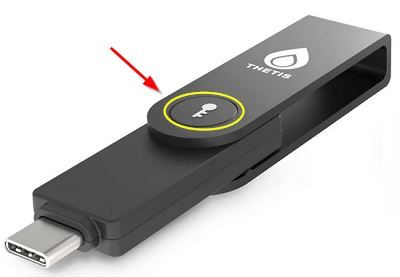
In the FIDO2 security key used in this example the button is identified by the key icon.
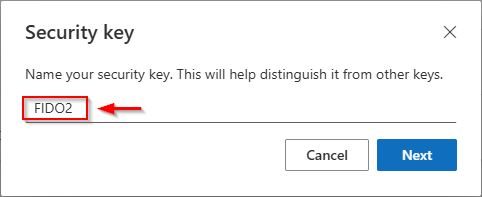
Enter a Name for the security key and click Next to complete the configuration
Click Done to close the window.
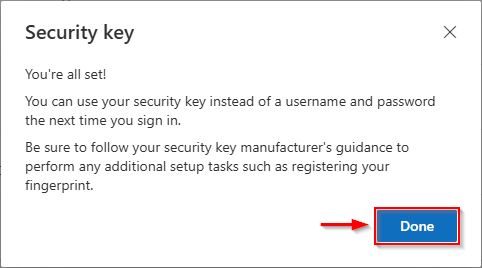
The Passkey method has been configured successfully for the selected user.

Test the connection to a Horizon VDI using True SSO and FIDO2
Insert the FIDO2 security key into the USB port of your computer.
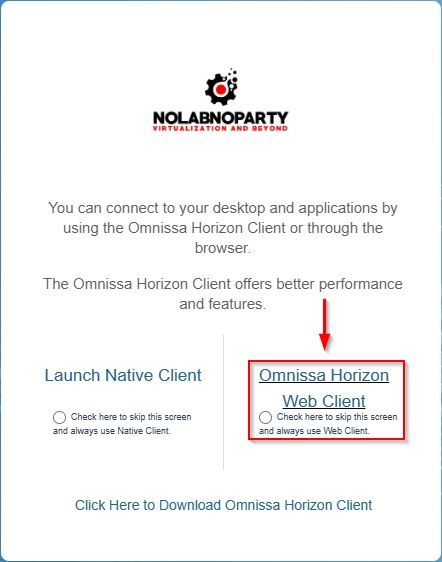
Using the preferred browser, enter the public DNS name to access your VDI infrastructure (https://vdi.domain.com for example). Click Omnissa Horizon Web Client (you can also use the Horizon Client).
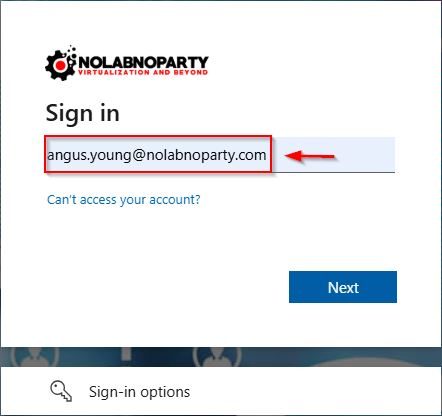
Since the infrastructure is configured to have MFA with Azure, you need to specify your credentials. Enter your username and click Next.
Enter the Password and click Sign in.
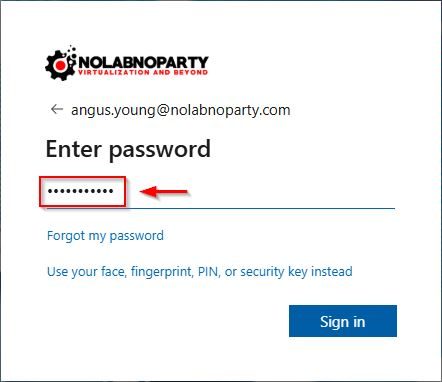
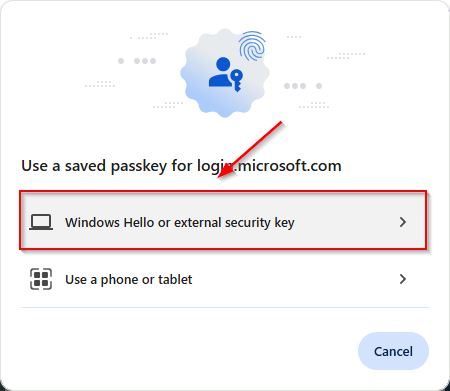
Since the user is configured to have FIDO2 authentication as additional authentication method, you are prompted to specify the passkey to use. Click Windows Hello or external security key (the message type depends on the OS version used).
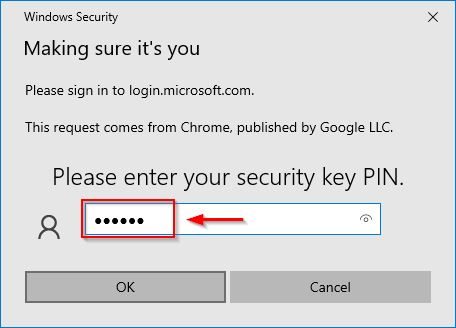
Enter the PIN of your security key and click OK.
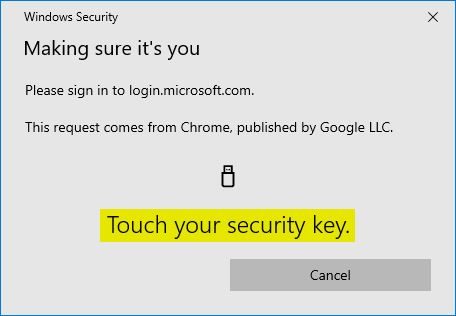
Push the button on your key to complete the sign in process.
If the authentication process succeed, the user is redirected to the typical Horizon console. Select the desired Desktop Pool to access the VDI.
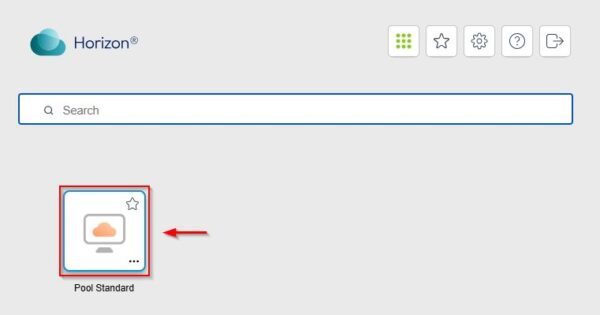
Because the infrastructure is configure to leverage True SSO, no additional credentials are required to access the VDI.
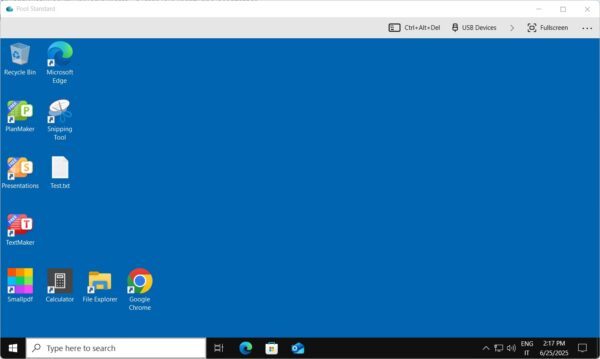
Securing the access to the Omnissa Horizon infrastructure with FIDO2 authentication, you can enforce the login security process providing Multi Factor Authentication (MFA) to users.