


The Altaro VM Backup environment requires the configuration of some parameters needed by the software to process the backups in the right way.
The configuration procedure is quick and supported by a clear and simple graphic that guides the user through each single step.
Blog series
Altaro VM Backup 6.1 installation - pt.1
Altaro VM Backup 6.1 configure VMware backup - pt.2
Altaro VM Backup 6.1 offsite backups - pt.3
Altaro VM Backup 6.1 restore and verification - pt.4
VM Backup configuration
Access the software console to setup the environment.

Configure Hosts
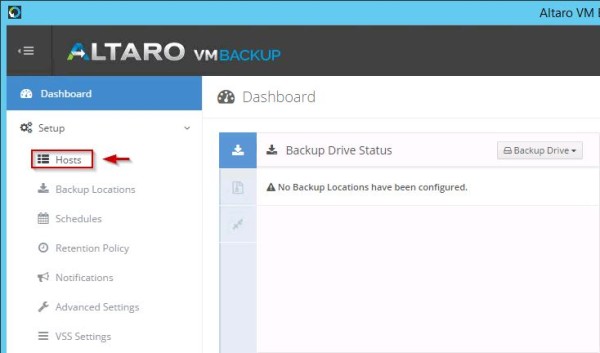
To backup the virtual environment you need to specify the hosts configured in the network. Select Hosts tab to add both Hyper-V and VMware hosts.
From the Host Setup window select the host type to add.

In the example, a VMware vCenter Server is chosen as host type. Click Next to continue.

Enter the vCenter IP or Name and the Administrator credentials. Click on Test Connection button to test the connectivity.

A message confirms the connection has been established successfully. Click Next.

From the vCenter configured, the system retrieves the managed ESXi hosts. Click Finish to save the configuration.

The hosts are now displayed in the Hosts tab. From this screen you can perform several tasks:
- Add/Remove both Hyper-V and VMware Hosts
- View the currently added Hosts
- Filter and search options will help you to locate your host
- View the number of VMs on each host
- Update host agents if necessary
- Change the licensing of each host
To filter the hosts type configured in VM Backup, the two small buttons located in the right side can be used.

Clicking the VMware icon button, the visualization of VMware hosts is disabled from the list showing only Hyper-V hosts if present.

Insert the license
By default the application is installed as 30-day trial. Since the application is licensed per host, from this screen you manage also the licensing of VM Backup. Click on Manage License option to insert the purchased license.

A comparison table displays the features available for each edition. Click on I already have a license key button to proceed.

Copy and paste the license key received from Altaro then click Assign License Key button.

A license has been assigned to the host. Repeat same procedure for all the hosts configured in VM Backup.

Backup Locations
The devices where the backups will be stored are configured selecting the Backup Locations tab.

Choose the device type to use then click Next.

In the example a CIFS share will be used. Enter the network share path and the credentials used to access the network share. Click on Test Connection button to verify the connectivity.

When the connection is established successfully, click Finish to store the configured location. Repeat same procedure to add additional backup locations.

The new device is listed in the Backup Locations tab. Drag and drop the VMs to assign them to the configured location, click on the 'x' sign to remove the VM from a particular location.

Click Save Changes at the bottom of the screen to save the configuration.
Schedules
To perform scheduled backups you need to create some Schedule Groups adding the VMs to them. Select Schedules tab to manage Schedule Groups.

By default two groups are created by the system that can be used, edited or deleted. To edit the schedule, click the pen icon at the bottom of the group.

When the configuration has been completed, click Save to update the schedule.

Click Add Backup Schedule button if you want to add a new schedule instead.

To add a VM to one or more Schedule Group, simply drag and drop the VM from the left side.

VMs can be removed from a Schedule Group by clicking the 'x' sign. Schedule Groups can be Enabled/Disabled by clicking the button at the bottom of the group.
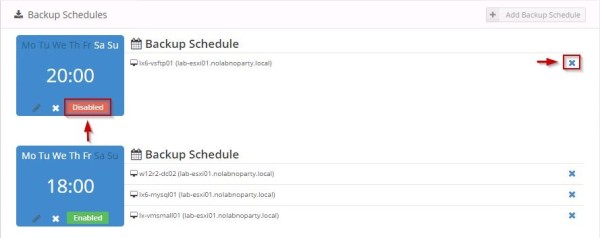
Remember to click Save Changes at the bottom of the screen to save the Schedule Groups.
Retention policy
Since the storage space is not unlimited, it is necessary to define the retention policy (RPO) to define how long a backup should be kept before deletion. Select Retention Policy tab.

To add a VM to a Retention Policy, simply drag and drop the VM from the left side to the desired policy group. VMs not belonging to any group policy are shown in red. Click the 'x' sign to remove a VM from a group.

To create a new Retention Policy, click on Add New button.

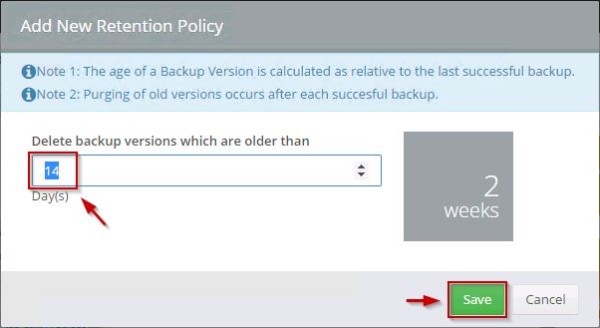
Set the retention period then click Save.
Primary backups (blue) or offsite copy (red) are shown in different colors with a better overview of current configuration.

Click Save Changes at the bottom of the screen to save the Retention Policy setup.
Notifications
To receive backup and restore reports by email with all details (status, duration, transferred data, etc.), select the Notification tab.

Click on the Email Notification Settings option and select the reports you want to receive and configure the SMTP parameters. Click Send Test Email button to check if alerts are received in the specified recipient. Click Save Changes at the bottom of the screen to save the configuration.

Select the Event Log Notifications item to have the backup details within the Event Viewer console on Windows Server. Click Save Changes at the bottom of the screen to save the configuration.

Advanced Settings
Select Advanced Settings tab to enable or disable some backup parameters.

From this screen you can enable or disable Compression, Encryption and CBT, set the Reverse Delta and exclude ISO files and certain VHDs / VMDKs. When complete click Save Changes at the bottom of the screen to save the configuration.

Reverse Delta
Reverse Delta is a proprietary Altaro technology that enables the VM Backup to keep only the changes between each version of a changed VHD (or VHDX) file and another saving disk space on the storage. In addition only changed blocks in a VHD file are transferred when there is already a full backup available on the backup location, making incremental backups much faster.
Compared to other deduplication technologies, with Reverse Delta the latest version of a file is always made available in its entirety and not as a delta file that needs to be rebuilt from an older version and one or more delta files. Latest version of a file can be accessed directly from the backup drive without having to rebuild the file from delta files. The delta files are only used if you want to build a previous version of the file.
VSS Settings
Select the VSS Settings tab to setup the backup consistency parameters.

In this screen you can enable or disable Application Consistent Backups for each VM in order to perform live backups of Non-VSS Aware guests and truncation of SQL/Exchange transaction logs for VMware guest VMs. Click Save Changes at the bottom of the screen to save the configuration.

Keep in mind that application consistent backup feature is currently only supported for Windows VMs.
Master Encryption Key
Access the Master Encryption Key tab to setup the password to encrypt backups.

Type the Master Encryption Key to use then click Save Changes. The inserted key will be requested during the restore from encrypted backups and there is no way to recover these backups if the key is lost.

Manual backup
Taking a manual backup is very simple, select the Take Backup tab under Virtual Machines item.

Select the VM to backup then click on Take Backup button.
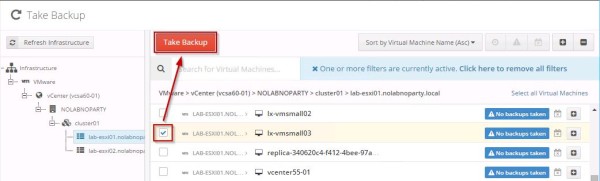
If you backup a Linux VM, you may receive an application consistent issue warning because Linux is not a VSS-aware OS, so you need to disable application consistent option for Linux VMs.

To remove the warning, select the VSS Settings tab and remove the Application Consistent flag from the Linux VM to backup then click Save Changes button at the bottom of the screen.

Taking the manual backup once again, the backup status is now reported as Successful.

The Dashboard reports first statistics about performed backup.

Scheduled Backups
To schedule backup you need to access the Schedule tab and set the desired time and frequency of the Schedule Groups as described in the Schedule section here above.

When the scheduled backup has been performed, the details are displayed in the Dashboard.

The Altaro VM Backup environment is now configured and Backup Tasks set. Part 3 will cover the configuration of the Offsite Backups to have a higher level of data integrity and a Disaster Recovery plan.


