

Altaro VM Backup offers five options to restore a Hyper-V or VMware guest virtual machine with its straightforward wizard interface that guides the user through every stage of the operations.
Also the restore procedure has been designed to be as simple as possible enforcing the "easy-to-use" key-point of the application.
Blog series
Altaro VM Backup 6.1 installation - pt.1
Altaro VM Backup 6.1 configure VMware backup - pt.2
Altaro VM Backup 6.1 offsite backups - pt.3
Altaro VM Backup 6.1 restore - pt.4
Restore options
VM Backup comes with five restore options:
- Restore as Clone - the guest VM backup will be restored to a new location and will be given a new name.
- Restore to a different Host - a guest VM backup which was taken from Host A can be restored to Host B.
- File Level Restore - to restore individual files and folders from any Guest VM backup.
- Exchange Item Level Restore - to restore individual items from your Exchange Mailbox database from any Guest VM backup.
- Sandbox Restore - to perform verification and test restores of your backed up Guest VMs.
Restore a VM
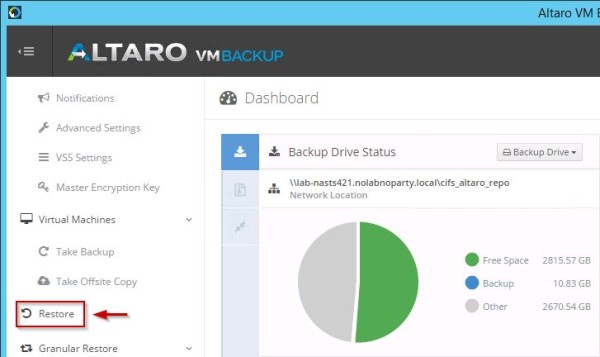
Access the Altaro VM Backup console and select Restore tab. The process will restore the VM to the specified location without overwriting the original VM but it creates a cloned VM running side by side with the original VM.
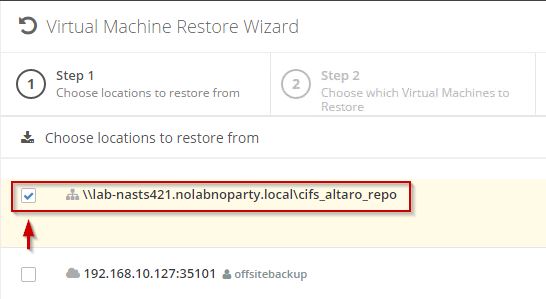
Choose the location where the backup is stored. Then click Next at the bottom of the screen.
Select which VM to restore then click Next.

In this screen you can specify the VM name and on which host the VM has to be restored. If the VM is restored on same network of the original VM, thick the Disable network card option to avoid IP conflicts. When done, click Restore to start the process.

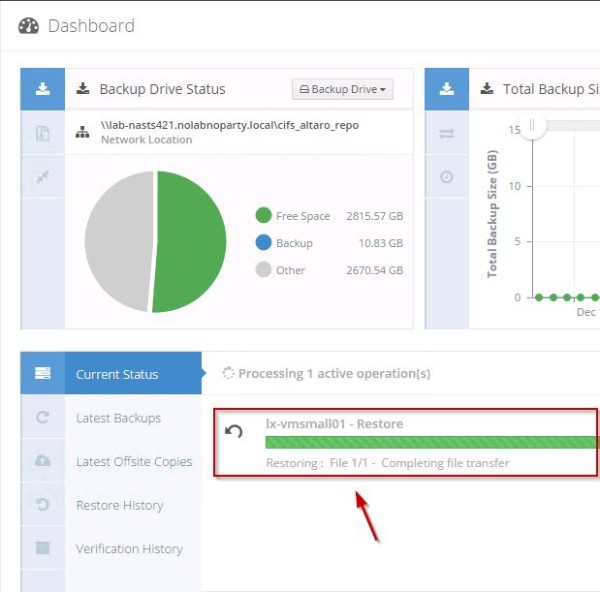
To monitor progress go to Dashboard.

The VM is being restored.
In the Restory History section is listed the restored VM.

The restored VM as shown in vCenter Server.

File Level Restore
To restore a file from the backup, select File Level Restore tab from the Dashboard.
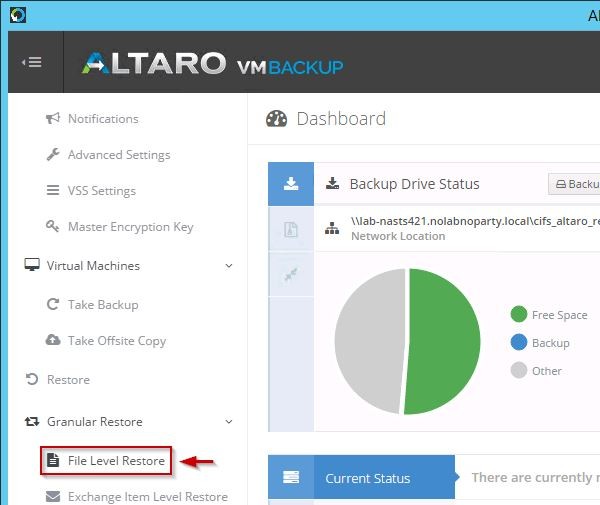
Choose restore source then click Next at the bottom of the screen.

Select the VM to restore then click Next.

Select the backup version to restore then click Next.

Click Virtual Disk to specify the disk with the backup.

Select the Hard Disk with the file to restore.

Select the correct Partition.

Select the file or folder to restore then click Next.

To select a different target location to extract the file to, click the sign '...'.

Select the Physical Drive then click on Choose folder link to specify the location.
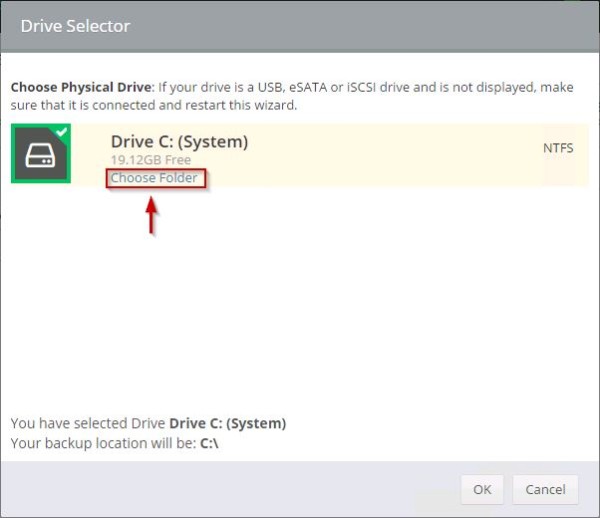
Choose the desired folder then click Select.

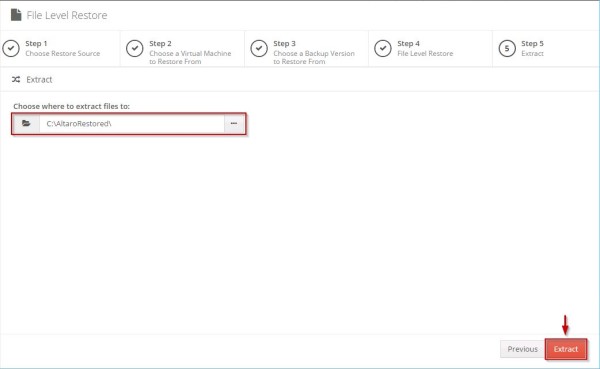
When the target location has been set (default location in the example), click Extract to proceed.
The file is being restored.

When the file has been restored successfully, you have the options to restore from a Different Backup or Additional Files.

The file is saved to the specified folder.

Verify backups
The Sandbox Restore feature allows the administrators to test and verify the integrity of backups with two options available:
- Verify Backup Folders
- Perform Full Test Restore
Verify Backup Folders
To verify the integrity of data stored on the backup, the Verify Backup Folder is the option to select. This option doesn't attach the virtual machine to the hypervisor but simply check if data stored in the backup are corrupted. Click Next at the bottom of the screen to continue.

Select the Sandbox Restore Type then click Next.

Select the Backup Location to test then click Next.

Select the VM to verify then click Next.

Select which backup version to test then click Verify Backup.

The status of the process is displayed in the Dashboard.

The VM backup is being verified.

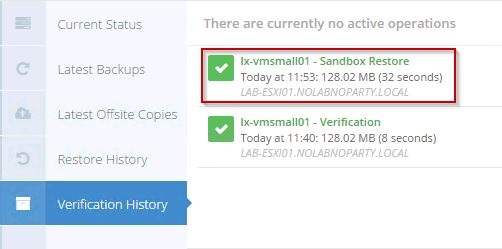
When the test has been completed, the details are listed in the Verification History section.

Perform Full Test Restore
Select Perform Full Test Restore to allow VM Backup to attach the VM to the hypervisor to ensure it boots and start a full Test Restore. Live VMs are not affected by this test. Click Next at the bottom of the screen to continue.

Select the Backup Location to test then click Next.

Select the VM to Test Restore then click Next.

Set the required parameters then click Perform Test Restore.

The Test Restore progress can be seen in the Dashboard.

The test is being performed.
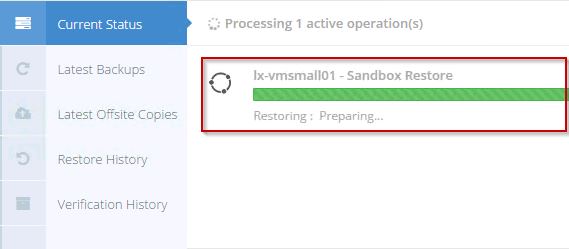
In the Verification History are reported the details.
Schedule Tests
Test and Verification Tests can be scheduled in order to check backups on regular basis. From the Dashboard click Schedule Test Drills item

From the Sandbox Restore Settings tab select Click here to Add a Sandbox Restore Schedule item.
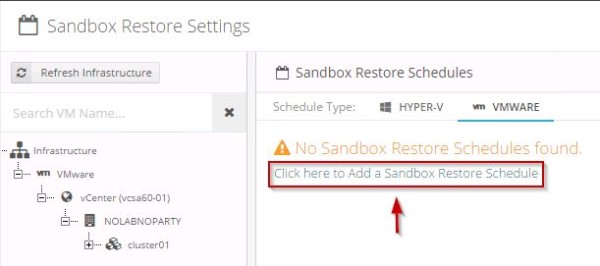
Select the Restore Type and required parameters. Set a schedule then click Save.

When the Test Restore Schedule has been created, drag and drop VMs to test. Click Save Changes to store the configuration.

Reporting
VM Backup offers some reports showing details for both Operation History and Error History. Select the report to display under Reports section.

From this screen you can check details of taken backups.

Free up Disk Space
To reduce the size of backup folders, access the Free Up Disk Space tab and select Local or Offsite version to delete obsolete backups. Backups versions older than the selected date will be deleted on the selected VMs. You cannot recover deleted versions.

After using Altaro VM Backup for a while, the application confirms to be very simple to use and robust offering all the features requested by administrators to have a high level of data integrity protection with a valid Disaster Recovery plan.
If you have less than two virtual machines per host you can use the free VMware or Hyper-V version which is free, forever.


