Veeam Agent for Linux is a new free backup product released by Veeam available for Debian-based and RedHat-based distributions.
Currently available as a public beta, Veeam Agent for Linux is able to perform image-based backups at the file and volume level and the backup type forever-incremental is enabled using the Veeam’s proprietary CBT driver.
Install Veeam Agent for Linux
Download Veeam Agent for Linux from Veeam's website and extract the packages needed for the Linux distribution in use (CentOS in the example):
- veeamsnap-1.0.0.499-1.noarch.rpm
- veeam-1.0.0.499-1.el6.x86_64.rpm
Using a tool like WinSCP, copy the two packages in the Linux VM.

List the copied files with the command:
# ll

Install first the package veeamsnap-1.0.0.499-1.noarch.rpm.
# rpm -ivh veeamsnap-1.0.0.499-1.noarch.rpm

Then install veeam-1.0.0.499-1.el6.x86_64.rpm package. Note that Veeam Agent for Linux is installed as a service in the machine.
# rpm -ivh veeam-1.0.0.499-1.el6.x86_64.rpm

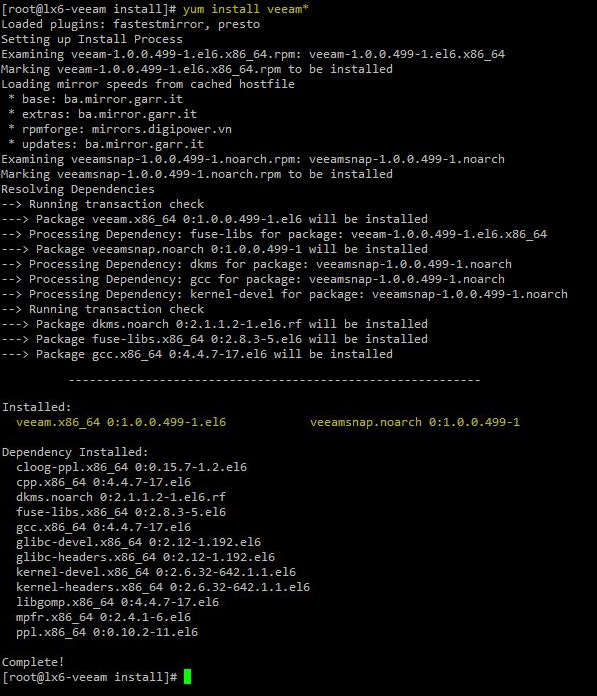
In a RedHat/CentOS environment, Veeam Agent for Linux can be easily installed using the EPEL repository.
# yum install veeam*
Configure the Backup Job
From the console run the command veeam to access the software's UI. Press C (Configure) to configure the backup job.
# veeam

Enter the Job name then press Enter.

Select the Backup mode and press Enter.

Specify the Destination to store the backups and press Enter.

Select the Location (NFS or CIFS) and type the path. Here you can also specify the retention for the backups. Press Enter to continue.

Specify a Schedule for the backup job then press Enter.

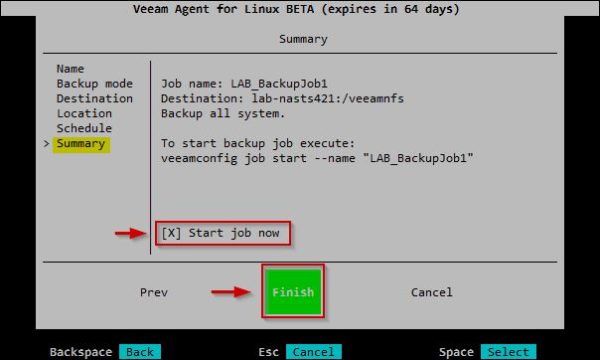
Click Finish to save the backup job configuration. You can start the job immediately by enabling the Start job now option.
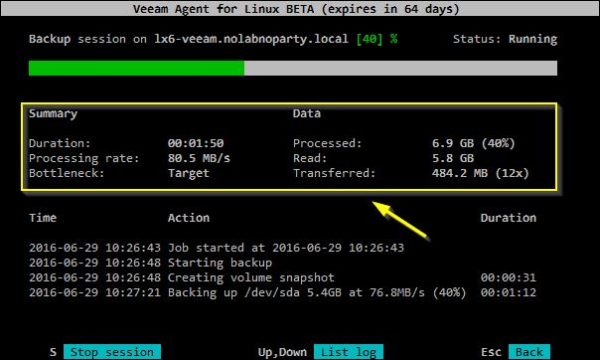
The backup process begins.

In the State column you can follow the progress of your backup. Press Enter for additional details.

In this screen you have all the backup details. When the backup job runs for the first time, a full backup will be taken. Next backup will be faster due to the CBT driver that backs up only what has changed on the disk since the last backup.
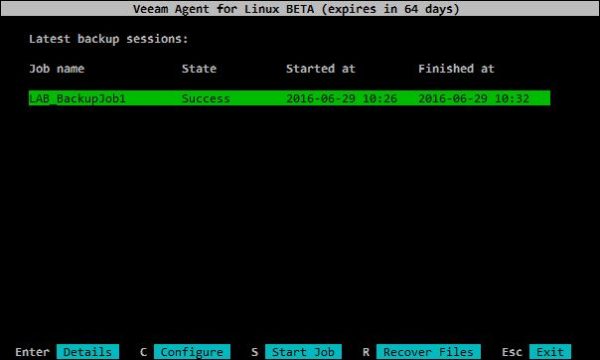
If the column State reports Success, the backup has completed successfully.
To check the backup files, create a directory in your machine and mount the NFS share used.
# mkdir /backup
# mount -t nfs lab-nasts421:/veeamnfs /backup
 List the backup files with the command:
# ll /backup/LAB_BackupJob1/

Press C (Configure) from main screen to configure additional backup jobs.

Select Configure new job and press Enter to setup a new job following same procedure previously explained.

Restore files
To restores files from backups, press R (Recover Files) from main screen.

The number on the right side of the backup job name indicates how many restore points are available for that specific backup. Press I (Import backup) to import the backup you want to recover the files from.

Navigate to the location where the backup files are stored (NFS share in the example), select the desired backup then press Enter.

Select the Restore Point you want to mount then press Enter.

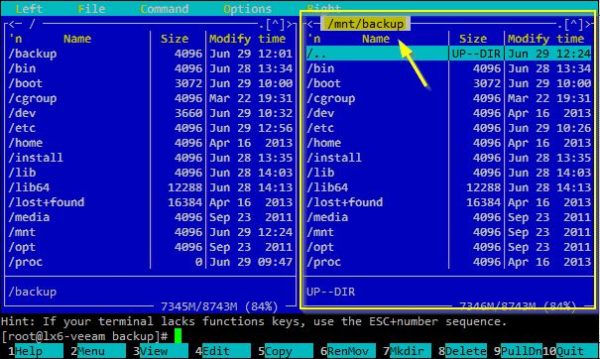
The backup has been mounted in the specified directory.

Using a file manager like mc (Midnight Commander), you can restore files directly from the mounted backup.
Restore volumes
Inside the Veeam Agent archive you can find the Debian-based tool Veeam Recovery Media veeam-recovery-media-1.0.0.499.iso to restore your machine in case of need.
Boot the machine from the .iso file to run the Veeam Recovery Media tool. Select the Restore volumes item from main menu then press Enter.

Select Add shared folder to specify the backup location and press Enter.

Select the share type (NFS or CIFS), specify Server/Directory then press Enter.

Browse the mount point and select the backup to use. Select the volume to restore and type S (Start restore) to start the restore operation.
Keep in mind that all existing data will be erased in the target volume.