The upgrade of PernixData FVP 1.5 to 2.0 is a pretty simple procedure but the correct steps should be followed to upgrade the system successfully.
Read this post to have an overview of the new features introduced with version 2.0.
Requirements
Before upgrading FVP to version 2.0, it’s necessary to set the environment to perform the correct upgrade process.
- All VMs that are part of a PernixData FVP Flash Cluster must be transitioned to Write Through mode.
- Copy the PernixData FVP Host Extension Module to each host in the cluster.
- Shut down the vSphere Client.
- No VMs can be configured in Write Back mode until all hosts within the cluster have been upgraded.
Upgrade PernixData FVP Management Server
Using the vSphere Web Client, access the FVP Cluster and check the Write Policy status. If any VM is set to Write Back mode, it must be transitioned to Write Through mode.

Launch the upgrade from the FVP installer downloaded from the PernixData website.
The system recognizes a previous installation of PernixData FVP. Click Yes to continue.

The program prepares the wizard.

Click Next to start the process.

The upgrade is being performed.

Click on Finish to exit the wizard.

Upgrade PernixData FVP Host Extension Module
Enable the SSH access in the hosts to upgrade.
Using tools like WinSCP, copy the new Host Extension Module to the ESXi hosts members of the FVP Cluster.

Put the host in Maintenance Mode.

Login the ESXi to upgrade via SSH using the root account.

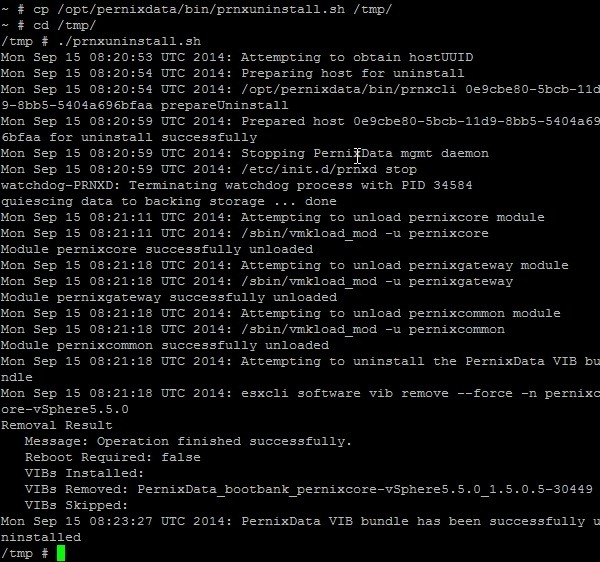
Before upgrading, previous release must be uninstalled from the system using the prnxuninstall.sh script located in the directory /opt/pernixdata/bin. If the script is executed in the default location a warning message is shown since it must be executed in a different directory.

Copy the script in a different location (i.e. /tmp) and execute it.
# cp /opt/pernixdata/bin/prnxuninstall.sh /tmp/
# cd /tmp
# ./prnxuninstall.sh
To perform the installation, use the esxcli command:
esxcli software vib install -d <zip_filename>
# esxcli software vib install -d /tmp/PernixData-host-extension-vSphere5.5.0_2.0.0.0-30662.zip

In case you receive the message "Could not find a trusted signer." just add "--no-sig-check" to the end of the install command.
# esxcli software vib install -d /tmp/PernixData-host-extension-vSphere5.5.0_2.0.0.0-30662.zip --no-sig-check
Backup the ESXi configuration to the boot device with the command:
# /sbin/auto-backup.sh

Remove the ESXi from Maintenance Mode.

Repeat same procedure for all hosts in the FVP Cluster.
Upgrade vSphere Client FVP plug-in
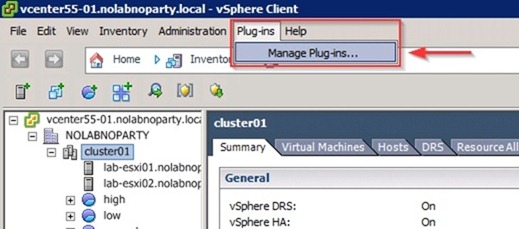
Open the vSphere Client and select Plug-ins > Manage Plug-ins.
Locate the PernixData FVP vSphere Client Plugin under Available Plug-ins section and click Download and Install.

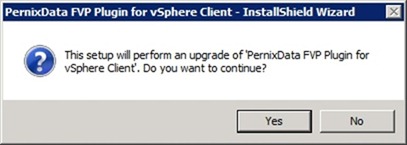
Click Yes to perform the upgrade.
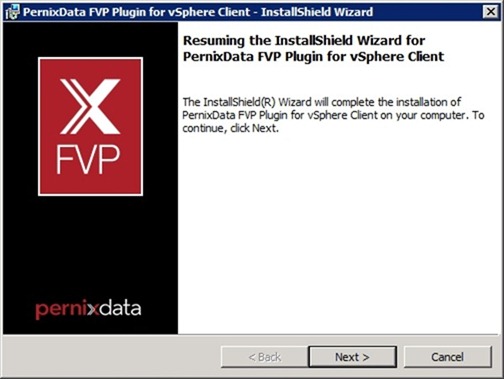
Click Next to start the installation wizard.
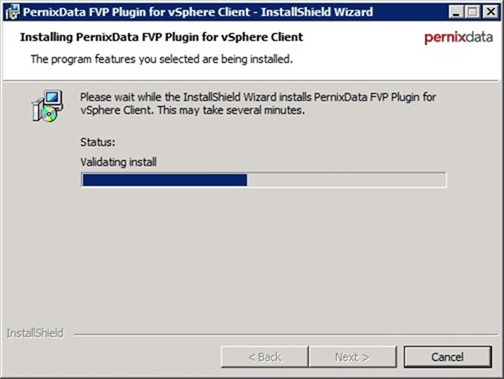
PernixData FVP is being installed in the system.
Leave default option and click OK.

When the installation completes, click Finish button to exit the wizard.

The plugin has been installed.

To access the new FVP dashboard, restart the vSphere Web Client.

PernixData FVP is now updated to version 2.0. It's now possible to start configuring the new features like RAM as additional flash device, Fault Domains and taking benefit from the Adaptive Network Compression.