


Altaro VM Backup can store an offsite copy of your backups increasing data integrity and ideal for a good Disaster Recovery strategy.
The procedure requires the installation of the Altaro Offsite Server tool with a minimal configuration to setup.
Blog series
Altaro VM Backup 6.1 installation - pt.1
Altaro VM Backup 6.1 configure VMware backup - pt.2
Altaro VM Backup 6.1 offsite backups - pt.3
Altaro VM Backup 6.1 restore and verification - pt.4
Install Altaro Offsite Server
From Altaro website, download the Altaro Offsite Server tool and run the installer. To use this feature, you need to open ports TCP 35101 - 35105 and 35109 - 35111 in the firewall. Click Install to proceed.

When the installation process has complete, click Finish to exit the setup wizard.

Launch the Altaro Offsite Server Management Console from the Windows start menu, select Connect to local server option then click Connect to proceed.

Select Configure Accounts item.
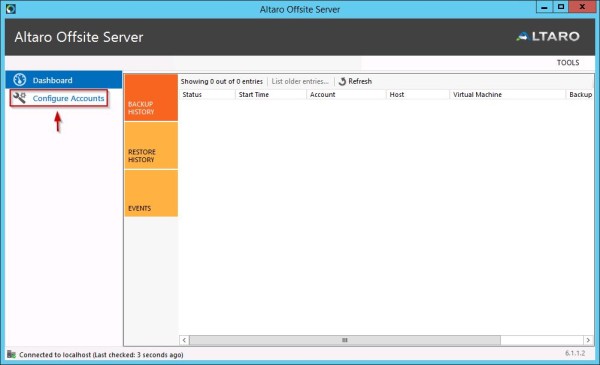
Click on Add a new account button. From the window type the Display Name and the Credentials to use then click on Choose a storage area button.

Select the local disk or a network location and specify a directory through the Choose a sub directory button. Click OK to confirm.

Click Save to store the configuration.

The new account has been created successfully.

Add an Offsite Location
Access the VM Backup console and access the Backup Locations tab. Click on Add Offsite Location button to add the configured Offsite Server.

Select the Backup Location type then click Next.

Insert the required parameters then click Test Connection.

When the connection has been verified successfully, click Finish.
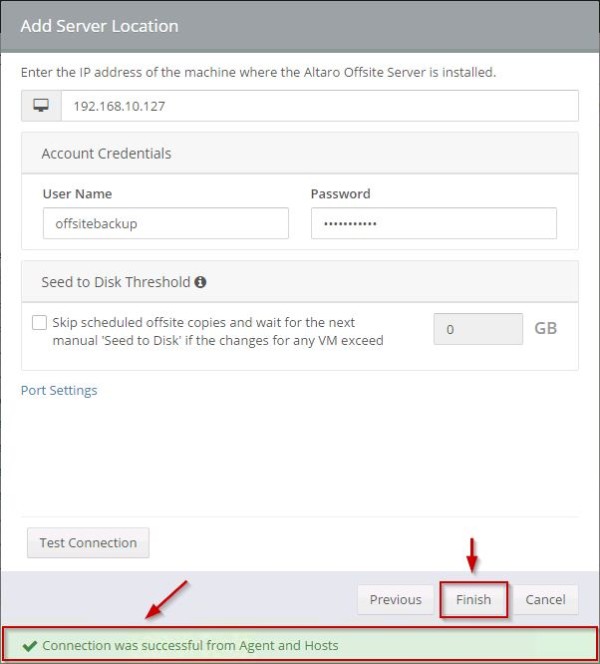
The new Offsite Location has been configured.

From Master Encryption Key tab type the required key to encrypt the offsite backups then click Save Changes at the bottom of the screen.

To run the offsite backup, access the Take Offsite Copy tab.
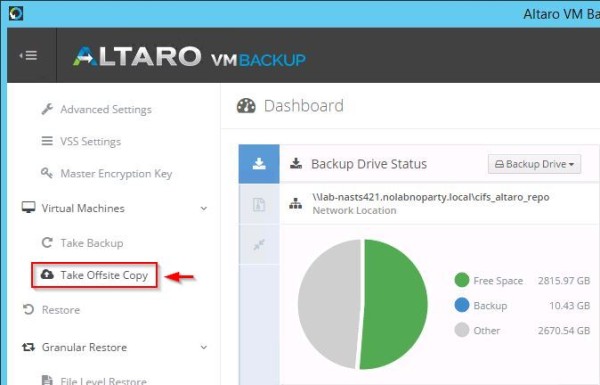
Select the VMs to backup and click the link Click here to set Offsite Location.

From the Backup Locations tab, drag and drop the selected VMs to the Offsite Location then click Save Changes at the bottom of the screen.

Take an Offsite backup
From the Take Offsite Copy tab, select the VM to backup then click Take Offsite Copy.

A successful backup is required to allow offsite copy. Click Yes to access the Take Backup section to take the backup for the selected VM.

Select the VM and click on Take Backup button.

When the first backup has completed, go back to Take Offsite Copy tab, select the just processed VM then click Take Offsite Copy button.

The offsite copy is being performed.

A Successful Offsite Copy message confirms the backup completed successfully.

Schedule Offsite Copy
Offsite Copy can be scheduled from Schedule tab. After setting up the backup schedule, check also the days under the Follow up with an Offsite copy... section then click Save to store the configuration.

Seeding
To transfer a full backup of your data to an Altaro Offsite Server, the required bandwidth to that server may be limited and the process time consuming.
Using the Seeding to disk feature, you have the option to manually take the first full backup to the Altaro Offsite Server physically then run only incremental copies over the WAN connection.

From Take Offsite Copy tab, select the VMs to backup then click Seed to Disk button.

Select the Backup Location Type you want to seed to then click Next.

Choose the drive and specify a directory by clicking on Chosen folder link. Click Seed To Disk to proceed.

Selected VMs are seeded to selected media. Once the backup has been completed, take the removable disk to the Offsite Server.

From the Offsite Server console select Configure Accounts tab, right click the previously configured account then select Import seed from disk option.

In the Seed Import window, click Browse to choose the location to store VMs to be imported.

Select the local disk and specify the directory where seeded VMs have been stored then click OK.

Select the VMs to import then click Start.

The VMs are being imported.

When the VMs have been imported successfully, click Close.

The Full Backup is now available on the Offsite Server allowing VM Backup to transfer incremental backups only over WAN saving time and bandwidth.
Part 4 will cover the procedure to Restore backed up VMs and the verification to test the integrity of your backups.


