When a physical or virtual machine fails for any reason, you need to perform the Restore VMware VMs operation to recover the services provided.
Of course you can't perform a VM restore if at least one backup wasn't previously taken.
With Nakivo Backup & Replication you can perform different restore operations in your virtual environment:
- Restore a single or multiple VMs - VMs can be restored to the original source or to a different location.
- Flash boot - the VM is booted directly from the Backup Repository.
- FLR - granular restore of files and folders.
Back to Basics blog series
Nakivo Backup & Replication Overview
Nakivo Backup Repository
Nakivo Backup VMware vSphere
Nakivo Restore VMware VMs
Nakivo VMware vSphere Replication
Nakivo Ransomware Protection
Nakivo IT Monitoring
Restore VMware VMs
Login to Nakivo dashboard and go to Jobs section. Click Recover and select Full recovery for VMware option.

From an existing Backup Job or Backup Copy Job, select the VM to recover (lx-wordpress01 in the example) and click Next.

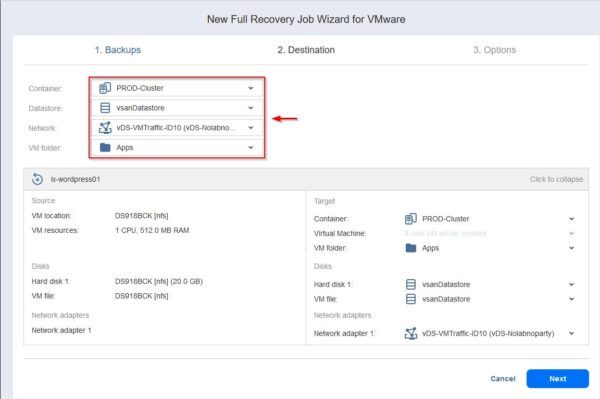
Specify the desired Container, Datastore, Network and VM folder. Click Next to continue.
Give the Job name a name and specify the Recovered VM Options.
The available recovery options are the following:
- Recovery mode - specify if VMs should be recovered in Synthetic mode (environment dependencies will be removed from recovered VMs) or in Production mode (environment dependencies will be preserved on the recovered VMs).
- Recovered VM names - specify the syntax of recovered VM names.
- VM disks - during the recovery process, VM disks can be converted to thin disks.
- VM MAC addresses - used to create a new MAC address.
- VM power on - specify if the VM must be powered on after recovery.
Click Finish to save the configuration.

Right click the just created job and select Run.

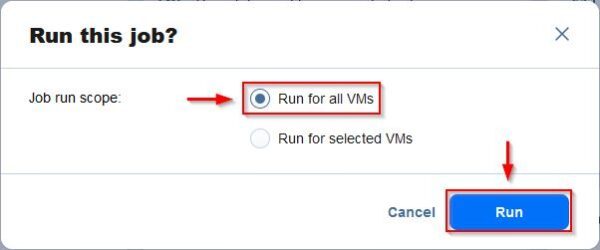
Select Run for all VMs and click Run.
The recovery operation is being executed.

After a few seconds the restore has been completed successfully.

From the vSphere Client, you can see the recovered VM.

Restore VMware VMs with Flash boot
The Flash boot feature allows the administrators to boot VMs to recover directly from compressed and deduplicated VM backups without recovering the entire VM first. This feature is useful to quickly recover a VM. This operation will create a new VM on the target server.
Go to Jobs section and click Recover. Select Flash boot for VMware option.

Select the VM to boot (w22-paris in the example) and click Next.

Specify the desired Container, Datastore, Network and VM folder. Click Next to continue.

Leave the default selection and click Next.

Give the Job name a name and specify the Recovered VM Options. Click Finish & Run to save the configuration and run the job immediately.

Select Run for all VMs and click Run.

The selected VM is booted from the Backup Repository.
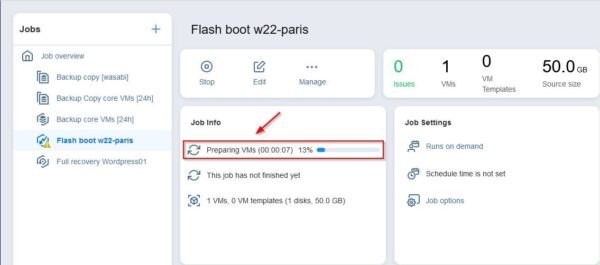
After a few seconds the boot operation completes successfully.

From the vSphere Client, you can see the recovered VM.

To stop the Flash boot recovery, right click the job and select Discard VMs.

File level recovery
Go to Jobs section and click Recover. Select Individual files option.

Select the VM with the files/folders to recover then click Next.

Specify the desired Recovery Method. There are three ways to recover files:
- Download to browser or send via email
- Recover to the following server
- Recover to file share
Download to browser or send via email
Files can be recovered via browser or sent via email.

Recover to the following server
Files can be recovered to the selected server. Enter the Recovery server and the OS credentials to connect.

Recover to file share
Files or folders can be restored to a file share. Specify the Share type and the Path to the share. Click Next.

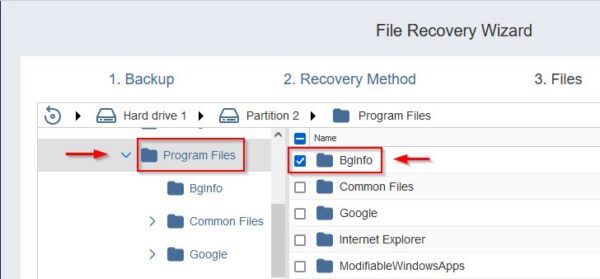
From the available partitions, select files to recover and click Recover.

To restore a folder, just select the upper folder and select in the right pane the folder to recover.
To check the recovery status, go to Activities tab.

The restore operation has been completed successfully.

Checking the target File share, the files have been restored in a ZIP file file type.

With recover capabilities provided by Nakivo Backup & Replication, administrators can quickly Restore VMware VMs in case of a failure.