


In Lotus Domino 8.5.x is not available a function to configure an auto reply message to inbound emails addressed to a specific user or group.
When a user leaves the company, for instance, an auto reply message to inbound emails should be activated in order to inform the senders about his/her departure. Unfortunately the Out of office function requires a return date to be set and it is not a valid option for this need.
Looking for a solution, a procedure found in Gavin Bollard’s blog that uses Lotus Domino Designer to setup the auto reply message solved the problem.
Procedure
From Domino Administrator select Files tab > mail. Right click the user’s filename DB and select Open In Designer option.

In the left side select Code > Agent.
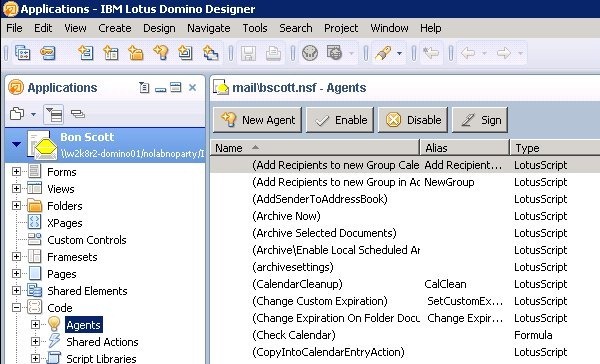
Click on New Agent button.

Fill Name, Alias and Comment fields and set Type menu with value Simple Actions. Click OK.

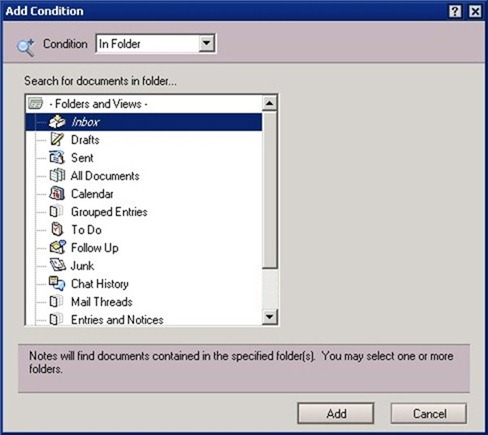
In Objects panel, select Document Selection then click Add Condition button.

Give to Condition field the value In Folder.

Select Inbox item then click Add.
In Objects panel, select Action then click Add Action button.

From Action menu, select Reply to Sender option.

Check Sender only and Reply only once per person options.

Type the message you want as reply to email sender then click Add button.

Right click anywhere in the AutoReply (Agent) : Action panel and select Agent Properties.

Go to Runtime tab and from Action menu selection menu select After new email has arrived item. Close the window when finished.

Save the new created agent.

To activate the new agent type from Domino Server Console the command:
Tell Amgr Run "DatabaseName.nsf" 'AgentName'
# Tell Amgr Run "mail\bscott.nsf" 'AutoReply'

Test the auto reply
To test the auto reply simply connect to an external email (Gmail for instance) and send an email to the account just set.

If everything works as expected, you should receive an automatic reply from the system.

From now on senders who will send emails to to the configured account will receive an automatic reply with the message previously set.


