Packaging an application using Omnissa App Volumes is a useful way to deploy applications to users, as it eliminates the need to reconfigure the Golden Image for each new application.
This solution virtualizes applications and deploys them only to entitled users, simplifying application distribution and maintenance.
Prerequisites
Before packaging an application, ensure the following prerequisites are met:
- App Volumes Manager is installed and configured.
- A virtual machine with the same OS as the user golden image is provisioned.
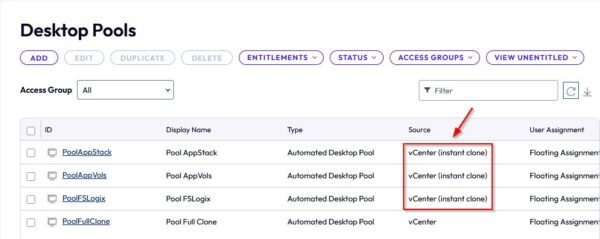
- A Desktop Pool configured as Instant Clone is available for users.
Prepare the environment
To package an application, you need a virtual infrastructure component like App Volumes, which provides application virtualization.
App Volumes Manager
The App Volumes Manager is the central component used for packaging an application and must be available in your VDI infrastructure. You can download the software from the Omnissa website and install it on a supported Windows Server.

The installation and configuration must align with your virtual infrastructure. A detailed installation guide can be found at this link.
App Stack virtual machine
You need a virtual machine with the same OS as the Golden Image used in the Desktop Pool.
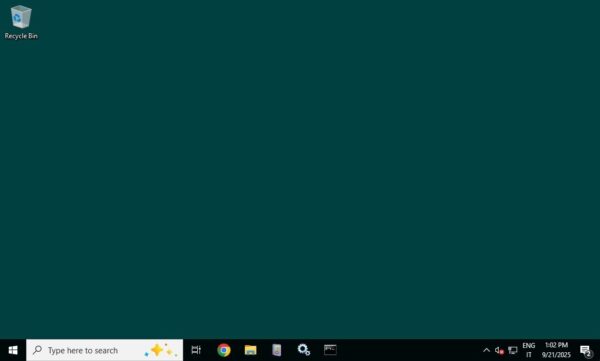
Install the App Volumes Agent
The App Volumes Agent must be installed on the packaging machine.
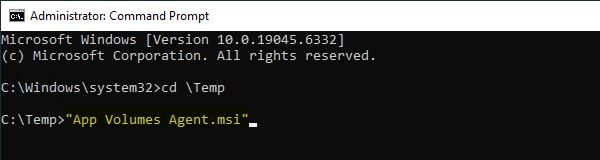
Open the Command Promtp as Administrator and run the installer.
Click Next to begin.

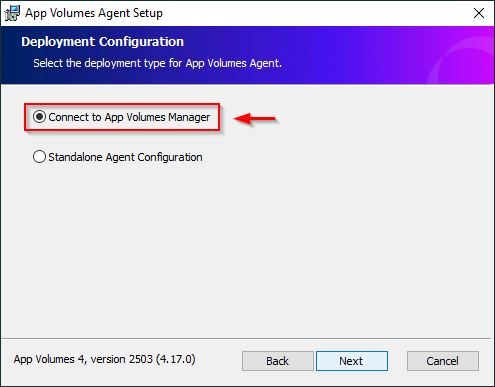
Select Connect to App Volumes Manager and click Next.
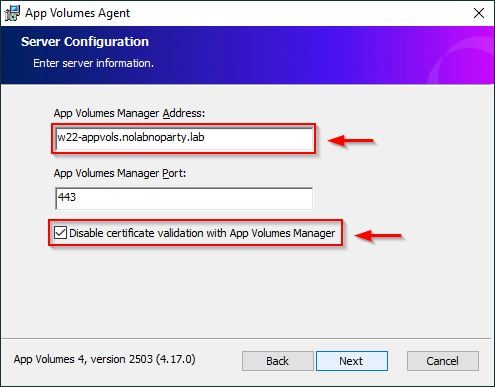
Enter the App Volumes Manager Address and check the Disable certification validation with App Volumes Manager checkbox, unless otherwise required. Click Next.
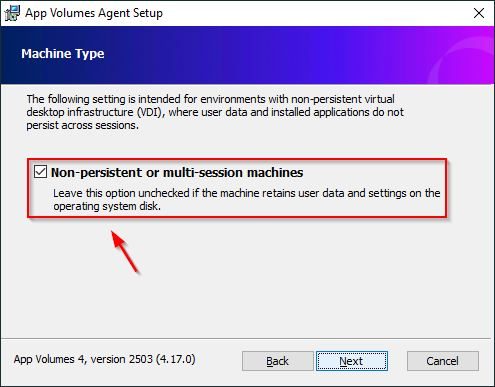
Leave the default value for the option Non-persistent or multi-session machines and click Next.
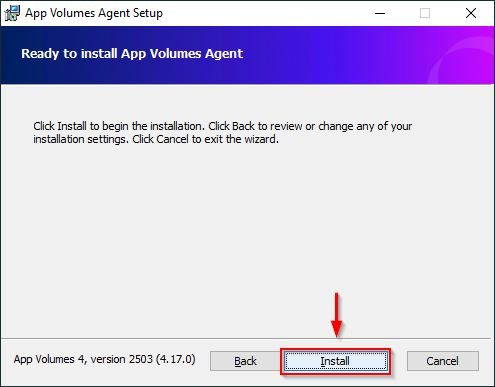
Click Install to begin the installation.
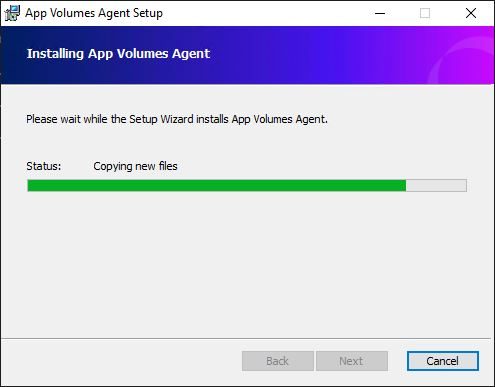
The Agent is being installed.
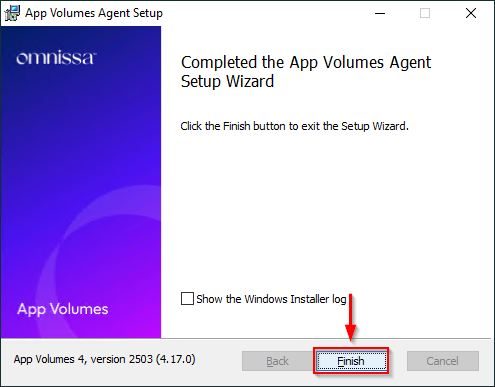
Once the Agent is installed, click Finish to exit the wizard.
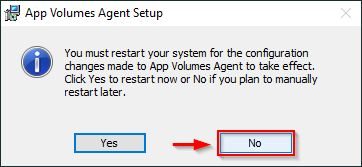
Click No when prompted, as the machine still needs to be joined to the domain.
Join the domain
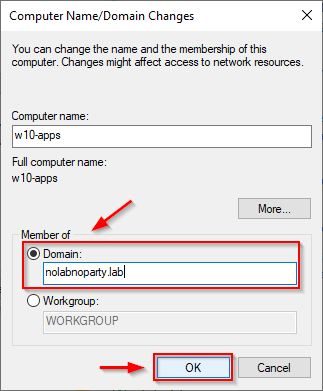
After installing the Agent, join the virtual machine to the same Active Directory domain configured in the Desktop Pool. Reboot the machine when prompted.
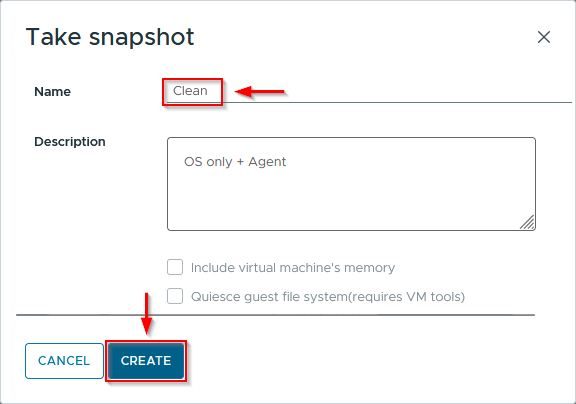
After rebooting, shut down the VM and take a snapshot. This allows you to revert to a clean state after each packaging operation.
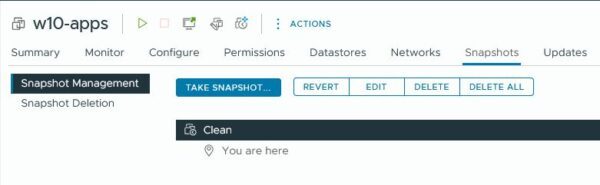
The created snapshot.
Desktop Pool Instant Clones
A dedicated Desktop Pool is not necessary for deploying packaged applications, as applications are assigned to specific users.
Packaging an application
The process of packaging an application involves three main steps:
- Creation of the application configuration in App Volumes Manager.
- Packaging an application.
- Entitling users.
Create the application in App Volumes Manager
Login to the App Volumes Manager and navigate to Inventory > Applications. Click Create to create the application.
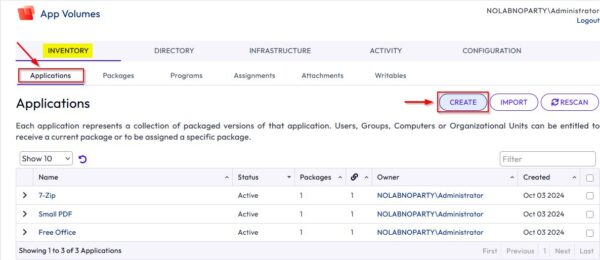
Specify a Name for the application and optionally a Description. Make sure the Create a Package checkbox is enabled. Click Create.

Click Create to proceed.
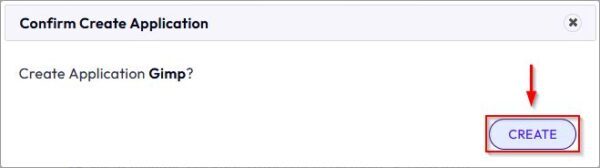
The application has been created successfully.
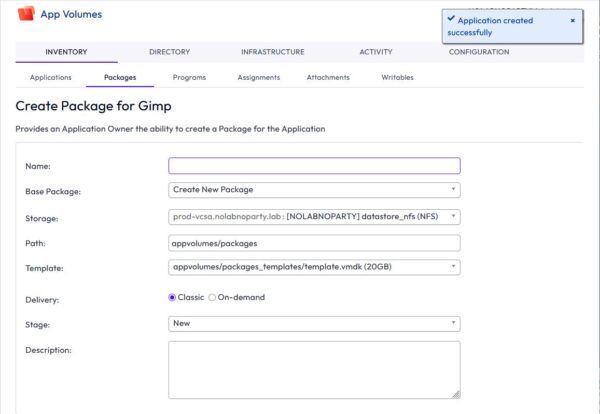
You will then be prompted to create the package. Enter a Name and optional Description. If you have no specific requirements, leave the default options. The application will be saved to the Storage location and Path configured during the App Volumes Manager installation. Click Create.
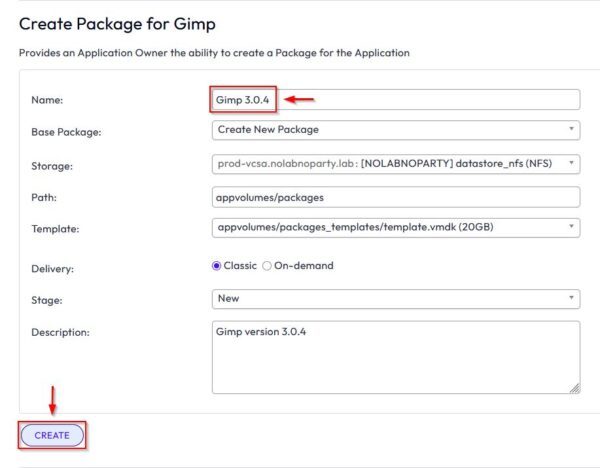
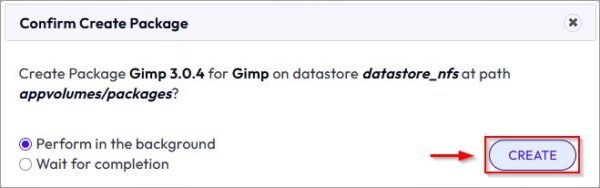
Click Create.
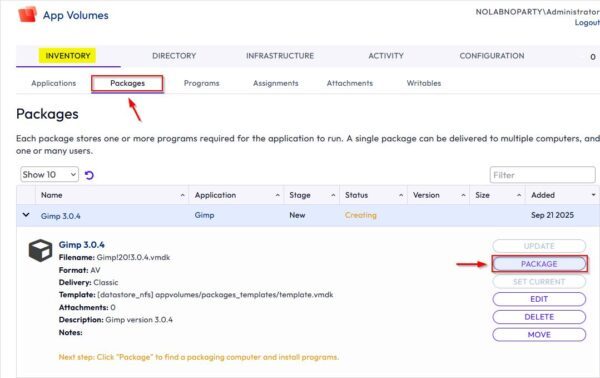
Go to Inventory > Packages and expand the package you need to create. Click Package.
Packaging procedure
Now click Search to list available machines then select the Packaging Computer. Click Package.
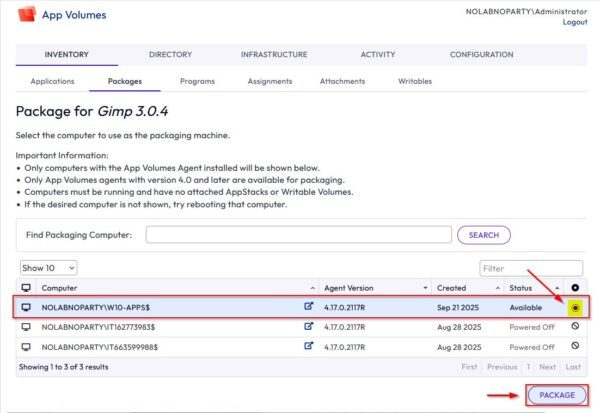
Before starting, ensure the application installer (GIMP in the example) is available on the packaging computer.
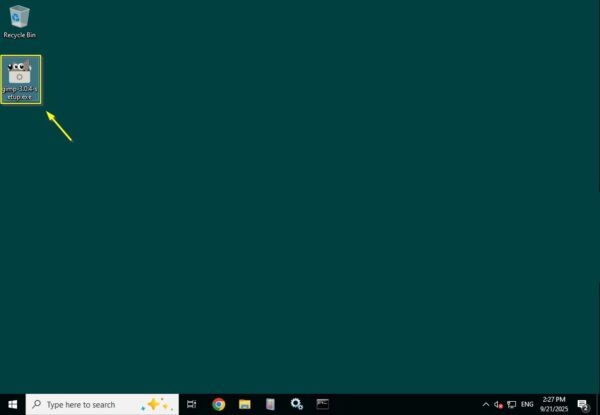
From the App Volumes Manager, click Start Packaging.
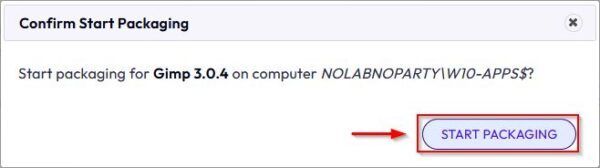
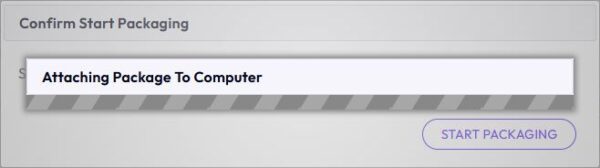
The system will attach the package to the selected computer.
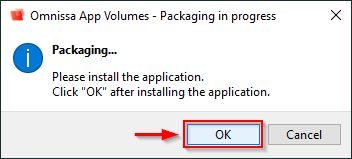
On the target computer, a packaging window will appear. Do not click anything in this window yet.
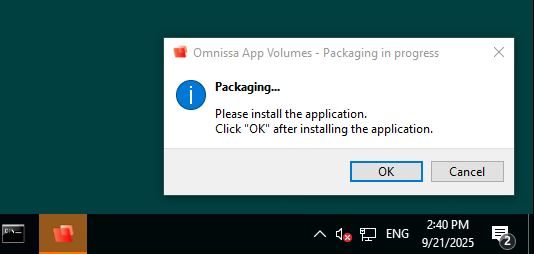
Install the application
Proceed to install the application on the packaging computer.
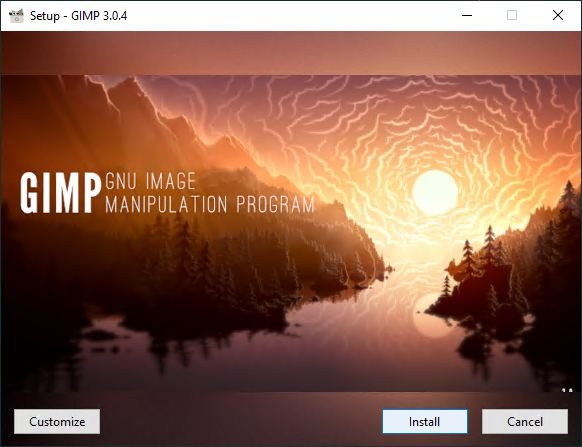
App Volumes will record all stages of the installation.

After the installation is complete, click OK in the Packaging window on the computer.
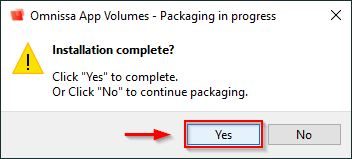
Click Yes to confirm the installation is finished.
For known applications, the Name and Version fields may be filled automatically. If not, enter the information manually. Click Finalize.

The machine will need to reboot. Click OK to proceed.
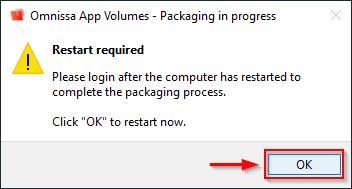
After rebooting, the packaging process will complete automatically.
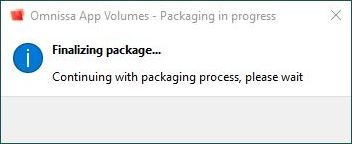
Click OK when finished.
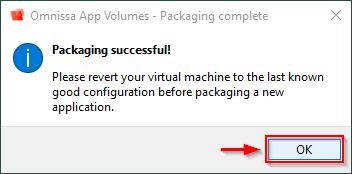
You can now revert the packaging machine to its clean state using the snapshot taken earlier.
Set application as Current
An application can have multiple packages. To designate which version to distribute, you must set it as Current.
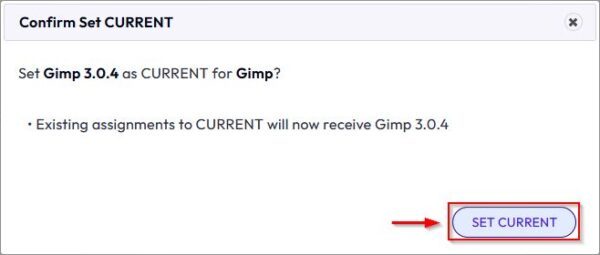
Select the newly created package and click Set Current.

Click Set Current.
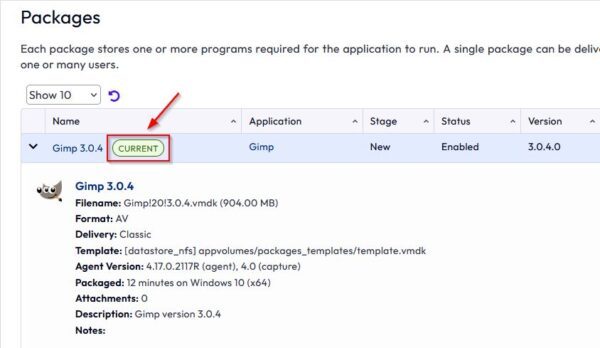
The selected package is now marked as the version to be distributed.
Assign the application
Without an assignment, the application will not be available to users.
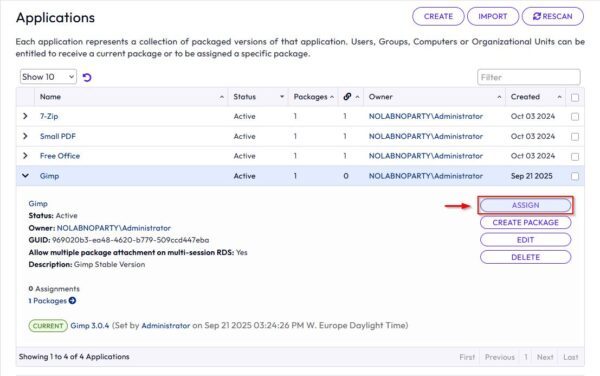
Go to Inventory > Applications and expand the application to assign. Click Assign.
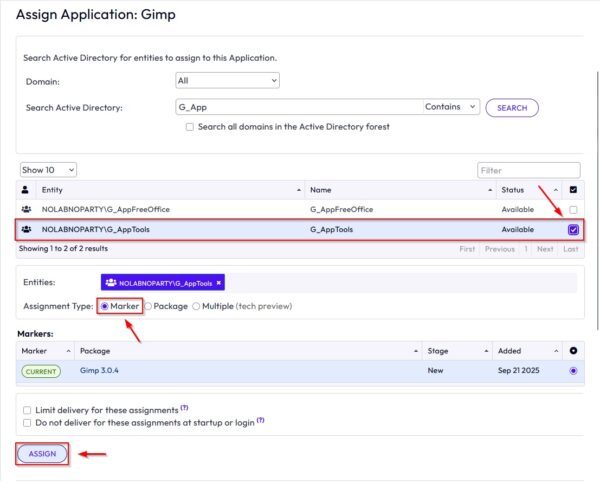
Select the user or group to assign the package to. Ensure the Assignment Type is set to Marker (or the appropriate type for your environment). Click Assign.
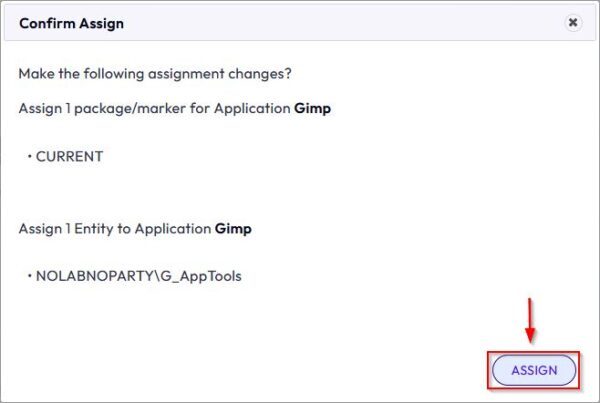
Click Assign.
Test the application
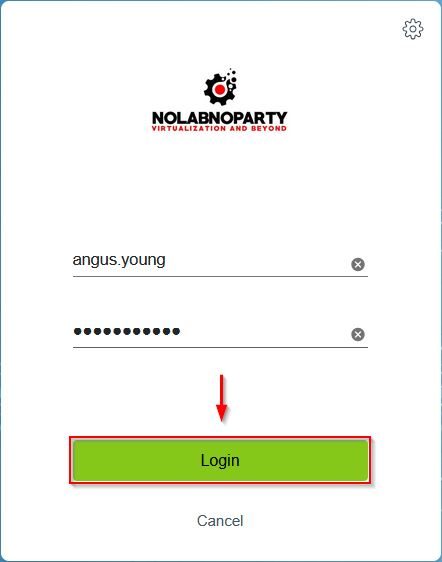
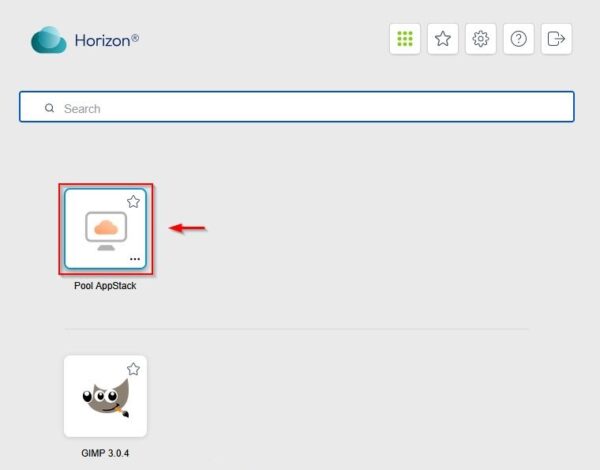
To test the application, access the VDI infrastructure and Login with an entitled user's credentials.
Click on the VDI to access.
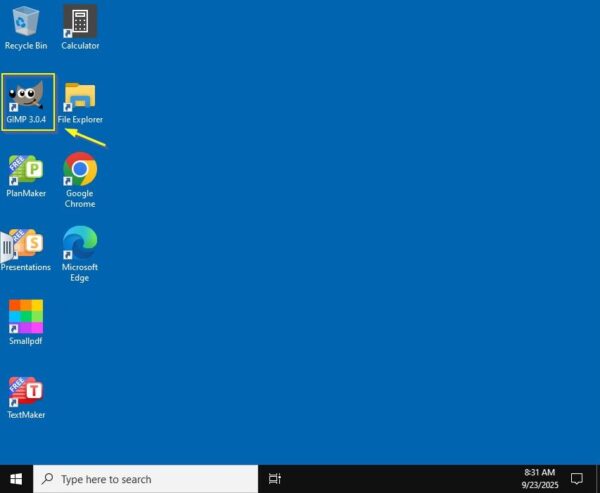
After the login process is complete, the icon for the packaged application will appear on the desktop. Double-click the icon to launch the application.
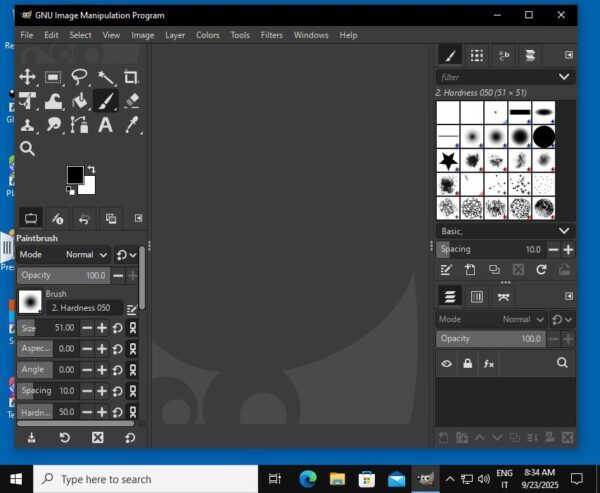
The application will open and function correctly. The user will be unaware that the application is not installed locally on the VDI but is attached dynamically as a packaged application.
Packaging an application using Omnissa App Volumes is an effective solution for VDI environments. It saves significant maintenance time by allowing applications to be updated without modifying the Golden Image.