


When the certificate in Lotus Domino is close to expiration, you can use the existing key ring to renew the SSL certificate.
The procedure consists in sending the certification request to the CA that will return the stamped SSL certificate.
Select key ring
When you try accessing the Server Certification Administration page you may receive the following error message:
Invalid or nonexistent document

To avoid the “Invalid or nonexistent document” error message, open the Server Certificate Administration through the menu File > Application > Open.

Set the Look in field as DominoMail/yourdomain/IT, select the Server Certificate Admin item then click Open.

The application should open now. Click View & Edit Key Rings option to access your own SSL certificate.

If not already set, click on Select Key Ring to Display in order to work with current active SSL certificate. Type the path and filename then click OK. As a best practice avoid working on the original file but consider to make a copy instead.

Enter the password to access the file then click OK. The password is stored in the file .sth.

The correct file is now set.

Click on Create Key Rings & Certificates option to access the page we need to create the new certificate.

Create certificate request
First step is the creation of the certificate request to send to the Certification Authority. Click the Create Certificate Request option.

Fill the requested fields then click on Create Certificate Request.
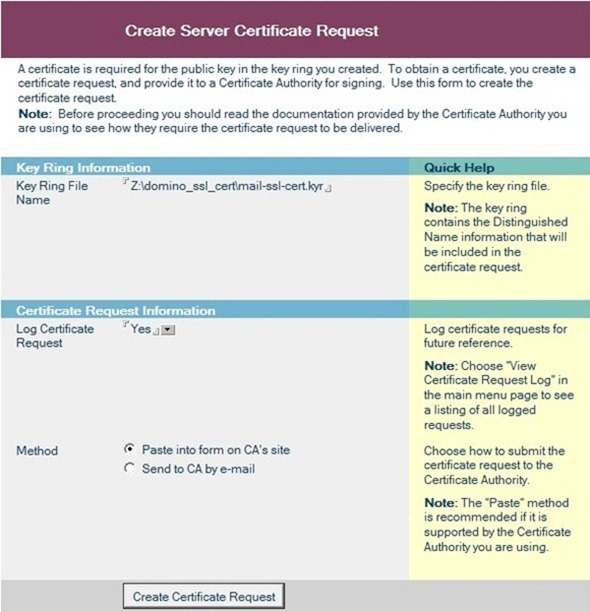
Enter the password to access the file then click OK.

Copy the certificate including the BEGINS and END lines to send to the CA.

Paste the copied certificate to the module request then wait the CA to return the signed certificate.

Install trusted Root certificate
Once the CA returns the signed certificate, we need first to install the Authority Trusted Root certificate. From main page click Install Trusted Root Certificate into Key Ring option.

Fill requested fields and paste the CA Root certificate then click Merge Trusted Root Certificate into Key Ring button.

Enter the password to access the file then click OK.

When the summary Window appears click OK to proceed with merge.
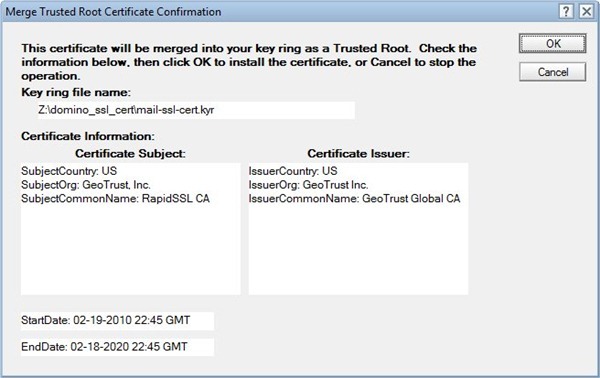
The confirmation window appears. Repeat same step if any intermediate CA certificates are used by the Authority.

Install the certificate
Once Trusted Root Certificate has been installed, we need to install the actual SSL certificate into Key Ring. Click Install Certificate Into Key Ring option.

Fill requested fields and paste the certificate received from CA then click Merge Certificate into Key Ring button.
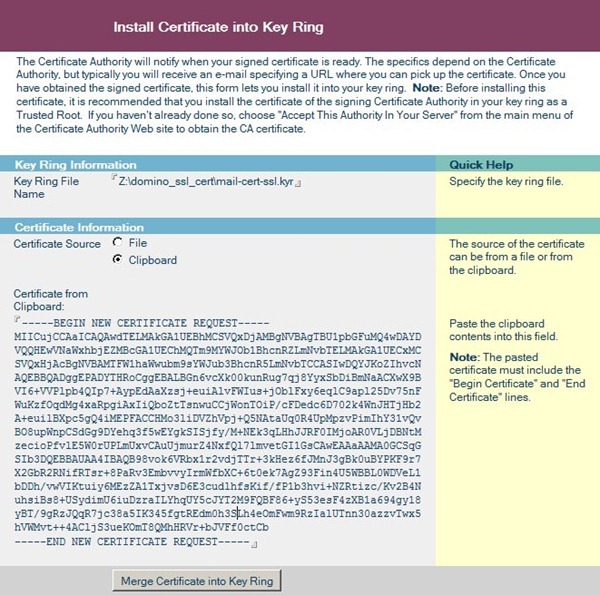
Enter the password to access the file then click OK.

The confirmation Window appears showing the certificate info. Click OK to proceed with merge.

Click OK to proceed.

The certificate is now installed into Key Ring.

Configure Domino SSL settings
From Domain Administrator, click Configuration > Server > All Server Documents > Ports > Internet Ports. Check that SSL key file name contains the correct path and filename then click Save & Close button.
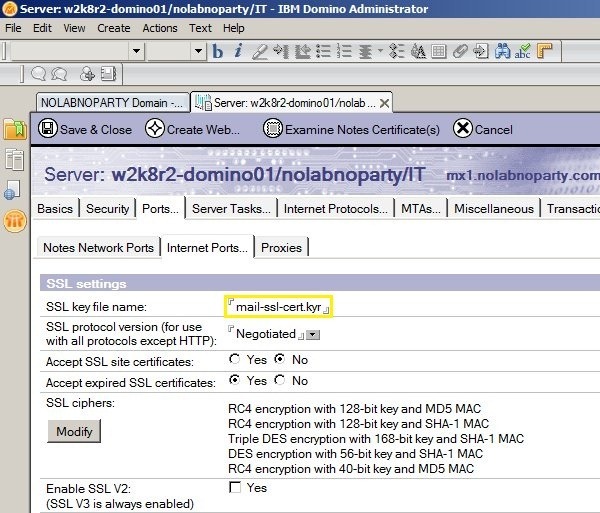
Copy the updated Key Ring files (both *.kyr and *.sth) in Domino Data under\Lotus\Domino\data directory.

To activate new configuration, restart the http server.

Check the SSL certificate
When you click from your browser the certificate details while accessing the webmail through https, you can check the new validation period of the SSL certificate.

The procedure is now complete and the system is now up-to-date with the new SSL certificate.


