

Vembu Backup for Endpoints is an agent-based backup solution provided by the BDRSuite v5.3 that ensures data protection for Windows, Linux and Mac endpoints against disaster, and system failures.
Endpoint backup feature simplify the backup management since you can add supported machines to the Data Source directly from the Vembu GUI and manage the overall backups the centralized BDRSuite Backup Server. Machines to backup can be manually added or imported from a CSV file.
The agent used to perform the backup can be manually installed or automatically pushed from the backup server.
Vembu Backup for Endpoints key features
Vembu Backup for Endpoints provides the following key features:
- Files/Folders backup - Windows, Linux or Mac endpoints files and folders can be backed up to the Vembu BDR Backup Server.
- Flexible scheduling - files and folders can be continuously protected on a minute-by-minute, hourly, daily, or weekly basis.
- Interruption-free backup - if a backup operation is interrupted, the backup can be resumed from where it left off.
- Deleted file retention - any number of deleted files/folders can be retained based on versions count or number of versions created.
- Compression and encryption – processed backups are compressed by the VembuHIVE file system and encrypted using the AES-256bit algorithm (in flight and at rest).
- Restore - files/folders backup can be restored to the original or different location.
- Bandwidth throttling - to reduce the network traffic, you can throttle the speed of the backup data transfer for a selected time.
- Email notification - email notifications can be enabled to receive notifications about the current status of configured backups.
Configure Endpoints backup
The endpoint backup can be configured for Windows, Linux, and Mac environments.
Supported platforms
Backup for Endpoints capability supports the following OSs:
- Windows Server 2012, 2012 R2, 2016, 2019, 2022
- Debian Linux 10.0 and above, Ubuntu 18.04 LTS and above
- CentOS 7.0 and above, Red Hat Enterprise Linux v8.0, CloudLinux 7.0 and above, Fedora 34.0, SUSE Linux Enterprise Server 12 SP5 and above
- MacOS Mojave 10.14 and above
Add the Endpoints to the inventory

Click Add Microsoft Windows.

Machines can be manually added or imported from a CSV file. Select the Add Manually option and specify the IP Address/DNS Name of the machine to process. Specify the Credential with sufficient permissions to install the agent then select the Install BBA deployment type. Automatically Install BBA in the target host has been selected in this example. Click Save.

Click on OK, Proceed button to install the agent.

The agent is being installed in the specified Windows machine.
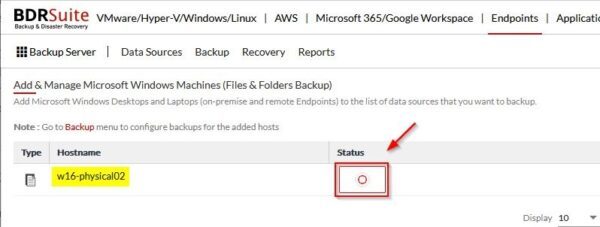
After few seconds the agent is installed and the new endpoint added to the system.

In this example, two Windows machines have been added.

Create a Backup job
Select Backup > Configure backup > Microsoft Windows to create a new Backup Job.

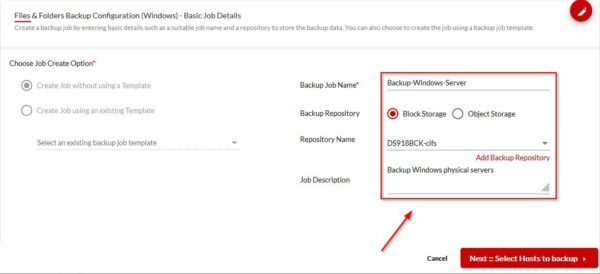
Enter a Backup Job Name and specify the Backup Repository and the Repository Name. Optionally you can enter a Job Description. Click Next when done.
In the Host Selection tab select the Endpoints to protect then click Next.

In Files/Folders Selection tab, click the pencil icon to specify folders to backup.

Specify the File/Folder Path to backup then click the + (plus) icon. Click Apply to save the selection.
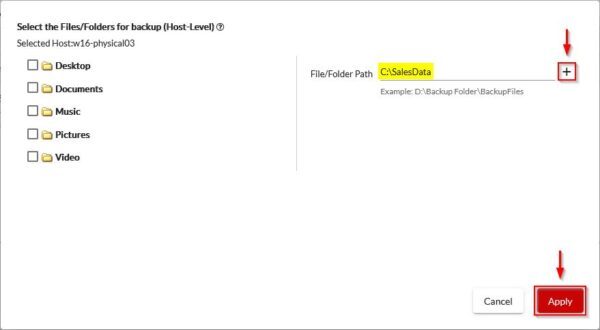
When files and folders to backup have been selected, click Next.

In the Scheduling tab specify the desired backup schedule then click Next.

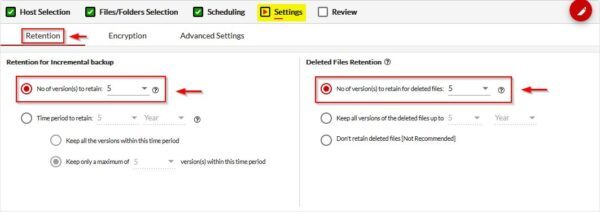
Specify the required Retention for the current Backup Job then click Next.
For security reasons, backups can be encrypted. Enable the Backup Data Encryption switch and specify the password to encrypt. Click Next.

Leave default values in the Advanced Settings tab then click Next.

To execute the backup immediately, enable the Run this backup job immediately after saving option. Click Save to save the Backup Job configuration.
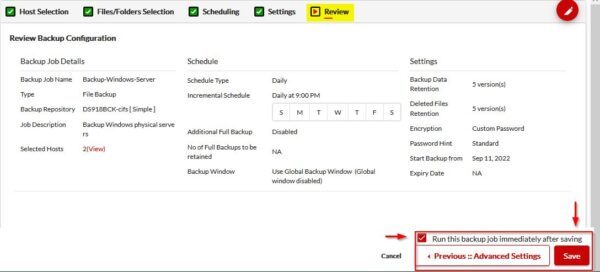
Click Save to confirm.

Test the Endpoint Backup
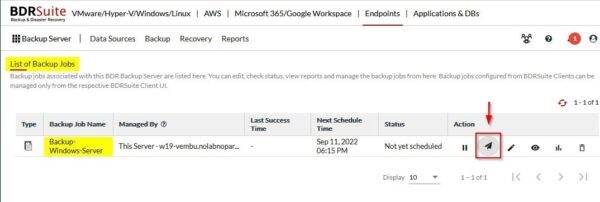
The new Backup Job has been created. To run the backup without waiting for its schedule, click the highlighted icon.
Select the type of schedule to run immediately then click Yes, Schedule Now.

The backup job is now running.

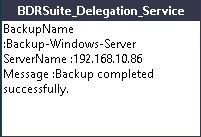
Depending on the amount of data to backup, after some minutes the process completes successfully.
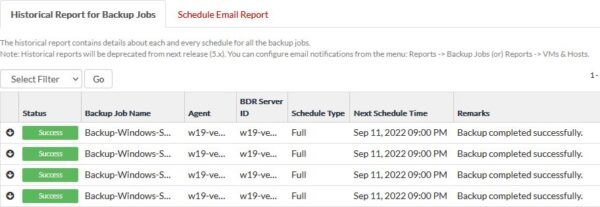
To check the backup status, select Reports > Historical option.

Status, Schedule Type and some other useful info are displayed in the Historical Report for Backup Jobs.
Restore a backup
To restore backed up files and folders, access the Endpoints area and select the Recovery tab. Click the Restore button for the corresponding job to recover.

If the backup was encrypted enter the Password and click Restore.

Files and folders can be restored on the same or different location.
Backup for Endpoints provided with the Vembu BDRSuite v5.3 is available to download as 30-day trial.


