


Linked-Clone Desktop images are one or more copies of a parent virtual machine that share the virtual disks of the parent but which operate as individual virtual machines.
Using clones allow the administrators to make copies of a virtual machine from a single installation and configuration process.
Blog series
VMware Horizon 6 - part 1 install Connection Server
VMware Horizon 6 - part 2 basic configuration
VMware Horizon 6 - part 3 setup RDS Host
VMware Horizon 6 - part 4 install View Composer
VMware Horizon 6 - part 5 setup Linked-Clone Desktop
VMware Horizon 6 - part 6 deploy RDS Desktops
VMware Horizon 6 - part 7 deploy RDS Application Pools
VMware Horizon 6 - part 8 connect View Desktop
Create the Organizational Unit
In Active Directory create a new Organizational Unit to locate the RDS clients.

Enter the Name of the new OU.

The new created OU.

Create a parent VM for Desktop deployment
From vSphere Web Client, deploy a new virtual machine (i.e. Windows 7) acting as parent virtual machine for desktop deployment (master image).

Power on the virtual machine.

Join the VM to the domain.
Install View Agent
Copy the installation file to the client and run the View Agent installer.

The installation wizard is displayed. Click Next to continue.

Accept the EULA then click Next.

Select all features and click Next.

Click Install button to begin installation.

The program is being installed.

When View Agent is successfully installed, click Finish to exit the wizard.
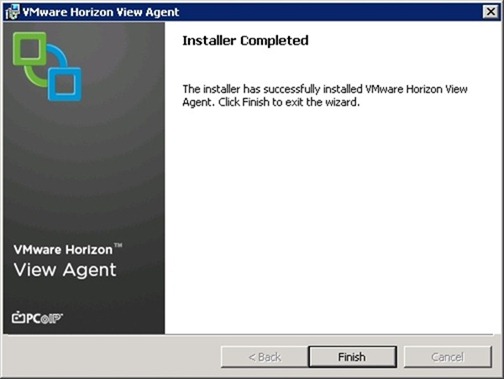
To complete the installation the client must be restarted. Click Yes.

Install the View Agent Direct-Connection Plug-In
The View Agent Direct-Connection Plug-In allows a View Client to directly connect to a View desktop without using View Connection Server.
Copy the plugin to the client and run the installer.

Click Next to continue.

Accept the EULA then click Next.

Leave default and click Next.

Click Install to begin installation.

The plugin is being installed.

Click Finish to exit the wizard.

Customize master image
It’s recommend to optimize the client as described in Windows 7 and Windows 8 OS Customizations in the Windows 7 Optimization Guide.
To apply all the recommended optimizations you can use to possible solutions:
- the script CommandsPersonaManagementWin7_06032014.
- run the VMware OS Optimization Tool.

Install applications you want preinstalled in the parent virtual machine and make any modification to the OS. In the example, 7Zip and Foxit Reader apps have been installed in the system.

Double check the VM is joined to the domain and set to receive a DHCP IP address. Shutdown the virtual machine and take a snapshot of the parent virtual machine needed as requirement for the creation of linked clones.
When the customization process is complete, you are ready to perform a linked-clone deployment.
Deploy a Linked-Clone Desktop Pool
Log in the View Administrator Console and navigate Catalog > Desktop Pools. Click Add to deploy a new Pool.

Select Automated Desktop Pool type then click Next.

Specify Floating as type of user assignment for the pool. Click Next.

Select View Composer linked clones as type of virtual desktop to deploy. Both vCenter Server and View Composer previously configured are shown in the list. Click Next to continue.

Enter the ID name and the Display name then click Next.

Set Allow users to choose protocol field to No.

Enable HTML Access. Click Next to continue.

Select Use a naming pattern option and enter a name in the text-box. Under Provision Timing select Provision all desktops up-front option. Click Next.

Select Do not redirect disposable files option and click Next.

Leave default then click Next.
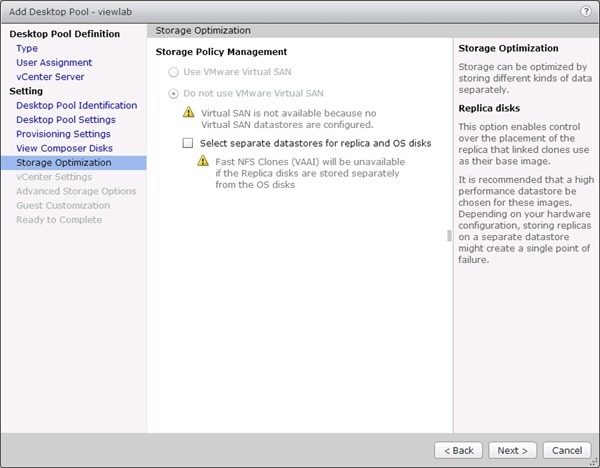
Click Browse next to Parent VM field. From the list, select the parent VM to be used and click OK.

Click Browse next to Snapshot field. From the list, select the snapshot to be used and click OK.

Click Browse next to Virtual Machine Location field. Select the folder to store the VM and click OK.

Click Browse next to Host or Cluster field. Select the target cluster for the pool then click OK.

Click Browse next to Resources pool field. Select the resource pool (create one in case of) to use and click OK.
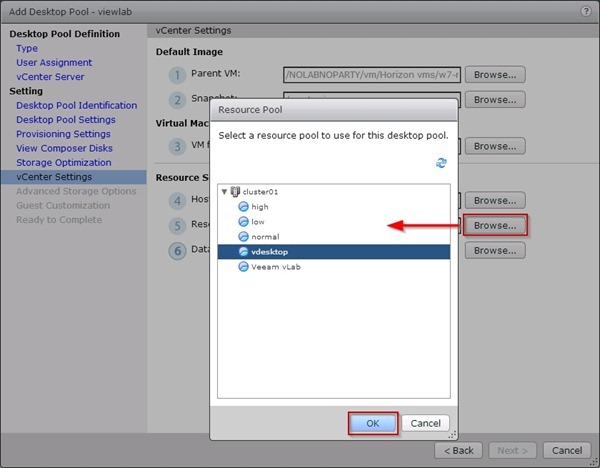
Click Browse next to Datastore field. Click the target datastore to store your virtual desktops. Leave Storage Overcommit as Conservative and click OK. Click Next to continue.

Select Use View Storage Accelerator option and click Next.

Next to AD container field click Browse button and select a valid OU (i.e. vDesktop) to store the View desktop computer account names. Click OK then Next.

Click Finish to create the new Desktop Pool.

The new created pool appears in the list. Now double click your Desktop Pool to check the deployment status.

If you receive error messages during provisioning, check in vCenter Server the permissions assigned to the service account used to run View Composer.

The table shows the permissions list to grant to the View Composer service account.

To start provisioning once again, in the Summary tab click Status and select Enable Provisioning. When warning box appears click OK to proceed.

If the configuration is now correct, the Summary tab doesn't show any error.

Select Inventory tab to check desktop deployment status.
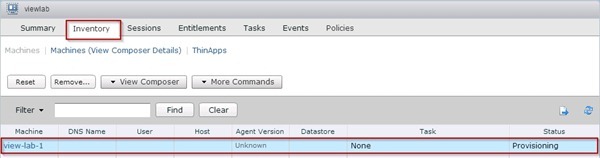
Click Refresh button to update the Status. When the desktop Status change to Available, the desktop pool has been successfully deployed.

The configuration of Linked-Cone Desktop Pool is complete. Next post will cover the deployment of RDS Desktop Pools.





Ho Paolo,
Great step by step, thanks a lot.
however the link for : CommandsPersonaManagementWin7_06032014.bat is no longer available
Regards
Eric
Thanks Eric.
I've fixed the link.