


The Lotus Domino upgrade from 8.5 to 9.0 allows to keep systems protected from vulnerabilities providing also support for SHA-2 certificates type.
Since Domino 8.5 lacks of support for SHA-2 certificates, POODLE vulnerability protection and a higher security level can’t be achieved if the system is not upgraded to latest release 9. The upgrade process has to be planned carefully with an efficient disaster recovery plan in case things go horribly wrong.
Blog series
Lotus Domino 8.5 upgrade to 9.0 install - part 1
Lotus Domino 8.5 upgrade to 9.0 setup - part 2
Before upgrading
Before proceeding with the upgrade, is strongly recommended to have a working server backup. Also taking a server's snapshot helps for a quick restore of the initial state of the server before the upgrade if needed.
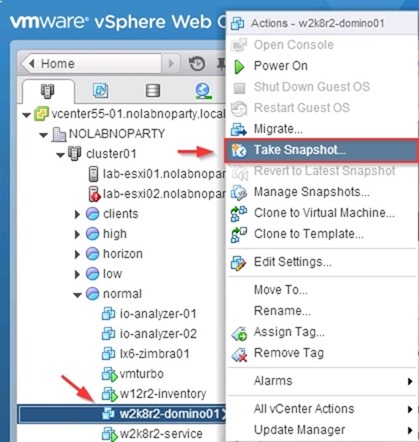
Shutdown Domino
To perform a safe upgrade we need to first shutdown the Domino Server. From the server open the Domino Console.
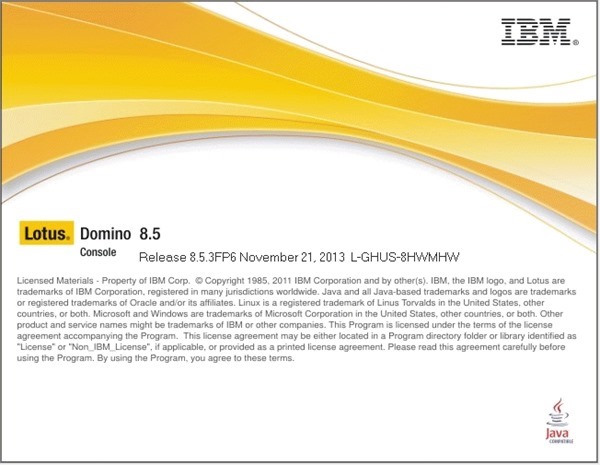
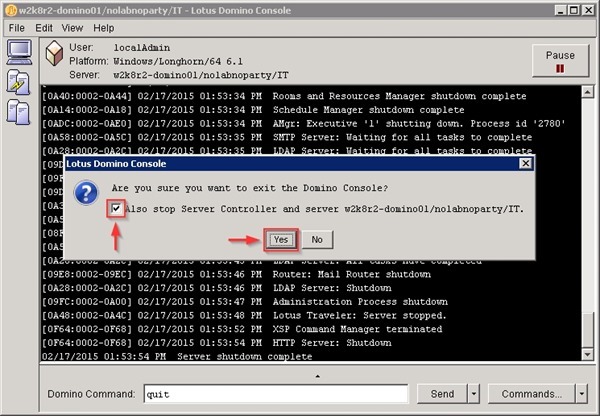
In the Domino Command field type the quit command then click Send button to issue the shutdown command.
> quit

When the server shutdown is complete, exit the console from menu File > Exit. Since we need to stop all the active services, the option Also stop Server Controller and server must be checked as well. Click Yes to exit.
Backup core files
Since some file are vital for the Domino functionality, make sure that you have a copy of the following files in case the upgrade fails:
- cert.id
- server.id
- notes.ini
Make a copy of cert.id and server.id files located, in this example, in D:\Program Files\IBM\Lotus\Domino and store them in a safe place.
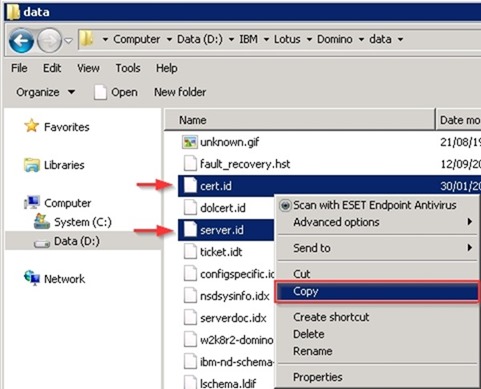
Then make also a copy of the notes.ini file located in C:\Program Files\IBM\Lotus\Domino.

The administrator.id file should also be backed up if stored in the Domino Server.
Disable automatic startup service
To allow a successful upgrade, the Domino service startup should be set to Manual. Access Windows Server Services, right click the Domino Server service and select Properties.
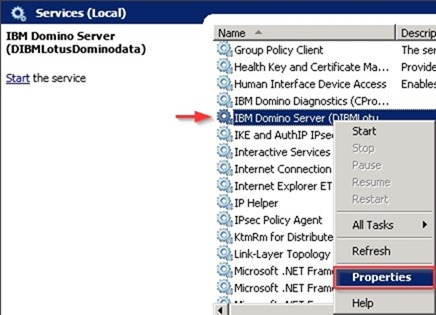
Set the Startup type field as Manual then click OK to confirm.

Double check the service Startup type is set to Manual the close the window.

The system is now ready to be upgraded.
Upgrade Domino Admin and Designer
Run the Domino Admin and Design installer. Click Next to continue with the Installation Wizard.
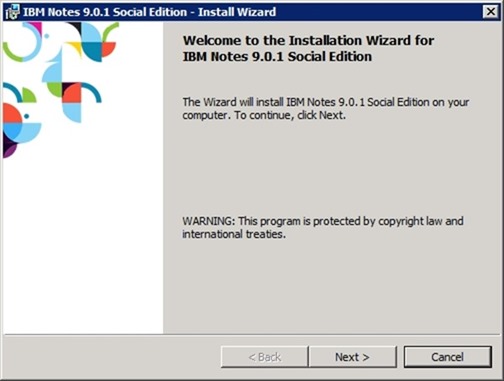
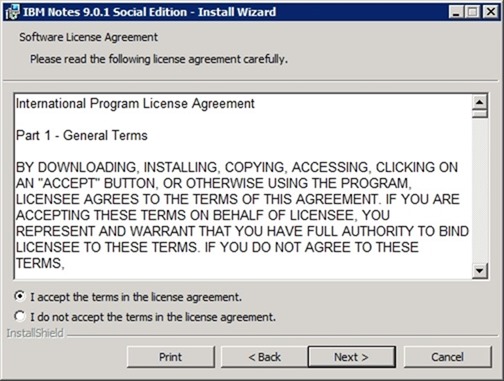
Accept the EULA then click Next.
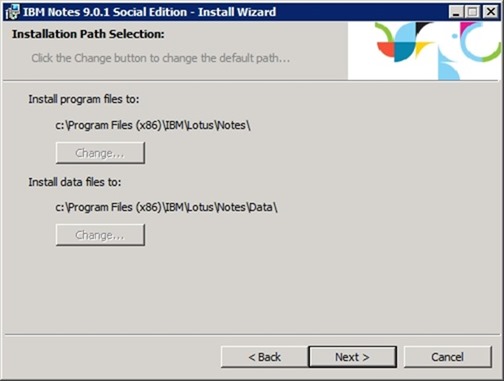
Nothing to do here since the installer is upgrading the existing installation. Click Next to continue.
Set the options you want to add to the existing configuration. Click Next.
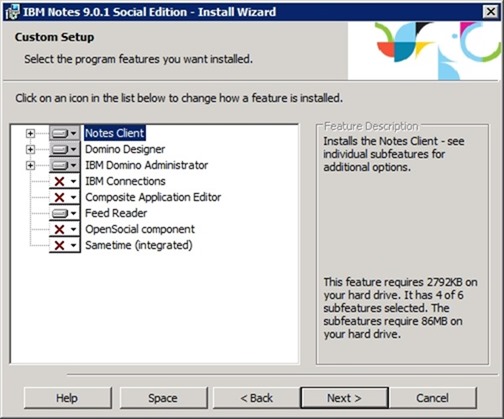
Leave default settings then click Install.
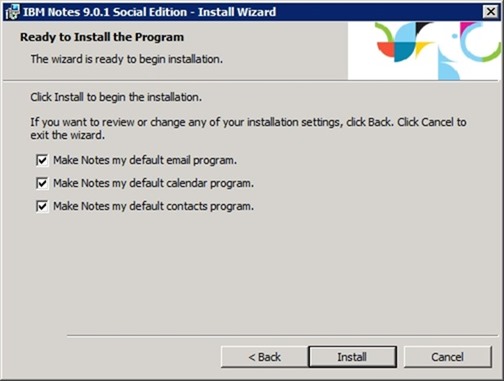
The upgrade is being performed.
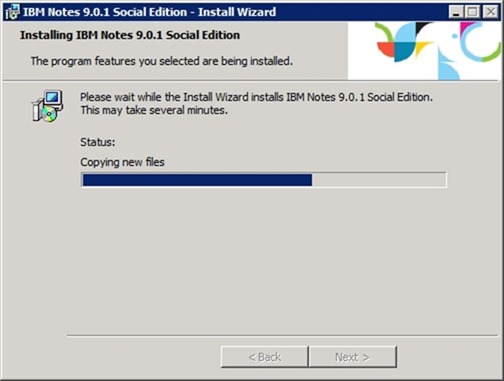
When the installation completes successfully, click Finish to exit the Wizard.
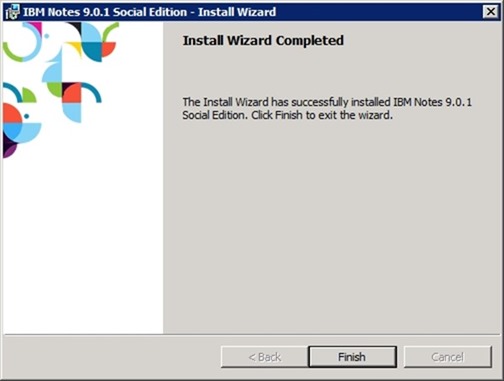
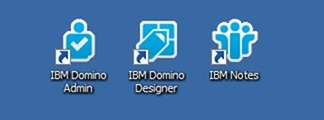
Three new icons are created replacing the old design.
Upgrade Domino Server
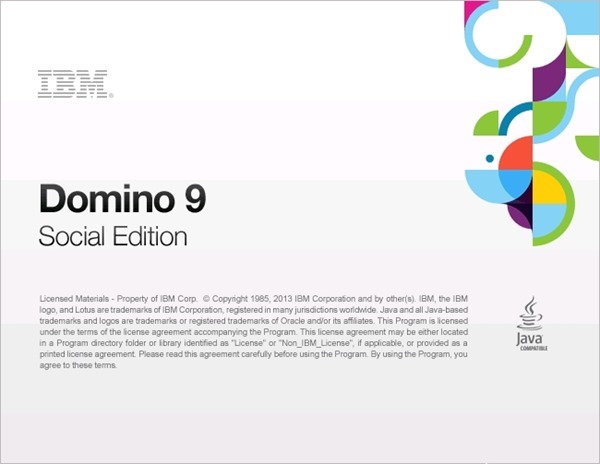
When the Domino Admin has been upgraded, the Domino Server can be upgraded as well. Run the Domino installer.
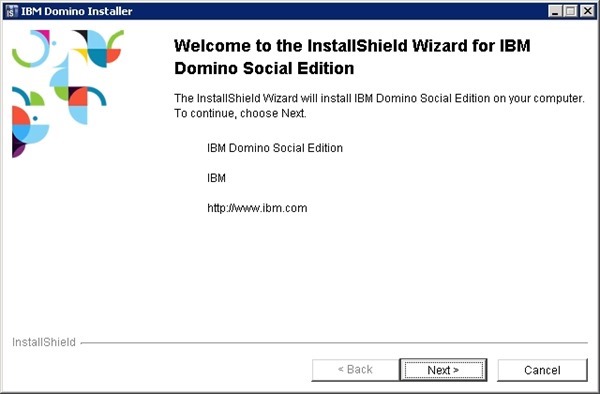
Click Next to continue.
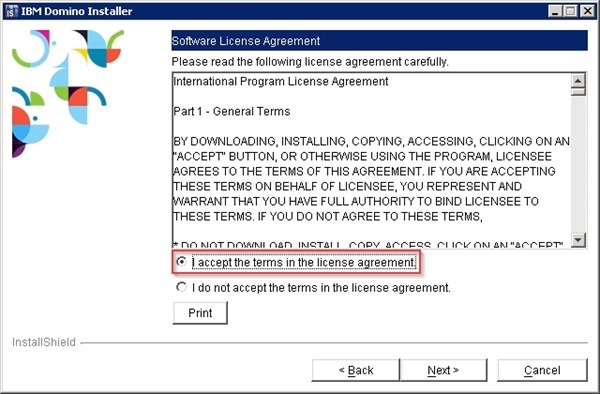
Accept the EULA then click Next.
Leave default path then click Next.
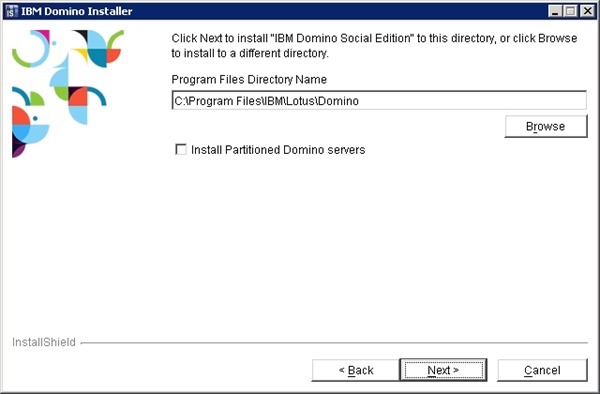
Also in this case leave the default path and click Next to continue.
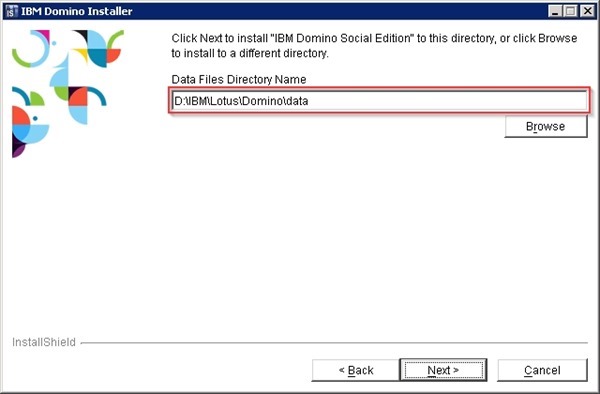
Select the installation type needed then click Next.
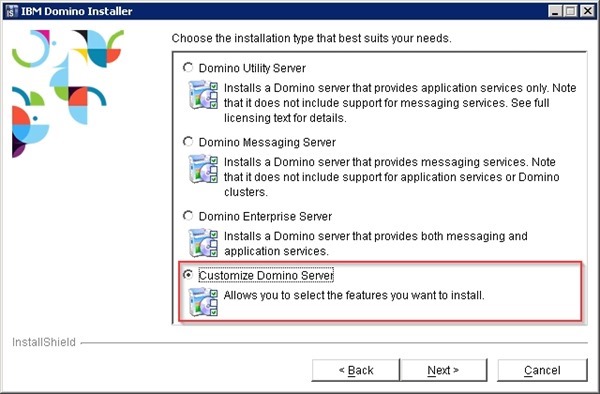
Add/Remove features for Domino Server and click Next.

The installation summary is shown before the upgrade. Click Next to start the upgrade.
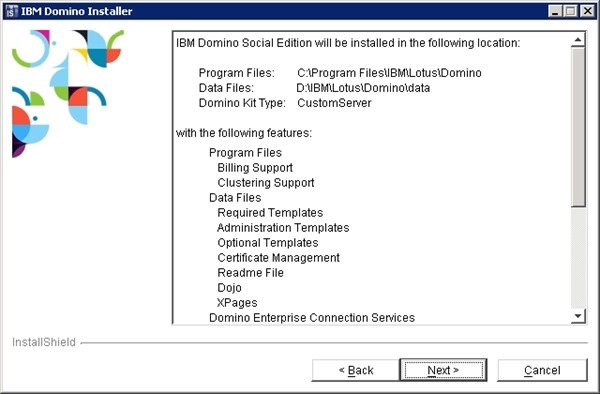
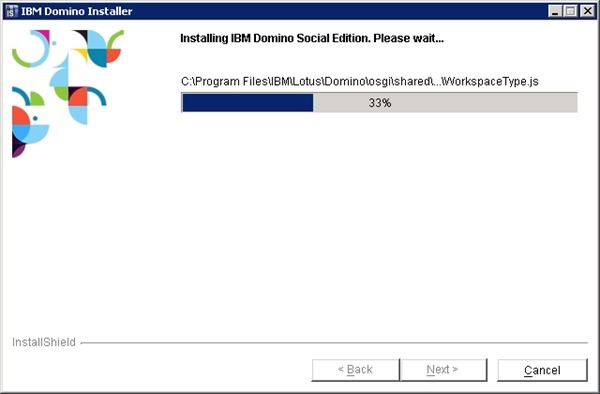
The upgrade is being performed.
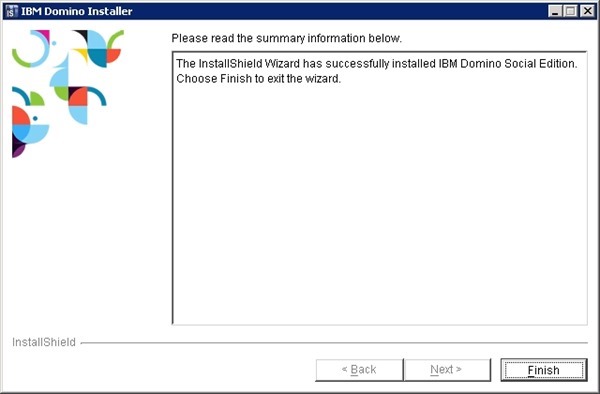
When the upgrade is successfully completed, click Finish to exit the Installer.
Two new icons are created in the Desktop.

Install the Domino Fix Pack
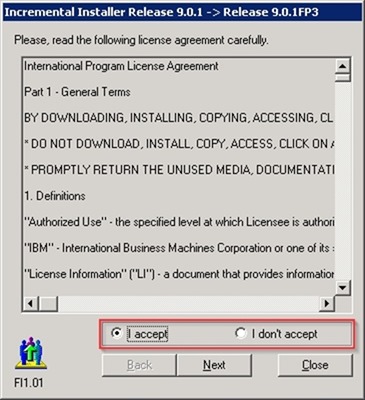
Since IBM recommends upgrading to the latest Maintenance Release and Fix Pack, the Domino 9.0.1FP3 fix is currently available to download. Run the installer to apply the patch. Accept the EULA then click Next.
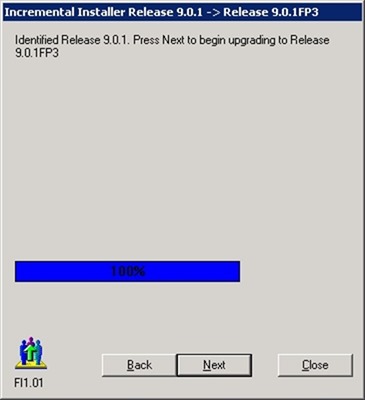
Check the correct path found by the system then click Next.

Click Next to start the upgrade.
The Fix Pack is being applied.
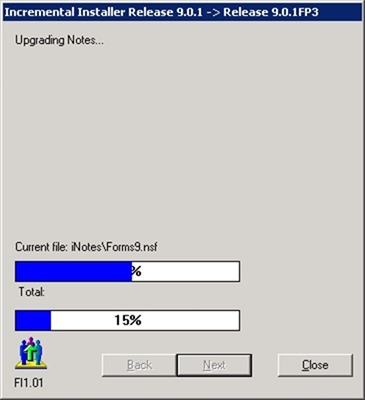
When the upgrade is successfully completed, click Close to exit the Installer.
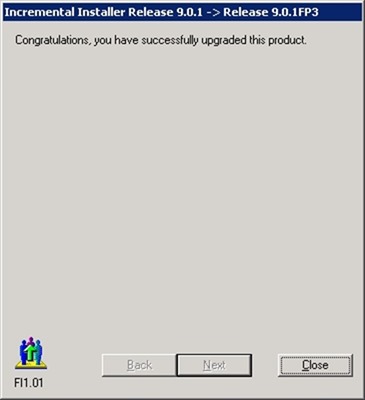
The Domino Server has been upgraded to release 9.0.1FP3.
Upgrade Lotus Traveler
If the Domino Server in use has Notes Traveler installed, also this component must be upgraded. Run the installer, select the language then click OK.
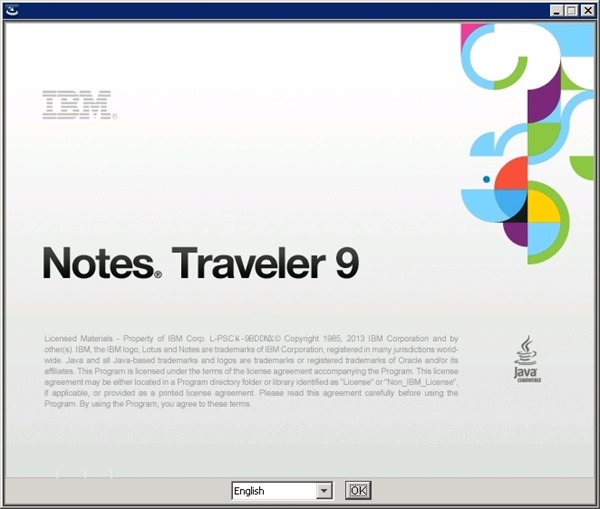
Click Next to continue.
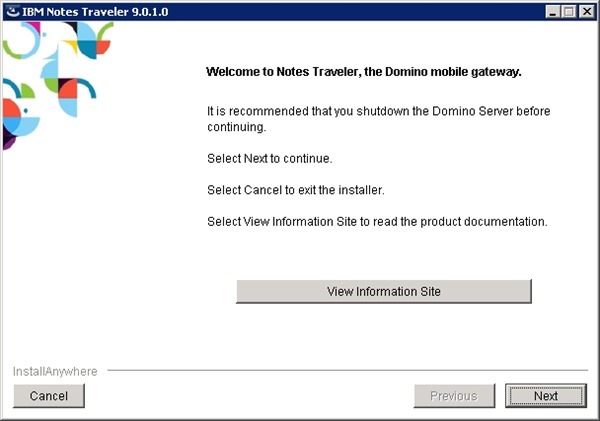
Accept the EULA then click Next.
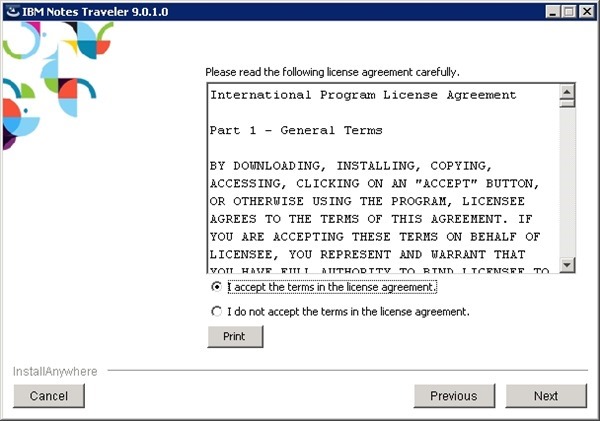
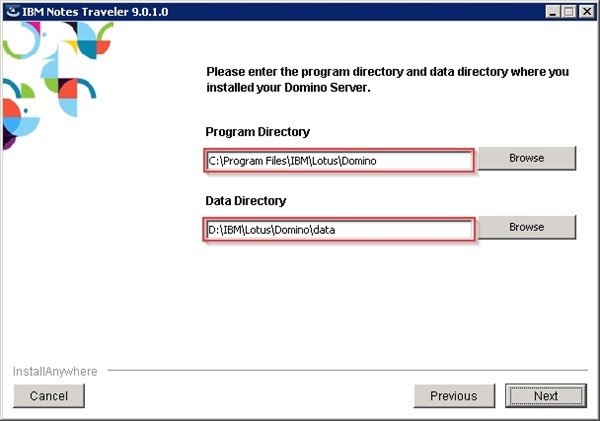
Leave default path and click Next.
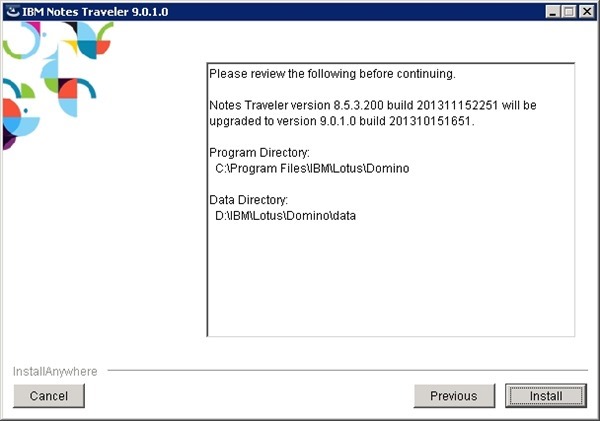
Click Install to start the upgrade.
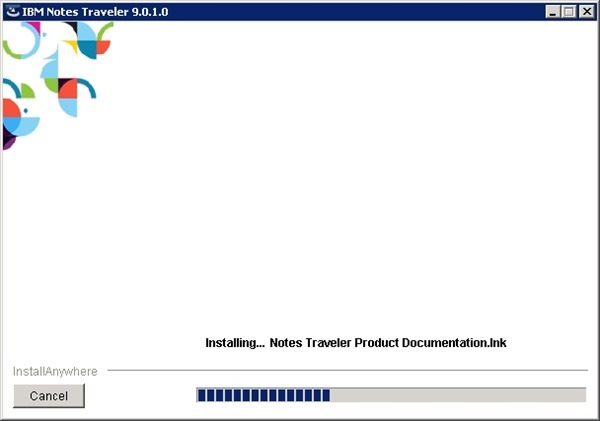
Lotus Traveler is being upgraded.
When the installation has completed successfully, click Done to exit.

Install Notes Traveler fix
Since IBM recommends for maintenance to be installed for Notes Traveler, the Traveler 9.0.0.1 IF8 fix is currently available to download. Run the installer, select the language then click OK.
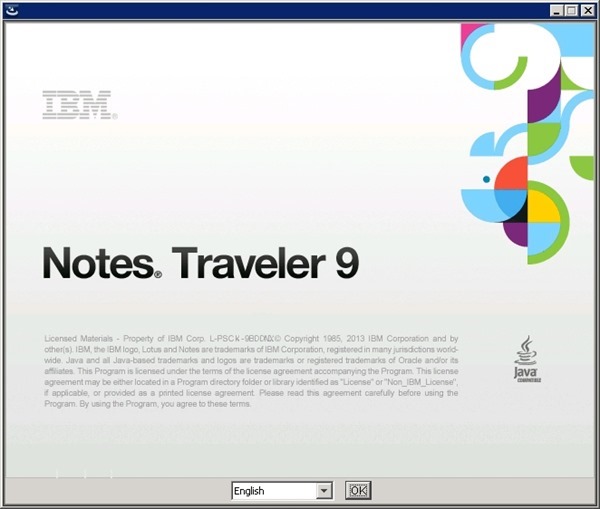
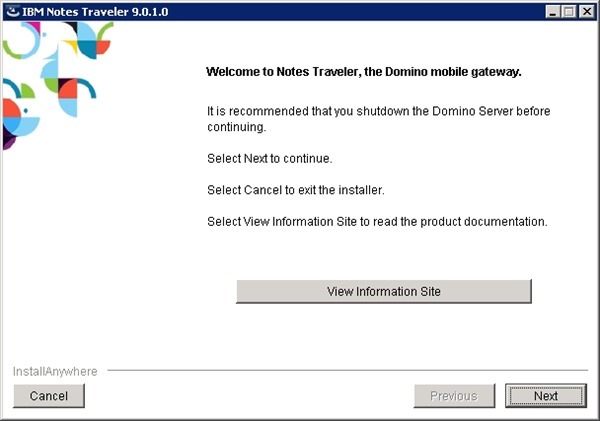
Click Next to continue.
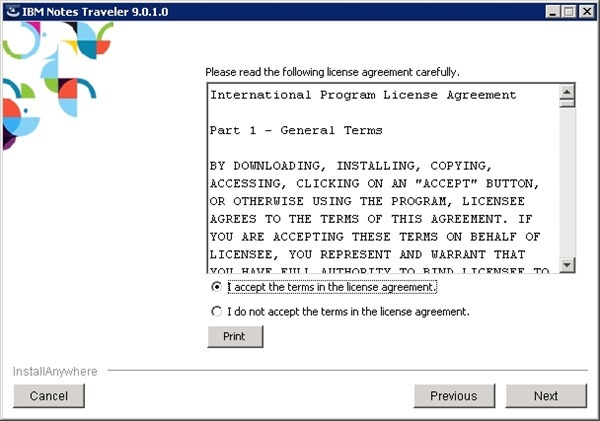
Accept the EULA and click Next.
Leave default path and click Next.
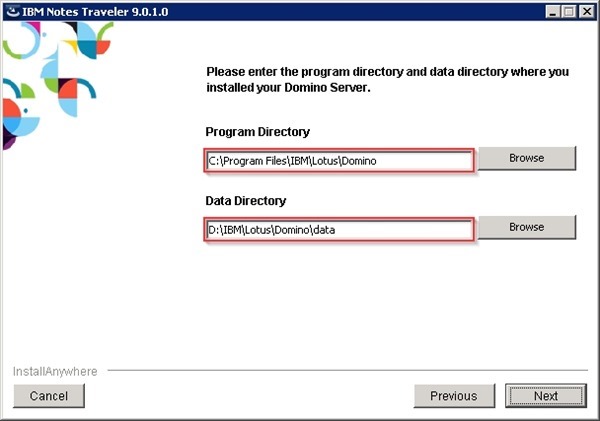
The system detect a previous installation of Notes Traveler. Click Install to start the upgrade.
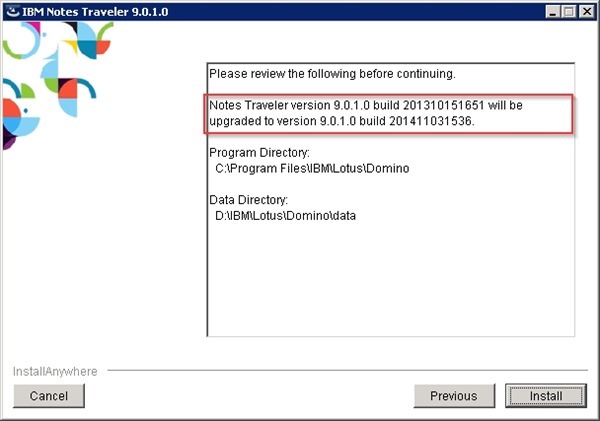
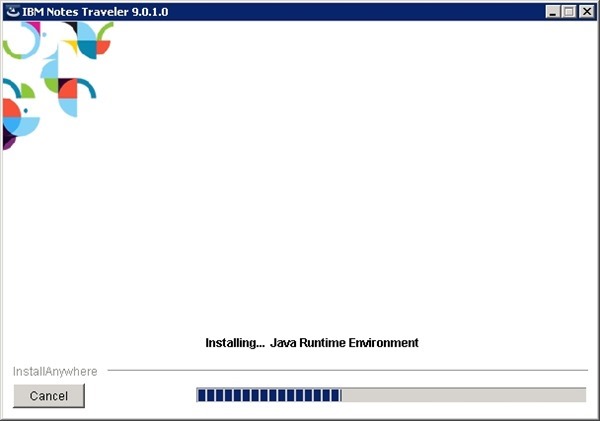
The fix is being installed.
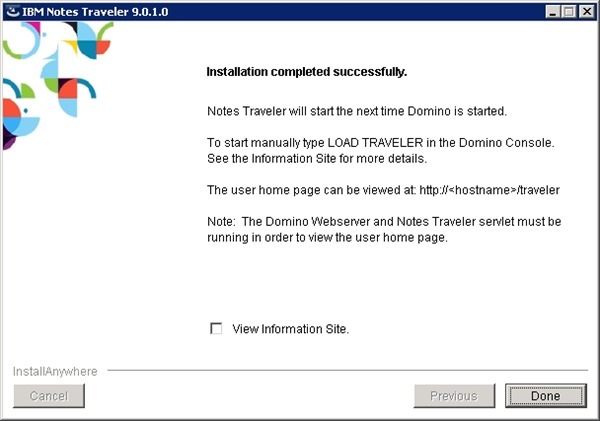
When the installation has completed successfully, click Done to exit.
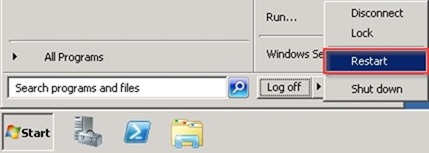
Reboot the server to apply changes.
Enable automatic startup
After rebooting the server, go to server Services and enable Domino service Startup type as Automatic and click OK to save the configuration.

Additional steps have to be performed to complete the upgrade procedure. Next part will cover the configuration required to take advantage of features introduced with the new release 9.


