To restore the VMs after storage failure, backup strategy and disaster recovery plan come into play to recover all network services.
The storage failure is the worst nightmare an administrator can experience, especially when a DR procedure is not already in place. A good recovery plan guarantees not only the data integrity but it reduces the time needed to restore the network functionality as well.
This is what recently happened to my LAB when the main storage suddenly failed corrupting the raid 5 array losing all data stored (my entire lab!).
The scenario was the following:
The bad
- Storage > to replace and reconfigure (LUNs, network, etc.).
- no Domain Controllers > Active Directory authentication unavailable, no DNS, no DHCP.
- no vCenter Server > no access to VMware infrastructure, no Web Client, no vMotion and related services.
- no Replicas available as disaster recovery plan.
The good
- Integrity of backup files stored in the backup storage using Veeam Backup & Replica 7.0 as backup solution.
- Working ESXi hosts since they were not affected by the failure.
- Local computer with vSphere Client installed and source Veeam software available.
- A Windows Server template copy in OVF format stored in local computer.
After a deep breath, I started recovering my network with the following steps.
Configure ESXi datastores
When main storage fails, the virtual machines configured in the ESXi are marked as inaccessible.

First step is replacing the failed storage with a new one and re-configure all parameters (network, LUNs, services, etc.) to restore its functionality. Then configure all the new datastores in the host.

Deploy Veeam VM
To manage the restore process through Veeam, system needs a VM acting as Veeam Server. To do that, a Windows virtual machine has to be deployed to the host.

Configure Veeam VM
For its functionality Veeam has some pre-requisites, some hardware parameters have to be configured in the VM: 2 vCPU, 4GB RAM.

When hardware requirements have been set, power on the VM.

Since the infrastructure is not available (DHCP included), a static IP address must be manually assigned to the VM.

Set the active network as Private network to avoid connectivity issues.

Install Veeam Backup & Replication
Completed the Server network configuration, go ahead with Veeam Backup & Replication installation.

Click Next button to start Setup.
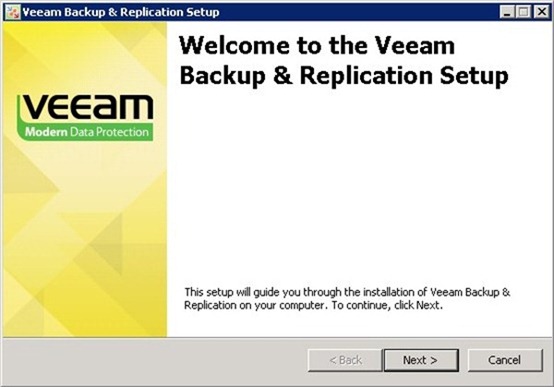
To succeed with restore process a valid license must be installed. Click Next.

Because no domain is available, enter the Local Administrator account as Service account.

No SQL servers are available in the network therefore we need to install a local SQL Server instance. Check Install new instance of SQL Server option then click Next.

Completed the setup, install latest Veeam patch as well to have the system up-to-date and compatible with latest OS.
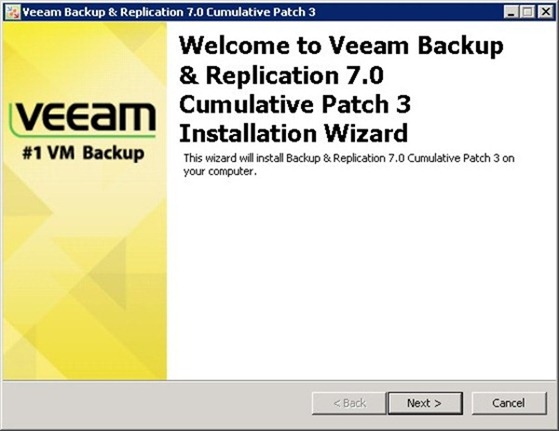
When Veeam runs the first time after applying the patch, some components need to be upgraded.

Veeam is now installed. Next step is to configure the software to link the backup storage.
Configure Veeam Backup & Replication
From Veeam console, go to Backup Infrastructure > Managed servers then click Add Server option (or right click Managed servers).

Because we need to add an ESXi, select VMware vSphere as server type.

Type the IP address of the host (DNS service is not available) the click Next.

Add the Credentials used to connect the hypervisor then click Next.

Click Finish to establish the connection.

The host is now listed in Managed servers tab.

Configure the Repository
The storage that holds the actual backup files has to be configured as Backup Repository.

Define a name then click Next.

Select the Repository type. In the example, the storage dedicated for backup uses a CIFS share.

Configure the Credentials to access the share then click Next.

Click Next.

Leave default then click Next.

In the Review window, check Import existing backups automatically option to get all backups available in the storage. Click Next.

The Repository is configured. Click Finish.

In Backup & Replication panel under Backups there is the item Imported. Clicking the icon, all backups previously created are shown.

Restore VMs
Access the Imported Backup list, right-click the VM to restore and select Restore entire VM option.

The latest Restore point is shown. Click the Point button to browse all available Restore Points for the selected VM. Click Next to continue.

If the Restore to the original location option is selected, an error message informs you that original location is no longer available.

Then select Restore to a new location, or with different settings option then click Next.

Assign the VM to the available hosts. Click Next to continue.

Optionally assign, if available, the correct Resource Pool to the VM.

Select in which LUN the VM has to be restored. Click Next.

Here you can change the VM name and destination folder. Click Next.

Assign the correct Target network then click Next.

Optionally write down restore notes then click Next.

The Summary of restore settings is shown. Click Finish button to start the restore process.

The restore process starts showing the ongoing status.
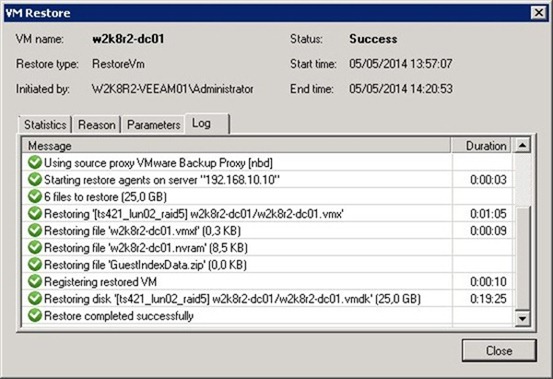
After restore, the VM appears in the assigned host.

To make system clean, remove from inventory all inaccessible VMs.

Restore all remaining VMs from backup. Note: the process will take long time to complete.

When the overall restore completes, the job Status is marked as Success.

Recovered VMs are now ready to the assigned host and they only need to be powered on to restore the network services.

Once again the importance of having a good backup strategy is the key point to prevent even the worst disaster in the network infrastructure.