To validate a created plan without impacting the production, the Orchestrator uses DataLabs (aka Virtual Labs in Veeam Backup & Replication) to run Recovery Plans in an isolated environment.
Created the Virtual Lab on a Veeam Backup & Replication Server used by Veeam Recovery Orchestrator (VRO), you need to configure a connection to the VMware ESXi used to manage the lab.
Wait some minutes before proceeding with the configuration to complete the synchronization between VRO and Veeam Backup & Replication.
Blog Series
Veeam Recovery Orchestrator v7 installation - pt. 1
Veeam Recovery Orchestrator v7 Tags - pt.2
Veeam Recovery Orchestrator v7 Recovery Locations - pt.3
Veeam Recovery Orchestrator v7 Recovery Plans replica - pt.4
Veeam Recovery Orchestrator v7 Recovery Plans agent - pt.5
Veeam Recovery Orchestrator v7 Recovery Plans backup - pt.6
Veeam Recovery Orchestrator v7 DataLabs - pt.7
Configure DataLabs
Before running the Recovery Plans, make sure you have configured a Virtual Lab in Veeam Backup & Replication.

Access the Administration > DataLabs area, select the configured Virtual Lab then click Edit. If you don't see the Virtual Lab configured in Veeam Backup & Replication where the Orchestrator was installed, open the Veeam ONE console and go to Configuration area. In the Data Collection section, click the Start button to collect the components configured in Veeam Recovery Orchestrator.

Click Assign.

Select Default Scope and click Apply.

When the Scope has been assigned, click Next.

Click Choose to specify the Recovery Location to use.
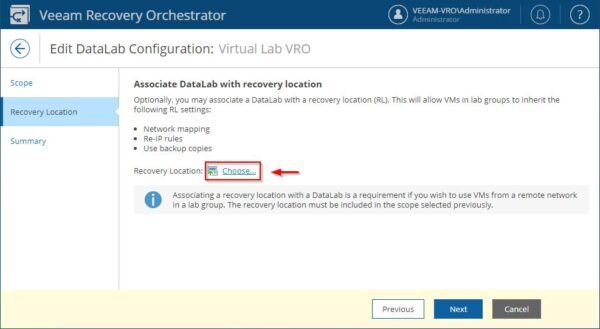
Select the Recovery Location to use then click Apply.

The Recovery Location has been assigned. Click Next.

Click Finish to save the DataLab configuration.

The configured DataLab.

Test the plan in DataLabs
Access the Recovery Plans section and select the Recovery Plan to test. Click Verify and select Run DataLab Test.

Select the DataLab to use and click Next.

Select Test then power off immediately option then click Next.

Click Finish to run the test.

The selected Recovery Plan is being tested.
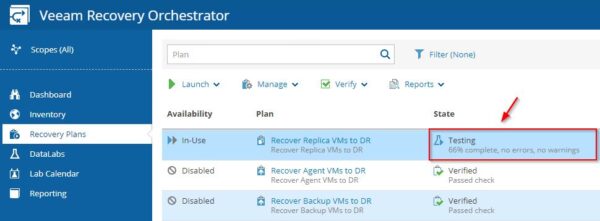
Login to the DR vCenter Server, in vSphere Client you can see the VMs included in the Recovery Plan under test.

When the test is complete, the Latest Test column displays the result. Passed means that everything works as expected.
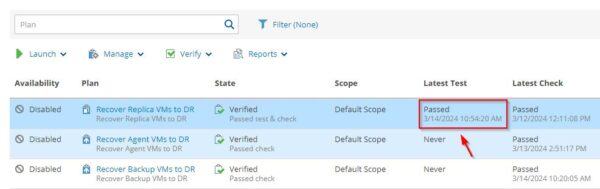
Running configured Recovery Plans in DataLabs is an efficient way to test the configuration without impacting the production ensuring the correct functionality of the plan.