The Omnissa Edge Gateway upgrade is a maintenance task that should be performed whenever Omnissa releases a new version to ensure your infrastructure remains aligned with the latest updates.
Before proceeding, ensure you have access to the Omnissa Connect portal to retrieve the necessary configuration details.
Power off the old Edge Gateway
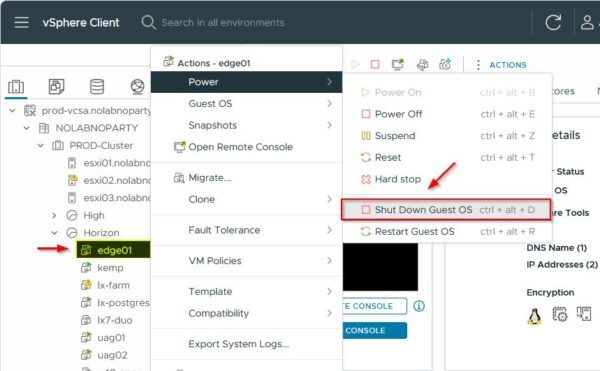
Before deploying the new version, the existing Edge Gateway appliance must be powered off.
Form the vSphere Client, right click the Edge Gateway and select Power > Shut Down Guest OS.
Upgrade Omnissa Edge Gateway
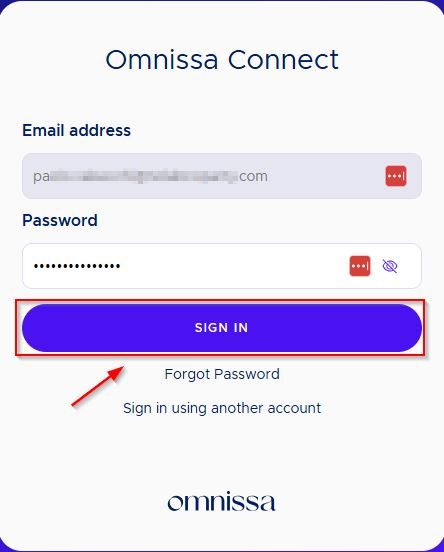
Once the VM has been powered off, login to the Omnissa Connect portal by entering the credentials and click Sign in.
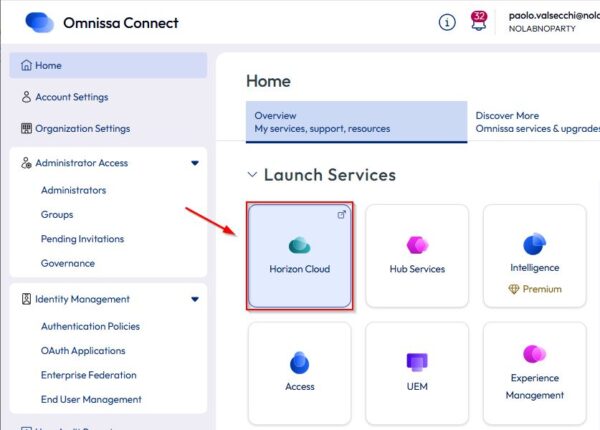
In the portal, expand the Administrator Access section and click Horizon Cloud.
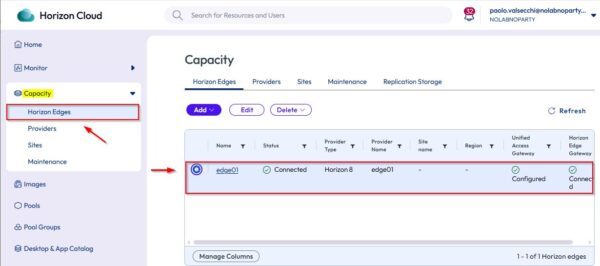
Under Capacity, select Horizon Edges to view your configured Horizon Edges.
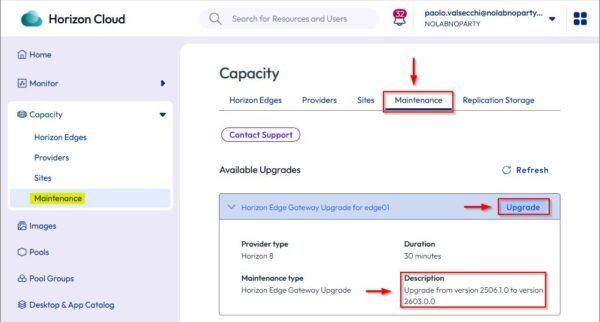
Access the Maintenance tab. If a new upgrade is available, the version Description will be displayed. Click Upgrade to proceed.
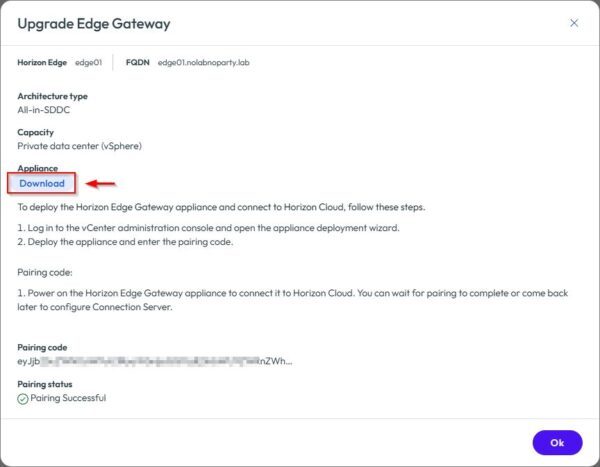
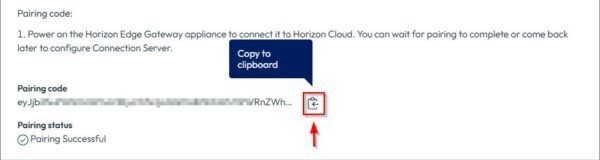
Click Download to retrieve the latest version of the appliance. Take note of the Pairing code shown at the bottom, you will need it later.
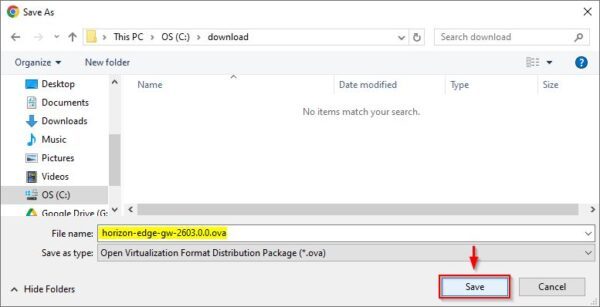
Save the .OVA file to your computer. Click Save.
Deploy the new appliance
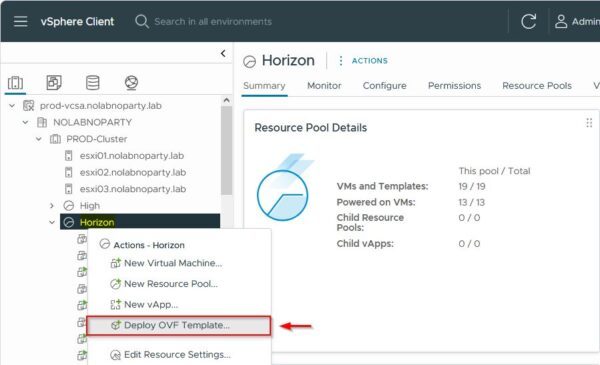
Once the download is complete, go to the vSphere Client, right-click the target object for deployment, and select Deploy OVF Template.
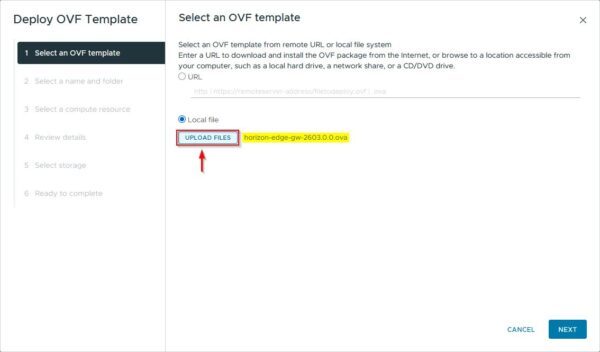
Click Upload Files, select the just downloaded .OVA file and click Next.
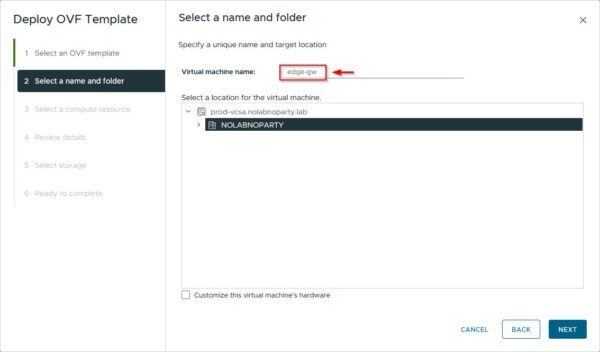
Specify the Virtual machine name and folder then click Next.
Select the compute resource and check the Automatically power on deployed VM box. Click Next.
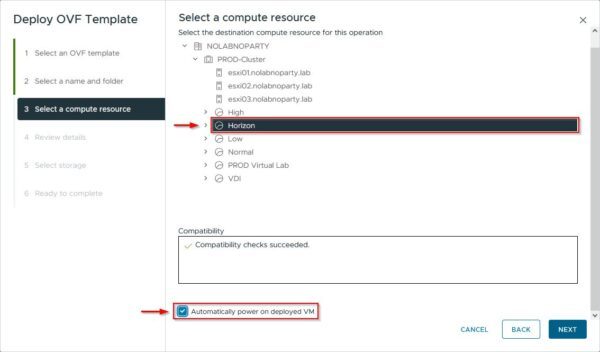
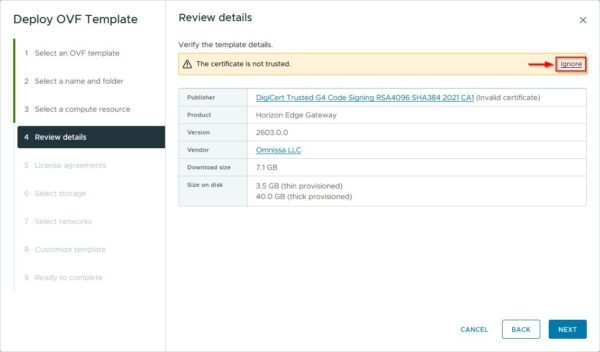
Click Ignore on any certificate warnings and click Next.
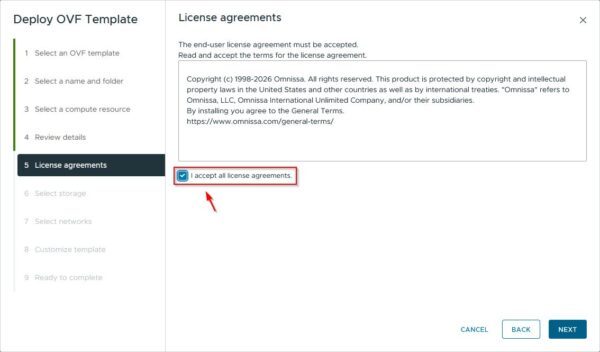
Check the I accept al license agreements box and click Next.
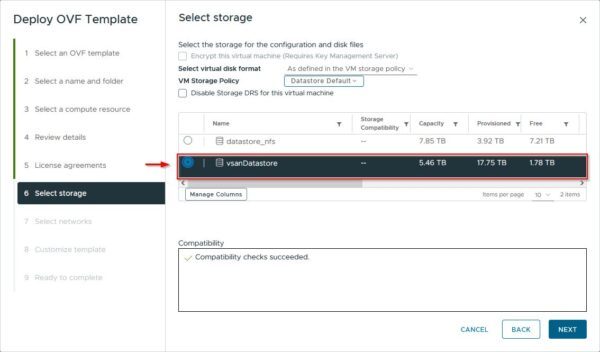
Select the appropriated Datastore and click Next.
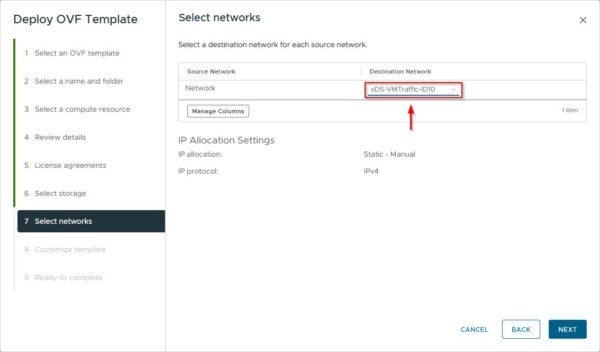
Choose the correct Destination Network and click Next.
Return to the Omnissa Connect portal and copy the Pairing code.
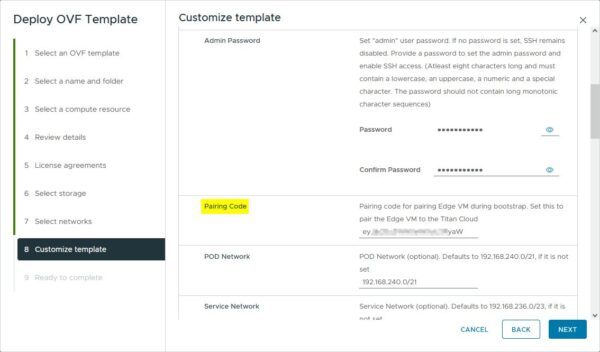
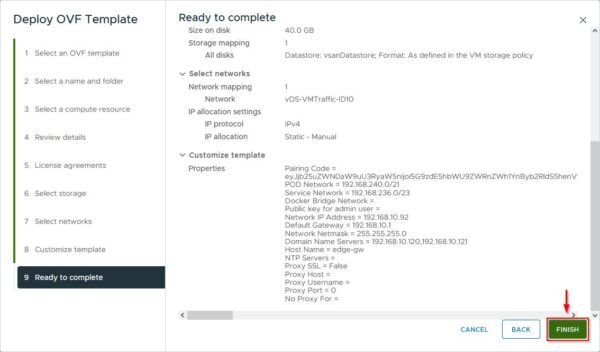
In the vSphere Client, enter the required details and paste the code into the Pairing Code field.
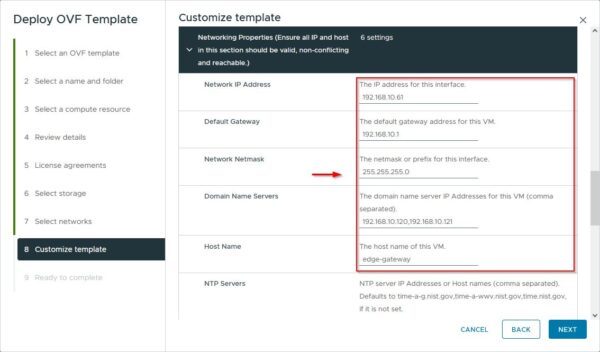
Scroll down to configure the Network parameters. Click Next once all fields are populated.
Click Finish to begin the deployment.
Power on the new Edge Gateway
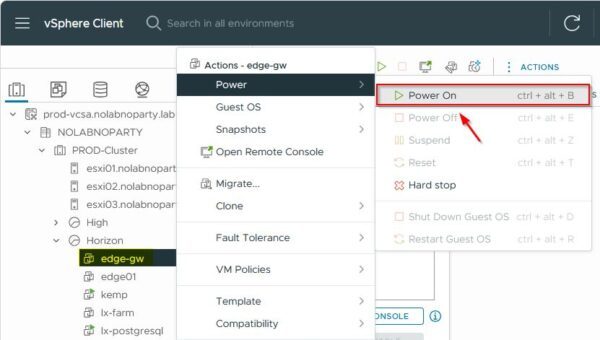
When the deployment is complete, if the VM did not start automatically, right click the appliance and select Power > Power on.
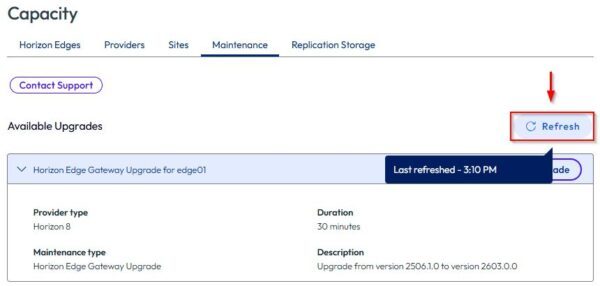
In the Omnissa Connect portal, click Refresh within the Maintenance tab to update the status.
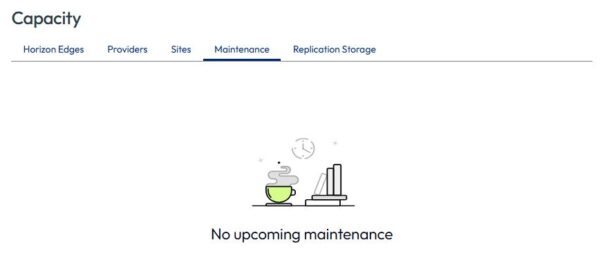
Since the new version is now installed, no further updates should be displayed.
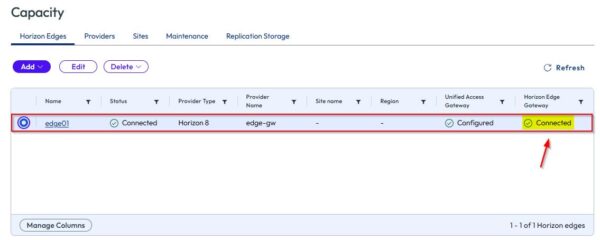
In the Horizon Edges tab, the new appliance will appear as Connected. Allow the system a few moments to finalize the connection.
Your Omnissa Horizon infrastructure is now successfully running on the updated Edge Gateway.