


To restore backups created with Trilead VM Explorer 6.0, the Restore Task allows to recover failed VMs and single files from a working backup.
In addition, the Instant VM Recovery feature gives you the possibility to power on a backup directly on a selected server without restoring or copying any file.
Blog series
Trilead VM Explorer 6.0 installation – pt.1
Trilead VM Explorer 6.0 setup – pt.2
Trilead VM Explorer 6.0 backup VMs – pt.3
Trilead VM Explorer 6.0 replication – pt.4
Trilead VM Explorer 6.0 restore VMs – pt.5
Restore a VM
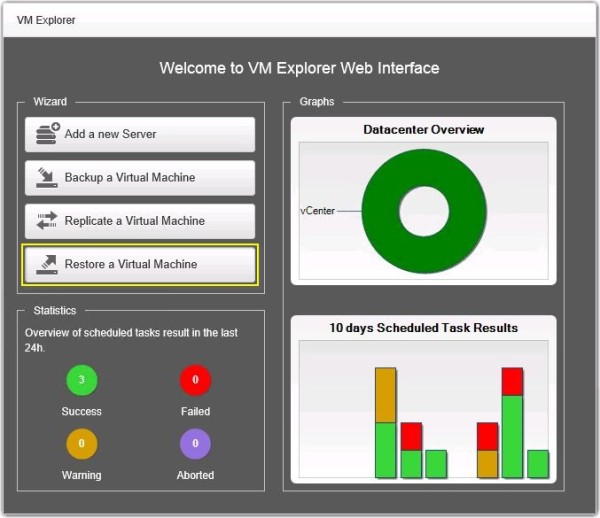
From the main screen, click the Restore a Virtual Machine button or select Management > Backup Explorer from the main menu.
In this screen are listed all available backups created with VM Explorer. Right click the VM to restore and select Restore option.

Select the target Host and the target Directory enabling the required options. Enable the Register using the following display name option to directly register the VM in the inventory.
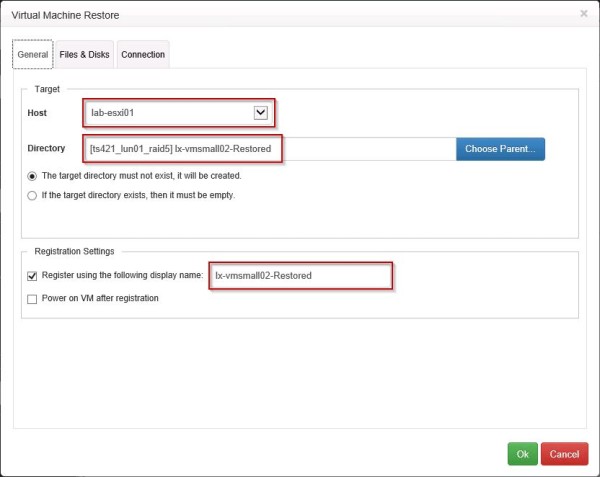
In the Files & Disks tab, select the disks to restore. The Thin Provision Support is available only if:
- Target host is ESX/ESXi
- VMX Agent is enabled on the target server
- No discs with the same name are present

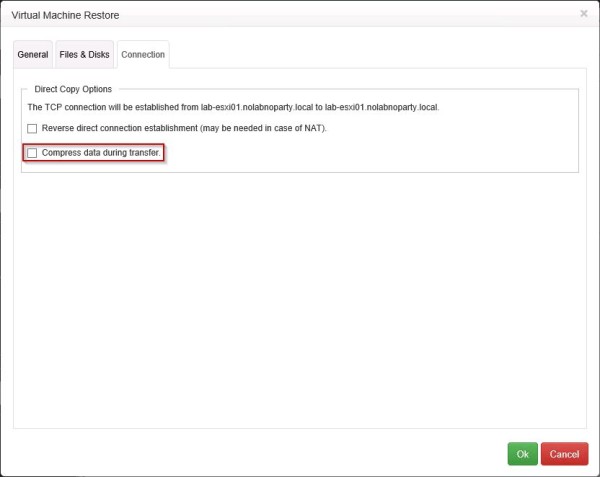
In Connection tab, you can specify the Direct Copy Options. Click OK to start the restore process.
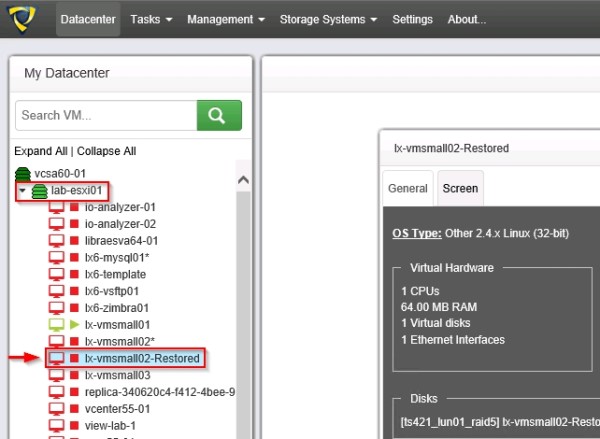
The VM is restored in the selected Host with the Display Name specified during the configuration of the restore procedure.
Instant VM Recovery
Instant VM Recovery feature allows to power on a virtual machine directly from a backup without restoring or copying any file. This feature is available only if the backup is saved locally or on a supported Cloud storage.
From main menu select Management > Backup Explorer, right click the virtual machine to restore and select Instant VM Recovery option.
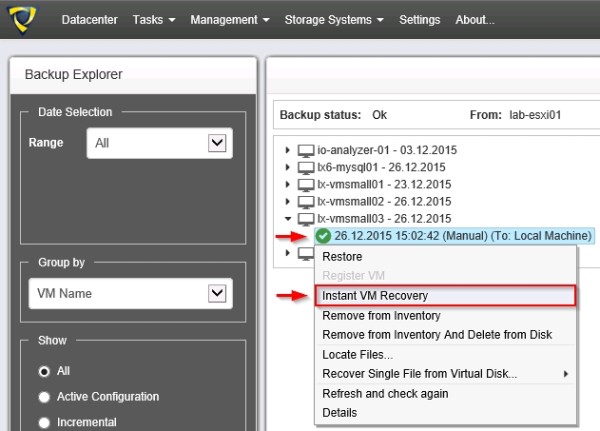
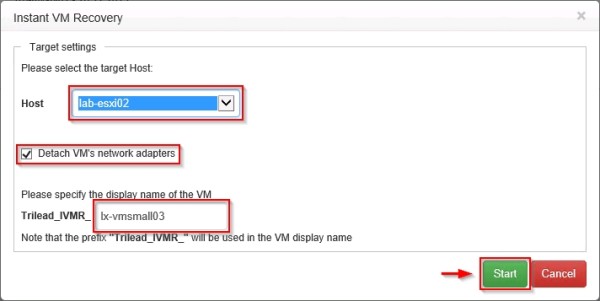
Select the target Host and the Display Name. Enable Detach VM's network adapters option to avoid conflict with original VM. Click Start to run the Instant VM Recovery process.
The NFS server will mount a temporary datastore on local storing the disk in the local disk specified in Settings > Instant Recovery Service tab.
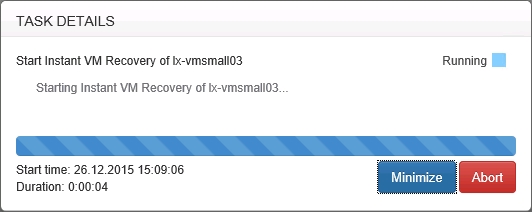
The Instant VM Recovery is being started.
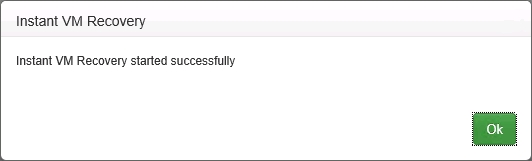
A message is displayed by the system when the process has completed successfully. Click OK to continue.
The restored VM is registered under the host specified during the configuration.

From main menu select Management > Instant Recovery Service item to manage the running instance.
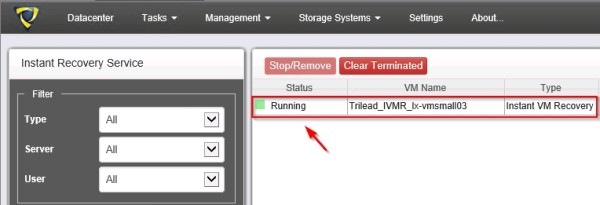
Keep in mind that no modification during the Instant VM Recovery process will be saved on the backup leaving the backup itself unaltered.
File Level Restore
VM Explorer can browse a non compressed disk image file and recover single files from the following file systems:
- NTFS
- FAT
- EXT
- Windows Dynamic Disks
- Linux LVM - Logical Volume Manager
To recover a file from a backup, go to Management > Backup Explorer and right click the backup to process then select Recover Single File from Virtual Disk > disk_name.vmdk option.

From the File Explorer section click the disk image to navigate the content, right click the file to recover and select Download option.
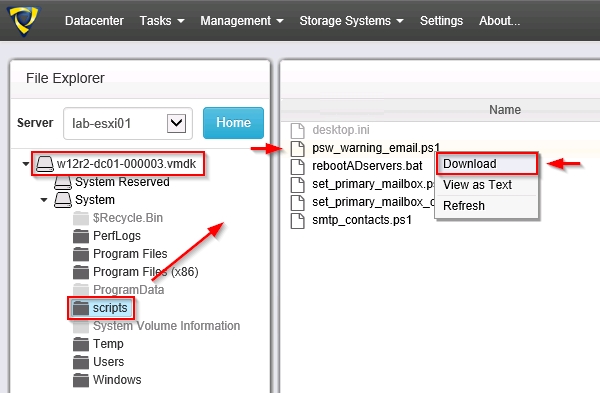
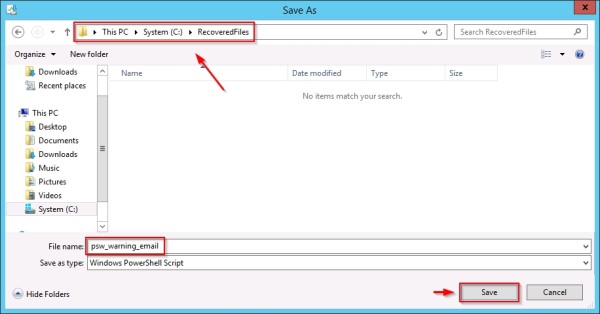
The file is recovered to the specified location.
Trilead VM Explorer 6.0 is a backup solution with a good balance between price, features and performance. Trilead offers a fully working 10-day trial.



Following your guide I was able to setup Trilead without any problem.
Well done!
Thanks!
Glad you found my guide useful.