If Proxmox VE is the virtual environment used to run your virtual machines, you need to install Nakivo on Proxmox to protect your workloads.
Proxmox VE is officially supported starting from Nakivo 11 allowing to backup and restore running virtual machines.
To install Nakivo on Proxmox, you have the option to install the software on the following supported OS:
- Linux
- Windows
Check this page for the full list of requirements.
Based on your backup strategy, you can install Nakivo on Proxmox virtual machines or on a physical machines. To avoid the cost of a Windows license, Nakivo can be easily installed on a Linux-based machine. This guide will use a virtual machine with Ubuntu 22.04 Server as an example.
Upload the OS installation ISO file
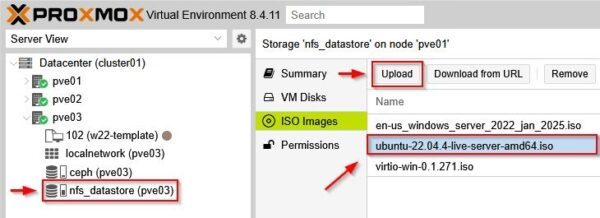
Once you have chosen the Linux distribution and version, you need to upload the ISO file to the Proxmox datastore to proceed with the OS installation. From a node that is a member of the cluster, select the datastore where you want to store the ISO file, then go to the ISO Images section. Click Upload and select the ISO file.
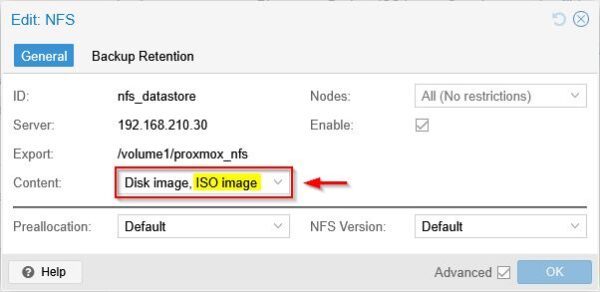
To upload the ISO file to the Proxmox datastore, the datastore's Content field must be configured with the ISO image value.
Create a new virtual machine
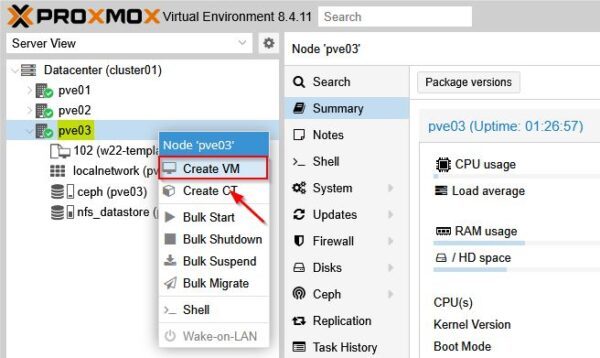
Right click the node where you want to install the Linux OS and select Create VM.
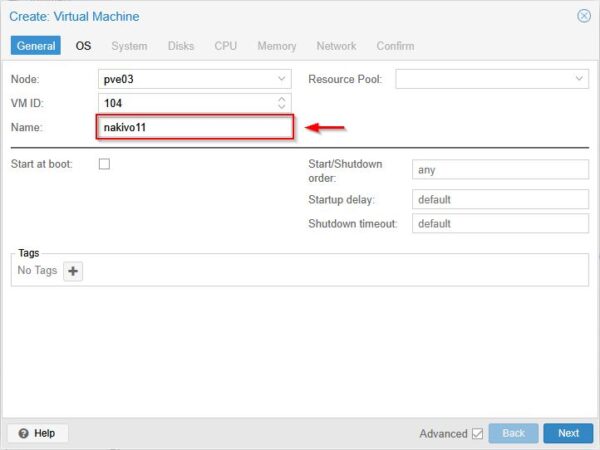
Enter the Name of the VM then click Next.
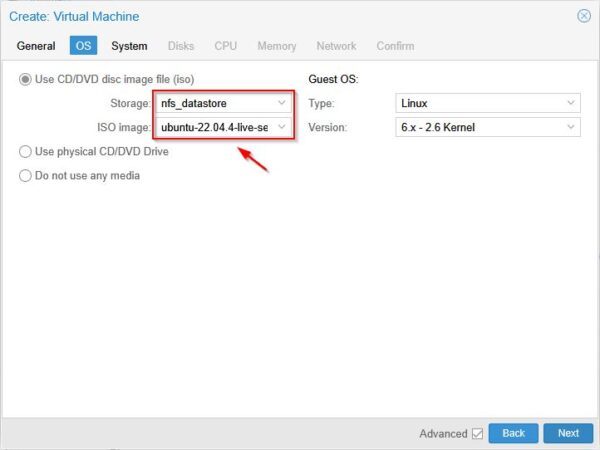
Select the Use CD/DVD dis image file (iso) option and specify the Storage and the ISO image to use. Click Next.
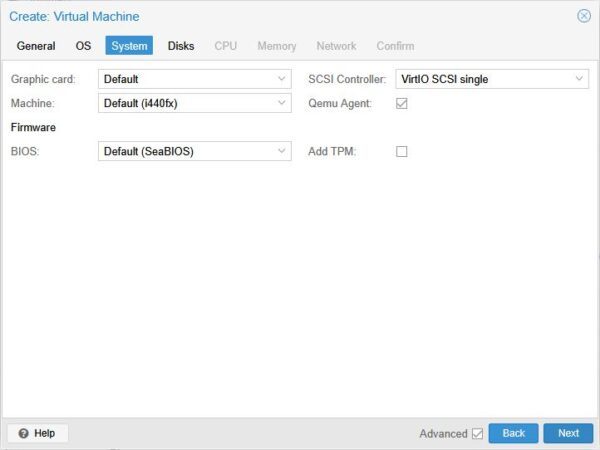
Enable the Qemu Agent option then click Next.
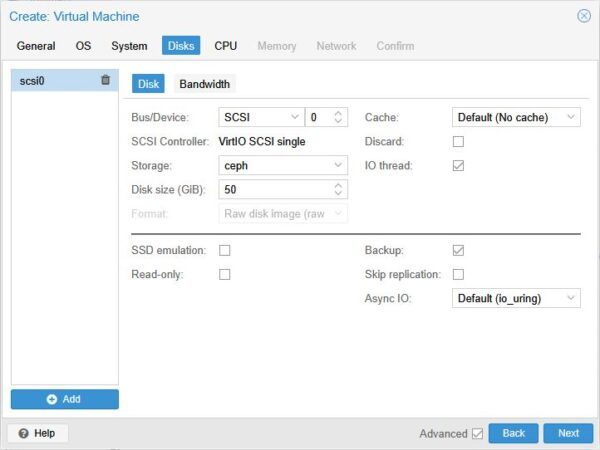
Select the Storage for the Linux OS and specify the Disk size (GiB). Click Next.
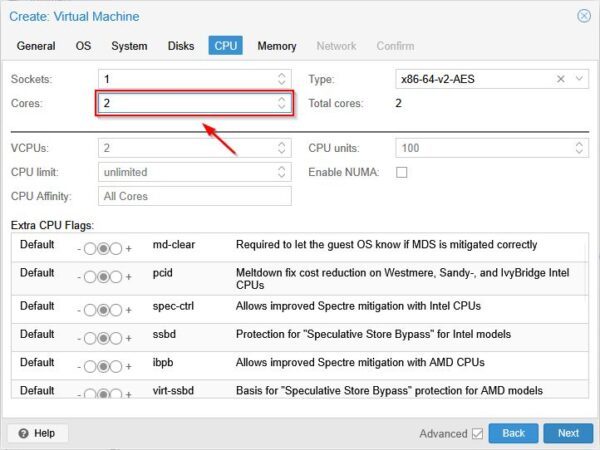
Specify the desired CPU settings then click Next.
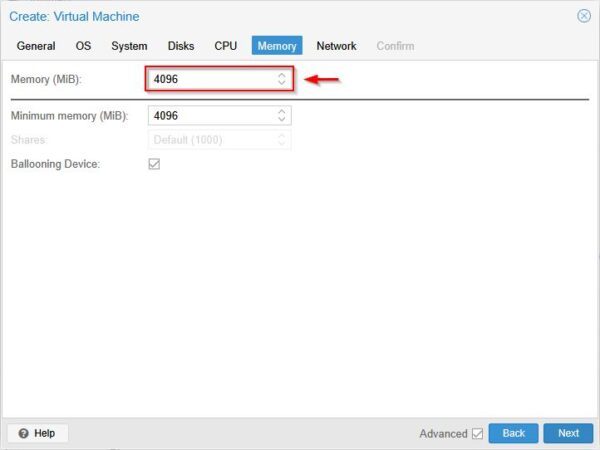
Specify the amount of Memory (MiB) to install then click Next.
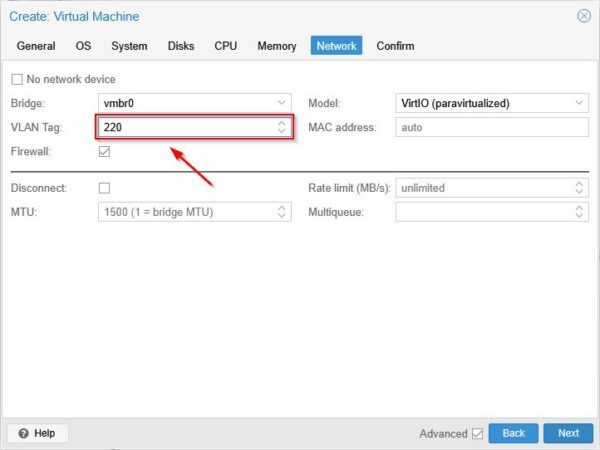
Select the network Bridge to use and the correct VLAN Tag (if VLANs are used). Click Next.
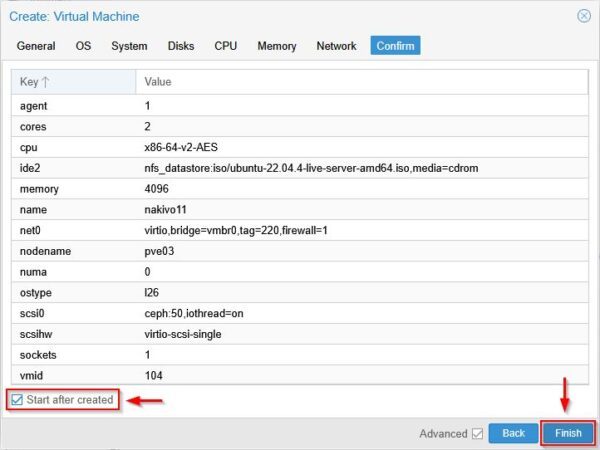
Enable the Start after created option and click Finish.
Install the Linux OS
Select the newly created VM on the chosen node and go to the >_ Console area. Follow the standard procedure for the Linux distribution you chose to complete the OS installation.
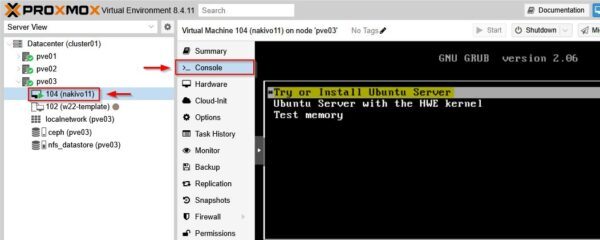
Install the Proxmox QEMU Agent
Once the Linux OS is installed, the Proxmox QEMU Agent must be installed.
Run the following command to install the Agent:
# sudo apt -y install qemu-guest-agent
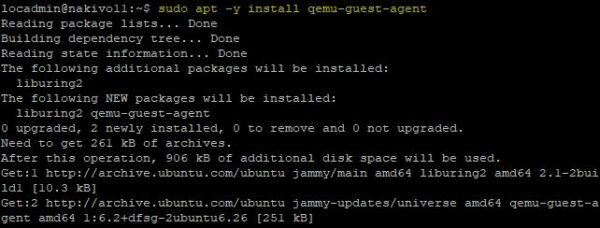
Now enable the QEMU Agent.
# sudo systemctl enable qemu-guest-agent
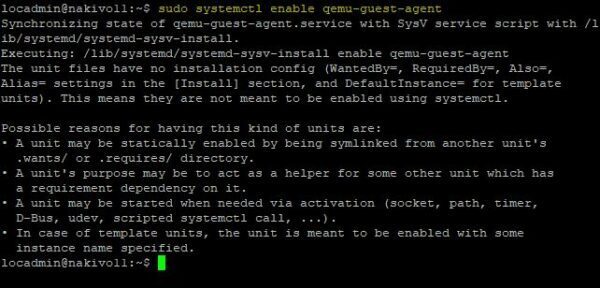
Start the QEMU Agent.
# sudo systemctl start qemu-guest-agent

Make sure the Agent is running properly.
# systemctl status qemu-guest-agent
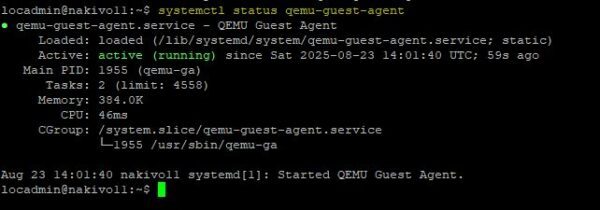
Install Nakivo on Proxmox
SSH into the newly created virtual machine to proceed with the installation of Nakivo Backup & Replication.
Install the required packages
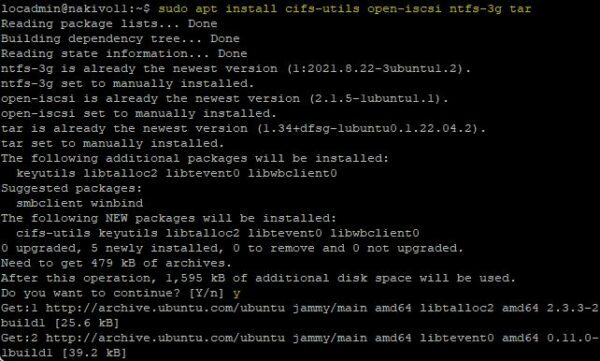
Nakivo requires the installation of some packages on Linux.
# sudo apt install cifs-utils open-iscsi ntfs-3g tar
Install Nakivo Backup & Replication
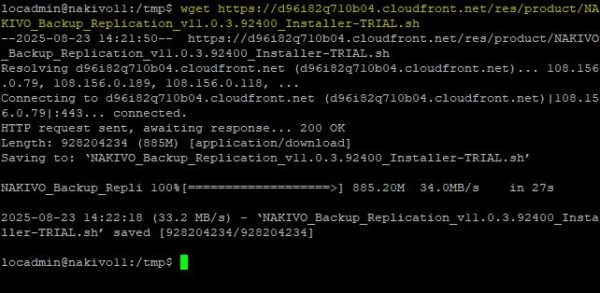
Download the Nakivo installer file using the wget command.
# wget https://d96i82q710b04.cloudfront.net/res/product/NAKIVO_Backup_Replication_v11.0.3.92400_Installer-TRIAL.sh
Make the file executable.
# chmod +x NAKIVO_Backup_Replication_v11.0.3.92400_Installer-TRIAL.sh

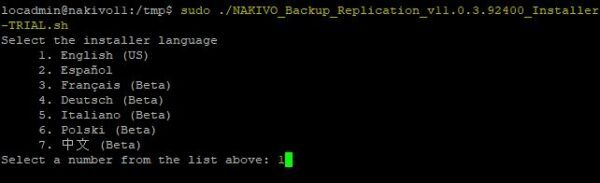
Run the installer. Select the installer language and press Enter.
# sudo ./NAKIVO_Backup_Replication_v11.0.3.92400_Installer-TRIAL.sh
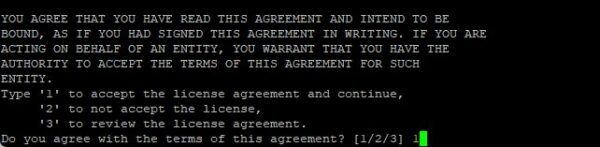
Press the key D on your keyboard until you reach the end of the EULA.
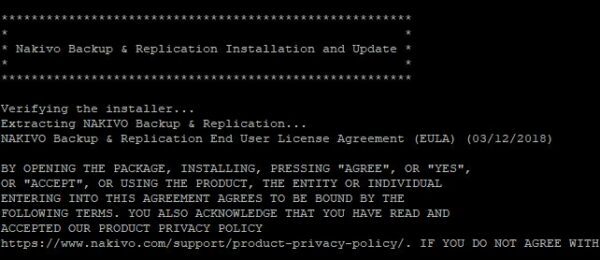
Type 1 then Enter to accept the EULA.
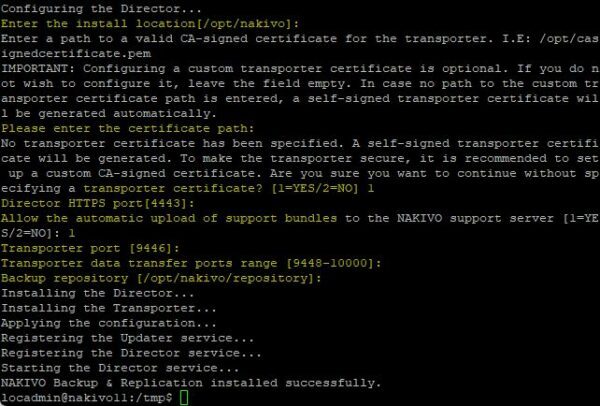
Select the Nakivo component to install (1 in the example).

The next step to install Nakivo on Proxmox is to configure the Director settings. Unless you have specific requirements, the default values are appropriate for most environments.
- Leave the default install location (/opt/nakivo) - press Enter
- No custom certificates will be used - press Enter
- Type 1 to use a self-signed certificate - press Enter
- Leave the default HTTPS port (4443) - press Enter
- Type 1 to allow the automatic upload of support bundles - press Enter
- Leave the default Transporter port (9446) - press Enter
- Leave the default data transfer port range (9448-10000) - press Enter
- Leave the default Backup repository (/opt/nakivo/repository) - press Enter
Open your preferred browser and enter the URL https://<IP_Server_Nakivo>:4443 to access the login page. The first time you access it you will be asked to create an administrative account. Click Create Account when done.

Configure Nakivo environment
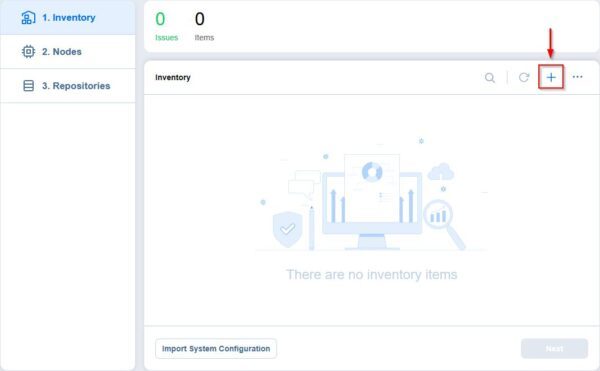
Once you have logged into Nakivo, you must configure the platform you want to protect. In the Inventory area, click the + (plus) icon to add the environment to backup.
Select Virtual and click Next.
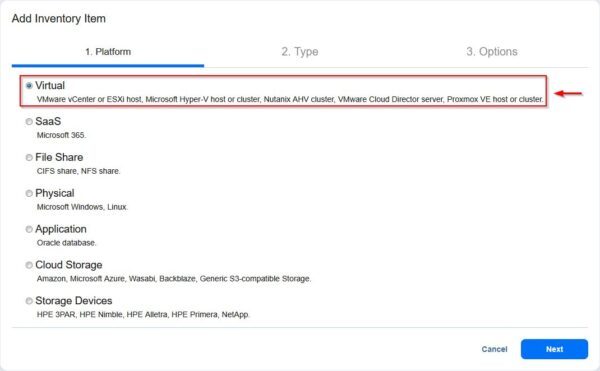
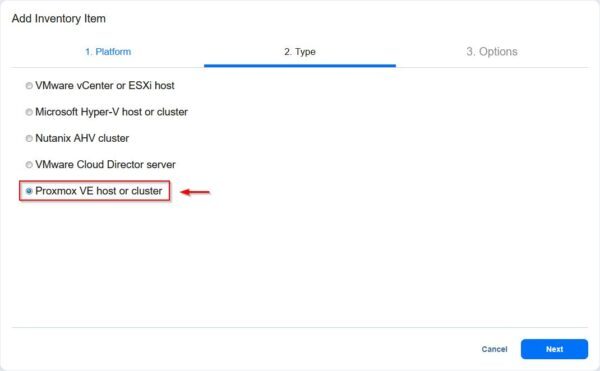
Since we are working on with Proxmox, select Proxmox VE host or cluster then click Next.
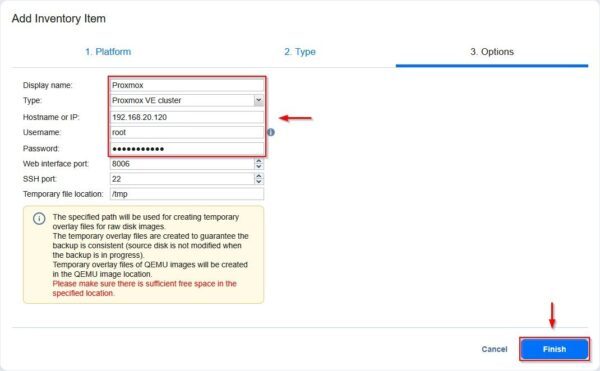
Enter the required configuration settings then click Finish.
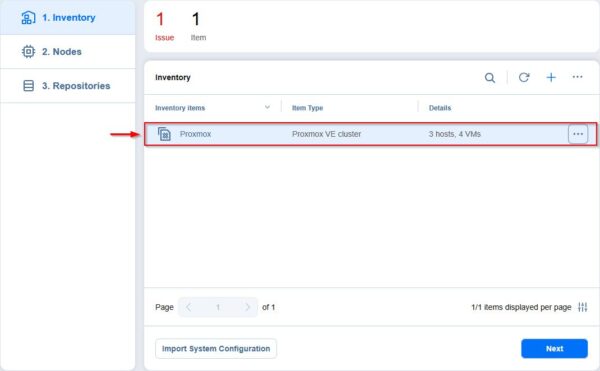
The Proxmox cluster has been successfully added to Nakivo. Click Next.
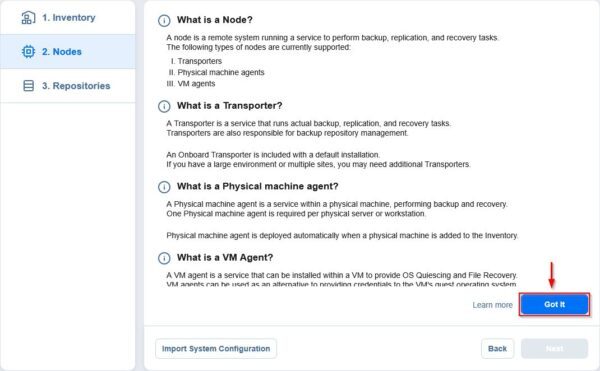
A page with an explanation of the Nakivo's components will be displayed. Click Got it to continue.
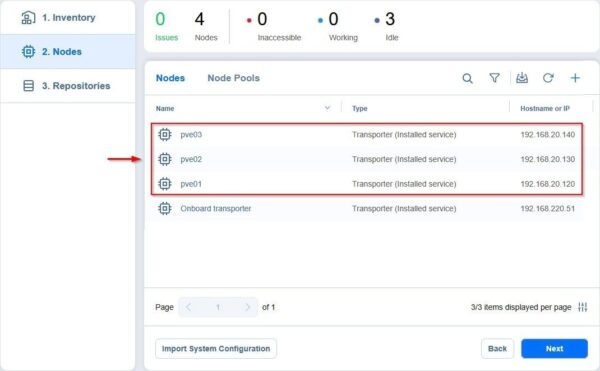
In the Nodes area, one Transporter per Proxmox node member of the cluster is added in addition to the Onboard Transporter. Click Next.
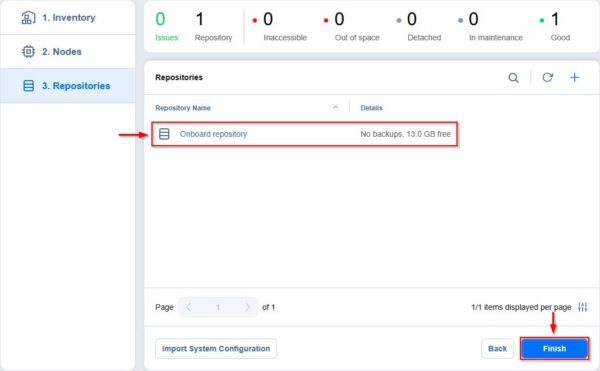
If the Nakivo full package was used for the installation, you will find an Onboard repository that you can use to store backups. Since it's not always a good idea to use the Onboard repository, it is strongly recommended to add and use external and immutable repositories. Click Finish to save the configuration.
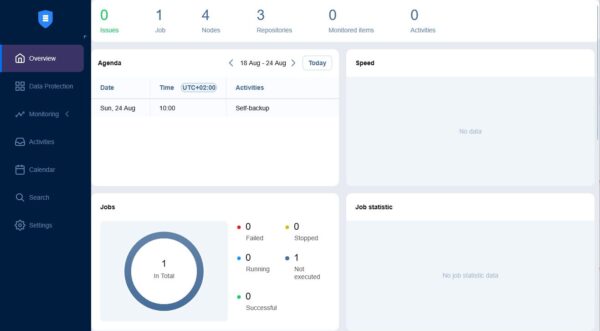
The procedure to install Nakivo on Proxmox is now complete. You can now create Backup Jobs, Backup Copy Jobs, new Repositories and more.
Follow these articles to configure your Nakivo Backup & Replication backup solution.